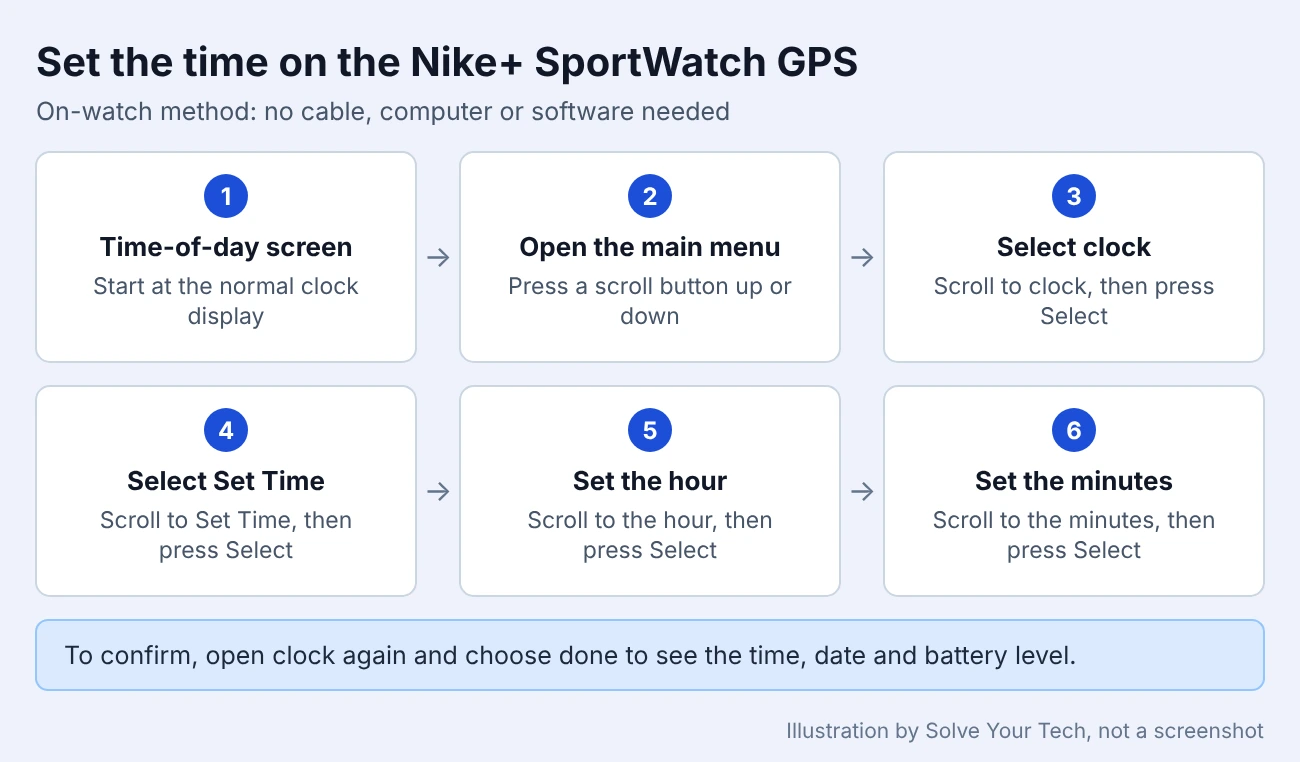
To change the time on the Nike+ SportWatch GPS, scroll up or down from the time of day to open the main menu, select clock, select Set Time, then use the scroll buttons and the Select button to set the hour and the minutes. No computer or software is needed. If you also wear an Apple Watch, you can use 24-hour time on the Apple Watch.
The on-watch steps and the Nike+ Connect steps below both come from the Nike+ SportWatch GPS User’s Guide, which TomTom still hosts.
As an Amazon affiliate, I earn from qualifying purchases.
Which Watch and Software This Covers
This guide is for the Nike+ SportWatch GPS, the running watch that Nike made with TomTom. It records runs with GPS or the Nike+ shoe sensor and plugs into a computer through a USB connector built into the strap. If you have since switched to an Apple Watch, here is how to start a running workout on Apple Watch.
It does not cover the Apple Watch Nike models, the Nike+ FuelBand, or older Nike digital watches such as the Triax. Those use different buttons and menus.
The SportWatch GPS is a discontinued product, and Nike no longer supports it or the Nike+ Connect software. Use the on-watch method. The Nike+ Connect steps below are only for a computer that still has the program installed.
What You Need for Each Method
- For the on-watch method: only the watch, with enough battery charge to turn on.
- For the computer method: the watch, a computer with a USB port, and the Nike+ Connect software already installed. The user guide lists Mac OS X 10.4.8 or later and Windows XP SP2, Windows Vista or Windows 7 as supported systems. Newer versions of Windows and macOS are not mentioned in the guide.
- A dry USB connector. The guide warns you to make sure the connector on the strap is dry before you plug it into a computer.
How to Change the Time on the Watch Itself
The watch has two kinds of controls for menus. The scroll buttons move up and down through the options, and the Select button chooses the highlighted option.
- Start at the normal time-of-day screen.
- Press a scroll button up or down. The main menu appears with five choices: clock, run, history, records and stopwatch.
- Scroll to clock and press Select. You will see Set Time, Set Date, Set Alarm, Alarm and done.
- Scroll to Set Time and press Select.
- Use the scroll buttons to choose the hour, then press Select.
- Use the scroll buttons to choose the minutes, then press Select.
- Press Select when you are finished to go back to the menu.
To check your work, open clock again and choose done. The watch shows the time of day, the date and the battery level.
Change the Date on the Watch
The date is set in the same menu, and it is worth checking after you change the time.
- From the main menu, select clock.
- Select Set Date.
- Scroll to the month and press Select.
- Scroll to the day and press Select, then do the same for the year.
- Press Select when you are done to return to the menu.
How to Change the Time in Nike+ Connect
Nike+ Connect is the desktop program that talks to the watch over USB. By default it copies the clock from your computer to the watch each time you plug the watch in. To pick your own time, you turn on the manual option.
Before you start: when the watch connects, Nike+ Connect is designed to upload your runs and remove them from the watch’s memory. If you are not sure the upload service still works for your account, use the on-watch method instead so your stored runs stay where they are.
- Open Nike+ Connect. On Windows, click Start, open the Nike + Connect folder and click Nike + Connect. The guide says the software also launches automatically when the watch is connected.
- Plug the USB connector on the watch strap into a USB port, using the included cable if the strap cannot reach the port. The connector is under the end of one of the straps.
- Wait for any run upload shown in the status area to finish.
- Click the Settings button at the bottom of the Nike+ Connect window. A settings drawer opens with tabs down the left side.
- Click the Time & Date tab.
- Check Manually set the time and date.
- Click inside each time and date field and enter the value you want.
- Optional: check Use 24-hour time if you want the watch to show 18:30 instead of 6:30 pm.
- Click Settings again to close the drawer, unplug the watch, and close Nike+ Connect.


Watch Method vs. Nike+ Connect Method
| Question | On the watch | Nike+ Connect |
|---|---|---|
| What do you need? | The watch only | Watch, computer with USB, installed software |
| Where is the setting? | clock > Set Time | Settings > Time & Date |
| Can it copy the computer clock? | No | Yes, this is the default |
| Where is 24-hour time? | Not listed in the clock menu in the guide | Use 24-hour time check box |
| Does connecting upload runs? | No connection is made | Yes, the software is designed to upload on connect |
How to Confirm the Change and Undo It
Look at the time-of-day screen on the watch. If you want the date as well, select clock and then done.
To undo a manual time, you have two choices:
- Set it again. Repeat the Set Time steps on the watch with the correct values.
- Go back to the computer clock. In Nike+ Connect, open Settings > Time & Date and switch from the manual option back to your computer’s time and date. According to the guide, the manual option stays selected until you do this.
When the Time Changes Back or Is an Hour Off
The time changes back after you plug the watch in
The watch is set to your computer’s time and date when it is connected, unless Manually set the time and date is selected. Either select that option, or correct the clock on the computer so the watch copies the right time.

The watch is an hour off after a time change or a trip
The user guide does not describe time zone or daylight saving settings on the watch. Plan to fix the hour yourself with Set Time, or connect the watch to a computer whose clock is already correct.
The buttons do not respond
The guide describes a soft reset for a watch that has stopped responding: press and hold the scroll up button and the Select button together for 5 seconds. It states that your run information is saved, and that you cannot reset the watch while it is plugged into a USB port.
The screen is blank
Charge the watch from a USB port. The guide gives about 2 hours for a full charge. Then try the clock menu again.
Nike+ Connect is missing or will not open
Nike no longer offers Nike+ Connect for download. Do not download the program from an unofficial website. Set the time on the watch instead, which does not need the software.
You do not see Time & Date
The tabs only appear after you click Settings and the settings drawer opens. If the software is still uploading runs, wait for that to finish first.
With the clock correct, check the date under clock > Set Date. If you use the alarm, set it under clock > Set Alarm, then turn it on with Alarm.
Nike GPS Watch Time Questions
Can I change the time on the Nike+ SportWatch GPS without a computer?
Yes. From the time of day, scroll to open the main menu, select clock, select Set Time, and use the scroll and Select buttons to set the hour and minutes. No cable or software is involved.
Why does my Nike GPS watch show the same time as my computer?
That is the default behavior. The user guide says the watch is automatically set to the current time and date on your computer once you plug it into a USB port. It stops doing this when Manually set the time and date is selected in Nike+ Connect.
How do I switch the Nike GPS watch to 24-hour time?
In Nike+ Connect, click Settings, click the Time & Date tab, and check Use 24-hour time. The guide only documents this setting in the software.
Will a factory reset fix the wrong time?
It is not a good first choice. The guide says a Factory Reset from Nike+ Connect clears the time along with your user settings, calibration information, personal records and history. Setting the time by hand is faster and removes nothing.
Does changing the time delete my runs?
Setting the time on the watch does not connect it to anything, and the guide does not list any effect on stored runs. Connecting to Nike+ Connect is different, because the software is designed to upload runs and then remove them from the watch.
How do I set the alarm on the Nike GPS watch?
Open the clock menu on the watch and select Set Alarm to choose the alarm time. Then select Alarm to turn it on or off.

Matthew Burleigh is the founder, head writer, and editor of Solve Your Tech, which he launched in 2012. He has written technology tutorials since 2008 and worked in IT since 2003, including small-business support, IT management, and consulting. He holds Bachelor’s and Master’s degrees in Computer Science from Arizona State University.
Matthew writes practical guides for Windows, iPhone and iPad, Microsoft Office, Outlook, Google apps, and Android. Solve Your Tech’s guides are checked step by step against the device or app maker’s own documentation and tested on his own devices whenever he has the hardware or software, with clear steps, sources, and update dates.
Read more about Matthew and how Solve Your Tech writes and updates its guides, or report a correction.