To open a USB drive on Windows 11, plug it in, press Windows key + E to open File Explorer, and select the drive in the left pane or under This PC > Devices and drives. It usually shows up as USB Drive, Removable Disk, or the brand name, with a letter such as D: or E: (for example, KINGSTON (E:)).
The same steps work for flash drives, external hard drives and SSDs, SD cards in a reader, and most USB-C drives, on current Windows 11 releases. Windows 10 is covered in its own short section. Below you’ll also find other ways to open a drive, how to make drives open automatically, how to eject them safely, and what to do if one doesn’t appear or won’t open.
How to Open a USB Flash Drive
- Plug the USB drive into a USB port on your PC. If your laptop only has USB-C ports, use a USB-C to USB-A adapter. Windows plays a sound and may show a notification.
- If a notification appears, select it and choose Open folder to view files. File Explorer opens on the drive.
- Otherwise, press Windows key + E to open File Explorer.
- Select the drive in the left pane, or select This PC and double-click the drive under Devices and drives. The drive’s files and folders appear. An empty drive opens to a blank folder, which is normal.
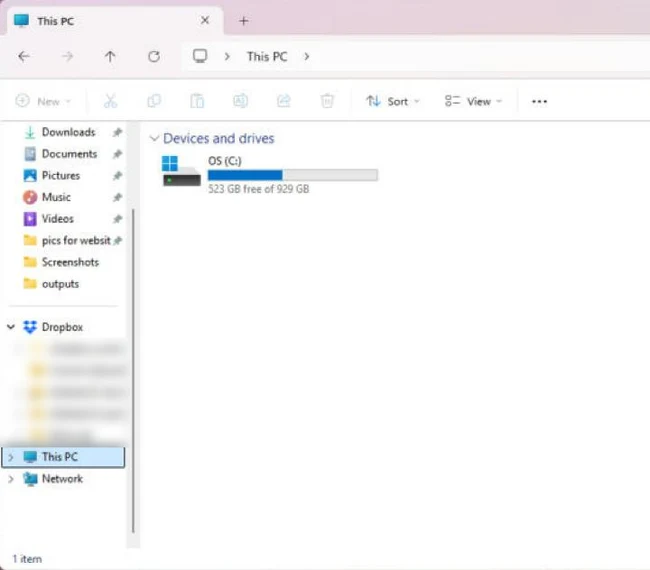
You can now open, copy, and drag files to and from the drive like any other folder. For more copying help, here’s how to put files on a flash drive. Your PC’s own drive is listed in the same place; here’s how to find the C drive on Windows 11.
If a drive came from someone else, you can check it first: right-click it in File Explorer, select Show more options, and choose Scan with Microsoft Defender. Don’t open programs, scripts, or shortcut files (.exe, .bat, .vbs, .lnk) from a drive you found or don’t trust.
Other Ways to Open the Drive
- Type its letter. In File Explorer, select the address bar, type the drive letter with a colon and backslash, such as E:\, and press Enter.
- Use the keyboard. Press Windows key + E, select This PC, use the arrow keys to highlight the drive, and press Enter.
- Find a missed notification. If the plug-in notification disappeared before you selected it, press Windows key + N to open the notification center.
- Open File Explorer to your drives. In File Explorer, select See more (the three dots) > Options, change Open File Explorer to from Home to This PC, and select OK. Your USB drives then show first every time.
Copy Files From a USB Flash Drive to Your PC
- Open the flash drive using the steps above, then select the files or folders you want. Hold Ctrl while clicking to select separate items, or press Ctrl + A to select everything in the current folder.
- Press Ctrl + C to copy.
- Open a destination folder on your PC, such as Documents or Pictures, and press Ctrl + V. Confirm the destination is on your PC rather than another folder on the USB drive.
You can also drag files between two File Explorer windows. Dragging from the USB drive to your PC copies the files; hold Shift while dragging if you want to move them instead.
Wait for the copy to finish. If Windows reports duplicate filenames, review the files before choosing to replace them; keep both copies when you are unsure which one you need. Copying leaves the originals on the flash drive, unlike cutting and moving them. Microsoft’s external-storage transfer guide explains copying files from an external drive to a Windows PC.
Open several files from the destination folder to check the transfer. Close files using the USB drive and safely eject it using the steps below. You can then confirm the copied files still open with the drive disconnected. Keep the USB originals until you have checked the copy. If Windows asks to format a drive containing files you need, cancel the prompt; formatting is not a file-transfer step.
Make USB Drives Open Automatically
AutoPlay decides what happens when you plug in a drive.
- Press Windows key + I to open Settings.
- Select Bluetooth & devices, then AutoPlay.
- Make sure Use AutoPlay for all media and devices is on.
- Under Removable drive, choose Open folder to view files (File Explorer).
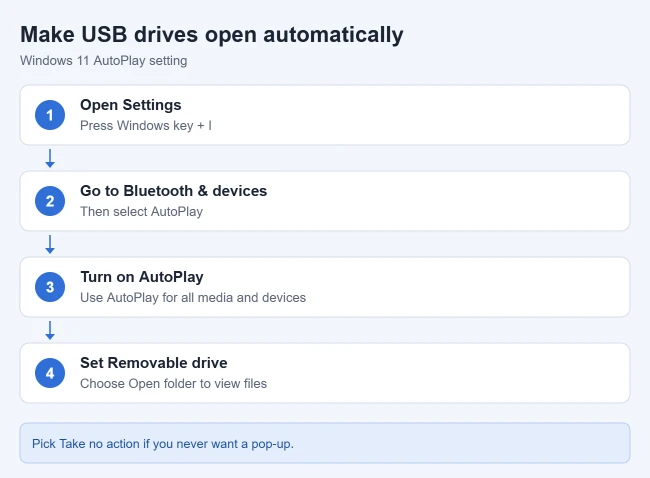
Choose Take no action instead if you’d rather open drives yourself, or Ask me every time to get a prompt. Memory card has its own setting on the same page, so set it too if you use SD cards. To test, unplug the drive and plug it back in; File Explorer should open on its own.
How to Safely Remove the USB Drive
- Close any files you have open from the drive, and close File Explorer windows showing it.
- Right-click the Safely Remove Hardware and Eject Media icon in the taskbar corner. If you don’t see it, select the Show hidden icons arrow first.
- Choose Eject for your drive.

- Unplug the drive when Windows shows Safe To Remove Hardware.
You can also right-click the drive in File Explorer and select Eject. If the icon never appears, right-click the taskbar, select Taskbar settings, expand Other system tray icons, and turn on Safely Remove Hardware and Eject Media. These steps match Microsoft’s safely remove hardware guide.
If Windows says the device is in use, close any app that might be reading it, such as a photo viewer, media player, or backup tool, and try again. Unplugging during a copy can damage the files being copied.
Opening Files From a Phone Over USB
A phone doesn’t appear as a USB drive until you allow file access. On an Android phone, plug it in, tap the USB notification, and choose File transfer, as described in Google’s Android file transfer help. On an iPhone, unlock the phone and tap Allow or Trust, then open it under This PC to see its photos.
If the USB Drive Doesn’t Show Up
Work through these in order. The first steps are safe and don’t change anything on the drive.
- Unplug the drive, wait about ten seconds, and plug it in again. Try a different USB port, preferably one directly on the PC rather than a hub, dock, or keyboard.
- For an external hard drive, use the cable that came with it and connect its power adapter if it has one. Some USB-C cables only charge and can’t carry data, so try a different cable if you have one.
- Try the drive on another computer to see if the drive itself has failed.
- Check that File Explorer’s left pane is visible: select View > Show and make sure Navigation pane is checked. Then look under This PC.
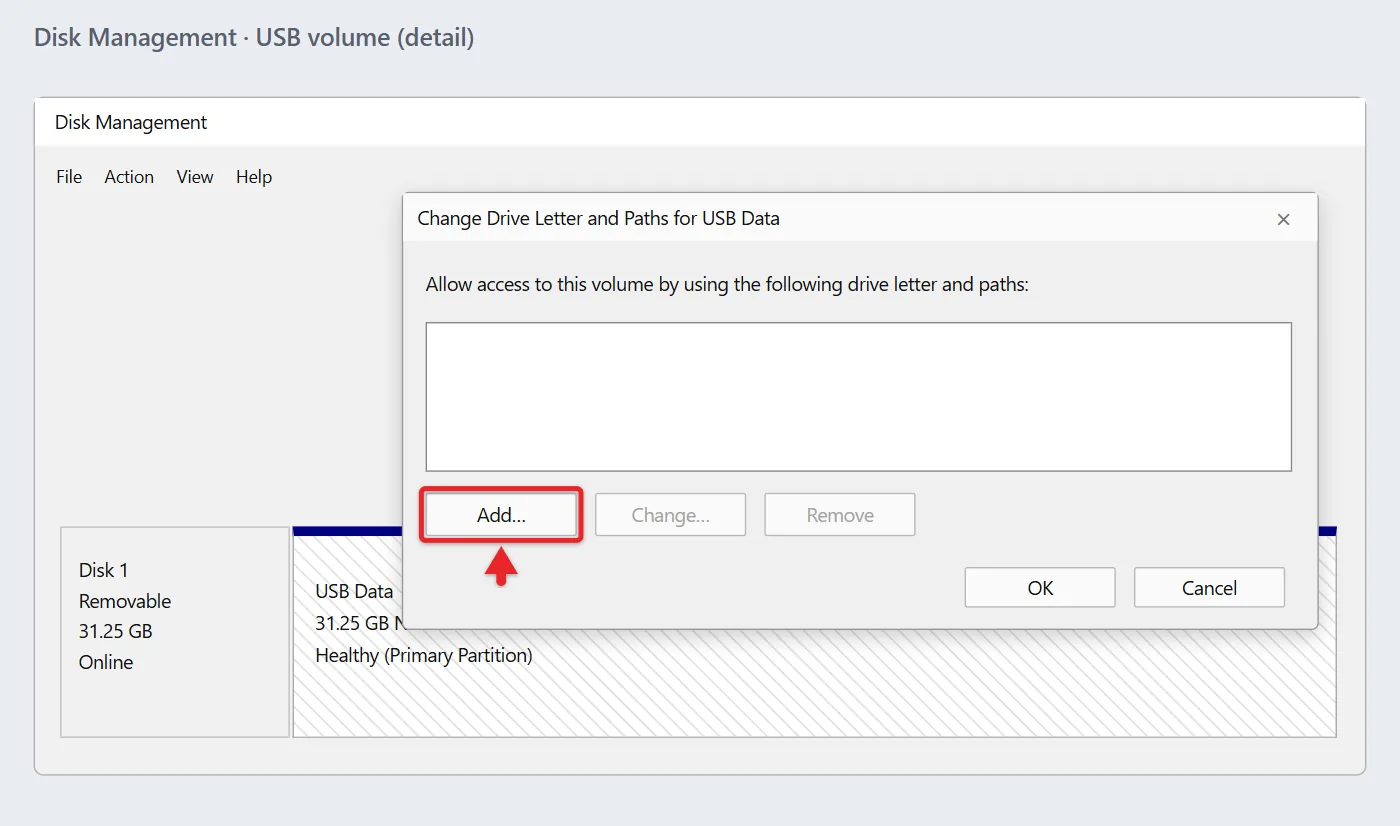
- Right-click Start and select Disk Management. If the disk shows Offline, right-click the disk name (such as Disk 1) and select Online. If the drive appears without a letter, right-click it, select Change Drive Letter and Paths, select Add, choose Assign the following drive letter, pick a letter, and select OK. Microsoft’s change a drive letter guide explains that the option is unavailable on unallocated space and needs an administrator account.
- If a used drive shows Unallocated or RAW and contains files you need, stop: do not initialize, format or create a volume. Those are setup operations, not recovery steps. Seek drive-specific recovery help first.
- Open Device Manager, expand Disk drives, right-click the USB drive, and select Uninstall device. Unplug the drive and plug it back in so Windows reinstalls it. Also check Universal Serial Bus controllers for a yellow warning icon.
You can also confirm Windows sees the drive in Settings > System > Storage > Advanced storage settings > Disks & volumes. For more fixes, including external hard drives and drives that need a new cable, here’s how to fix a USB drive not showing up in Windows 11.
If the drive opens but files are missing or won’t copy, run CHKDSK on the USB drive to check it for errors. Copy off anything important you can still read before running a repair.
If the Drive Shows Up but Won’t Open
| What you see | What it usually means | What to do |
|---|---|---|
| “You need to format the disk in drive E: before you can use it” | Windows can’t read the drive’s format, or its file system is damaged | Select Cancel. Try the drive on the computer that created it before formatting. |
| A padlock icon, or a box asking for a password | The drive is encrypted with BitLocker To Go | Enter the password and select Unlock (see below). |
| “Location is not available” or “Access is denied” | Damage, encryption, or a permission or security block | Try another port and PC, then scan the drive for errors. |
| “This device is blocked” or a similar message on a work PC | Your organization restricts USB storage | Contact your IT department. Don’t try to get around the policy. |
| “Please insert a disk into USB Drive (E:)” | The card reader is empty, the card isn’t seated, or the drive is failing | Reseat the memory card, or try another reader. |
Unlock a BitLocker-encrypted drive
Double-click the locked drive, type its password, and select Unlock. If you forgot the password, select More options > Enter recovery key. Microsoft’s Find your BitLocker recovery key page explains where keys are stored, including a personal Microsoft account at aka.ms/myrecoverykey. Without the password or the recovery key, the files can’t be opened. On a work or school drive, ask your IT department for the key.
Open a USB Drive in Windows 10
Plug in the drive, press Windows + E, select This PC, then open the drive by its name and letter under Devices and drives. Open a file you know is on it to make sure you picked the right drive. The file-transfer and safe-removal steps above also apply to Windows 10; Microsoft’s external-storage guide covers both versions. Windows 10 stopped getting security updates on October 14, 2025, so be extra careful with drives from other people on those PCs.
Frequently Asked Questions
Why does my USB drive ask to be formatted?
The drive uses a format Windows can’t read, or its files are damaged. If you need the files, try it on the computer that created it before formatting. If Windows can still read the drive properties, you can check what file format the USB flash drive uses.
How do I format a USB drive in Windows 11?
In File Explorer, right-click the drive and select Format. Choose exFAT to use it with both Windows and Mac, or NTFS for Windows only. Formatting deletes everything on the drive. If a device such as a camera or car stereo needs FAT32, format the USB drive to FAT32 instead. FAT32 can’t hold a single file larger than 4 GB.
Can a Mac-formatted drive open on Windows 11?
Not if it uses a Mac-only format such as APFS or Mac OS Extended. Windows will offer to format it, which erases it. Copy the files off on a Mac first, then reformat the drive as exFAT so both computers can use it.
Why did my USB drive get a different letter this time?
Windows gives each drive the next free letter when you plug it in, so the letter can change if other drives are connected. To keep the same letter, assign one in Disk Management using step 5 above.
Can I rename a USB drive?
Yes. In File Explorer > This PC, right-click the drive and select Rename, or select it and press F2. Type a short label and press Enter. This changes only the drive’s label. It doesn’t change the drive letter, rename files, or format the drive. If Windows rejects the name, try a shorter one with plain letters and numbers.
Moving pictures off a camera’s memory card? Follow the steps to transfer photos from a camera to a Windows 11 computer.

Matthew Burleigh is the founder, head writer, and editor of Solve Your Tech, which he launched in 2012. He has written technology tutorials since 2008 and worked in IT since 2003, including small-business support, IT management, and consulting. He holds Bachelor’s and Master’s degrees in Computer Science from Arizona State University.
Matthew writes practical guides for Windows, iPhone and iPad, Microsoft Office, Outlook, Google apps, and Android. Solve Your Tech’s guides are checked step by step against the device or app maker’s own documentation and tested on his own devices whenever he has the hardware or software, with clear steps, sources, and update dates.
Read more about Matthew and how Solve Your Tech writes and updates its guides, or report a correction.