To put a bullet in an Excel cell, select the cell and go to Insert > Symbol, type 2022 in the Character code box, and click Insert. If your keyboard has a number pad, you can press Alt+7 instead. Press Alt+Enter to start a new line in the same cell for the next bullet.
This guide covers bulleted and numbered lists inside a single cell in Excel for Windows and Mac, plus other ways to add bullets to a worksheet. The steps follow Microsoft’s Insert bullets in a worksheet and Start a new line of text inside a cell in Excel articles. Menu names can differ slightly between Excel versions.
How to Make a Bulleted List in One Excel Cell
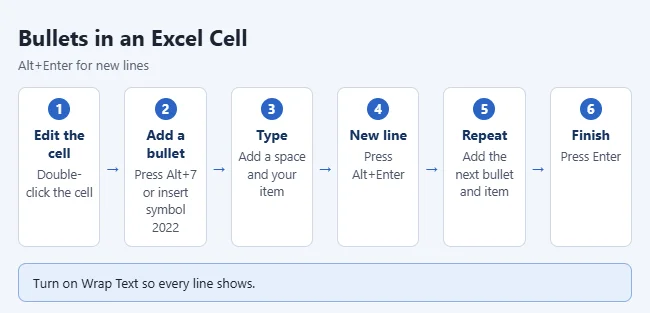
- Double-click the cell where you want the list, or select it and click in the formula bar.
- Press Alt+7 on the number pad. Without a number pad, go to Insert > Symbols > Symbol, type 2022 in the Character code box, click Insert, then Close.
- Type a space and your first item.
- Press Alt+Enter (Windows) to go to a new line in the same cell.
- Add the next bullet and item the same way.
- Press Enter when you’re done.
Result: The cell holds a bulleted list, with each item on its own line. The row gets taller to fit the lines.
How to Start a New Line in a Cell on a Mac
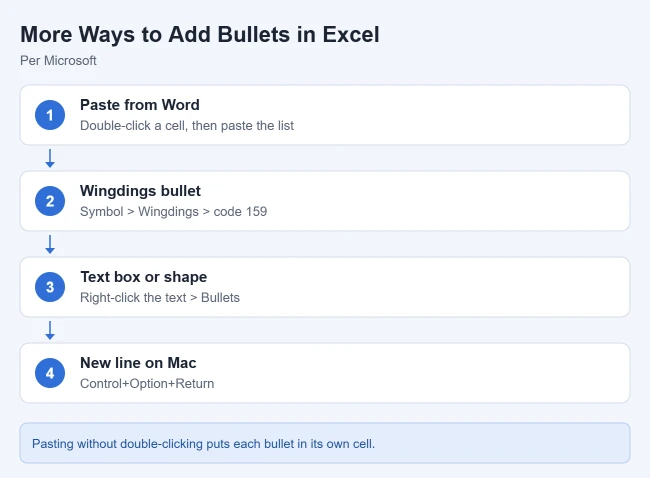
Microsoft’s new-line article lists Control+Option+Return for Excel on macOS. Double-click the cell, click where you want the break, and press those keys. Use the Symbol window to add the bullet, since the Alt+7 shortcut is a Windows number pad shortcut.
How to Make the Lines Show in the Cell
If your list shows on one long line, the cell isn’t wrapping text. Select the cell and click Home > Wrap Text in the Alignment group. A Microsoft MVP gives the same fix on Microsoft Q&A: turn on Wrap Text, then use Alt+Enter between items.
How to Make a Numbered List in a Cell
Microsoft’s Excel articles don’t describe automatic numbering inside a single cell, so type the numbers yourself. Type 1., a space and your item, press Alt+Enter, then type 2. and the next item.
Result: The cell shows a numbered list. If you add or remove an item later, renumber the lines by hand.
Other Ways to Add Bullets in Excel
- Copy a bulleted list from Word, double-click an Excel cell, and paste. The whole list goes into that one cell. If you paste without double-clicking, each bullet lands in its own cell.
- If the bullet doesn’t show in your font, pick Wingdings in the Symbol window and use character code 159.
- Insert a text box or shape, type your items, then right-click the text and choose Bullets. This works when the list doesn’t need to sit in a cell.
Tips for Lists in Excel Cells
- Keep the list short. Long lists make tall rows that are hard to scan.
- Use the same bullet character in every cell so the sheet looks consistent.
- If you need to sort or filter items, put each one in its own row instead of one cell.
Frequently Asked Questions
Why doesn’t Alt+7 add a bullet?
Microsoft says the shortcut uses the numeric keypad. The number keys above the letters won’t work. If your keyboard has no number pad, use Insert > Symbol with character code 2022.
Why did my pasted list go into several cells?
You probably pasted with the cell selected rather than in edit mode. Double-click the cell first, then paste, and the whole list stays in that one cell.
Sources: Microsoft’s Insert bullets in a worksheet and Start a new line of text inside a cell in Excel articles.
More Excel Guides
- How to copy a Word table into Excel
- How to AutoFit columns and rows in Excel
- How to add a column in Excel

Matthew Burleigh is the founder, head writer, and editor of Solve Your Tech, which he launched in 2012. He has written technology tutorials since 2008 and worked in IT since 2003, including small-business support, IT management, and consulting. He holds Bachelor’s and Master’s degrees in Computer Science from Arizona State University.
Matthew writes practical guides for Windows, iPhone and iPad, Microsoft Office, Outlook, Google apps, and Android. Solve Your Tech’s guides are tested on current devices or checked against official product documentation, with clear steps, sources, and update dates.
Read more about Matthew and how Solve Your Tech writes and updates its guides, or report a correction.