To close a tab in Microsoft Edge on an iPhone, tap the numbered square icon in the menu bar to see your open tabs, then tap the X on the tab you want to close. To close every tab at once, use the Close All option at the bottom of that same tabs view.
This guide covers the current Microsoft Edge app for iPhone. It shows how to close one tab, close all of them, handle InPrivate tabs, reopen a tab you closed by mistake, and keep tabs from piling up. Steps come from Microsoft’s Edge for mobile FAQs, checked in October 2026. The original version of this article was written for iOS 10, and the Edge app has been redesigned since then. If you want to send a page to someone before you close it, see how to share a link from the Edge iPhone app.
Where Your Open Tabs Are in Edge
Edge for iPhone keeps all your open pages in a tabs view. Microsoft’s Edge for mobile FAQs say to tap the numbered square icon on the menu bar to see them, and that the number on the icon shows how many tabs you have open. If that number keeps climbing, it’s a sign it’s time to close some.
Microsoft describes separate Tabs and InPrivate sections in that view, one for regular tabs and one for private ones. Our guide on switching between regular and private mode in Edge on an iPhone explains how to move between them.
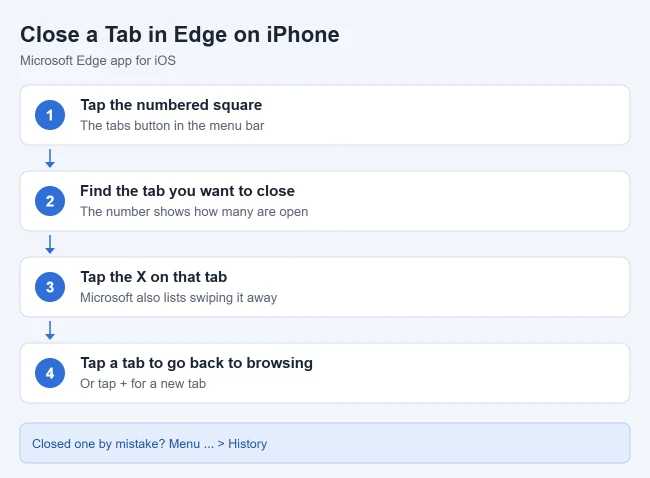
How to Close a Tab in Microsoft Edge on iPhone
- Open the Microsoft Edge app. Result: your current page appears.
- Tap the numbered square icon on the menu bar. Result: your open tabs appear as cards.
- Find the tab you want to close. Result: it’s highlighted in the list.
- Tap the X on that tab. Result: the tab closes and the count on the icon goes down by one.
- Tap another tab to return to browsing, or tap the plus (+) icon to open a new tab. Result: you’re back to a web page.
Microsoft’s FAQ also says you can swipe a tab left or right to close it. If swiping doesn’t close tabs in your version of the app, use the X instead.
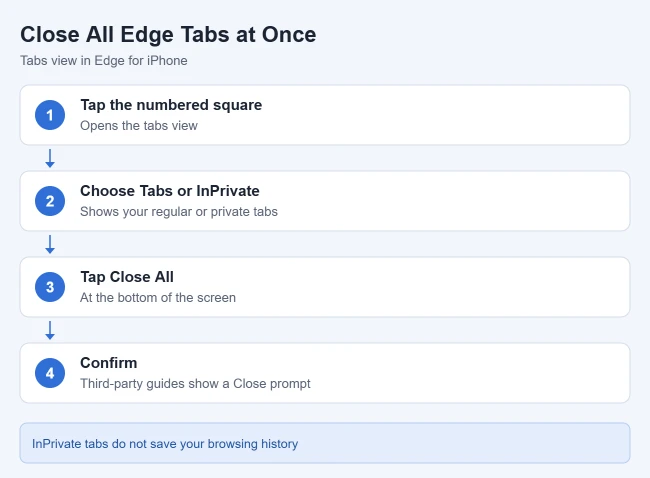
How to Close All Tabs in Edge on iPhone
- Tap the numbered square icon. Result: the tabs view opens.
- Make sure you’re on the Tabs section (or the InPrivate section, if those are the ones you want to close). Result: the right group of tabs is shown.
- Tap Close All at the bottom of the screen. Result: Edge asks you to confirm.
- Confirm by tapping Close. Result: all tabs in that section close.
Microsoft’s FAQ doesn’t cover Close All, so these steps follow how other guides describe the current app. If the button is labeled slightly differently on your iPhone, look for a close-all option at the bottom of the tabs view.
Closing InPrivate Tabs
InPrivate tabs are Edge’s private browsing mode. Microsoft says that when you browse InPrivate, Edge doesn’t save passwords you enter and doesn’t track your search and browsing history. You close InPrivate tabs the same way: open the tabs view, switch to the InPrivate section, and tap the X on a tab or use Close All.
To open a new one, Microsoft lists two ways: tap the menu (…) > New InPrivate tab, or open the tabs view, tap InPrivate, then tap the plus icon. For more, see how to open a private browsing tab in Edge on iPhone.
How to Reopen a Tab You Closed by Mistake
Microsoft says if you accidentally closed a tab, you can find it in your history and reopen it:
- Tap the menu (…). Result: the Edge menu opens.
- Tap History. Result: your recently visited pages appear.
- Tap the page you want. Result: it opens again in a tab.
This won’t work for InPrivate tabs, because Edge doesn’t keep their history. For more on history, see how to view your history in the Edge iPhone app.
Tips for Keeping Tabs Under Control
- Use favorites for pages you revisit. Save them instead of leaving tabs open. Our guide shows where to find saved pages and the old Reading list in the Edge iPhone app.
- Use Recent tabs to pick up on another device. Microsoft says Recent tabs shows pages open on your other synced devices when both are signed in to your Microsoft account with sync turned on, so you don’t need to keep them open on your phone too.
- Clear browsing data occasionally. Microsoft’s path is menu (…) > Settings > Privacy > Clear browsing data. See how to clear history in the Edge iPhone app.
Frequently Asked Questions
Does closing the Edge app close my tabs?
No. Swiping Edge away in the iPhone app switcher closes the app, but your tabs are usually still there the next time you open it. Close them from the tabs view instead.
Will closing tabs log me out of websites?
Usually not. Closing a regular tab doesn’t clear cookies, so you typically stay signed in. Clearing browsing data or closing InPrivate tabs can sign you out.
How do I get Edge on my iPhone?
See how to get Microsoft Edge on iPhone. For other cleanup tips, see the complete guide to deleting items on iPhone.

Matthew Burleigh is the founder, head writer, and editor of Solve Your Tech, which he launched in 2012. He has written technology tutorials since 2008 and worked in IT since 2003, including small-business support, IT management, and consulting. He holds Bachelor’s and Master’s degrees in Computer Science from Arizona State University.
Matthew writes practical guides for Windows, iPhone and iPad, Microsoft Office, Outlook, Google apps, and Android. Solve Your Tech’s guides are tested on current devices or checked against official product documentation, with clear steps, sources, and update dates.
Read more about Matthew and how Solve Your Tech writes and updates its guides, or report a correction.