The word Address with a text box next to it at the bottom of your Windows 10 screen is the Address toolbar. It sits on the taskbar and lets you type a web address to open it in your default browser. To remove it, right-click an empty part of the taskbar, point to Toolbars, and click Address.
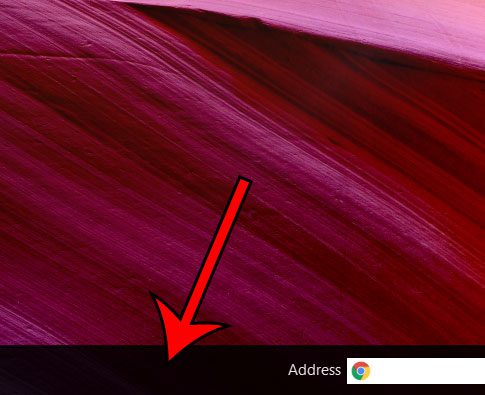
Nothing is wrong with your computer, and the box is not an ad or a virus. It is a built-in Windows 10 feature that is turned off by default and is easy to switch on by accident.
Which Windows Versions This Applies To
This guide covers the taskbar in Windows 10. The taskbar is the strip along the bottom of the screen that holds the Start button, your app icons, and the clock. A taskbar toolbar is an extra section you can add to that strip, such as a text box or a list of shortcuts.
Two things are worth knowing before you start:
- Windows 10 is out of support. Microsoft ended support for Windows 10 on October 14, 2025, so it no longer gets free security updates or technical help. The taskbar features on a Windows 10 PC are not removed by that change.
- Windows 11 is different. Microsoft’s current taskbar customization page does not list a Toolbars menu for Windows 11, and right-clicking the Windows 11 taskbar shows Taskbar settings instead. If you are on Windows 11, the box you are looking at is most likely the search box, not the Address toolbar.
Microsoft’s current help pages do not describe the Address toolbar itself. The menu names in this guide are the Windows 10 labels, so if your menu looks different, check which Windows version you have under Settings > System > About.
What the Address Toolbar Does
The Address toolbar is one of several optional toolbars you can add to the Windows 10 taskbar. Type a website address in the box, such as a site name ending in .com, and press Enter. Windows opens that page in your default web browser.
It is a shortcut, not a separate browser. The page opens in whichever browser is set as the default on your PC, so the result looks the same as typing the address in the browser yourself. The toolbar normally also has a small drop-down arrow that lists addresses typed there before, and a refresh button next to it.
The toolbar usually appears because someone clicked Address in the taskbar menu, sometimes without meaning to. The menu sits right above other commonly used taskbar options, so a stray click is enough.
How to Remove the Address Toolbar in Windows 10
Removing the toolbar only hides it. It does not delete files, bookmarks, or browser history, and you can turn it back on at any time.
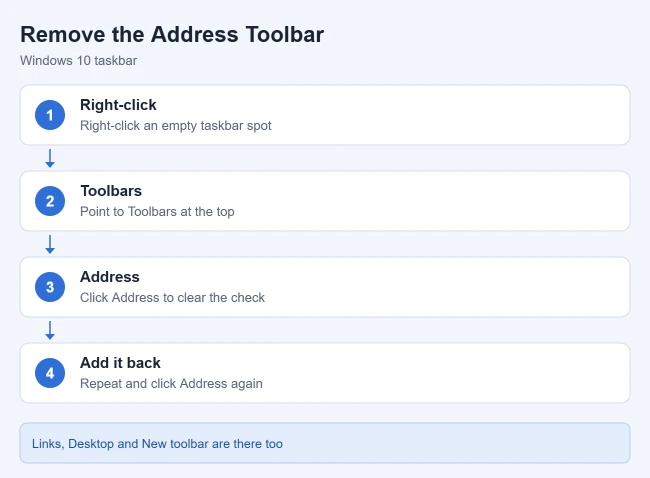
- Right-click an empty part of the taskbar at the bottom of the screen. Do not click an app icon, the clock, or inside the Address box. The taskbar menu opens.
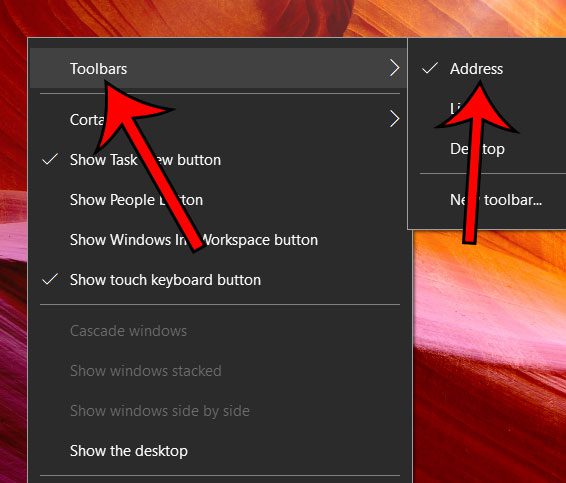
- Point to Toolbars at the top of the menu. A short list of toolbars opens beside it, with a check mark next to Address.
- Click Address. The check mark is cleared, the menu closes, and the Address toolbar disappears from the taskbar.
How to Confirm It Worked
Look at the right side of the taskbar, near the clock. The word Address and its text box should be gone, and your app icons have that space back. If you open the Toolbars menu again, Address no longer has a check mark.
How to Add It Back
Repeat the same steps. Right-click an empty part of the taskbar, point to Toolbars, and click Address so a check mark appears next to it. The toolbar returns to the right side of the taskbar.
How to Use the Address Toolbar If You Keep It
Some people like having the box there. If you decide to keep it, here is how it works.
- Click inside the Address box on the taskbar.
- Type the full address of the website you want to visit.
- Press Enter. Your default browser opens and loads the page.
The page opens in the default browser, which is not always the browser you prefer. To change it, Microsoft says to open Settings, select Apps > Default apps, and choose the app you want. The steps are on Microsoft’s Change default apps in Windows page.
Making the Toolbar Wider or Narrower
The toolbar can be resized by dragging its left edge, but usually only while the taskbar is unlocked. Locking is a Windows 10 option that keeps the taskbar the way you set it up. Microsoft’s instructions for Windows 10 are to right-click the taskbar, select Taskbar settings, and turn Lock the taskbar off. Turn it back on when you are done so that nothing gets moved by accident. Our guide on locking and unlocking the taskbar explains how this differs in Windows 11.
Address Toolbar vs. the Search Box
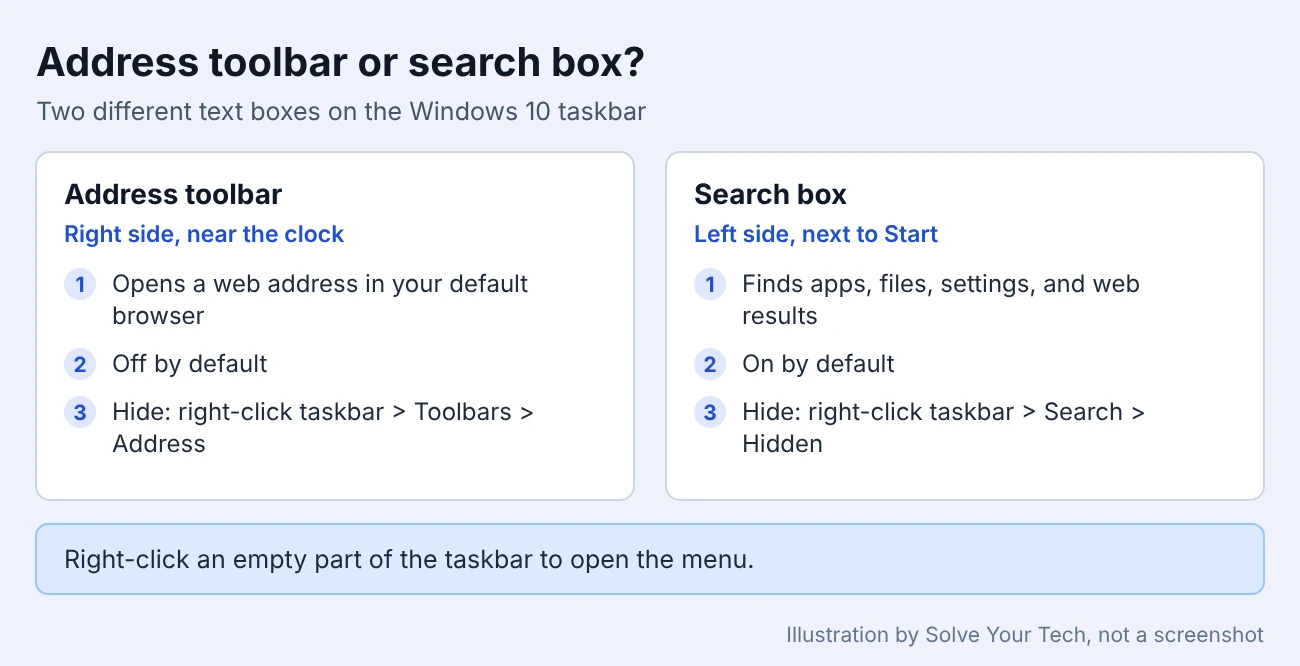
These two are easy to confuse because both are text boxes on the taskbar. They do different jobs and are turned off in different places.
| Item | Address toolbar | Search box |
|---|---|---|
| Usual location | Right side, near the clock | Left side, next to the Start button |
| What it does | Opens a web address in your default browser | Finds apps, files, settings, and web results through Windows Search |
| On by default | No | Yes |
| How to hide it | Right-click the taskbar > Toolbars > Address | Right-click the taskbar > Search > Hidden |
For the search box, Microsoft lists three main choices under Search in Windows 10: Hidden, Show search icon only, and Show search box. Pick Show search icon only if you want to save space but keep search one click away.
Other Taskbar Toolbars
The same Toolbars menu has a few other options. A check mark shows which ones are on:
- Address: a box for typing web addresses.
- Links: a toolbar for shortcuts to websites.
- Desktop: quick access to the items on your desktop from the taskbar.
- New toolbar: lets you pick a folder and turn it into its own taskbar toolbar.
Some programs add their own entries to this list as well. If you see other words or menus on your taskbar that you did not add, check this menu first. Clicking a checked item removes that toolbar, and clicking it again brings it back.
Troubleshooting
The menu does not show Toolbars
You probably right-clicked an app icon, the clock, or the Address box itself. Each of those opens a different menu. Right-click a blank stretch of the taskbar instead. If the taskbar is full of icons, the narrow gap just to the left of the icons near the clock is usually empty.
If the menu only shows Taskbar settings, the PC is running Windows 11, which does not offer these toolbars.
The taskbar disappears before you can right-click it
The taskbar is set to hide automatically. Move the pointer to the bottom edge of the screen to bring it back, then right-click it. If you would rather keep it visible, see our guide on how to stop the taskbar from hiding.
The Address toolbar comes back
On a shared computer, another person may be turning it on. Each Windows user account has its own taskbar layout, so check while signed in to the account where it appears. On a work or school computer, the taskbar may be managed by an administrator; in that case, ask your IT team.
Web pages open in the wrong browser
The Address toolbar always uses the default browser. Change the default under Settings > Apps > Default apps, then try the address again.
Frequently Asked Questions
Is the Address toolbar the same as the search box?
No. The search box searches your PC and the web through Windows Search. The Address toolbar opens web addresses in your default browser. They are separate taskbar items with separate on and off controls.
Will removing the Address toolbar delete anything?
No. It only hides the toolbar from the taskbar. Your files, browser bookmarks, and browser history are not touched, and you can add the toolbar back at any time from the same Toolbars menu.
Is the Address toolbar a virus or an ad?
No. The Address toolbar is part of Windows 10 and appears in the taskbar’s own Toolbars menu. A toolbar in that list with a name you do not recognize is a different matter; clear its check mark and look at which program installed it.
Why can I not right-click the taskbar?
Make sure you right-click an empty spot, not an app icon or the clock. Right-clicking an icon opens that app’s menu instead. On a touchscreen, press and hold an empty part of the taskbar until the menu appears.
Does Windows 11 have an Address toolbar?
Microsoft’s Windows 11 taskbar documentation does not list taskbar toolbars, and the Windows 11 taskbar menu has no Toolbars entry. To get quick access to a site in Windows 11, you can pin it instead; see how to add a website to the taskbar in Windows 11.
Next Step
With the Address toolbar gone, you may want to tidy the rest of the taskbar. These guides cover other common Windows 10 taskbar and Cortana settings:
- How to remove the numbers from taskbar icons in Windows 10
- How to disable Cortana on the lock screen in Windows 10

Matthew Burleigh is the founder, head writer, and editor of Solve Your Tech, which he launched in 2012. He has written technology tutorials since 2008 and worked in IT since 2003, including small-business support, IT management, and consulting. He holds Bachelor’s and Master’s degrees in Computer Science from Arizona State University.
Matthew writes practical guides for Windows, iPhone and iPad, Microsoft Office, Outlook, Google apps, and Android. Solve Your Tech’s guides are tested on current devices or checked against official product documentation, with clear steps, sources, and update dates.
Read more about Matthew and how Solve Your Tech writes and updates its guides, or report a correction.