The calculator on your iPhone can be a handy tool to have available when you need to do some simple math, but you may find yourself wishing that it had some more advanced functions.
The iPhone calculator actually has a “hidden” mode that essentially turns it into a scientific calculator.
You will find many additional functions in this new mode, including the ability to perform mathematical operations that contain parentheses. Learn how to find these parentheses and use them with our guide below.
Add Parentheses on the iPhone Calculator
These steps were performed on an iPhone 5, in iOS 8.
In order to access the “hidden” aspects of the iPhone calculator, your device cannot be locked in portrait mode. Learn how to turn off portrait orientation lock so that you can access the scientific calculator functions on your Calculator app.
Using parentheses can be a little tricky at first, as it may seem like nothing is happening when you are pressing the parentheses buttons. The calculator will also display the subtotal of the operations inside the parentheses after you press the closing parenthesis button.
Step 1: Open the Calculator app. If you cannot find it, it may be located in an Extras folder on your second Home screen. You can swipe to the left on your Home screen to locate this folder.
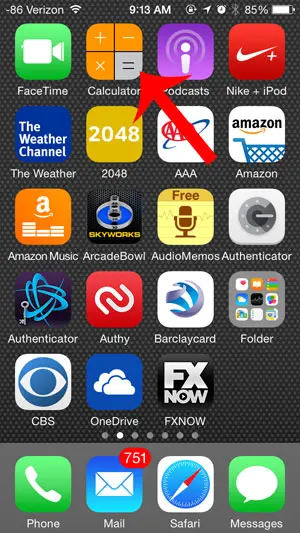
Step 2: Turn your iPhone to landscape orientation, which will reveal the previously hidden functions of the app.
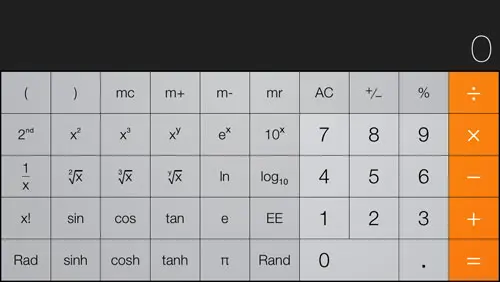
Step 3: Type your formula using the parentheses at the top-left of the keyboard.
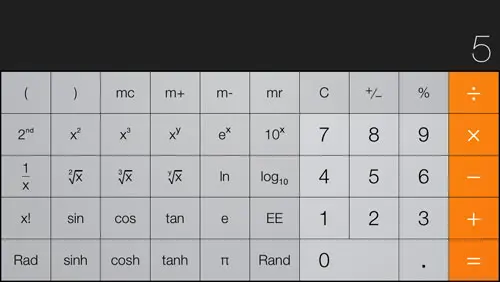
Note that the iPhone calculator will not display the full formula or the parentheses as you type them.
For example, if you wanted to find the answer for 5 X (3+2), you would press the keys in that order (followed by the = sign), but you would only see the numbers displayed at the top of the screen.
Now that you know how to use parentheses on the iPhone calculator, you can start to incorporate this and other features into the values that you are trying to calculate in the app.
Did you know that your iPhone has a flashlight by default if you are using iOS 7 or 8? Learn how to find it with this article.

Matthew Burleigh has been writing tech tutorials since 2008. His writing has appeared on dozens of different websites and been read over 50 million times.
After receiving his Bachelor’s and Master’s degrees in Computer Science he spent several years working in IT management for small businesses. However, he now works full time writing content online and creating websites.
His main writing topics include iPhones, Microsoft Office, Google Apps, Android, and Photoshop, but he has also written about many other tech topics as well.