To subscribe to a podcast on an iPhone, open the Podcasts app, find the show, and tap the Follow button. Apple now calls the free option Follow. It adds the show to your library so new episodes are easy to find. The word Subscribe in Apple Podcasts now means a paid subscription that only some shows and channels offer.
These steps match Apple’s current iPhone User Guide pages for iOS 27: Follow your favorite podcasts on iPhone and Subscribe to a show or channel in Podcasts on iPhone. Each page has a version menu at the top if your iPhone runs an older iOS.
Follow vs. Subscribe: Which One Do You Want?
Most people who search for how to subscribe to a podcast want new episodes of a show to turn up on their iPhone. That is what Follow does, and it does not cost anything. A paid subscription is a separate purchase that unlocks extras from the show’s creator.
| Question | Follow | Subscribe |
|---|---|---|
| Does it cost money? | No | Yes. The creator sets the plan, which Apple says can be monthly or annual |
| Which shows have it? | Shows in the Podcasts app, plus any show you add by its feed address | Only shows and channels that offer a subscription |
| What do you get? | The show in your library, with optional alerts for new episodes | Extras such as premium content, early access to new episodes, or ad-free listening |
| How do you stop? | Unfollow the show | Cancel under Manage Subscriptions |

What You Need Before You Start
- The Podcasts app. It comes with the iPhone. It is one of the built-in apps that can be removed, so if it is missing, download Apple Podcasts again from the App Store. Our guide on how to delete apps on iPhone explains how built-in apps are removed and restored.
- An internet connection. You need Wi-Fi or cellular data to search, follow, and stream. Episodes you have downloaded play without a connection.
- Your Apple Account. Apple says shows you follow are available on your other Apple devices and on the Apple Podcasts website. A paid subscription is a purchase, so it needs an Apple Account with a payment method.
How to Follow (Subscribe to) a Podcast on iPhone
Following is safe to try. It does not charge you, and you can undo it in a few taps.
- Open the Podcasts app. Its icon is purple.
- Tap Search and type the name of the show, a person, or a topic. Top hits appear as you type. To browse instead, tap New to see new and trending shows.
- Tap the Follow button next to the show in the search results. That is the fastest route.
- If you want to look first, tap the show to open its page, read the description, play an episode, and then tap the Follow button on that page.

What to expect: The show is added to your library. Apple’s guide says a show you follow is filtered to Unplayed episodes by default, so the show page may list fewer episodes than before. Nothing has been removed. Clear that filter on the show page to see every episode.
Other ways to follow a show
- From the More menu: On a show’s page, tap the More button, then tap Follow.
- From an episode or Now Playing: If you are already listening, tap the More button, then tap Follow Show. Now Playing is the full-screen player that opens when you tap the small player bar at the bottom of the screen.
- By feed address: Some shows are not listed in Apple’s catalog, such as a private feed from a membership site. Tap Library, open the menu on that screen, and tap Follow a Show by URL. Enter the address and tap Follow. Apple notes the address must be a valid podcast RSS feed, which is the web link a podcast uses to publish its episodes.
How to Confirm a Show Is Followed
- In Podcasts, tap Library.
- Tap Shows, then tap Followed. Every show you follow is listed here.
- Go back to Library and tap Latest Episodes to see the most recent episode from each show you follow.
If the show appears under Followed, you are done. Its More menu will now offer Unfollow in place of Follow.
How to Get Notified About New Episodes
Following a show does not guarantee an alert for each new episode. Notifications have their own switches.
- In Podcasts, tap Home.
- Tap the My Account button or your profile picture.
- Tap Notifications.
- Turn on notifications for the shows you want.
If Allow Notifications on This iPhone appears at the top of that screen, notifications are turned off for the whole Podcasts app. Tap it, then tap Allow. You can also change one show from its own settings page: open the show, tap More, tap Settings, then turn Notifications on or off.
How to Control Downloads for a Show You Follow
Apple says that when you follow a show you can choose whether new episodes download automatically. Downloads are handy for flights and commutes, but they use storage. Podcasts lets you set this for each show.
- Tap Library, then tap Shows.
- Touch and hold the show, then tap Settings.
- Tap Automatically Download and choose an option.
- For shows with video, tap Download Video and choose On to keep video for offline playback, or Off to download audio only.
The same settings page has Episode Order, which decides what plays next, and Hide Played Episodes. If downloads have already piled up, see how to delete podcast episodes and downloads on iPhone.
How to Get or Manage a Paid Podcast Subscription
Warning: The steps in this section buy something. A paid subscription is billed to your Apple Account and renews until you cancel it. Read the price and the plan length on the confirmation screen before you approve it. A Try Free offer becomes a paid subscription when the trial ends unless you cancel first.
- Open Podcasts and go to the show or channel. A channel is a group of shows from one creator or network.
- Tap the subscription button, if the page has one. Apple’s creator documentation says it reads Subscribe or Try Free.
- Follow the instructions on your screen to choose a plan and confirm the purchase.
What to expect: Apple says that when you subscribe to a show, you automatically follow it. When you subscribe to a channel, the channel appears in the Channels section of your library. Apple also notes that not all subscriptions and channels are available in every country, region, or language.
Change or cancel a paid subscription
- In Podcasts, tap Home.
- Tap the My Account button or your profile picture.
- Tap Manage Subscriptions.
- Tap the subscription you want to change or cancel.

You can reach the same list outside the app. Apple’s Cancel a subscription from Apple article gives this route: open Settings, tap your name, tap Subscriptions, tap the subscription, then tap Cancel Subscription. If there is no Cancel button, Apple says the subscription is already canceled.
Already paying somewhere else? Apple says eligible subscriptions bought through the App Store, along with Apple Music and Apple News+, connect to Podcasts automatically when the app offers content there. If you subscribed another way, open the channel and tap the Already a Subscriber link, then follow the instructions.
Sharing: Apple says a channel subscription can be shared with up to five other family members through Family Sharing.
How to Unfollow a Podcast
- In Podcasts, tap Library, then tap Shows.
- Tap the show you want to stop following.
- Tap the Unfollow button, then tap Unfollow Show. You can also tap More, then tap Unfollow.
The show leaves your Followed list. To undo it, find the show again and tap Follow.
Important: Apple states that unfollowing a podcast does not cancel a paid subscription. If you pay for the show, cancel it under Manage Subscriptions as well, or the charges continue.
How to Subscribe to a Podcast on Older Versions of iOS (Guide with Pictures)
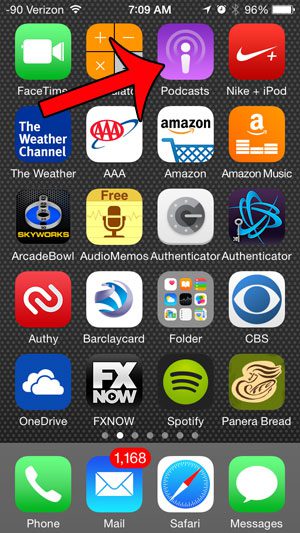
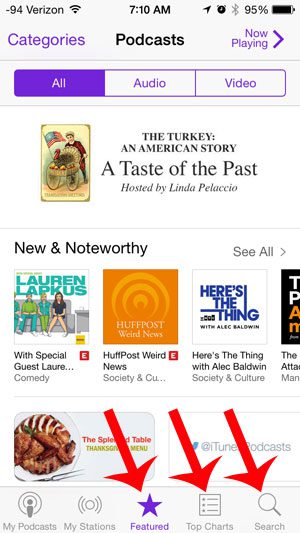
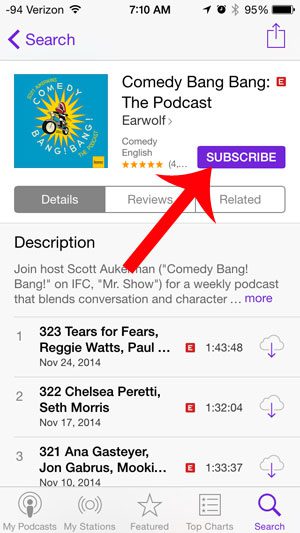
Before Apple switched to Follow, the Podcasts app used a free Subscribe button. These screenshots show that older design. If your iPhone still looks like this, the idea is the same: find the show, then tap the button on its page.
Step 1: Open the Podcasts app.
Step 2: Use Featured, Top Charts, or Search to find the podcast.
Step 3: Tap Subscribe.
Troubleshooting
There is no free Subscribe button
That is expected on current versions of iOS. Look for Follow. A Subscribe or Try Free button appears only on shows and channels that sell a subscription.
The Follow button is missing
You probably follow the show already. Check Library > Shows > Followed, or open the show’s More menu and look for Unfollow.
New episodes are not showing up
- Open Library > Latest Episodes. Apple notes you can change how long episodes stay in that list.
- On the show page, check the episode filter. A followed show defaults to Unplayed, and a show can also be set to hide episodes you have played.
- Confirm notifications are on for the show, and that Allow Notifications on This iPhone is not waiting at the top of the Notifications screen.
- Make sure the iPhone is online. Podcasts cannot load new episodes without a connection.
You cannot find the show
Try the host’s name or a topic in Search. If the show is not in Apple’s catalog but its website gives you a feed address, use Follow a Show by URL in the Library.
The subscription button is not there
The show may not offer a paid subscription, or it may not be offered where you live. Apple says availability varies by country, region, and language. Some creators sell memberships outside Apple and give you a private feed address to add by URL. Apple’s creator documentation says billing and account help for those come from the provider, not from Apple.
You were charged after unfollowing
Unfollowing and canceling are separate actions. Open Home, tap your account button, tap Manage Subscriptions, and cancel the subscription there.
Followed shows are missing on another device
Apple says followed shows are available on your other Apple devices. Check that the other device is signed in to the same Apple Account, since that is what ties your library together.
Frequently Asked Questions
Is following a podcast free?
Yes. Following a show in the iPhone Podcasts app does not cost anything. Only paid show or channel subscriptions, which are optional, cost money.
Where did the Subscribe button go?
Apple replaced it with Follow for free listening. A Subscribe button now appears only on shows or channels that offer a paid subscription.
Does following a podcast download every episode?
That depends on the show’s settings. Touch and hold the show in Library > Shows, tap Settings, then tap Automatically Download to pick how many episodes are saved to your iPhone.
Does unfollowing a podcast cancel my paid subscription?
No. Apple says unfollowing a show does not cancel a paid subscription. Cancel it under Manage Subscriptions in the Podcasts app, or in Settings under your name and Subscriptions.
Can I share a paid podcast subscription with my family?
Apple says channel subscriptions can be shared with up to five other family members when Family Sharing is set up. Members of your family group get access to the channels you subscribe to automatically.
Can I change the playback speed for one show?
Yes. Open a show you follow, tap More, tap Settings, and scroll to Speed & Audio Adjustments. Choose Custom for This Show and pick a speed. The same spot has a switch for Enhance Dialogue, Apple’s setting for making voices clearer.
Do I need an internet connection to listen?
Only to stream or to fetch new episodes. Downloaded episodes play offline, and Apple lists them under Library > Downloaded.
Can I follow the same podcast in another app?
Yes. Most podcasts are published to several apps, and each app keeps its own list of followed shows. If you listen in Spotify, see how to follow and download podcasts on Spotify.
Next Step
Follow two or three shows, then open Library > Latest Episodes tomorrow to check that new episodes are arriving. If you listen in bed, you can also set a sleep timer in the Podcasts app so playback stops on its own.

Matthew Burleigh is the founder, head writer, and editor of Solve Your Tech, which he launched in 2012. He has written technology tutorials since 2008 and worked in IT since 2003, including small-business support, IT management, and consulting. He holds Bachelor’s and Master’s degrees in Computer Science from Arizona State University.
Matthew writes practical guides for Windows, iPhone and iPad, Microsoft Office, Outlook, Google apps, and Android. Solve Your Tech’s guides are tested on current devices or checked against official product documentation, with clear steps, sources, and update dates.
Read more about Matthew and how Solve Your Tech writes and updates its guides, or report a correction.