To set or change the passcode on your iPad, open Settings, tap Face ID & Passcode (or Touch ID & Passcode), and tap Turn Passcode On or Change Passcode. If you forgot your passcode, Apple says to try Passcode Reset first, then reset the iPad on the device, and finally reset it with a computer.
These steps follow Apple’s Set a passcode on iPad guide for iPadOS 27 and its passcode-reset support articles. The same menus apply to recent earlier versions of iPadOS. On an iPad without Face ID or Touch ID, the menu is called Passcode.
How to Set a Passcode on iPad
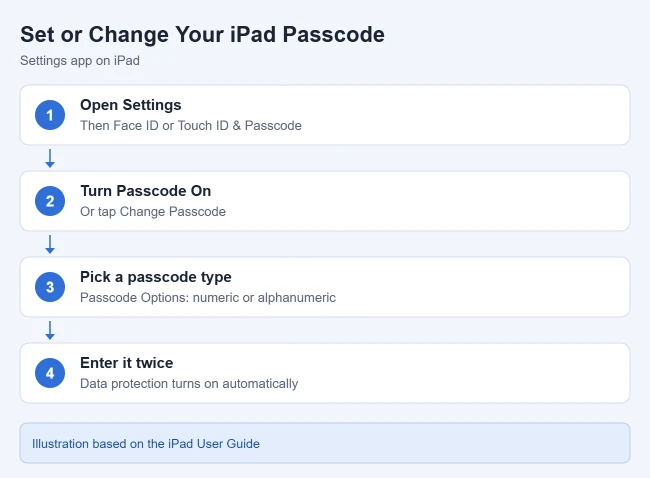
- Open the Settings app.
- Tap Face ID & Passcode or Touch ID & Passcode, depending on your model.
- Tap Turn Passcode On. A keypad appears and asks for a six-digit code.
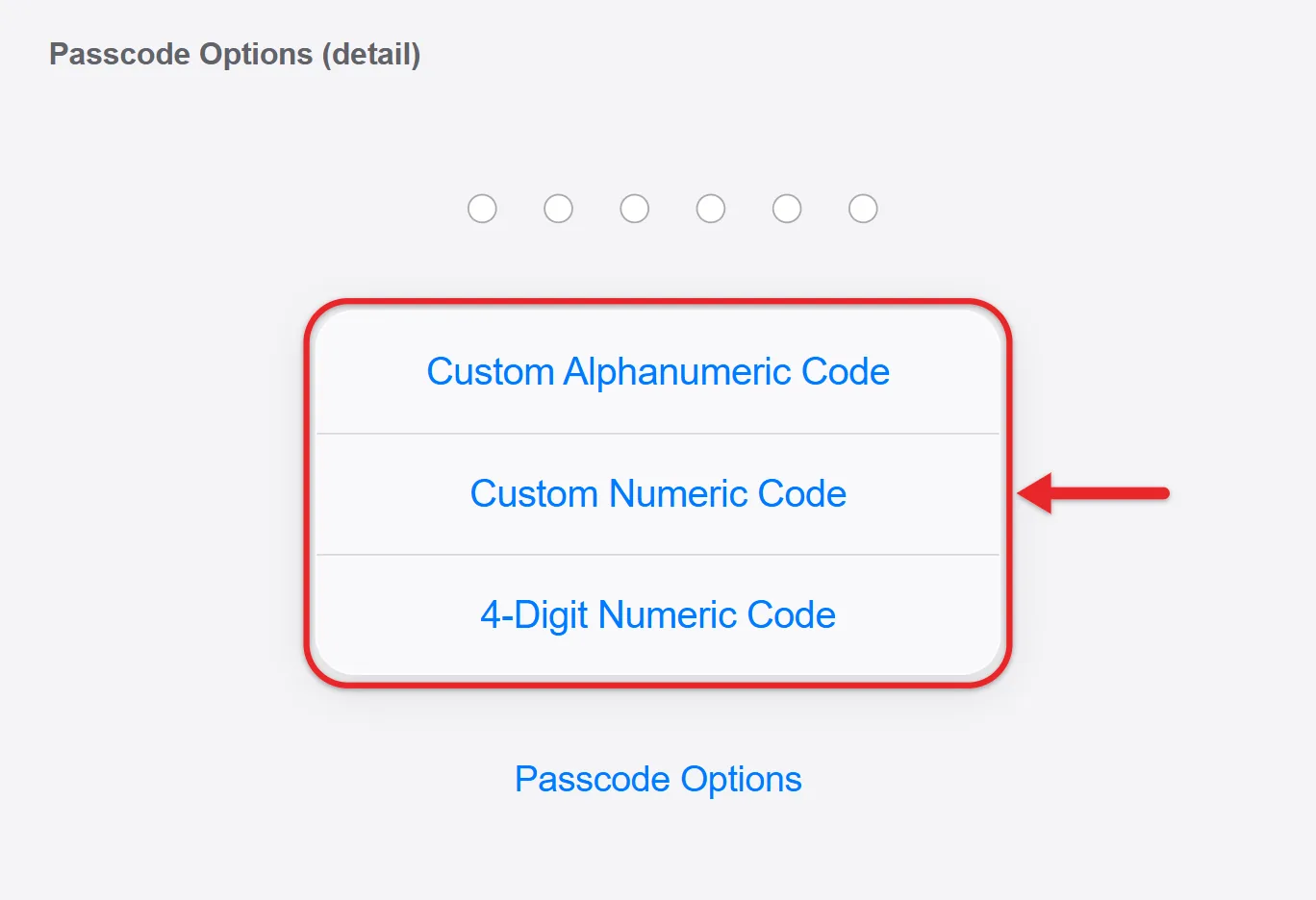
- To use a different type, tap Passcode Options before you type anything. The choices are Custom Alphanumeric Code, Custom Numeric Code and 4-Digit Numeric Code. The two custom options are the most secure.
- Enter the passcode, then enter it again to confirm. Your iPad now asks for the passcode when you turn it on or wake it.
Setting a passcode also turns on data protection, which encrypts your iPad data with 256-bit AES encryption.
With a passcode set, you can also turn off Today View on the iPad lock screen so widgets stay hidden until you unlock it.
Choose a Strong Passcode
- Use six digits or more. A Custom Alphanumeric Code with letters and numbers is the hardest to guess.
- Avoid birthdays, repeated digits (111111) and runs (123456), and don’t reuse your bank PIN or Apple Account password.
How to Change or Turn Off Your Passcode
- Change it: go to the same screen, enter your current passcode, tap Change Passcode, enter the old code again, then the new one twice. Tap Passcode Options on the new-code screen to switch types.
- Turn it off: tap Turn Passcode Off. This removes data protection and lets anyone open your iPad, so it is not recommended.
If you decide you don’t want a code at all, here’s how to turn off the passcode on iPad and what you lose.
After a change, Passcode Reset lets you use your old passcode for 72 hours in case you forget the new one. If you are sure you remember the new code, tap Expire Previous Passcode Now on the same screen to end that period early. The details are on Apple’s Expire an old passcode sooner page.
Other Settings on the Passcode Screen
- Require Passcode sets how soon the iPad asks for the code after the screen locks. If you use Face ID, Touch ID or Apple Pay, it stays at Immediately.
- Allow Access When Locked controls which features work without unlocking, such as Today View, Notification Center, Control Center, Siri and accessories. Turn off anything you don’t want others to reach from the Lock Screen.
- Auto-Lock lives in Settings > Display & Brightness > Auto-Lock and decides how long the screen stays on before it locks. To pick a different delay, change iPad Auto-Lock.
Unlock an iPad With Face ID, Touch ID or Its Passcode
Wake your iPad with its top button, or tap the screen on a supported model. With Face ID, look at the iPad until the lock icon opens, then swipe up from the bottom. With Touch ID, press the Home button with a registered finger, or rest your finger on the top button on models with the sensor there. To use the passcode instead, press Home or swipe up, then enter it. Apple’s unlocking guide shows each model’s controls.
When iPad Asks for the Passcode Even With Face ID
You must enter your passcode, even with Face ID or Touch ID set up, when:
- You turn on or restart your iPad.
- You have not unlocked your iPad for more than 48 hours.
- You have not used the passcode in the last 6.5 days and have not used Face ID or Touch ID in the last 4 hours.
- Your iPad receives a remote lock command.
- There are five unsuccessful Face ID or Touch ID attempts.
The passcode is also needed to install a software update, erase the iPad, open the passcode settings, or install a configuration profile.
Optional: Erase Data After 10 Failed Attempts
In the same passcode settings, turn on Erase Data to erase everything after 10 failed passcode attempts in a row. You then have to restore from a backup, or set the iPad up as new if you have none, so only use this if you back up your iPad to iCloud regularly.
What to Do If You Forgot Your iPad Passcode
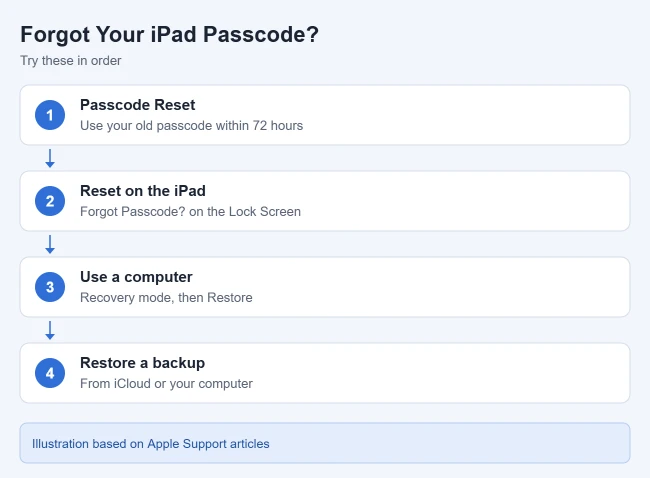
After too many wrong tries, the iPad shows an iPad Unavailable or Security Lockout screen. Work through these steps in order:
- Passcode Reset (iPadOS 17 and later). If you changed your passcode in the last 72 hours, tap Forgot Passcode? in the bottom corner of the lock screen, tap Enter Previous Passcode, enter your old code, and set a new one. See Apple’s Passcode Reset article.
- Reset the iPad on the device. Tap Forgot Passcode?, tap Start iPad Reset, and confirm. Enter your Apple Account password to sign out, then tap Erase iPad. Apple’s reset without a computer article says this needs iPadOS 15.2 or later, Find My turned on, a Wi-Fi or cellular connection, and your Apple Account password. On iPadOS 15.2 and 16, the button is called Erase iPad. This erases everything on the iPad.
- Reset with a computer. Turn off the iPad and connect it to a Mac or Windows PC with a USB cable. Then put it in recovery mode. On iPads without a Home button, press and quickly release the volume button closest to the top button, then the one farthest from it, then press and hold the top button. On iPads with a Home button, press and hold the Home button and the top (or side) button at the same time. Keep holding through the Apple logo until you see a computer and a cable. In Finder or the Apple Devices app, choose Restore. Allow up to 60 minutes. See Apple’s computer reset steps.
- Set up the iPad again and restore from an iCloud or computer backup if you have one. Choose a new passcode during setup.
If the download takes more than 15 minutes and the iPad leaves recovery mode, let the download finish, then turn the iPad off and start again. On Windows you need the Apple Devices app from the Microsoft Store. If you see the passcode screen instead of the computer and cable, turn the iPad off and repeat the button steps. With no computer to use or borrow, go to an Apple Store or Apple Authorized Service Provider.
After any erase, setup may ask for the Apple Account that was on the iPad. This is Activation Lock, and it protects the iPad if it is stolen. Use Apple’s account recovery if you forgot that password too. Avoid websites and apps that promise to “unlock” or bypass an iPad passcode; stick to Apple’s options above.
For every option in the order to try them, read resetting an iPad without its passcode.
Change a Known Passcode on an Older iPad
On an iPad 2 or another older iPad running iOS 7 or earlier, the setting is at Settings > General > Passcode Lock. Enter the current code, choose Change Passcode, then enter and confirm the new code. On iOS 8 and later, it moved to Settings > Passcode (or Touch ID & Passcode). The 72-hour Passcode Reset feature requires iPadOS 17 or later, so it does not apply to these models.
Turn Off Touch ID for Unlocking iPad
Open Settings > Touch ID & Passcode, enter your passcode, and under Use Touch ID For, turn off iPad Unlock. Your iPad then asks for the passcode instead of your fingerprint. Purchases and other Touch ID uses keep their own switches, and your saved fingerprints stay. Apple’s Touch ID settings guide lists each option.
If the Passcode Setting Is Grayed Out
If Turn Passcode Off or a passcode option is grayed out, a school or workplace may manage the iPad with a profile that requires a passcode. Check Settings > General > VPN & Device Management and ask that organization’s IT team, since only they can change the rule.
Frequently Asked Questions
Is the iPad passcode the same as my Apple Account password?
No. The passcode unlocks this iPad only. Your Apple Account password is used for iCloud, the App Store, and resetting the device.
Will resetting the passcode delete my data?
Passcode Reset does not. Resetting the iPad on the device or with a computer erases it, so you need a backup to get your data back.
Can I use a four-digit passcode?
Yes. Tap Passcode Options and choose 4-Digit Numeric Code. It is faster to type but easier to guess than six digits or a custom code.
How many wrong tries before the iPad locks?
The iPad adds waiting periods after several wrong attempts, then shows iPad Unavailable or Security Lockout. With Erase Data on, the 10th wrong attempt in a row erases it.
Related Guides
If your iPad freezes or you need to start over, you can hard reset it. That page also shows how to erase it to factory settings.

Matthew Burleigh is the founder, head writer, and editor of Solve Your Tech, which he launched in 2012. He has written technology tutorials since 2008 and worked in IT since 2003, including small-business support, IT management, and consulting. He holds Bachelor’s and Master’s degrees in Computer Science from Arizona State University.
Matthew writes practical guides for Windows, iPhone and iPad, Microsoft Office, Outlook, Google apps, and Android. Solve Your Tech’s guides are checked step by step against the device or app maker’s own documentation and tested on his own devices whenever he has the hardware or software, with clear steps, sources, and update dates.
Read more about Matthew and how Solve Your Tech writes and updates its guides, or report a correction.