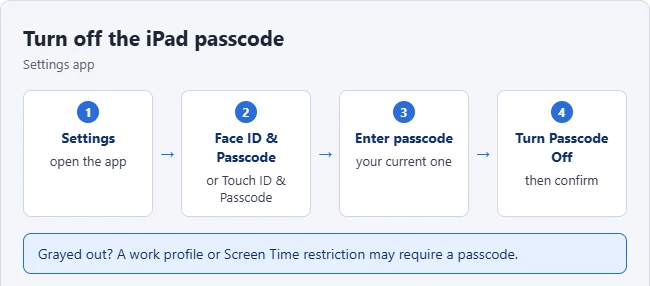
To turn off the passcode on an iPad, go to Settings > Face ID & Passcode (or Touch ID & Passcode, or just Passcode), enter your current passcode, and tap Turn Passcode Off. Confirm, and enter your Apple Account password if asked. Without a passcode, anyone who picks up the iPad can open it.
This guide follows Apple’s Set a passcode on iPad, Use a passcode with your iPhone, iPad, or iPod touch and How to reset your iPad and your passcode using your Mac or PC articles, with notes from Verizon and the Apple Community. It covers turning the passcode off, what you give up, why the option might be grayed out, ways to see the passcode screen less often, and what to do if you forgot the passcode.
How to Turn Off the Passcode on iPad
- Open Settings.
- Tap Face ID & Passcode, Touch ID & Passcode or Passcode, depending on your model.
- Enter your passcode.
- Scroll down and tap Turn Passcode Off.
- Review the message and tap Turn Off. If prompted, enter your Apple Account password.
Result: Your iPad no longer asks for a passcode when you wake it or turn it on. The confirmation and Apple Account steps come from Verizon‘s walkthrough.
What You Give Up Without a Passcode
- Data protection: Apple says setting a passcode turns on data protection, which encrypts your iPad’s data with 256-bit AES encryption. Turning the passcode off removes that layer.
- Face ID and Touch ID: Apple says you can use Face ID or Touch ID to unlock after you set a passcode. An Apple Community volunteer adds that removing the passcode disables Face ID or Touch ID and Keychain-stored passwords.
- Privacy: anyone who has the iPad can open your apps, email and photos.
If other people use the iPad, consider keeping the passcode and using one of the options below instead.
If Turn Passcode Off Is Grayed Out
Answers in the Apple Community point to a few common causes:
- Touch ID fingerprints: one volunteer says the iPad requires a passcode while fingerprints are registered. Delete them in Touch ID & Passcode, then try again.
- Work or school management: a work or school account or device management can require a passcode. Check Settings > General > VPN & Device Management.
- Screen Time: in Settings > Screen Time > Content & Privacy Restrictions, see whether passcode changes are set to Don’t Allow. See how to change restrictions on iPad.
Want Fewer Passcode Prompts Instead?
- Use Face ID or Touch ID so you rarely type the passcode. Apple still asks for the passcode in some cases, such as after a restart or if you haven’t unlocked the iPad for more than 48 hours.
- Lengthen Auto-Lock in Settings > Display & Brightness > Auto-Lock.
- Change Require Passcode: Apple says you can change when the passcode is required, but not if you use Touch ID, Face ID or Apple Pay.
Forgot the Passcode?
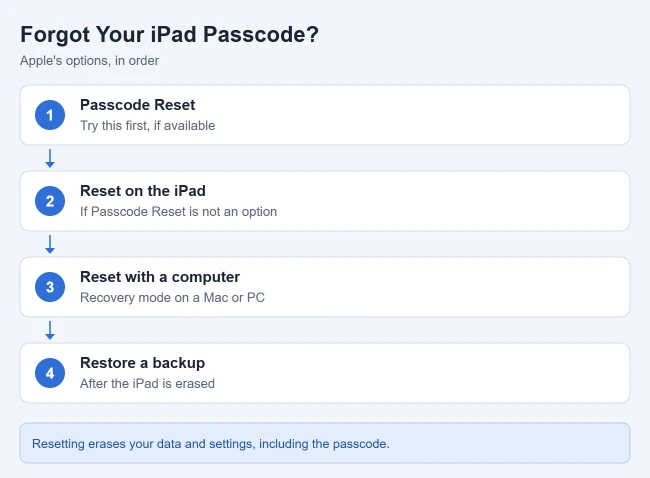
You can’t turn the passcode off without entering it. Apple’s order of options:
- Try Passcode Reset first. Apple says that if you changed your passcode in the last 72 hours, your previous passcode can be used once to get in and reset it.
- If that isn’t available, reset the iPad on the device.
- If neither works, use a Mac or PC to put the iPad in recovery mode and restore it.
Result: Apple says resetting deletes your data and settings, including the passcode. If you made an iCloud or computer backup, you can restore it afterward.
Frequently Asked Questions
Can I turn the passcode back on later?
Yes. Go to the same settings screen and tap Turn Passcode On. Apple says the most secure options under Passcode Options are a custom alphanumeric or custom numeric code.
Will the iPad erase itself after wrong passcodes?
Only if Erase Data is on. Apple says it erases the iPad after 10 failed attempts. You’ll find the switch on the passcode settings screen.
Related Guides
- How to wipe an iPad clean
- How to change age restrictions on an iPad
- How to reset settings on an iPad
If you keep a passcode on, you can also choose what shows while the iPad is locked. Here’s how to remove Home Screen widgets and turn off Today View on the lock screen.

Matthew Burleigh has been writing tech tutorials since 2008. His writing has appeared on dozens of different websites and been read hundreds of millions of times.
After receiving his Bachelor’s and Master’s degrees in Computer Science he spent several years working in IT management for small businesses. However, he now works full time writing content online and creating websites.
His main writing topics include iPhones, Microsoft Office, Google Apps, Android, and Photoshop, but he has also written about many other tech topics as well.