To wirelessly connect to another display in Windows, turn on the TV or projector, press Windows key + K, and select the display from the list. The display must support Miracast or have a Miracast adapter plugged in. To show your screen on another Windows PC instead, install the Wireless Display optional feature on that PC first.
This guide covers Windows 11 and Windows 10. The steps are the same on both unless a step says otherwise. Windows 10 reached end of support on October 14, 2025, so it no longer gets security updates unless it’s enrolled in Extended Security Updates. The steps follow Microsoft’s Screen mirroring and projecting to your PC or wireless display support article and its How to set up a wireless display guide.
What You Need
Miracast is the wireless display standard Windows uses. It sends the picture and sound straight from your PC’s Wi-Fi hardware to the display, so you don’t need an app or a cable.
- A PC with Wi-Fi and Miracast support. Most laptops have it. A desktop PC needs a Wi-Fi card or adapter whose driver supports Miracast; one with only an Ethernet port can’t cast.
- A display that accepts Miracast, such as many smart TVs and projectors, or a display with a Miracast adapter plugged into an HDMI port.
- The same Wi-Fi network. Microsoft recommends keeping the PC and the display on the same network.
Check That Your PC Supports Wireless Display
The quickest test is to press Windows key + K. If a list of available devices appears, your PC supports Miracast. If Windows instead asks you to connect a display with a cable, it doesn’t. You can also look for Connect to a wireless display under Settings > System > Display > Multiple displays.
For a more detailed check, press Windows key + R, type dxdiag, and press Enter. Select Save All Information, save the text file, and search it for Miracast. “Available” means your PC supports it. If it says “Not Available,” update the Wi-Fi and graphics drivers through Windows Update or your PC maker’s support site and check again.
Get the TV or Projector Ready
- Smart TV with Miracast: open the TV’s input or source menu and pick Screen Mirroring, Miracast, or Wireless Display. The name varies by brand. Leave the TV on the screen that says it’s waiting for a connection.
- Display without Miracast: plug a wireless display adapter, such as the Microsoft Wireless Display Adapter, into the HDMI port and a USB port for power, then switch the display to that HDMI input. The adapter shows its name on the screen when it’s ready.
- Projector: turn it on and pick its wireless or screen mirroring input. Check the projector’s manual if you can’t find it.
How to Cast to a Wireless Display
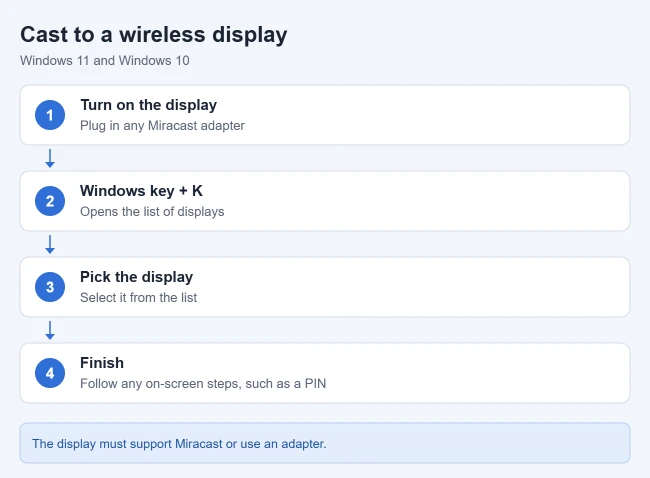
- Turn on your TV, projector, or other display. If you use a Miracast adapter, make sure it’s plugged into the display.
- On your PC, press Windows key + K. The Cast panel opens and lists nearby displays.
- Select the display from the list of available devices. “Connecting” appears under its name.
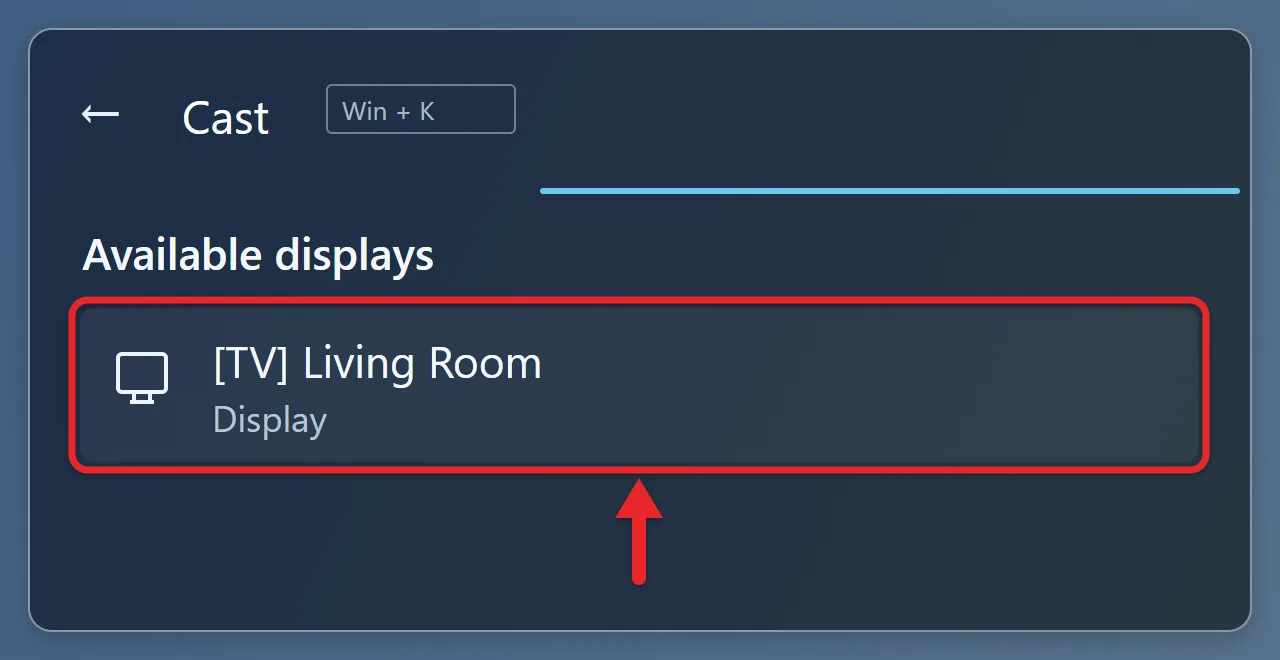
- Follow any on-screen instructions. If the TV shows a PIN, enter it on your PC. Some TVs ask you to accept the connection with the remote.
Your PC screen appears on the TV or projector, and by default it mirrors your PC screen. You can also press Windows key + A to open Quick Settings and select Cast (called Connect in Windows 10), then pick the display.
Add the Display Through Settings
If Windows key + K doesn’t list the display, add it from Settings instead:
- Windows 11: go to Settings > Bluetooth & devices > Add device, then choose Wireless display or dock and select the display.
- Windows 10: go to Settings > Devices > Bluetooth & other devices > Add Bluetooth or other device, then choose Wireless display or dock and select the display.
Send the Sound to the TV
Miracast usually sends sound to the display along with the picture. If sound keeps playing from the laptop, go to Settings > System > Sound and pick the TV or wireless display under Output.
How to Project to Another Windows PC
You can use a second Windows laptop as a wireless screen. Set up the receiving PC first:
- On the PC you want to project to, go to Start > Settings > System > Projecting to this PC.
- Select Optional features, then View features, and search for wireless display.
- Check Wireless Display, select Next, then Install.
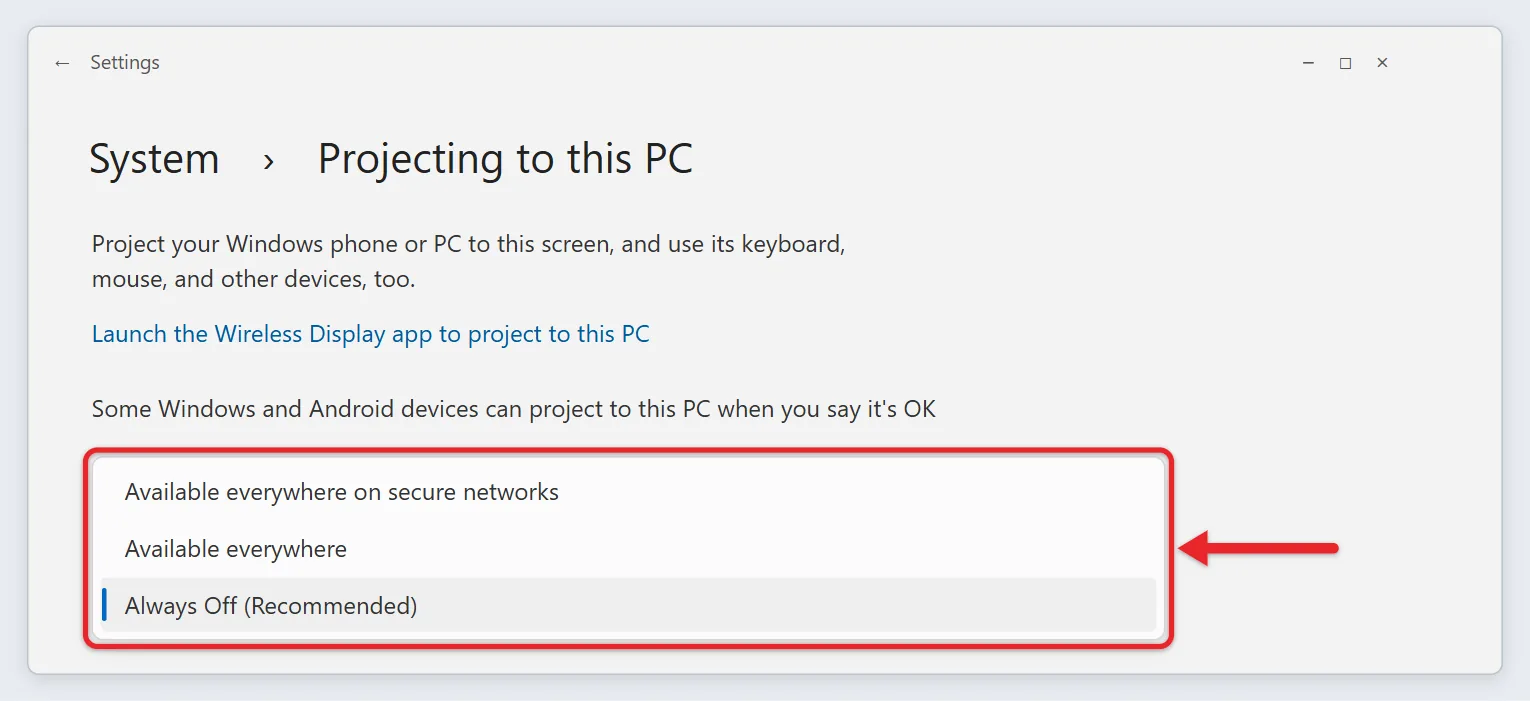
- Go back to Projecting to this PC and choose your preferences. If the first setting is Always Off, change it to Available everywhere on secure networks or Available everywhere, or the PC won’t show up.
- Open the Wireless Display app by searching for it on the taskbar. On versions before Windows 11 22H2, open the Connect app instead.
- On the PC you’re projecting from, press Windows key + K and select the receiving PC. Accept the request on the receiving PC if it asks.
The first PC’s screen shows in the Wireless Display window on the second PC. On the Projecting to this PC page you can also choose whether Windows asks every time or only the first time a device connects, require a PIN for pairing, and, on a laptop, allow projection only while it’s plugged in.
To turn this off later, set the first option back to Always Off. You can also remove the Wireless Display feature from the Optional features page.
For other ways to show your screen, such as in a Teams call or with Quick Assist, here’s how to screen share on Windows 11.
Mirror a Phone to Your PC
An Android phone that supports Miracast can mirror to a PC set up with the steps above: open Wireless Display (Connect in Windows 10) on the PC, then pick the PC’s name in the phone’s screen-mirroring settings. Supported Samsung Galaxy phones can also use Link to Windows. An iPhone uses AirPlay, not Miracast, so it can’t mirror to the Wireless Display app. Want the phone on a TV instead? Use screen mirroring from Android to a TV.
Choose How the Second Screen Is Used
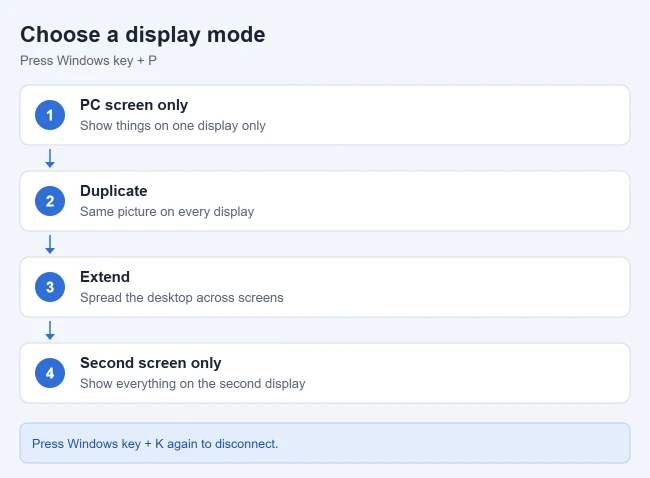
When you’re projecting from a Windows PC, press Windows key + P to pick a mode:
- PC screen only: see things on one display only.
- Duplicate: see the same thing on all displays. This is the usual pick for a presentation.
- Extend: spread your desktop across screens so you can move windows between them.
- Second screen only: see everything on the second display only.
To arrange the screens or fix one that isn’t detected, here’s how to extend your display on Windows 11. For a desk setup with cabled monitors, follow the steps for setting up multiple monitors on Windows 11.
To change resolution or layout, go to Settings > System > Display, or see How to change screen resolution in Windows.
How to Disconnect
Press Windows key + K to stop projecting. In the panel that opens, select Disconnect next to the display. You can also press Windows key + P and choose PC screen only. Your PC goes back to showing everything on its own screen.
Display Not Showing Up?
- Check Miracast support: make sure both the PC and the display support Miracast, or use an adapter. A Chromecast or Apple TV won’t appear, because neither one uses Miracast.
- Check that Wi-Fi is on: select the network icon on the taskbar and make sure Wi-Fi is turned on.
- Check the input: the TV must be set to the correct input source.
- Try again: the first attempt sometimes fails. Press Windows key + K and select the display a second time.
- Restart both devices if the connection fails or keeps dropping.
- Remove and re-add it: go to Settings > Bluetooth & devices > Devices, find the display under Wireless displays & docks, select Remove device, and connect again.
- Move closer: keep the PC and display near your Wi-Fi router and reduce the number of devices on the network.
- Update: install Windows updates, graphics and Wi-Fi driver updates, and any firmware updates for the display or adapter from its maker.
- Projecting to a PC: if you can’t find the PC, make sure it has Wi-Fi turned on and the Wireless Display app installed and open.
If the picture lags or stutters, close apps that use a lot of bandwidth, pause large downloads, and use a 5 GHz Wi-Fi network if your router has one. Wireless display is fine for slides, documents, and video, but a cable is a better choice for fast games. For that, follow the steps for using HDMI on a Windows 11 PC or laptop.
Frequently Asked Questions
Can I connect to a wireless dock instead?
Yes, if your PC supports WiGig. A WiGig control appears in Settings > Network & Internet > Airplane mode on supported PCs. Turn on the dock, press Windows key + K, and select it.
Does this work with an Apple TV or Chromecast?
Not through Windows key + K, which uses Miracast. Chromecast works through the Cast option in the Chrome browser instead, while AirPlay is aimed at Mac users.
Do I need to install any software?
Not to cast from your PC, as long as the PC and display support Miracast. You only need to install something on a Windows PC you want to project to, which needs the free Wireless Display optional feature.
Can I use the TV as a second monitor instead of a mirror?
Yes. After you connect, press Windows key + P and choose Extend. You can then drag windows from your PC screen to the TV.
For a closer look at sending a laptop to a TV, here’s how to connect or cast a Windows 11 laptop to a TV. More Windows guides: How to change screen resolution in Windows and How to disconnect a Bluetooth device in Windows.

Matthew Burleigh is the founder, head writer, and editor of Solve Your Tech, which he launched in 2012. He has written technology tutorials since 2008 and worked in IT since 2003, including small-business support, IT management, and consulting. He holds Bachelor’s and Master’s degrees in Computer Science from Arizona State University.
Matthew writes practical guides for Windows, iPhone and iPad, Microsoft Office, Outlook, Google apps, and Android. Solve Your Tech’s guides are checked step by step against the device or app maker’s own documentation and tested on his own devices whenever he has the hardware or software, with clear steps, sources, and update dates.
Read more about Matthew and how Solve Your Tech writes and updates its guides, or report a correction.