To see saved passwords on an iPhone with iOS 18 or later, open the Passwords app, unlock it with Face ID, Touch ID, or your passcode, and tap a website or app. Tap the password field to reveal it. On iOS 17 or earlier, go to Settings > Passwords instead.
This guide covers both versions, asking Siri, finding Wi-Fi passwords, editing or deleting a saved password, and what to do when one is missing. To check your version, open Settings > General > About and look at iOS Version.
Use the Passwords App (iOS 18 and Later)
- Open the Passwords app. If you can’t find it, swipe down on the Home Screen and search for it.
- Unlock it with Face ID, Touch ID, or your passcode. Expected result: categories such as All, Wi-Fi, and Deleted appear.
- Choose All, or a Shared Group if you share passwords with others.
- Tap the website or app. You can also search at the top.
- Tap the password field. Expected result: the password appears, and you can tap it again to copy it.
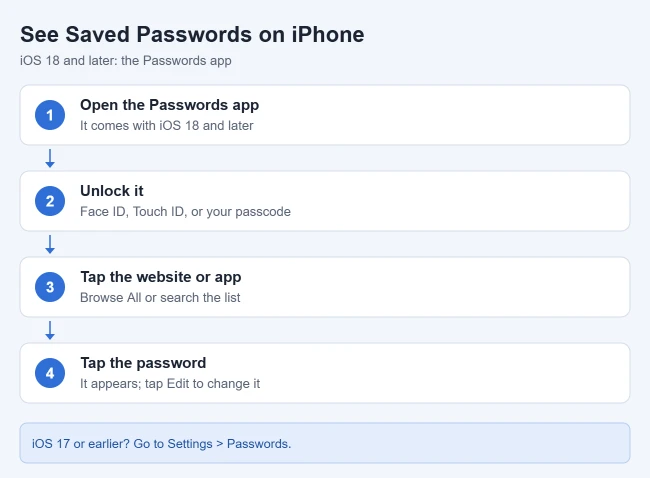
These steps follow Apple’s guide to finding saved passwords and passkeys. Passkeys appear in the same list, but they don’t have a password you can reveal; they sign you in with Face ID or Touch ID instead.
iOS 17 and Earlier
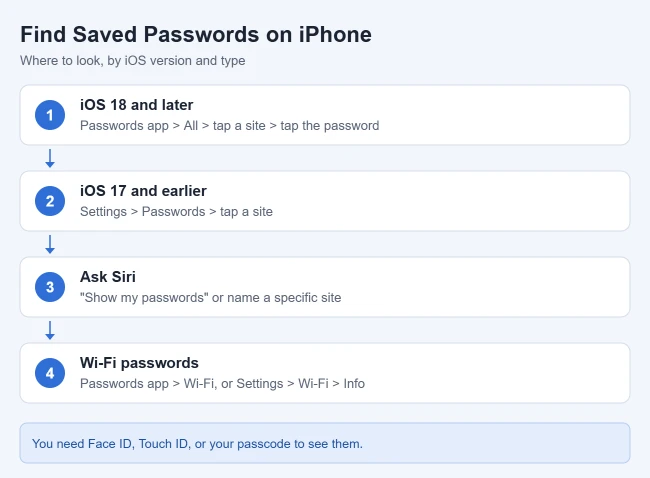
- Open Settings, scroll down, and tap Passwords.
- Unlock with Face ID, Touch ID, or your passcode.
- Tap the website or app. Expected result: the username and password appear. The top of the screen should say Passwords, not a Shared Group name, if you want to see everything.
Ask Siri
Apple says you can say something like “Show my passwords,” or ask for one site, such as “What is my Hulu password?” You’ll still need to unlock with Face ID, Touch ID, or your passcode before anything is shown.
Find Saved Wi-Fi Passwords
Apple’s Wi-Fi password guide gives two routes:
- Passwords app (iOS 18): open Passwords, tap Wi-Fi, tap the network, then tap the password field.
- Settings (iOS 16 and later): go to Settings > Wi-Fi, tap the Info button next to your current network, and tap Password. For networks you joined before, tap Edit in the upper-right corner first.
Edit or Delete a Saved Password
- Open the website or app in the Passwords app (or Settings > Passwords on iOS 17 and earlier).
- Tap Edit.
- To update it, tap Change Password and follow the prompts, which take you to the site to set a new one. To remove it, tap Delete, or Delete Password on iOS 17 and earlier.
Deleted passwords go to Deleted in the Passwords app (Recently Deleted on iOS 17), where you can recover them for a while. If you change a password on a website, update the saved one too; see how to update an email password on iPhone.
Turn Password AutoFill On or Off
AutoFill is what offers saved passwords when you sign in. Apple’s AutoFill guide says to go to Settings > General > AutoFill & Passwords and turn AutoFill Passwords on or off. Turning it off doesn’t delete anything; your passwords stay in the Passwords app. It’s useful on an iPhone you share with someone else. If you use a third-party password manager, choose it on the same screen so it can fill passwords instead.
If a Password Is Missing
- Check the right list. Apple says to choose All in the Passwords app and to check Deleted.
- Shared Groups: a password moved to a Shared Group on another device only shows on devices with iOS 17 or later.
- Turn on iCloud Keychain if you saved it on another Apple device. Apple’s iCloud Keychain guide says to go to Settings > [your name] > iCloud > Passwords and turn on Sync this iPhone. It requires two-factor authentication on your Apple Account.
- Other apps: passwords saved in Chrome, Google Password Manager, or a third-party password manager stay in those apps. Open that app to find them. If Chrome keeps asking to store logins you keep elsewhere, you can turn off the save password prompt in Chrome.
Frequently Asked Questions
Can someone else see my passwords?
Only after unlocking with your Face ID, Touch ID, or passcode. Don’t share your passcode, and be careful about adding someone else’s face or fingerprint.
Can I see my iPhone passwords on a Windows PC?
Yes. Apple explains how to set up iCloud Passwords on a PC with iCloud for Windows, which includes the iCloud Passwords app and browser extension. Passwords saved in Windows itself are separate; see how to find saved passwords on Windows 11.
Are passwords saved in the iPhone safe?
They can only be viewed after Face ID, Touch ID, or your passcode, and syncing them with iCloud Keychain requires two-factor authentication on your Apple Account. Never enter a saved password on a site Safari marks as “Not Secure,” as Apple advises.
Where are the Passwords app’s other features?
For more on the app itself, see how to find saved passwords in the iPhone Passwords app. To remove one you no longer need, see how to delete a saved password on iPhone.
For another Safari privacy setting on the same device, see how to stop websites from checking for Apple Pay on an iPhone.

Matthew Burleigh has been writing tech tutorials since 2008. His writing has appeared on dozens of different websites and been read hundreds of millions of times.
After receiving his Bachelor’s and Master’s degrees in Computer Science he spent several years working in IT management for small businesses. However, he now works full time writing content online and creating websites.
His main writing topics include iPhones, Microsoft Office, Google Apps, Android, and Photoshop, but he has also written about many other tech topics as well.