To create a named function in Google Sheets, open Data > Named functions, choose Add new function, define its inputs and formula, then select Next > Create. You can call the saved function from cells in that spreadsheet, or import it into another spreadsheet.
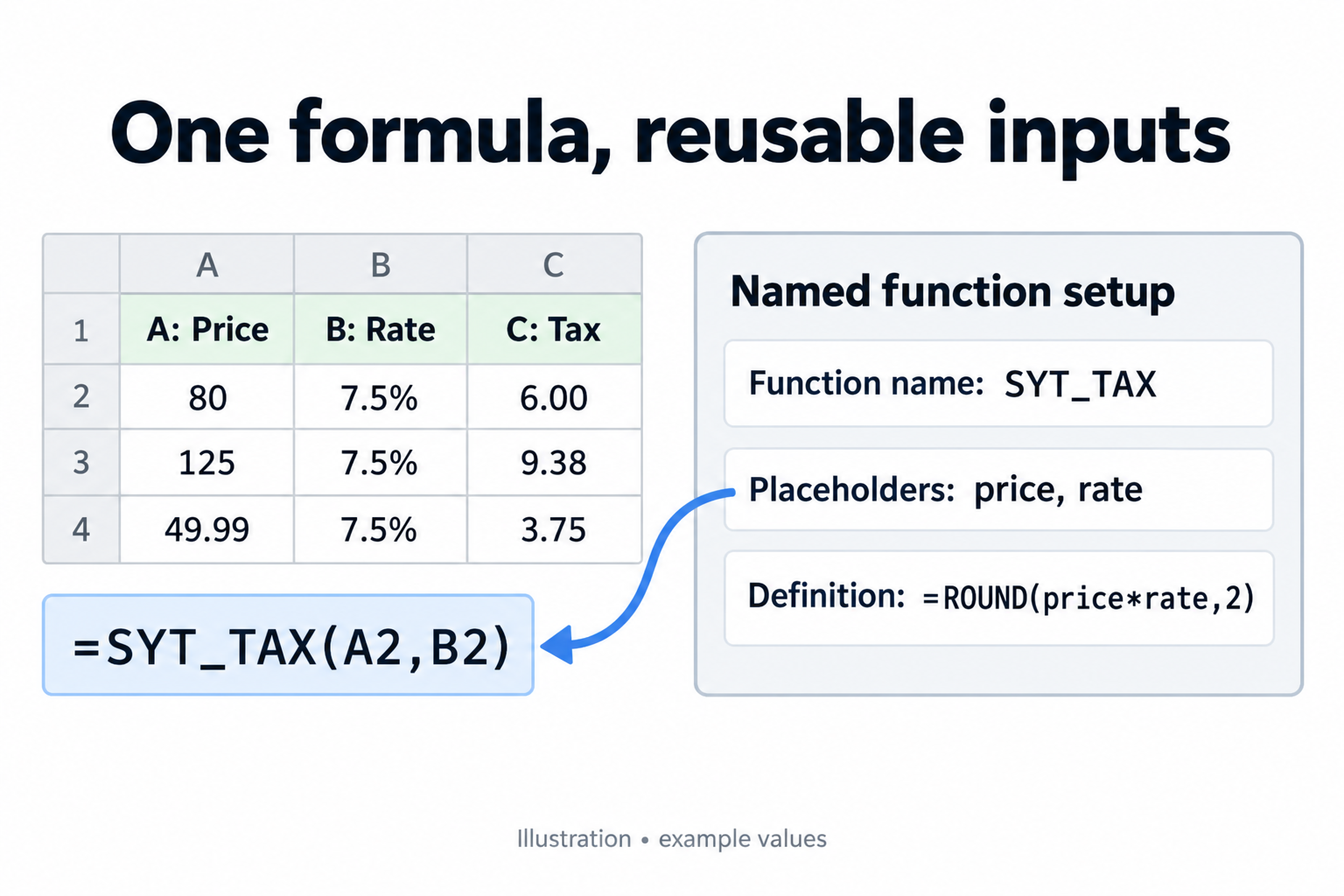
The example below packages a rounded calculation as SYT_TAX(price, rate). It returns the tax amount only—not the price plus tax. The 7.5% rate is illustrative; use the rate appropriate to your own calculation.
Build and test a named function
Use Google Sheets in a desktop browser with permission to edit the file. Enter Price, Rate, and Tax in A1:C1. Put 80, 125, and 49.99 in A2:A4, and enter 7.5% in B2:B4. Leave column C empty for now.
- Open Data > Named functions. Select Add new function in the side panel.
- Enter
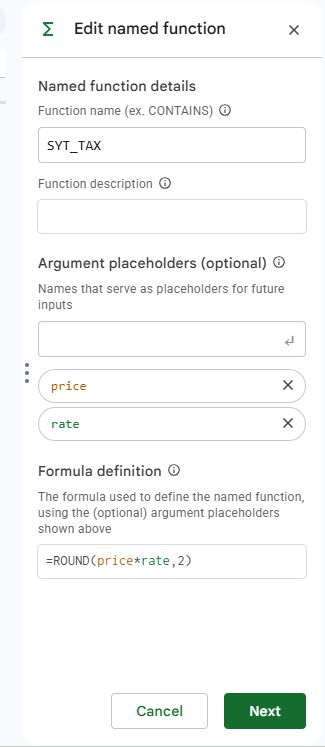
SYT_TAXas the function name. A useful description is “Multiply a price by a rate and round the result to two decimal places.” - Add
priceandrateas separate argument placeholders, in that order. Press Enter after each placeholder so it becomes a separate argument. These names stand for the values supplied when you call the function; they are not cell addresses. - In Formula definition, enter
=ROUND(price*rate,2). Select Next. - Review the definition. Optionally add argument descriptions and examples: price before tax, example 80; rate entered as a percentage, example 7.5%. Select Create.
- In C2, enter
=SYT_TAX(A2,B2). Copy that formula to C3:C4, or enter=SYT_TAX(A3,B3)and=SYT_TAX(A4,B4)separately.
Check the results before reusing the function: C2 should equal 6, C3 9.38, and C4 3.75. We tested these three calls in Google Sheets. A result displayed as 6 rather than 6.00 is a number-formatting difference, not a different calculation.
Enter the rate as 7.5% or 0.075, not 7.5. With a price of 80, the last value produces 600 because Sheets treats it as 750%. Rounding the calculated value and formatting its display are separate operations.
Edit the definition or bring it into another file
To edit, return to Data > Named functions, open the menu beside SYT_TAX, and choose Edit. Review the updated definition before completing the save. Because other cells use the same function, test those calls after changing its logic or arguments.
- Open the destination spreadsheet and choose Data > Named functions > Import function.
- Select the spreadsheet containing your function. Choose the function or functions to bring over, then select Import.
- Read any conflict or dependency warnings before completing the import. A same-named imported function overrides the destination’s existing definition.
- Test
=SYT_TAX(80,7.5%)in the destination file. It should return 6.
Creating the function in one spreadsheet does not automatically install it in every file you own. Import it when you need it elsewhere; do not assume later edits to the source will update previously imported copies.
Fix common setup errors
- The name is rejected: use a name such as
SYT_TAX, not a built-in function name or cell reference. Avoid spaces, leading numbers, and punctuation other than underscores. - The formula will not parse: check the parentheses and separators, and make sure the placeholder spelling matches the arguments you added. The tested example uses a comma between ROUND’s arguments; locales using semicolons need the corresponding separator.
- The wrong inputs are used: this definition expects price first, then rate. Swapping them may be hard to notice here because multiplication is commutative, but argument order matters in other definitions.
- A range stays fixed: references written directly into a definition are converted to absolute references. To let each call choose its data, make the range an argument and pass it at the call site.
- A name resolves unexpectedly: avoid giving a named range and named function the same name; the named range takes precedence.
Named function, named range, or Apps Script?
A named range labels a location, such as a group of cells. A named function labels reusable formula logic with arguments. This example requires no Apps Script code: its calculation is composed entirely of Sheets functions. For a one-off multiplication, a normal formula may be simpler; package it when the repeated logic or clearer name earns its keep.
For naming restrictions, import warnings, and more advanced definitions, see Google’s named-functions documentation.

Matthew Burleigh has been writing tech tutorials since 2008. His writing has appeared on dozens of different websites and been read over 50 million times.
After receiving his Bachelor’s and Master’s degrees in Computer Science he spent several years working in IT management for small businesses. However, he now works full time writing content online and creating websites.
His main writing topics include iPhones, Microsoft Office, Google Apps, Android, and Photoshop, but he has also written about many other tech topics as well.