To unmerge (unlink) contacts on an iPhone, open the contact in Contacts, tap Edit, scroll down to the linked contacts, tap the red minus button next to the card you want to separate, then tap Unlink and Done. The two cards become separate contacts again, and nothing is deleted. If one of the separated cards is no longer needed, you can delete the contact on your iPhone afterward.
These steps are for the Contacts app on iPhone with iOS 27, and they match iOS 26 and other recent versions. An iPhone 6 can only update as far as iOS 12.5.7; its Contacts app uses the same Edit, linked cards and Unlink layout, but its contact settings are at Settings > Contacts instead of Settings > Apps > Contacts, and its accounts are under Settings > Passwords & Accounts. Linking details come from Apple’s Get rid of duplicate contacts on iPhone guide and its Manage and delete contacts article.
Why Contacts Get Linked on Your iPhone
When the same person is saved in more than one account, such as iCloud and Gmail, your iPhone links the cards so the person shows up once in All Contacts. Apple calls this a unified contact. You can also link two cards yourself.
The important detail is that linked cards aren’t merged. Apple says that when you link contacts, “those contacts aren’t merged.” Each card still exists in its own account. That’s why unlinking is safe: it only stops showing them together.
Sometimes the iPhone links the wrong people, such as two friends with the same name, or a work and personal card you want to keep apart. That’s when you’d unlink them.
Before You Unlink: Check You Have the Right Card
The Edit screen of a unified contact changes every card in it, so a careless tap can change or remove details from the wrong person. Take a few seconds first:
- Read the linked cards list. Each entry usually shows its account, such as iCloud or Gmail. Decide which one belongs to someone else before you tap anything.
- Don’t tap Delete Contact. It sits at the bottom of the same screen as the linked cards. Apple’s delete steps start the same way (open the contact, tap Edit, scroll down), and deleting removes the contact from every device signed in to that account. You want the red minus button next to a single linked card, not the delete button.
- Leave other fields alone. If you change a number or email while the cards are still linked, the change can be copied to the other cards too.
How to Unlink (Unmerge) Contacts on iPhone
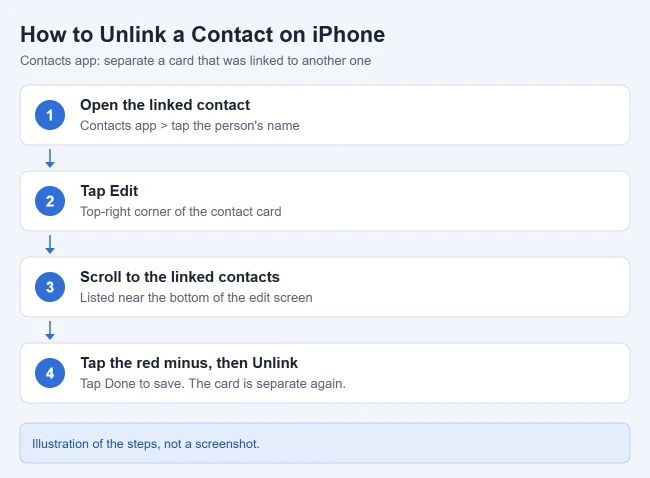
- Open the Contacts app. You can also open the Phone app and tap Contacts. Your contact list appears.
- Tap the contact that shows the wrong combined information. The unified card opens.
- Tap Edit in the top-right corner. The card opens for editing.
- Scroll to the bottom. You’ll see the linked contacts listed, often with the account each one comes from. These are all the cards that make up this contact.
- Tap the red minus button next to the card you want to separate, then tap Unlink. That card is removed from the list.
- Tap Done. The separated card shows up as its own entry in your contact list.

Repeat the steps for any other card you want to pull out. There’s no way to unlink every contact at once, so each unified contact needs its own pass. If you only see one card at the bottom, or no linked section at all, the contact isn’t linked. It may have been merged as a duplicate instead. See the duplicates section below.
To confirm it worked, go back to your contact list and search for the person’s name. You should now see two separate entries, each with only its own details.
How to Link Contacts Back Together
If you unlink the wrong card, you can link it again. Apple’s steps are:

- Open the Contacts app and tap one of the contacts. The card opens.
- Tap Edit, then tap Link Contacts. Your contact list opens so you can pick the other card.
- Choose the other contact entry, then tap Link. Both cards now appear as one unified contact.
Cleaning up a larger list? Merging multiple contacts on iPhone walks through combining several entries.
Choose Which Name a Linked Contact Shows
You might unlink contacts only because the wrong name appears. You don’t have to. When you link cards with different names, each card keeps its own name, but only one name appears on the unified card. To pick it:
- Open the linked contact and tap one of the linked cards. That individual card opens.
- Tap the contact’s name on that card. Options for the name appear.
- Tap Use This Name For Unified Card. The contact list shows that name.
To fix a typo or update a number on a single card, edit the contact on your iPhone.
What Unlinking Does and Doesn’t Change
- Nothing is deleted. Each card stays in its original account. Unlinking only stops showing them as one person.
- Edits stop syncing across both cards. While cards are linked, a change you make to the unified contact is copied to each source account where that information already exists. After unlinking, an edit only changes the card you edit.
- Your other devices follow along. Cards stored in iCloud update on devices signed in to the same Apple Account with Contacts turned on in iCloud.
If You Used View Duplicates or Merge All
Apple’s Contacts app has a separate duplicates tool. Below My Card, you may see View Duplicates, which lets you review cards with the same first and last name and merge them one at a time or with Merge All.
Apple’s guide doesn’t describe an undo button for this. First, open the contact, tap Edit and look for linked cards at the bottom. If they’re there, unlink them with the steps above.
If they aren’t, and your contacts are stored in iCloud, you can roll your whole contact list back to an earlier archive. Apple’s Restore contacts stored in iCloud guide lists these steps, which need a tablet or computer rather than your iPhone:
- Go to icloud.com/contacts and sign in with your Apple Account.
- Select the App Launcher button in the toolbar, then select Data Recovery.
- Select Restore Contacts. Archived versions are listed by date and time.
- Select Restore next to a version from before the merge.
Your current list is archived first, so you can switch back. Changes made after that archive won’t be in the restored version, so note any new contacts before you restore, and don’t edit contacts until the restore finishes. The restored list then syncs to devices with Contacts turned on in iCloud.
Finding deleted contacts on iPhone covers more recovery options.
When the Extra Cards Come From Another Account
If unwanted cards keep showing up linked to your contacts, they may come from an account you don’t really use for contacts, such as an old work email. Apple’s Manage and delete contacts article lists these settings:
- Turn off contacts for an account: go to Settings > Apps > Contacts > Contacts Accounts, tap the account, and turn off Contacts. Its cards disappear from your iPhone but stay in that account online, so you can turn the switch back on later.
- Pick where new contacts are saved: in the same Contacts settings, tap Default Account and choose one account, so you don’t keep creating copies.
- Change how names sort: Sort Order and Display Order control whether contacts are listed by first or last name.
Don’t tap Delete Account on that screen unless you mean to remove the whole account, including its mail and calendars, from your iPhone.
Troubleshooting
- There’s no Unlink button. Make sure you tapped Edit and scrolled all the way down. If only one card is listed, the contact isn’t linked.
- The contact links itself again. Cards for the same person in different accounts can be linked automatically. If the extra card comes from an account you don’t need for contacts, turn off Contacts for that account as shown above.
- The unlinked card seems to vanish. Search for it by name. It may be listed under a different name, or in an account that’s hidden. Tap Lists at the top of the Contacts app to choose which accounts are shown.
- My Card shows someone else’s details. Open My Card, tap Edit, and check the linked cards at the bottom. Unlink any card that belongs to another person so your own details aren’t shared with theirs.
Frequently Asked Questions
Does unlinking a contact delete it?
No. Linked cards are separate cards shown together. Unlinking only shows them as separate entries again.
What is the difference between linking and merging?
Linking shows cards from different accounts as one contact while keeping each card. Merging duplicates combines cards with the same name. The unlink steps only apply to linked cards.
Can I unlink contacts on iCloud.com?
Apple’s unlink steps are for the Contacts app on iPhone. Use iCloud.com for the Data Recovery restore described above.
Will my other devices show the change?
Cards stored in iCloud sync to your other devices that use the same Apple Account with Contacts turned on in iCloud.
Will unlinking change my messages or call history?
No. Your messages and calls stay where they are. They’ll show the name of whichever card matches that phone number or email.
Added a work or Outlook.com account for your contacts? You can sync its calendar the same way. Here are the steps to sync your Outlook calendar with iPhone.

Matthew Burleigh is the founder, head writer, and editor of Solve Your Tech, which he launched in 2012. He has written technology tutorials since 2008 and worked in IT since 2003, including small-business support, IT management, and consulting. He holds Bachelor’s and Master’s degrees in Computer Science from Arizona State University.
Matthew writes practical guides for Windows, iPhone and iPad, Microsoft Office, Outlook, Google apps, and Android. Solve Your Tech’s guides are checked step by step against the device or app maker’s own documentation and tested on his own devices whenever he has the hardware or software, with clear steps, sources, and update dates.
Read more about Matthew and how Solve Your Tech writes and updates its guides, or report a correction.