To install WhatsApp on an iPad, download WhatsApp Messenger from the App Store, open it, and scan the QR code it shows using Linked devices in WhatsApp on your iPhone or Android phone. After that, the iPad works on its own, even when your phone is off.
This covers the official WhatsApp app for iPad, which WhatsApp released on May 27, 2025. It runs on any iPad that supports iPadOS 15.1 or later. Older advice that says you must use a browser, a third-party app, or a jailbroken iPad is out of date.
What You Need Before Installing
- An iPad on iPadOS 15.1 or later. That’s the requirement shown on the WhatsApp Messenger App Store listing. Check its Compatibility section before you download, because requirements can change. To see your version, go to Settings > General > About.
- A phone that already has your WhatsApp account. WhatsApp’s iPad download page says you still need your primary phone to register your account and link new devices. You can’t create a new WhatsApp account on an iPad, and you can’t verify one with an SMS code there.
- An internet connection and an Apple Account signed in to the App Store.
- Free storage space. The listing currently shows the app at about 400 MB, and the photos and videos from your chats add more over time.
The official app is free to download and is listed under the developer WhatsApp Inc. The listing also shows optional in-app purchases, which you don’t need to set up or use the app. Check the name and developer before you tap Get, since the App Store has similarly named apps.
Skip websites that offer WhatsApp as a downloaded .ipa file, because installing an IPA file on iPad only works for apps signed through an Apple-supported route.
Step 1: Download WhatsApp From the App Store
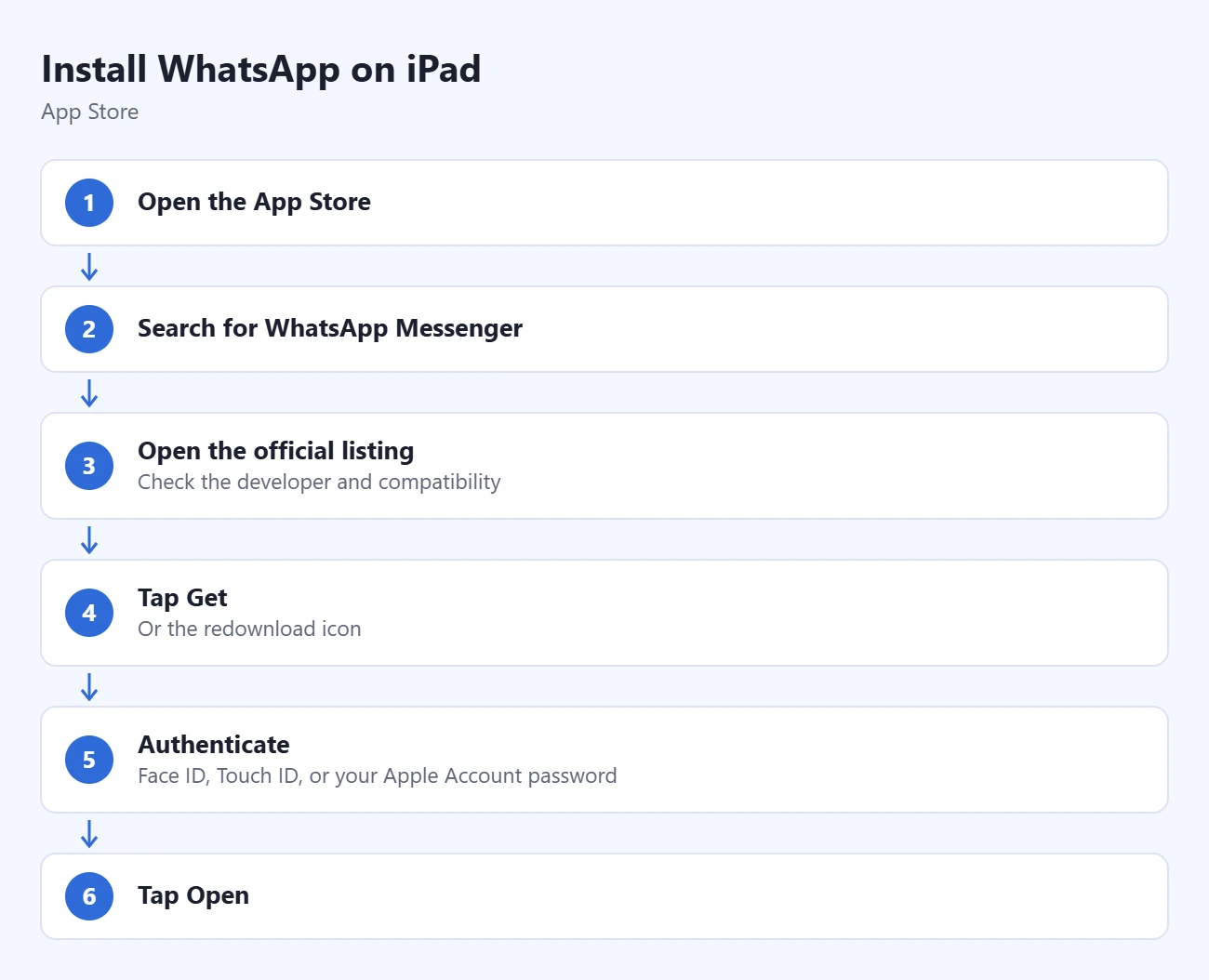
- Open the App Store on your iPad.
- Tap Search and type WhatsApp Messenger, or follow the App Store link from WhatsApp’s iPad download page.
- Open the listing from WhatsApp Inc. and check its compatibility.
- Tap Get. If you installed it before, you see a cloud icon instead. If you see Open, the app is already on your iPad.
- Confirm the download. Depending on your iPad, press the top button, use Face ID or Touch ID, or enter your Apple Account password.
- When the download finishes, tap Open.
The WhatsApp icon now appears on your Home Screen. Apple’s app download instructions explain the Get and Open buttons. To find downloaded apps or reinstall one, read about installing apps on iPad.
Step 2: Link WhatsApp on iPad to Your Phone
The iPad becomes a linked device for the account on your phone. Keep both devices close together and connected to the internet. WhatsApp’s iPad help page describes the process.
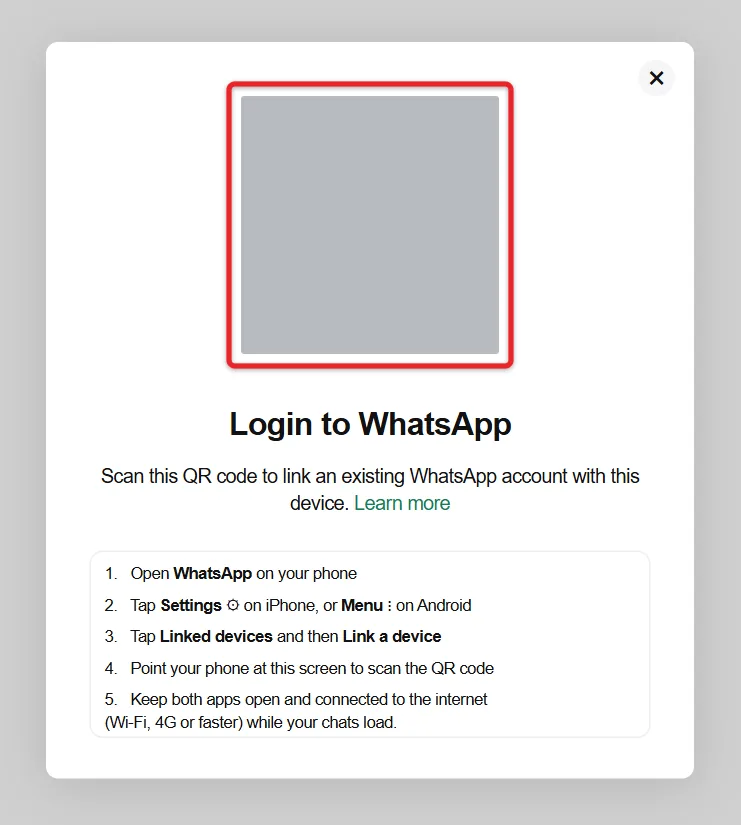
- Open WhatsApp on your iPad and tap Continue. A QR code appears on the screen.
- Open WhatsApp on your primary phone.
- On an iPhone, tap Settings, then Linked devices > Link a device. On Android, tap the three-dot menu, then Linked devices > Link a device. Labels can differ slightly between app versions.
- If your phone asks, confirm with Face ID, Touch ID, your fingerprint, or your phone’s passcode. WhatsApp’s device-linking instructions describe these prompts.
- Point the phone at the QR code on the iPad. The phone’s scanner opens inside WhatsApp; don’t use the regular Camera app, because it can’t link your account.
- Wait while your chats sync, then open a conversation on the iPad.
Your chats appear on the iPad, and the iPad shows up in the Linked devices list on your phone. Keep WhatsApp open on both devices until the first sync finishes. A big chat history can take several minutes.
Only scan a QR code shown by your own iPad. If anyone asks you to scan a WhatsApp code for them, say no, because that links their device to your account.
Step 3: Turn On Notifications
When WhatsApp asks to send notifications, tap Allow so new messages and calls alert you even when the app is closed. If you tapped Don’t Allow, go to Settings > Apps > WhatsApp > Notifications on your iPad and turn on Allow Notifications. On iPadOS 17 and earlier, WhatsApp is listed directly in Settings.
Can You Use WhatsApp on iPad Without a Phone?
After linking, your phone doesn’t need to stay online. Each linked device connects on its own, so messages and calls still reach the iPad when the phone is off or out of battery.
You do need a phone for the account itself. The iPad can’t be the account’s primary device, so someone without a phone number, such as a child with only an iPad, can’t set up WhatsApp this way. Android tablets are different: WhatsApp’s tablet page says you can register a new account on one.
WhatsApp allows up to four linked devices per primary phone. Its linked-device guidance also says linked devices are logged out if you don’t use your primary phone for more than 14 days, so open WhatsApp on that phone now and then.
What the iPad App Can Do
The iPad app handles chats, photos, videos, documents, and voice or video calls with up to 32 people, including screen sharing and both the front and back cameras. You can lock individual chats so others who use your iPad can’t open them, and it works with Magic Keyboard and Apple Pencil. Messages and calls stay end-to-end encrypted.
Multitasking controls depend on your iPad and iPadOS version. To keep a chat next to another app, use two apps side by side on iPad.
Linked devices don’t have every phone feature. WhatsApp’s linked-device help page lists viewing live locations and creating or viewing broadcast lists as unsupported. Use your phone when a feature is missing.
If Installation or Syncing Doesn’t Work
- The App Store says the app isn’t compatible: your iPad is below iPadOS 15.1 or can’t update further. Check for an update in Settings > General > Software Update. This walkthrough on finding a software update on iPad can help. If your iPad can’t update, a third-party “WhatsApp for iPad” app is not the official app and may put your messages at risk.
- The App Store is missing: Apple says Content & Privacy Restrictions can hide it. Have the person who manages Screen Time allow Installing Apps, or search for App Store with Spotlight.
- The QR code won’t scan: make sure you’re scanning from Linked devices in WhatsApp, not the Camera app. Clean the camera lens, raise the iPad’s brightness, and update WhatsApp on both devices. If the code times out, close and reopen WhatsApp on the iPad to show a new one.
- Linking stops at verification: finish the Face ID, fingerprint, or passcode prompt on the phone, then scan again.
- Older chats are missing: the iPad app syncs up to a year of recent history, and older history stays on the phone. Keep WhatsApp updated, and check the phone for those conversations.
- The iPad logged out by itself: you may not have used WhatsApp on your phone for more than 14 days, or someone removed the iPad from Linked devices. Link it again with the steps above.
How to Disconnect the iPad
To remove the iPad from your account, open Linked devices on your phone, tap the iPad, and tap Log out. You can also log out from the iPad itself in WhatsApp’s settings; WhatsApp’s unlinking guide shows both routes. Your chats stay on your phone, and you can link the iPad again at any time.
Frequently Asked Questions
Is WhatsApp for iPad free?
Yes. The app is free to download and use. Calls and messages use Wi-Fi or cellular data, so data charges from your provider can apply on a cellular iPad.
Can I restore my iPhone WhatsApp backup on the iPad?
No. Backups are for restoring your primary phone. The iPad gets your chats by syncing from the phone when you link it, so you don’t need a backup.
Can I use WhatsApp on an iPad and an iPhone at the same time?
Yes. Both stay signed in, and messages appear on each. The iPhone stays the primary device for the account.
Do I need a SIM card or cellular iPad?
No. A Wi-Fi-only iPad works, because the account’s phone number lives on your primary phone. To learn why an iPad usually has no number of its own, read about finding the phone number on an iPad.
Can I use WhatsApp Web on an iPad instead?
You can open WhatsApp Web in Safari, but WhatsApp builds it for computer browsers. The iPad app is the better choice on any iPad that meets the iPadOS 15.1 requirement.

Matthew Burleigh is the founder, head writer, and editor of Solve Your Tech, which he launched in 2012. He has written technology tutorials since 2008 and worked in IT since 2003, including small-business support, IT management, and consulting. He holds Bachelor’s and Master’s degrees in Computer Science from Arizona State University.
Matthew writes practical guides for Windows, iPhone and iPad, Microsoft Office, Outlook, Google apps, and Android. Solve Your Tech’s guides are checked step by step against the device or app maker’s own documentation and tested on his own devices whenever he has the hardware or software, with clear steps, sources, and update dates.
Read more about Matthew and how Solve Your Tech writes and updates its guides, or report a correction.