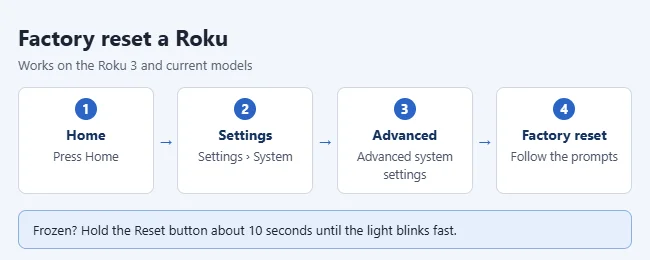
To factory reset a Roku, press Home on the remote, then go to Settings > System > Advanced system settings > Factory reset and follow the on-screen steps. On a Roku TV, choose Factory reset everything. If the Roku will not respond, hold the physical Reset button on a streaming player for about 10 seconds, until the status light blinks rapidly. The same steps apply to older players like the Roku 3 and to current models.
A factory reset erases the device, so read the short checklist below before you start. If the Roku is only slow or frozen, a restart is the safer first move, and it is covered below as well.
What a Roku factory reset does
A factory reset returns the Roku to the state it was in when it was new. According to Roku’s Factory reset your Roku TV, player, or projector guide, the reset does three things:
- It erases your personal preferences.
- It unlinks the device from your Roku account, which removes all apps and account information from the device.
- It resets all settings, so the device is ready for first-time setup again.
Roku does not describe any way to undo a factory reset. The only way back is to set the device up again, link it to a Roku account, and reinstall your apps. Your Roku account itself is not deleted. Only the link between this one device and the account is removed.
These instructions cover Roku streaming players, Roku Streaming Sticks, Roku TVs made by brands such as TCL, Hisense and onn, and Roku projectors. Roku soundbars and wireless speakers use a different reset process that is not covered here.
Before you factory reset
Warning: the Roku cannot stream anything after a reset until you finish Guided Setup again. Guided Setup is the series of screens a new Roku shows the first time it is turned on. Roku says to have these items on hand first, and to wait if you do not have them:
- Your Roku account email and password. The device must be linked to a Roku account during setup. If it is linked to someone else’s account, such as a family member or a previous owner, you will need that person’s sign-in details. Roku says the device cannot be activated without them.
- Your Wi-Fi network name and password.
- Sign-in details for your streaming apps. Netflix, Disney+, and every other app will need to be installed again, and you will need to sign in to each one.
- Your parental control PIN, if one is set on your Roku account.

You also need a way to control the Roku for the menu method. A Roku remote works, and so does the free Roku mobile app, as long as the Roku is still connected to your network. Here is how to use an iPhone as a Roku remote.
Try a restart first
A factory reset is not the first fix for a Roku that freezes, runs slowly, or gets stuck on the logo screen. Roku calls a system restart the least invasive reset method, and it does not affect your settings.
- Press Home on your Roku remote.
- Select Settings.
- Select System.
- Select Power. If you do not see a Power menu, skip this step.
- Select System restart.
If you cannot reach the menu, unplug the power cord from the Roku for at least 10 seconds, then plug it back in. Roku notes that on a Roku TV this is not the same as pressing the power button. Roku documents both methods in How to system restart your Roku streaming device, and our guide on how to reboot a Roku walks through it in more detail.

Several other problems have smaller fixes too:
- Wi-Fi or several apps failing at once: Roku offers a network connection reset under Advanced system settings > Network connection reset > Reset connection. It clears only the network connection. Afterward you can connect the Roku to a Wi-Fi network again.
- One app misbehaving: try reinstalling Netflix on the Roku, or whichever app is the problem.
- Switching accounts in an app: you can sign out of Netflix on a Roku or sign out of Prime Video without resetting the whole device.
- A Roku TV picture that looks too dim or too bright: you can change the brightness on a Roku TV from its picture settings.
Use this method whenever you can still control the Roku. It works with the Roku remote or the Roku mobile app.
- Press Home on your Roku remote. This opens the Roku home screen.
- Scroll to Settings and select it.
- Select System.
- Select Advanced system settings.
- Select Factory reset.
- On a Roku TV, select Factory reset everything. On a streaming player, skip this step.
- Follow the on-screen instructions to confirm. Depending on your model and software version, this may include typing a short code that is shown on the screen. Once you confirm, the reset starts.
The Roku then restarts. When it comes back on, it shows the first setup screen instead of your home screen. That is how you know the reset worked.
Menus can look a little different between a Roku TV and a streaming player, and between software versions. If you do not see Advanced system settings, make sure you opened System first and scroll through the whole list.
Use the physical button when the screen is frozen, the remote is lost, or you cannot get to the Settings menu. This applies to Roku streaming players, including the Roku 3, and to Roku projectors.
- Find the Reset button on the back or bottom of the device. Roku says it is either a tactile button you can press with a finger or a pinhole. For a pinhole, use a straightened paper clip.
- Make sure the player is powered on.
- Press and hold the Reset button for about 10 seconds.
- Release the button when the status light blinks rapidly.
The rapid blinking is the sign that the factory reset is complete. The player then restarts as if it were new. Keep holding until you see the light change.
Roku TVs are less consistent. Some models have a physical Reset button. Others have no Reset button and are reset by holding the Power and Find My Remote buttons on the TV at the same time. Roku lists these details for its own Roku-brand TVs:
| Roku TV series | How to reset with buttons |
|---|---|
| Pro Series | No Reset button. Hold Power and Find My Remote on the side for 12 seconds. |
| Plus Series | Some older models have a pinhole Reset button, held for 12 seconds. Newer ones use Power and Find My Remote on the back for 12 seconds. |
| Select Series (HD and 4K) | If the TV has a Reset button, hold it for 12 seconds. If it does not, hold Power and Find My Remote for 12 seconds. |
For Roku TVs from other brands, Roku’s troubleshooting guide says that on models with a Reset button you press and hold the small recessed button on the back of the TV for about 12 seconds, then release. Button placement varies by brand, so check the TV’s own manual if you cannot find it.
As with a player, an indicator light or status light blinks rapidly on most Roku devices when the reset is complete, and the TV restarts ready for setup.
Recovery Mode on a Roku TV
Recovery Mode is a deeper option that exists only on Roku TVs. It clears all data and reinstalls the Roku software. Roku describes it as the most invasive reset method and says to try it only when every other method has failed, for example when the TV keeps restarting or is stuck on the logo screen.
- Find the Reset button on the back or bottom of the TV. Some TVs have a small pinhole instead.
- Press and hold the button for at least 20 seconds.
- Release it when the TV restarts and shows a screen that says Recovery Mode.
- Use the remote to pick your language, select Wireless to connect to Wi-Fi, and choose Update now.
When the update finishes, the TV restarts and takes you through setup. Roku says that if the Recovery Mode screen does not appear after 30 seconds, the TV may not support Recovery Mode or may need service. The full procedure, including a USB drive option for TVs that cannot get online, is in Roku’s My Roku TV keeps restarting or is stuck on the logo screen guide.
What to do after the reset
A reset Roku behaves like a new one. Roku lists these tasks after a successful factory reset:
- Complete Guided Setup and activation. Connect to Wi-Fi, let any software update finish, then link the device to a Roku account by entering your email address or scanning the QR code on the screen. See how to set up a Roku for the full walkthrough.
- Reinstall your apps and sign in to the ones that need a username and password.
- Create a 4-digit PIN and set up parental controls again if you use them.
- Scan for broadcast channels if you have a Roku TV with an antenna connected.
Activation is always free. Roku states that it never charges a fee to create an account or activate a device, so be wary of any website or phone number that asks for payment during setup. Roku’s activation guide covers what to do if the activation email does not arrive or the QR code will not scan.
If you are selling or giving away the Roku
Roku recommends a factory reset when you intend to return, sell, or give away a device. The reset unlinks it from your account, so the next owner can link it to their own.
If the Roku is already gone, you can still unlink it from a web browser:
- Go to my.roku.com and sign in to your Roku account.
- Find the device under My devices and click it to open Device details.
- Select Remove device from account.
- Select Yes, remove device.
Roku covers this in How to remove a Roku streaming device from your Roku account. Keep in mind that unlinking a device does not deactivate your Roku account or cancel subscriptions billed through Roku.
If you received a used Roku that is still linked to a previous owner, ask that person to remove it from their account with the steps above. Roku’s guide warns that a device linked to someone else’s account needs that person’s email and password, so sort this out before you reset it.
Troubleshooting a Roku factory reset
- The remote does nothing. Put fresh batteries in the remote, or recharge it if it is a rechargeable model. If that fails, use the Roku mobile app while the Roku is still online, or use the Reset button.
- You cannot find a Reset button on a Roku TV. Some Roku TVs do not have one. Look for Power and Find My Remote buttons on the side or back and hold both for 12 seconds.
- Nothing happens when you hold the Reset button. Check that the device is plugged in and powered on, and hold the button for the full time. For a pinhole button, use a paper clip.
- The Roku TV restarts over and over, or never gets past the logo. Unplug the TV for 60 seconds and plug it back in. If the loop continues, try the button reset and then Recovery Mode.
- Setup stops at the activation screen. You need the email and password for a Roku account. If you forgot them, recover the account on Roku’s website before you continue.
- The problem is still there after the reset. A reset only fixes software and settings. For a Roku TV, Roku suggests contacting Roku Support or the TV manufacturer.
Frequently asked questions
Does a factory reset cancel my subscriptions?
No. Subscriptions are tied to your Roku account or to the streaming service, not to the device. Roku says subscriptions renew automatically unless you cancel them. For subscriptions you signed up for through Roku, go to my.roku.com/subscriptions and turn off auto-renew, as described in Manage or cancel subscriptions on Roku. For other services, contact the service directly.
Does a factory reset delete my Roku account?
No. A factory reset unlinks one device from the account and wipes that device. Roku notes that unlinking a device does not deactivate your Roku account.
Can I factory reset a Roku without the remote?
Yes. On a streaming player, hold the Reset button on the back or bottom for about 10 seconds until the status light blinks rapidly. On a Roku TV, use its Reset button or the Power and Find My Remote buttons for 12 seconds, depending on the model. The Roku mobile app can also run the Settings menu steps while the Roku is on your network.
How do I factory reset a Roku 3?
The Roku 3 uses the same steps as other streaming players. Use Settings > System > Advanced system settings > Factory reset, or hold the Reset button on the device for about 10 seconds while it is powered on. Because the Roku 3 is an older model, its menus may look slightly different from the ones on a new Roku.
How long do I hold the Reset button on a Roku?
Roku’s instructions say about 10 seconds for streaming players and projectors, and 12 seconds for Roku TVs. Holding the Reset button on a Roku TV for 20 seconds or more starts Recovery Mode instead on TVs that support it.
Should I reset before selling or giving away my Roku?
Yes. Roku recommends a factory reset before you return, sell, or give away a device. It removes your apps and account information from the device so the new owner can set it up with their own account.
Is a factory reset the same as a restart?
No. A system restart turns the Roku off and on again and keeps everything in place. A factory reset erases your preferences, apps, and account link, and you have to complete setup again.
Next step
If you still have control of the Roku, gather your Roku account and Wi-Fi details, then run the reset from Settings > System > Advanced system settings. When the setup screen appears, follow our guide on setting up a Roku to get back to streaming.

Matthew Burleigh has been writing tech tutorials since 2008. His writing has appeared on dozens of different websites and been read hundreds of millions of times.
After receiving his Bachelor’s and Master’s degrees in Computer Science he spent several years working in IT management for small businesses. However, he now works full time writing content online and creating websites.
His main writing topics include iPhones, Microsoft Office, Google Apps, Android, and Photoshop, but he has also written about many other tech topics as well.