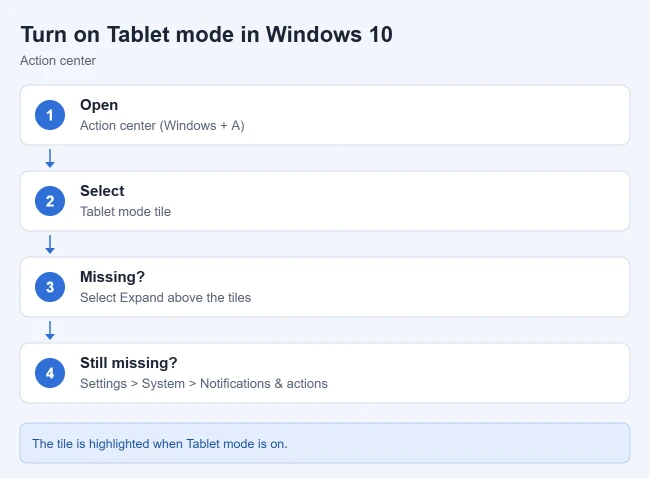
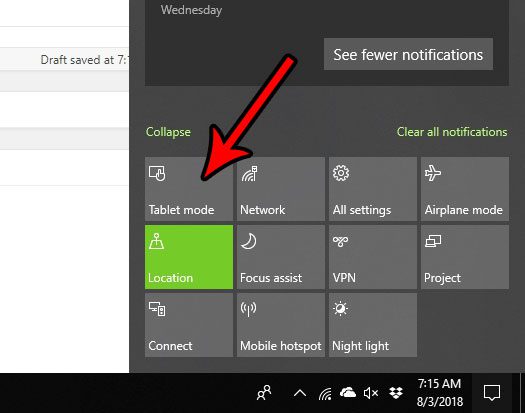
To enable Tablet mode in Windows 10, open action center from the taskbar (or press Windows + A) and select the Tablet mode tile. Select the same tile again to turn Tablet mode off. If you don’t see the tile, select Expand above the tiles.
These steps cover Windows 10, including the final version, 22H2, and earlier releases. Windows 11 has no manual Tablet mode switch, and it gets its own section below. Tablet mode makes Windows easier to use with your fingers on touchscreen PCs, tablets, and 2-in-1 laptops (laptops whose keyboard folds back or detaches). The steps follow Microsoft’s Turn tablet mode on or off in Windows guide.
Before You Start
- Windows version: The manual Tablet mode switch exists in Windows 10. Windows 11 doesn’t have one.
- Touch hardware: Tablet mode is designed for touch-capable screens. Microsoft notes that the Tablet mode option might not be offered if Windows doesn’t detect your device as touch capable.
- Nothing is deleted: Tablet mode changes how Start, the taskbar, and app windows look and behave. Your apps and files stay where they are, and you can switch back at any time with the same tile.
How to Turn On Tablet Mode in Windows 10
Action center is the panel that slides out from the right side of the screen and shows notifications at the top and a grid of quick action tiles at the bottom.
- On the taskbar, select the action center icon next to the time and date. You can also press Windows + A, or on a touchscreen, swipe in from the right edge of the screen.
- Look at the tiles at the bottom of the panel. If you only see one row, select Expand above the tiles to show the rest.
- Select the Tablet mode tile.
The Tablet mode tile is highlighted and Windows switches to its touch-friendly layout. When Tablet mode is off, the tile isn’t highlighted.
Turn On Tablet Mode From Settings
If you would rather use the Settings app, or the action center tile is missing, Windows 10 version 2004 and later also has a switch in Settings. Dell’s tablet mode support article shows the same page.
- Press Windows + I to open Settings.
- Select System, then select Tablet in the left pane.
- Select Change additional tablet settings.
- Turn on the Tablet mode switch.
The same page has the taskbar options for Tablet mode, covered below. On earlier Windows 10 versions, the page is called Tablet mode, and the closest option is setting When I sign in to Use tablet mode, which applies the next time you sign in.
What Changes When Tablet Mode Is On
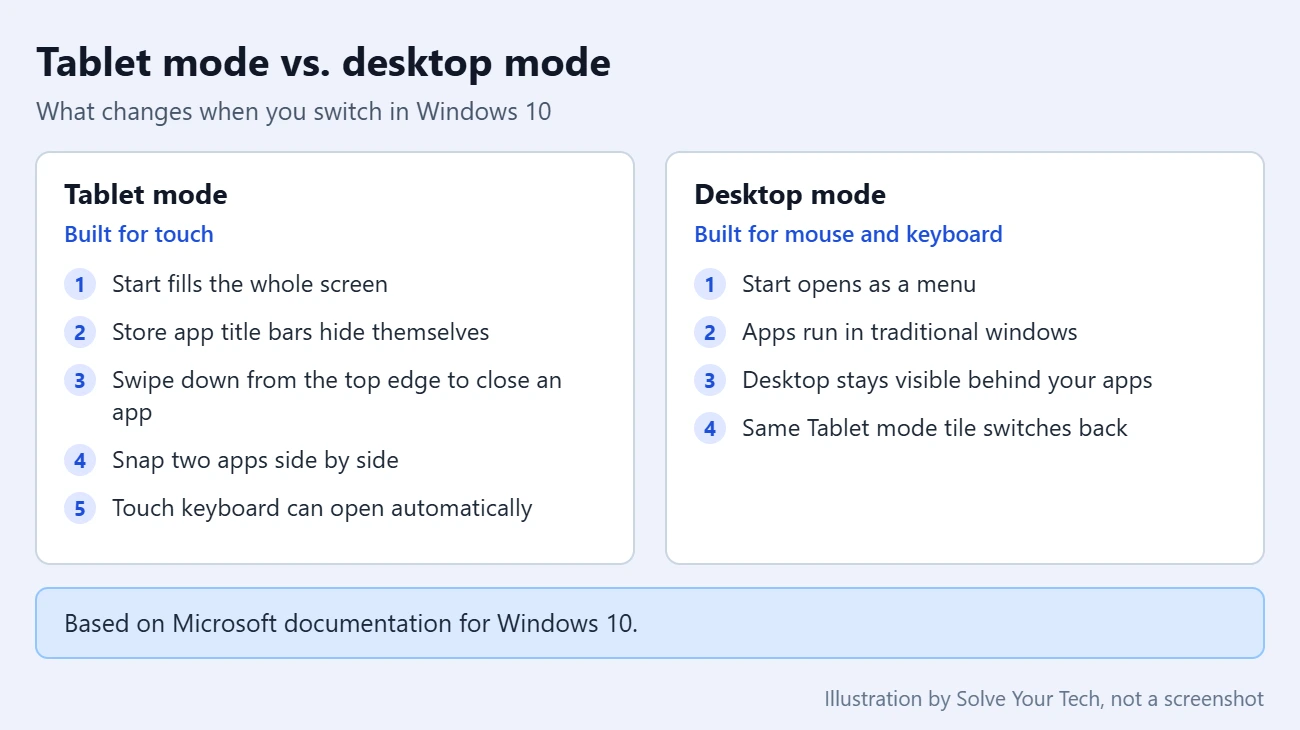
Knowing what to expect makes it easy to confirm that the switch worked. Microsoft’s Tablet mode documentation lists these changes:
- Start fills the screen. Instead of a menu in the corner, Start stretches across the whole display.
- The taskbar gets simpler. It turns into a navigation and status bar with a Back button next to Start. App icons are hidden on the taskbar by default.
- Apps use the full screen. Title bars on Microsoft Store apps hide themselves so the content has more room.
- You close apps with a swipe. Drag down from the top edge of the screen to close the current app.
- Two apps can share the screen. Snap two apps side by side and drag the divider between them to resize both.
- The touch keyboard can appear by itself when you tap a place to type.
Touch gestures still reach the main Windows features. Swipe in from the left edge for Task View, which shows your open apps, and from the right edge for action center.
For what you can do once Task View opens, read what Task View does in Windows.
To type with a mouse instead of the touch keyboard, turn on the On-Screen Keyboard in Windows 10 with Windows key + Ctrl + O.
Show App Icons and the Touch Keyboard Button
Because Tablet mode hides app icons on the taskbar, switching between apps happens in Task View. If you would rather keep your pinned and open apps visible:
- Go to Settings > System > Tablet > Change additional tablet settings (on earlier versions, Settings > System > Tablet mode).
- Turn off Hide app icons on the taskbar in tablet mode.
To get a button that opens the touch keyboard whenever you need it, press and hold (or right-click) the taskbar and select Show touch keyboard button. Microsoft’s Tablet mode documentation covers both options.
Screen Rotation Is a Separate Setting
Tablet mode doesn’t control whether the screen turns when you rotate the device. The two are separate settings. On devices with a rotation sensor, action center has a Rotation lock tile that stops or allows automatic rotation.
How to Turn Off Tablet Mode
Tablet mode has no separate off switch. The tile is a toggle, so you use the same steps in reverse.
- Open action center from the taskbar, press Windows + A, or swipe in from the right edge of the screen.
- Select the highlighted Tablet mode tile.
The tile is no longer highlighted, Start shrinks back to a menu, and your apps open in regular windows on the desktop again. You can also turn off the Tablet mode switch in Settings > System > Tablet > Change additional tablet settings.
Add the Tablet Mode Tile If It’s Missing
If Tablet mode isn’t in action center even after you select Expand, the tile has probably been removed from your quick actions. Add it back:
- Right-click Start and select Settings > System > Notifications & actions.
- Under Quick actions, select Edit your quick actions. Action center opens in an editing view.
- In the side pane, select Add, then select Tablet mode.
- If you want, drag the new tile to the spot you prefer, then select Done.
The Tablet mode tile appears in action center and works as described above.
If Tablet mode isn’t in the list of tiles you can add, Windows might not be detecting your PC as a touch-capable device. On a regular desktop monitor or a non-touch laptop, that is expected. On a touchscreen model, check that touch works elsewhere in Windows before looking further. The touchscreen control lives in Device Manager, where you can turn a touchscreen on or off.
Automatic Switching on 2-in-1 Devices
You don’t always have to use the tile. On a 2-in-1, the hardware can tell Windows 10 when you fold the keyboard back or detach it. According to Microsoft, Windows then shows a prompt asking whether you want to switch modes, and you can set a default answer so it stops asking. Plugging in a USB keyboard or pairing a Bluetooth keyboard doesn’t count as docking, so it won’t trigger the prompt.
The options are in the Settings app under System. The page name and labels depend on your Windows 10 version:
- Windows 10 version 2004 and later: go to Settings > System > Tablet. When I sign in offers Use the appropriate mode for my hardware, Never use tablet mode, and Always use tablet mode. When I use this device as a tablet offers Don’t switch to tablet mode, Always ask me before switching modes, and Always switch to tablet mode.
- Earlier Windows 10 versions: go to Settings > System > Tablet mode. When I sign in offers Use tablet mode, Use desktop mode, and Use the appropriate mode for my hardware. When this device automatically switches tablet mode on or off offers Don’t ask me and don’t switch, Always ask me before switching, and Don’t ask me and always switch.
The When I sign in choice applies the next time you sign in or restart. If your PC keeps switching to Tablet mode when you don’t want it, set When I use this device as a tablet to Don’t switch to tablet mode (Don’t ask me and don’t switch on earlier versions). Then use the action center tile whenever you do want Tablet mode.
Tablet Mode in Windows 11
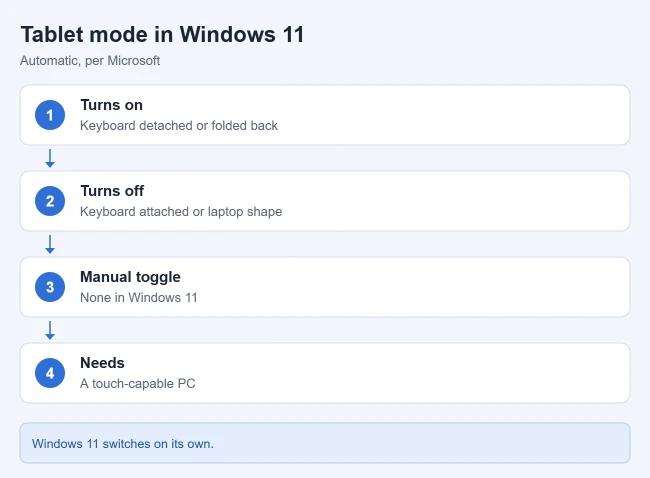
Windows 11 doesn’t have a manual Tablet mode switch, so you won’t find the tile there. According to Microsoft, it turns tablet mode on and off by itself on touch-capable devices:
- On when you detach a wired or Bluetooth keyboard, or convert the device into a tablet.
- Off when you attach a keyboard, or convert the device back into a laptop.
On a 2-in-1, folding the screen back or removing the keyboard is all you need to do.
What you can adjust in Windows 11 is how touch works. Microsoft’s touch gestures for Windows page lists the gestures, such as three fingers up to show open windows and one finger from the right edge for notifications. If gestures don’t respond, go to Settings > Bluetooth & devices > Touch and check Three and four-finger touch gestures and Touch screen edge gestures.
Troubleshooting Tablet Mode
- You can’t find the action center icon. It sits at the far right of the taskbar, next to the time and date. Press Windows + A to open the panel without it.
- You only see a few tiles. Select Expand above the tiles to show every quick action.
- The tile isn’t there at all. Add it from Settings > System > Notifications & actions > Edit your quick actions, or use the switch in Settings > System > Tablet > Change additional tablet settings.
- Tablet mode isn’t offered as a tile to add. Windows may not see a touch-capable screen on this PC.
- Start covers the whole screen and the desktop is gone. Tablet mode is probably on. Open action center and select the highlighted Tablet mode tile.
- Start is still full screen with Tablet mode off. That is a separate option. Go to Settings > Personalization > Start and turn off Use Start full screen.
- Your taskbar icons disappeared. Tablet mode hides them by default. Turn off Hide app icons on the taskbar in tablet mode, as shown above.
- Tablet mode turns on by itself. Go to Settings > System > Tablet and set When I use this device as a tablet to Don’t switch to tablet mode.
- The screen won’t rotate, or rotates when you don’t want it to. Check the Rotation lock tile in action center. Tablet mode doesn’t change rotation.
- You are on Windows 11. There is no switch to find. Tablet mode follows the keyboard and the way the device is folded.
A Note on Windows 10 Support
Microsoft ended support for Windows 10 on October 14, 2025. Your PC still works and Tablet mode still works, but Windows 10 no longer gets free software updates, technical help, or security fixes from Windows Update. Moving to Windows 11 is the recommended path if your PC is eligible, and a consumer Extended Security Updates program is available for people who need more time.
Frequently Asked Questions
What is Tablet mode in Windows 10?
Tablet mode is a Windows 10 layout made for touch. Start fills the screen, apps open full screen, the taskbar is simplified, and the touch keyboard can appear when you tap a place to type. You turn it on and off with the Tablet mode tile in action center.
Can I use Tablet mode without a touchscreen?
It is designed for touch input, so it isn’t much help with a mouse and keyboard. Microsoft also notes that the Tablet mode tile might not be available to add when Windows doesn’t detect a touch-capable device, so you may not see the option on a non-touch PC.
How do I turn Tablet mode off in Windows 10?
Open action center with the taskbar icon or Windows + A, then select the highlighted Tablet mode tile. The highlight goes away and Windows returns to the desktop layout.
What is the keyboard shortcut for Tablet mode?
Microsoft doesn’t document a single shortcut that toggles Tablet mode. The fastest keyboard route is Windows + A to open action center, then selecting the Tablet mode tile.
Why can’t I find Tablet mode in Windows 11?
Windows 11 removed the manual switch. It changes modes automatically when you attach or detach a keyboard or fold a 2-in-1 into a tablet shape, so there is no tile or setting to turn on.
Does Tablet mode close my apps or change my files?
No. Tablet mode changes the layout of Start, the taskbar, and app windows. Switching it on or off doesn’t remove apps or files, and you can go back with the same tile.
Next Steps
Once Tablet mode is on, try the edge swipes: left for Task View, right for action center, and down from the top to close an app. If text and buttons still feel small on a touchscreen, you can turn on the Magnifier in Windows 10. If you have moved to Windows 11, going full screen on Windows 11 shows the closest equivalents.

Matthew Burleigh is the founder, head writer, and editor of Solve Your Tech, which he launched in 2012. He has written technology tutorials since 2008 and worked in IT since 2003, including small-business support, IT management, and consulting. He holds Bachelor’s and Master’s degrees in Computer Science from Arizona State University.
Matthew writes practical guides for Windows, iPhone and iPad, Microsoft Office, Outlook, Google apps, and Android. Solve Your Tech’s guides are checked step by step against the device or app maker’s own documentation and tested on his own devices whenever he has the hardware or software, with clear steps, sources, and update dates.
Read more about Matthew and how Solve Your Tech writes and updates its guides, or report a correction.