To add a footnote in Word, click where you want the footnote number, go to the References tab, and select Insert Footnote. Word adds a small reference mark in the text and moves your cursor to the bottom of the page, where you type the note. The shortcut is Ctrl + Alt + F on Windows or Cmd + Option + F on a Mac.
These steps follow Microsoft’s Insert footnotes and endnotes in Word and Add footnotes and endnotes in Word for Mac guides. The shortcuts come from Microsoft’s Word keyboard shortcuts list.
In this article:
- Insert a footnote
- Add an endnote instead
- Move between notes and text
- Change footnote numbering and format
- Delete a footnote
- Footnotes in Word for the web
- FAQs
How to Insert a Footnote in Word
Microsoft explains that footnotes usually appear at the bottom of the page and are used to explain, comment on or give a reference for something in your document.
- Click right after the word or sentence you want to note.
- Select the References tab.
- Select Insert Footnote.
- Type your note at the bottom of the page.
- Double-click the reference mark at the start of the note to return to your place in the text.
Word numbers footnotes automatically and renumbers them if you add or delete one.
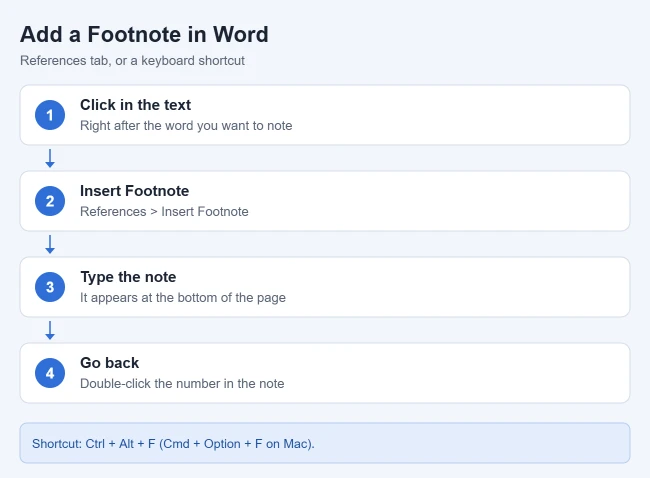
Result: A small number appears in your text, with the matching note at the bottom of the page.
How to Add an Endnote Instead
Endnotes come at the end of the document or section instead of the bottom of each page. Select References > Insert Endnote, or press Ctrl + Alt + D on Windows or Cmd + Option + E on a Mac. Then type the endnote text.
How to Move Between Footnotes and Your Text
- Double-click the footnote or endnote mark at the start of a note to jump back to your place in the document, as Microsoft describes.
- On Windows, press Alt + Shift + > to go to the next footnote and Alt + Shift + < to go to the previous one.
- Press Ctrl + G to open Go To, where you can jump to a specific footnote.
How to Change Footnote Numbering and Format
Microsoft’s Word for Mac guide describes the Footnote and Endnote box. In Word for Windows, the same dialog launcher sits in the corner of the Footnotes group:
- Go to the References tab.
- In the Footnotes group, select the dialog launcher (the small arrow in the lower-right corner).
- In the Footnote and Endnote box, choose the options you want, such as the number format or where the notes appear.
- Choose whether to apply the changes to the whole document or the current section, then click Insert or Apply.
To restart numbering at the beginning of each section, choose Restart each section under Numbering in the same box.
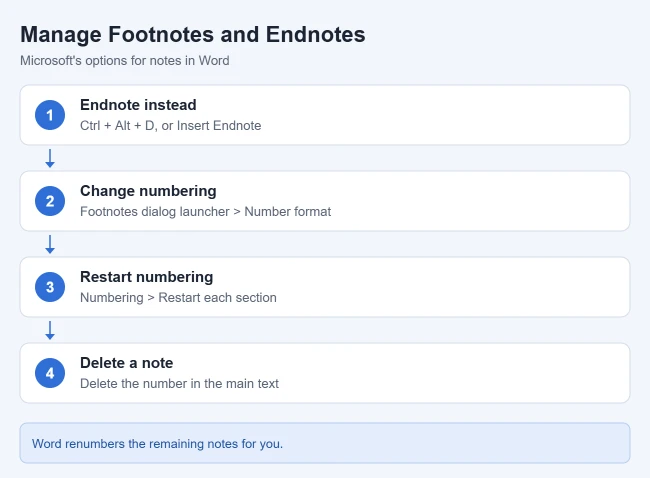
Result: Your footnotes use the numbering style you picked, such as i, ii, iii or symbols.
How to Delete a Footnote
Microsoft’s Delete a footnote or endnote article stresses one rule: delete the reference number or mark in the body of the text, not the note at the bottom of the page. When you delete the number, the footnote disappears and Word renumbers the rest. The same works for endnotes.
Need more room for long notes? See how to add a page in Word. If you would rather start over with a fresh file, see how to delete documents from Microsoft Word.
How to Add Footnotes in Word for the Web
Microsoft’s Add footnotes and endnotes page covers Word for the web. If you are in Viewing mode, select Edit at the top right and choose Editing. Then select References > Insert Footnote or Insert Endnote. To change the size, font or indentation, click a reference mark or select References > Show Footnotes, then click Format Footnotes.
Microsoft notes that to convert footnotes to endnotes, or the other way around, you should use Open in Word and convert them in the desktop app.
Frequently Asked Questions
What is the difference between a footnote and an endnote?
Footnotes appear at the bottom of the page where you add them. Endnotes appear together at the end of the document or section.
Can I convert footnotes to endnotes?
Yes, in the desktop version of Word. Microsoft says to switch from Word for the web to the desktop app to do it.
Will footnotes show up in my table of contents?
No. A table of contents is built from headings. See how to insert a table of contents in Word. Working in a Google document instead? See how to add footnotes in Google Docs.

Matthew Burleigh is the founder, head writer, and editor of Solve Your Tech, which he launched in 2012. He has written technology tutorials since 2008 and worked in IT since 2003, including small-business support, IT management, and consulting. He holds Bachelor’s and Master’s degrees in Computer Science from Arizona State University.
Matthew writes practical guides for Windows, iPhone and iPad, Microsoft Office, Outlook, Google apps, and Android. Solve Your Tech’s guides are tested on current devices or checked against official product documentation, with clear steps, sources, and update dates.
Read more about Matthew and how Solve Your Tech writes and updates its guides, or report a correction.