To add another column in File Explorer, switch the folder to Details view, right-click any column heading, such as Name or Date modified, and click the column you want, like Size or Date created. Choose More to see every available column.
These steps cover Windows 11 and also work in Windows 10 (support ended October 14, 2025), where some menus sit on the ribbon. Microsoft’s File Explorer in Windows article covers the View and See more menus used below.
How to Add a Column in File Explorer
- Press Windows + E to open File Explorer, then go to the folder.
- Select View on the toolbar and choose Details, or press Ctrl + Shift + 6. Columns only appear in Details view.
- Right-click any column heading, such as Name, Date modified, or Type.
- Click a column name to check it.
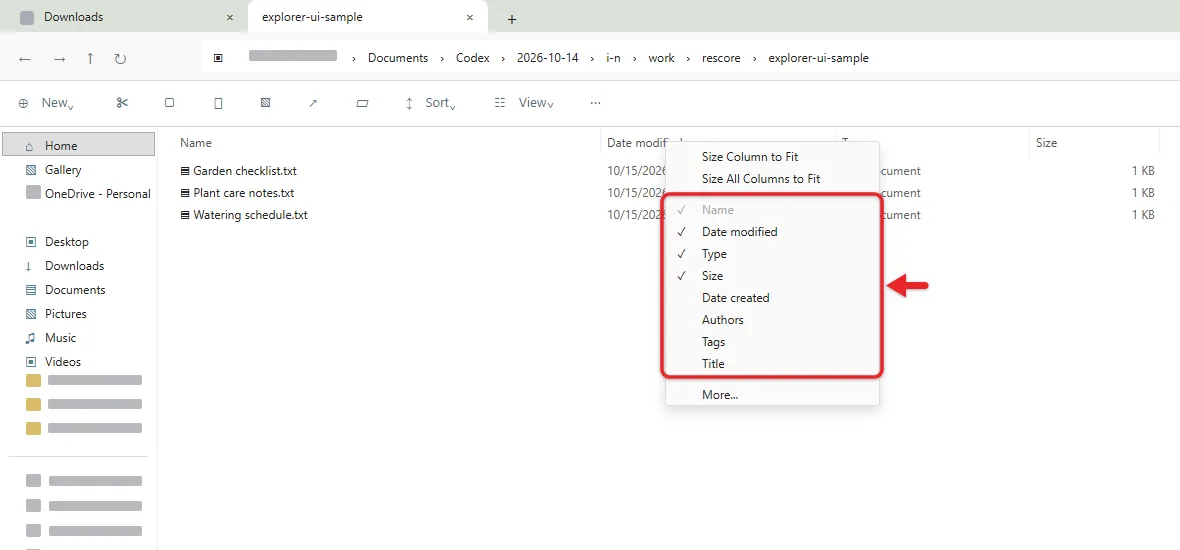
The new column appears right away for every file in the folder. Click a checked column in the same menu to remove it.
Find a column that isn’t in the menu
- Right-click a column heading and choose More at the bottom of the menu.
- In the Choose Details window, check every column you want and uncheck the ones you don’t.
- Optionally, select a column and use Move Up or Move Down to change its position.
- Select OK.
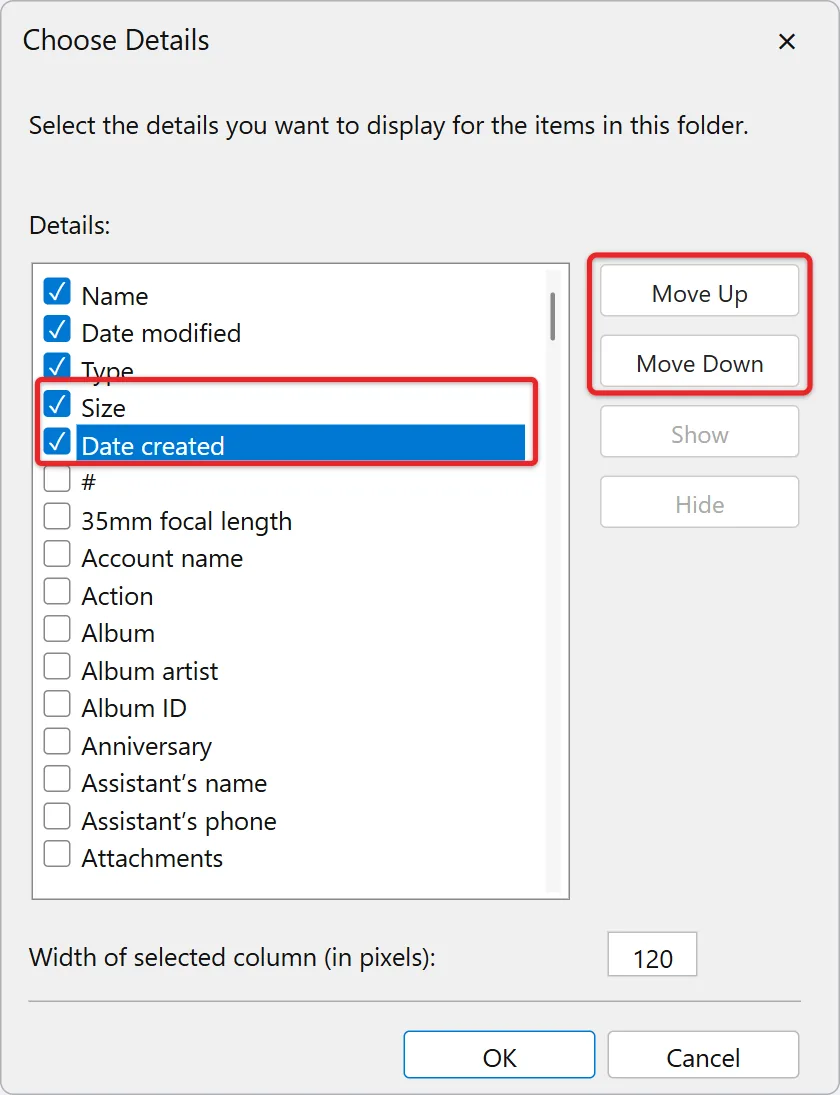
The list changes with the folder type. A Pictures folder offers columns like Date taken and Dimensions.
Columns work on search results too, which helps when you search for words within files on Windows 11 and want to sort the matches.
Windows 10 ribbon method
In Windows 10, open the View tab, select Details in the Layout group, then select Add columns and pick a column. Choose Choose columns to open the full Choose Details list.
How to Rearrange, Resize, and Sort Columns
- Move a column: drag its heading left or right.
- Resize a column: drag the edge of its heading, or right-click a heading and choose Size all columns to fit.
- Sort by a column: click its heading. Click again to reverse the order.
How to Use the Same Columns in Other Folders
Columns are saved per folder. Apply to Folders copies a layout to every folder of the same type (General items, Documents, Pictures, Music, or Videos), not only the current folder’s subfolders.
- Set up the columns you want in one folder.
- Select See more (the three dots) on the toolbar, then Options. In Windows 10, use View > Options.
- In Folder Options, open the View tab.
- Select Apply to Folders, then confirm with Yes.
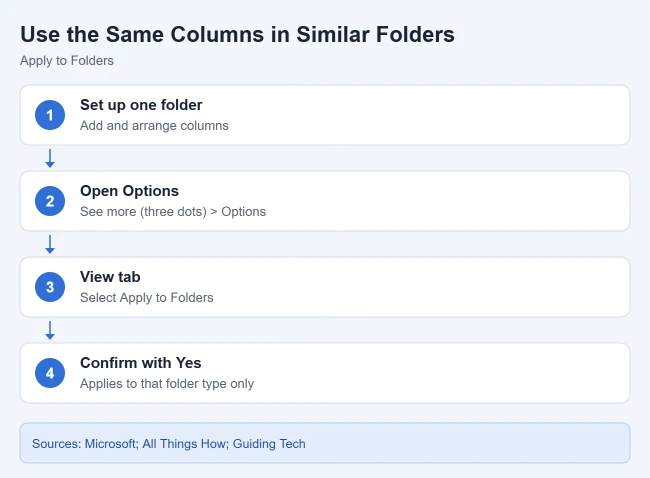
Reopen File Explorer and check another folder of the same type to confirm it worked.
Make a folder use a different type
If a folder doesn’t pick up your layout, Windows may treat it as a different type. Right-click the folder, choose Properties, open the Customize tab, and pick a type under Optimize this folder for. Check Also apply this template to all subfolders if needed, then select OK. For a consistent look, repeat Apply to Folders in one folder of each type.
How to Undo Your Column Changes
To return every folder to the default columns, open Folder Options > View, select Reset Folders, then Yes. This resets all folder view settings, not just columns.
Troubleshooting
- No column headings: the folder is in another view, such as Large icons. Switch to View > Details.
- The column you want is missing from More: available details depend on the folder’s type. Change the type as described above.
- A column is blank for some files: the files don’t store that detail, such as Date taken for a text file. For photos and Office documents, you can add details like Title or Authors on the Details tab of Properties.
- Columns reset in a new folder: that’s the per-folder behavior. Use Apply to Folders for each folder type.
Frequently Asked Questions
How do I add a file size column?
Right-click a column heading in Details view and check Size. It shows file sizes only; for a folder’s total, right-click it and choose Properties.
How do I remove a column?
Right-click any column heading and click the checked column to uncheck it. You can’t remove the Name column.
Can I create a custom column?
No. File Explorer only offers the details listed in Choose Details.
More Windows Guides
- How to show file name extensions in Windows
- How to turn on dark mode for File Explorer
- How to use File Explorer in Windows 11
- How to see what’s taking up space on your PC
- How to find all photos on your computer

Matthew Burleigh is the founder, head writer, and editor of Solve Your Tech, which he launched in 2012. He has written technology tutorials since 2008 and worked in IT since 2003, including small-business support, IT management, and consulting. He holds Bachelor’s and Master’s degrees in Computer Science from Arizona State University.
Matthew writes practical guides for Windows, iPhone and iPad, Microsoft Office, Outlook, Google apps, and Android. Solve Your Tech’s guides are checked step by step against the device or app maker’s own documentation and tested on his own devices whenever he has the hardware or software, with clear steps, sources, and update dates.
Read more about Matthew and how Solve Your Tech writes and updates its guides, or report a correction.