The volume button is hidden by default, but you can add it back. On macOS 27 Golden Gate or macOS Tahoe 26, choose Apple menu > System Settings, click Menu Bar, find Sound, and choose Always Show. On macOS Ventura 13, Sonoma 14 or Sequoia 15, go to System Settings > Control Center > Sound and choose Always Show in Menu Bar.
The status bar on a Mac is called the menu bar: the strip across the top of the screen with the clock, Wi-Fi and Control Center icons. These steps follow Apple’s Mac User Guide pages on Menu Bar settings and turning your Mac volume up or down. Older versions with System Preferences have their own section below.
How to Show the Volume Button on macOS 27 or Tahoe 26
- Click the Apple menu at the top left of the screen and choose System Settings.
- Click Menu Bar in the sidebar. You may need to scroll down to see it.
- Under Menu Bar Controls, find Sound.
- Click the pop-up menu next to Sound and choose Always Show.
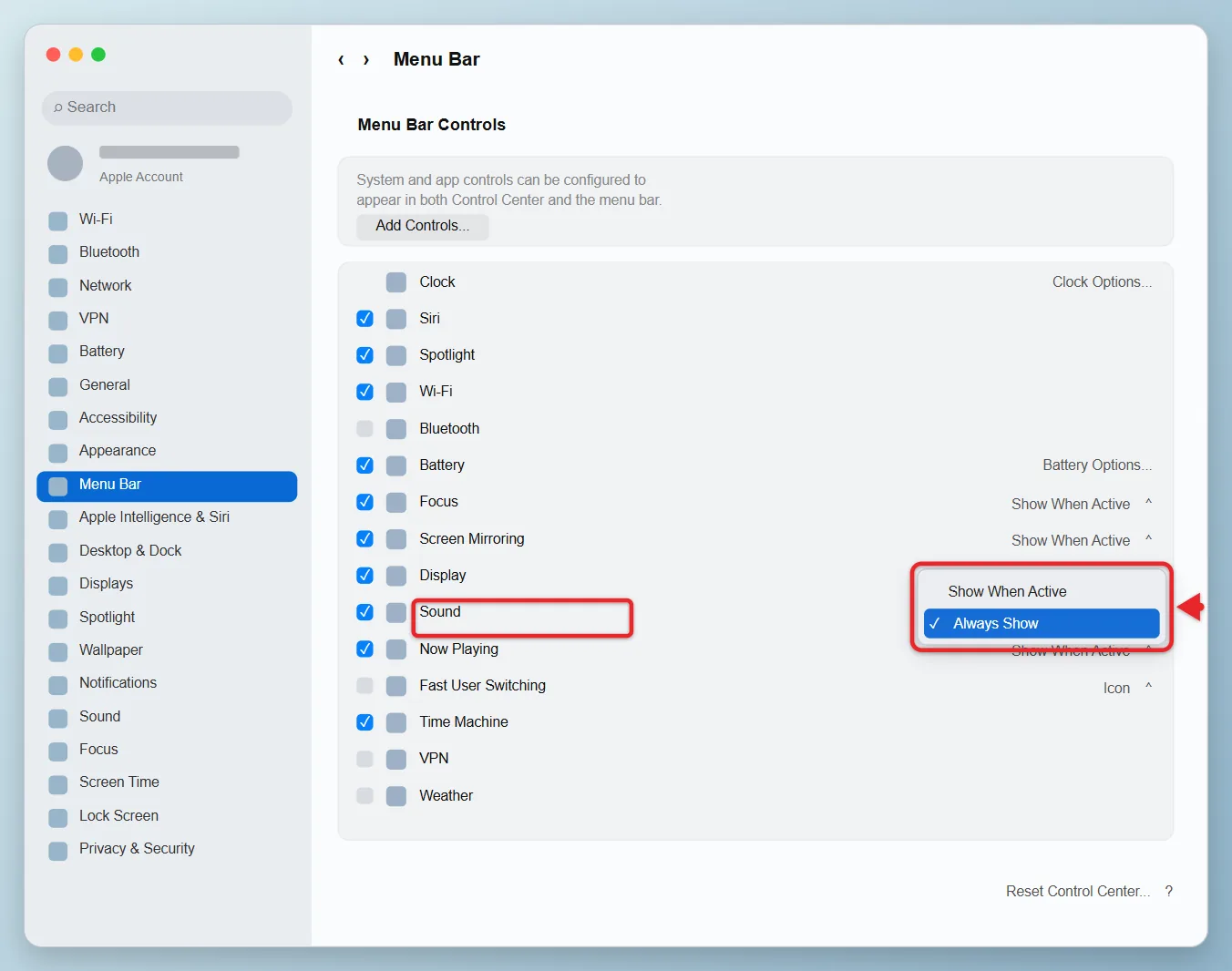
A speaker icon appears near the right end of the menu bar right away, with no restart needed. Click it and drag the slider to change the volume. The other choice, Show When Active, only shows the icon while Sound is active, so it can appear and then vanish again.
How to Show the Volume Button on macOS Ventura, Sonoma or Sequoia
- Choose Apple menu > System Settings.
- Click Control Center in the sidebar. You may need to scroll down.
- Under Control Center Modules, find Sound.
- Click the pop-up menu next to Sound and choose Always Show in Menu Bar.
The speaker icon now stays in the menu bar. Sound also stays inside Control Center whichever option you pick.
On Older Versions of macOS
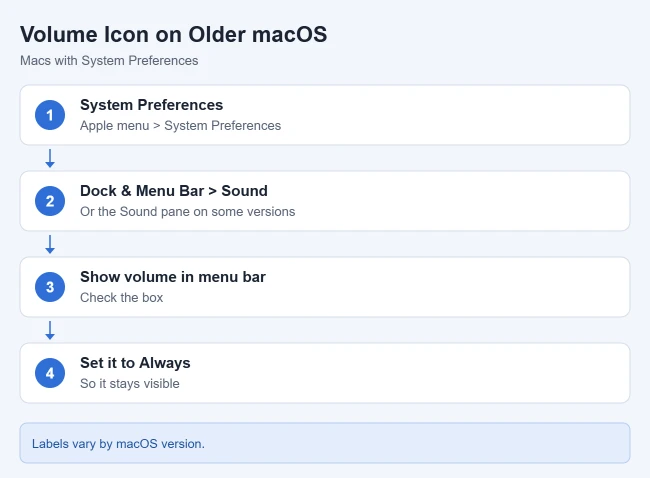
If your Mac has System Preferences instead of System Settings, the option is in the Sound pane. Apple’s guides for those versions describe it this way:
- macOS Monterey 12: Choose Apple menu > System Preferences > Sound, select Show Sound in menu bar, then use the pop-up menu to show it all the time or only when it’s active.
- macOS Big Sur 11: Choose Apple menu > System Preferences > Sound and turn on Show volume in menu bar.
- macOS Catalina 10.15 and earlier: Choose Apple menu > System Preferences > Sound, click the Output tab, and turn on Show volume in menu bar.
Other Ways to Change the Volume
You don’t need the menu bar icon to change the volume. Apple lists these options:
- Volume keys: Press the volume up, down or mute keys on your keyboard.
- Smaller steps: Hold Option and Shift while you press a volume key to change the volume in smaller steps.
- Sound settings shortcut: Hold Option and press any volume key to open Sound settings, where you can pick the output device.
- Control Center: Click Control Center in the menu bar, then drag the Sound slider.
- In the app: Many apps, such as the Apple TV app, have their own volume control.
How to Move or Remove the Volume Button
- Move it: Hold the Command key and drag the speaker icon left or right in the menu bar.
- Remove it: Hold Command and drag the icon off the menu bar, or go back to the Sound setting and choose Show When Active.
If the Volume Icon Keeps Disappearing
- Check the setting: Make sure Sound is set to Always Show (or Always Show in Menu Bar), not Show When Active.
- Check menu bar apps: Apps that tidy the menu bar, such as Bartender, can hide icons. Open the app’s settings and make sure the speaker icon isn’t hidden.
- Make room: On a crowded menu bar, some icons may not fit, especially when an app with a long menu is open. Command-drag icons you rarely use off the menu bar to make space.
- Update macOS: If the icon started vanishing after an update, choose Apple menu > System Settings > General > Software Update to check for a fix.
Menu bar managers such as Bartender are sold through Setapp too, so check how Setapp Membership and single apps work before you buy one.
Add Other Items to the Menu Bar
The same Menu Bar settings show other icons. Focus, Screen Mirroring, Display and Now Playing use the same Always Show and Show When Active menu as Sound, while Battery, Wi-Fi and Bluetooth have a checkbox. The Bluetooth menu is a quick way to check your AirPods battery on a Mac, and if you show Battery on a laptop, you may also want to stop a MacBook display from dimming on battery. On macOS Tahoe and macOS 27 you can also click Control Center in the menu bar, click Edit Controls, and drag a control onto the menu bar.
Mac Volume Icon Questions
Why isn’t the volume icon in my menu bar by default?
With the default settings, macOS doesn’t keep the Sound icon visible, since you can already change the volume with the keyboard and Control Center. Choosing Always Show keeps it there.
Does the menu bar icon change the alert sound volume?
Not directly. The slider changes the main output volume. Alert sounds have their own Alert volume slider under Sound Effects in System Settings > Sound. Alert volume is relative to the output volume, so turning the main volume down makes alerts quieter too.
Can I switch speakers or headphones from the volume icon?
Yes. Click the speaker icon, or Sound in Control Center, and pick a device from the list, such as AirPods or an AirPlay speaker. You can also choose one in System Settings > Sound > Output, which lists the built-in speakers, headphones, USB speakers and AirPlay devices.

Matthew Burleigh is the founder, head writer, and editor of Solve Your Tech, which he launched in 2012. He has written technology tutorials since 2008 and worked in IT since 2003, including small-business support, IT management, and consulting. He holds Bachelor’s and Master’s degrees in Computer Science from Arizona State University.
Matthew writes practical guides for Windows, iPhone and iPad, Microsoft Office, Outlook, Google apps, and Android. Solve Your Tech’s guides are checked step by step against the device or app maker’s own documentation and tested on his own devices whenever he has the hardware or software, with clear steps, sources, and update dates.
Read more about Matthew and how Solve Your Tech writes and updates its guides, or report a correction.