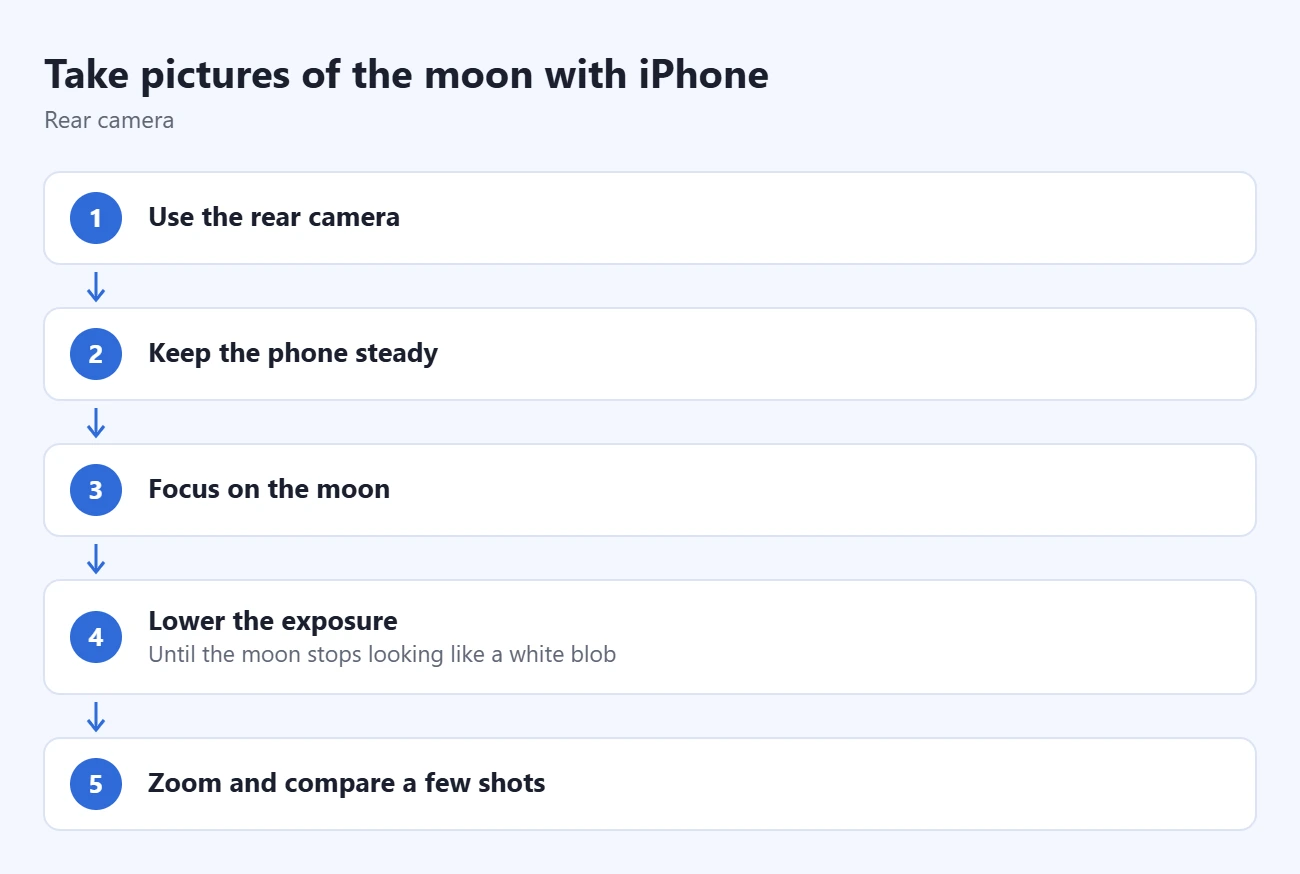
To photograph the moon with an iPhone, use these Camera settings:
- Turn off Night mode and the flash.
- Tap the longest optical zoom button your iPhone has (2x, 3x, 4x or 5x, depending on the model).
- Touch and hold the moon until AE/AF Lock appears.
- Drag the sun icon down until craters and shading show. An Exposure setting of about -1.5 to -2.0 is a good starting point.
- Brace the phone or use a tripod, set a 3-second timer, and take several shots.
These steps use the built-in Camera app on iOS 27 and iOS 26. They also work on older iOS versions, though some buttons sit in different places. Night mode needs an iPhone 11 or later, and the zoom you get depends on your model (see the table below).
Choose the Photo You Want First
Are you trying to show the moon’s surface, or the moon above a tree, skyline, or landscape? Those are different exposure problems. A dark foreground may disappear when you expose for the bright moon. Raising exposure to reveal the foreground may turn the moon into a featureless spot.
NASA’s moon-photography guidance explains why: the moon reflects sunlight, so photographing its details calls for a different approach from photographing a dim night scene. For a landscape, try a composition while some daylight remains and accept that the moon may be small.
Before You Start
- Pick your night. A full moon is the brightest, but NASA notes it looks fairly flat. Other phases cast longer shadows from craters and mountains, so a half moon or a thick crescent often shows more texture along its shadow edge. A weather or astronomy app can tell you the moon’s phase and rise time.
- Check the sky. Clear air matters more than total darkness. Thin haze or cloud softens every frame, and city lights don’t affect the bright moon much.
- Clean the lenses. Wipe the rear camera glass with a soft cloth. A fingerprint smears bright light across the whole image.
- Bring support. A small phone tripod is ideal. A wall, fence post, or car roof works too.
- Charge the phone. Cold nights drain the battery faster, and the screen stays on while you frame shots.
How to Take a Moon Photo with iPhone
Step 1: Find a Clear View and Steady the Phone
Choose a safe spot with an unobstructed view, and avoid shooting through a window. If clouds cross the moon, wait for a clear gap before judging your settings.
Use a tripod if you already have one, or brace your hands against a stable support. Don’t balance the phone somewhere it could fall. Set up your framing before taking the picture so you aren’t adjusting your grip during the shot. The iPhone camera grid can help you place the moon in the frame.
Step 2: Open Camera in Photo Mode
Open Camera, select Photo, and use the rear camera. Turn the flash off; it cannot illuminate the moon. Apple also notes that the flash and Live Photos switch off Night mode, so turning the flash off keeps your Night mode choice in your hands.
Apple’s Camera basics guide explains the zoom controls. Tap the longest optical zoom button your iPhone has; the table of models is below. Avoid pinching far past that button, because extra zoom beyond it is digital and enlarges the picture without adding detail.
Step 3: Focus and Lower the Exposure
Tap the moon in the viewfinder. Touch and hold that area until AE/AF Lock appears, then drag the sun-shaped exposure control downward. Apple documents these controls in its focus and exposure instructions.
Lower exposure gradually while looking at the moon, rather than trying to make the whole sky brighter. Take a trial photo when the moon’s edge looks defined. If you reframe substantially, tap to release the lock and focus again.
You can also set an exact value. Open the Camera controls (tap the arrow at the top of the screen or swipe up above the shutter), tap the Exposure button (a plus and minus sign), and drag the slider. On iPhone models with the Camera Control button on the side, you can pick Exposure from its controls and slide your finger along the button instead.
To keep your lower exposure the next time you open Camera, turn on Exposure Adjustment in Settings > Camera > Preserve Settings. For what each switch does, read about saving your iPhone camera settings.
Step 4: Check Night Mode Before Shooting
If the yellow Night mode indicator appears, the phone is preparing a low-light capture. Night mode may take several seconds, so keep the phone still until it finishes.
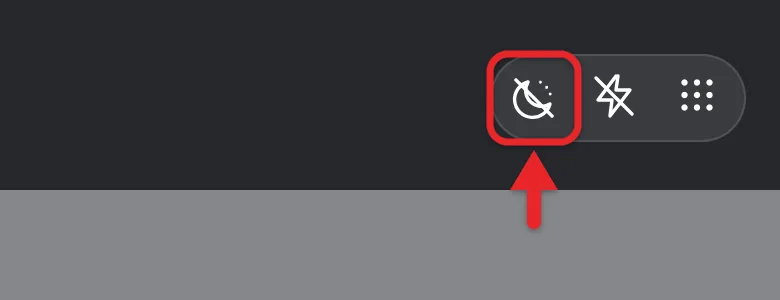
For a moon close-up, turn Night mode off. Tap the Night mode button (a moon icon), then drag the slider above the shutter button to Off. The moon is bright, and Night mode tends to overexpose it. For a moonlit landscape, leave Night mode on. Choosing Max on the same slider extends the capture time, which works best with the phone on a tripod.
If you want moving clouds or car lights to blur under the moon instead, learn how to take a long exposure photo on iPhone.
Step 5: Take Several Shots and Compare Them
To reduce movement when pressing the shutter, open the Camera controls, choose Timer, and select a short delay, such as 3 seconds. If you wear an Apple Watch, you can also trigger the iPhone shutter from your Apple Watch so you do not touch the phone at all. Pressing a volume button also takes the picture and can shake the phone less than tapping the screen.
Take a few pictures at slightly different exposures. Change one thing at a time: exposure first, then zoom or framing. Otherwise, it is difficult to tell which adjustment helped.
Review the saved pictures in Photos, not just the live viewfinder. Compare the edge of the moon, visible shading, and any streaks caused by movement. Keep the sharpest image before experimenting with edits.
Which Zoom Button to Use on Your iPhone
Use the longest optical zoom your model has. You can check any model on Apple’s iPhone comparison page.
| iPhone model | Best zoom button for the moon |
|---|---|
| iPhone 18 Pro, 18 Pro Max, 17 Pro and 17 Pro Max | 4x telephoto, plus an 8x optical-quality option |
| iPhone 16 Pro, 16 Pro Max and 15 Pro Max | 5x telephoto |
| iPhone 15 Pro, 14 Pro and 13 Pro (and their Pro Max models except 15 Pro Max) | 3x telephoto |
| iPhone 12 Pro Max | 2.5x telephoto |
| iPhone 12 Pro and 11 Pro | 2x telephoto |
| iPhone Duo, 17, 17e, iPhone Air, 16, 16e and 15 | 2x, using the main camera’s sensor |
| iPhone 14, 13, 12, 11 and iPhone SE | 1x; zoom in a little and crop later |
The zoom options are on each model’s specs page: the iPhone 18 Pro’s 4x and 8x options, and older models such as the iPhone 15 Pro Max, iPhone 15 Pro and iPhone 15.
Try the relevant button as a starting point, then compare the saved result. More digital enlargement can make the moon bigger on screen without revealing additional real detail. A cleaner, smaller moon is often more useful than a large, smeared one.
Shoot in ProRAW for More Editing Room
On iPhone 12 Pro and later Pro models, Apple ProRAW saves more image data, which gives you more room to recover highlights on the moon’s surface. Turn it on in Settings > Camera > Formats by switching on Apple ProRAW & Resolution Control. Then tap RAW in the Camera app before you shoot. Apple’s ProRAW article notes that these files are about 10 to 12 times larger than standard photos, so turn RAW off again when you’re done. Most iPhone owners get a good moon photo without it.
Edit the Moon Photo in Photos
Before you edit, consider duplicating the photo on your iPhone so you can compare versions. Photos also keeps the original, so Revert restores it at any time.
- Open the photo in Photos and tap the edit button.
- Use the crop tool to trim the dark sky so the moon fills more of the frame. A modest crop keeps the picture sharp.
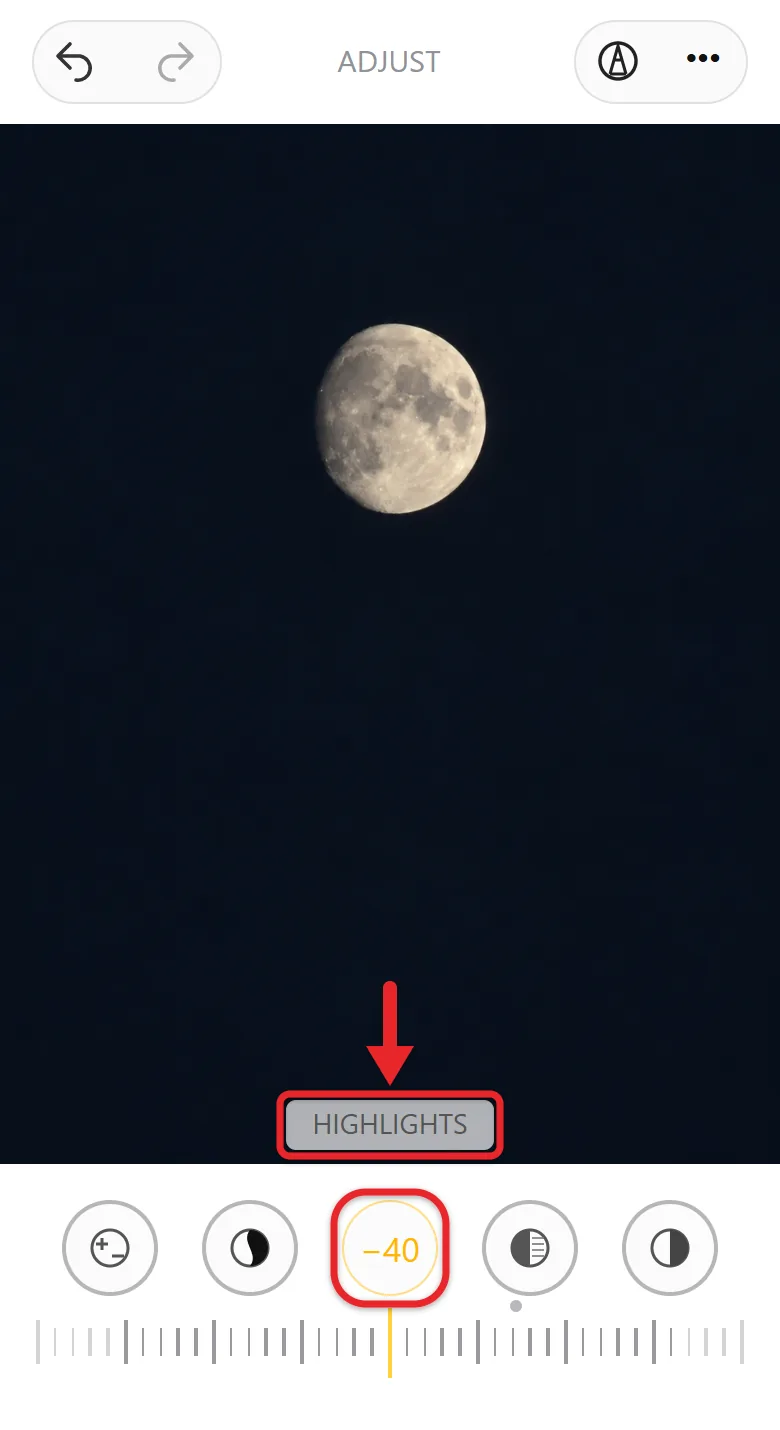
- Under the adjustments, lower Highlights to bring back surface detail, then raise Contrast or Black Point slightly to darken the sky.
- Add a small amount of Sharpness, and stop before bright halos appear around the edge.
- Tap Done and compare the edit with the original.
Avoid heavy filters and extreme sharpening. They make the moon look fake and cannot replace detail the camera never captured.
Other Ways to Capture the Moon
Include a Foreground Scene
To show the moon over a skyline or trees, shoot during twilight, shortly after sunset or before sunrise, when the sky still has some light. Use 1x or 2x, leave Night mode on if it appears, and lower exposure only enough to keep the moon from turning into a white blob. Expect the moon to look small in a wide scene.
Try a Short Video
Some people get a steadier result from video. Lock focus and exposure on the moon as in Step 3, switch to Video, record for a few seconds, then pause the clip in Photos at the sharpest moment and take a screenshot. The screenshot has lower resolution than a photo, so use it for sharing rather than printing.
Use Binoculars or a Telescope
For much larger lunar images, use a telescope. NASA’s smartphone astrophotography examples show how to shoot through a telescope eyepiece with a phone. A phone adapter that holds the iPhone against the eyepiece makes this much easier than holding it by hand.
Fix Common Moon-Photo Problems
The Moon Is a White Blob
Reduce exposure and take another picture. A blown-out white area holds no detail, so darkening it in an edit only turns it gray. Get the exposure right when you shoot.
The Moon Is Blurry or Streaked
Steady the phone, use the timer, and try less zoom. Check whether Night mode is still capturing before you move the phone. If every frame looks hazy, check for lens smudges, thin cloud, or glass in front of the camera.
The Moon Looks Smaller Than It Did in Person
That is normal. A wide view gives the moon little space in the image. Also, the moon illusion does not make a horizon moon photograph larger when the camera setup stays the same. Choose a tighter frame or use the moon as part of the scene.
The Moon Looks Orange or Yellow
Near the horizon, the moon’s light passes through more air, which makes it look warmer. That color is real. Wait until the moon rises higher for a whiter moon, or lower Warmth slightly when you edit.
There Are Small Bright Spots or Ghosts in the Picture
A bright moon against a dark sky can reflect inside the lens and leave a faint dot or ghost. Shift the framing so the moon isn’t dead center, clean the lens, and remove a case or screen cover that sits in front of the camera.
The Moon Is Grainy
Grain usually comes from too much digital zoom or heavy brightening in an edit. Go back to the optical zoom button, keep exposure lower, and edit lightly.
Frequently Asked Questions
Should Night mode be on or off for the moon?
Off for a close-up of the moon itself. Night mode brightens the whole scene and usually washes out the moon. Leave it on when the photo is mainly a dark landscape with the moon in it.
What exposure setting works best?
Start around -1.5 and adjust from there. A full moon high in a dark sky may need the full -2.0, while a moon low in a twilight sky may need less.
Can I photograph the moon during the day?
Yes. A daytime moon is often easier because the sky is bright, so you can use normal exposure and only lower it a little. Craters show less contrast than at night.
Can I photograph a lunar eclipse with my iPhone?
Yes. Use a tripod and the same zoom steps. During the darkest part of the eclipse, the moon is much dimmer, so raise the exposure or let Night mode work, and keep the phone completely still.
Do I need a separate camera app?
No. The built-in Camera app’s exposure control, zoom, and timer handle most moon photos. Apps with manual shutter speed and ISO controls give more control if you want to experiment.
For another way to balance bright and dark parts of a photo, take an HDR picture on an iPhone.

Matthew Burleigh is the founder, head writer, and editor of Solve Your Tech, which he launched in 2012. He has written technology tutorials since 2008 and worked in IT since 2003, including small-business support, IT management, and consulting. He holds Bachelor’s and Master’s degrees in Computer Science from Arizona State University.
Matthew writes practical guides for Windows, iPhone and iPad, Microsoft Office, Outlook, Google apps, and Android. Solve Your Tech’s guides are checked step by step against the device or app maker’s own documentation and tested on his own devices whenever he has the hardware or software, with clear steps, sources, and update dates.
Read more about Matthew and how Solve Your Tech writes and updates its guides, or report a correction.