To reserve an IP address on a Netgear N600, sign in to the router at http://www.routerlogin.net, select ADVANCED > Setup > LAN Setup, click Add in the Address Reservation section, enter the IP address and the device’s MAC address, and click Apply. The device picks up the reserved address the next time it asks the router for one.
A reservation is useful for anything other computers reach by IP address, such as a printer, a network drive, or a PC that shares folders. Without one, the router can hand the device a different address after a restart, and every shortcut that pointed to the old address stops working.

What an IP Address Reservation Does
Your router runs a DHCP server, the feature that automatically gives each phone, computer and printer a local IP address when it joins the network. Those addresses are borrowed, not owned, so a device is not guaranteed the same one every time.
An address reservation tells the DHCP server to always give one particular address to one particular device. The router recognizes the device by its MAC address, a hardware identifier written as six pairs of letters and numbers, such as A1:B2:C3:D4:E5:F6. Netgear describes it this way: a device with a reserved address is assigned the same IP address each time it contacts the router’s DHCP server.
The device itself stays on its normal automatic network settings. That is the main difference from a static IP address, which you type into the device by hand.

Before You Start
“N600” is a speed class that Netgear used on several dual band routers, including the WNDR3400, WNDR3700 and WNDR3800 families. The steps below follow Netgear’s N600 user manuals and its current support article. The menu names are the same on the models checked, but the page layout can differ slightly between models and firmware versions.
- A device on the router’s network. Use a computer, phone or tablet that is connected to the N600 by Wi-Fi or Ethernet cable.
- The router login. The user name is admin. The factory password on the N600 is password, but use your own if it was changed. This is not the Wi-Fi password. If you still use the default, see our guide on how to change the router password on your Netgear N600.
- The device you want to reserve. Turn it on and connect it to the network so it appears in the router’s device list. If it is not connected, you need its MAC address from its network settings or its label.
- The address you want. It must be on the same subnet as the router. With the N600’s default settings, the router is
192.168.1.1and devices use192.168.1.2through192.168.1.254.
How to Reserve an IP Address on a Netgear N600
These steps are done in a web browser. Nothing changes on the router until you click Apply in the last step.
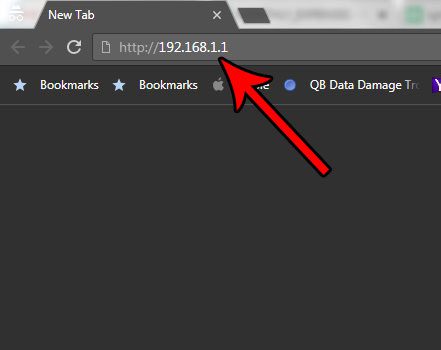
Step 1: Open the router login page
Open a web browser and type http://www.routerlogin.net in the address bar, then press Enter. Netgear’s N600 manual also lists http://www.routerlogin.com. If neither opens, try the router’s IP address, which is 192.168.1.1 unless it was changed.
Step 2: Enter the router user name and password
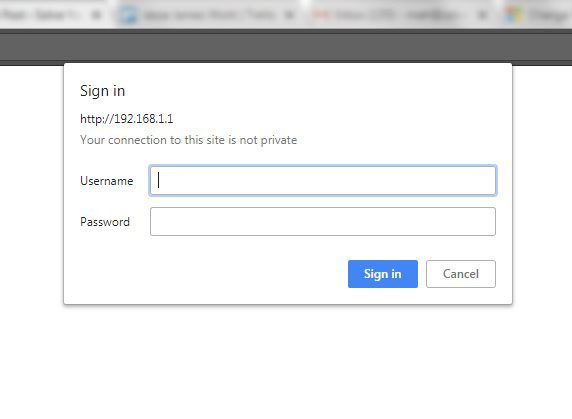
A login window appears. Type the user name and password and confirm. Both are case-sensitive. When the login is accepted, the router’s BASIC Home page opens.
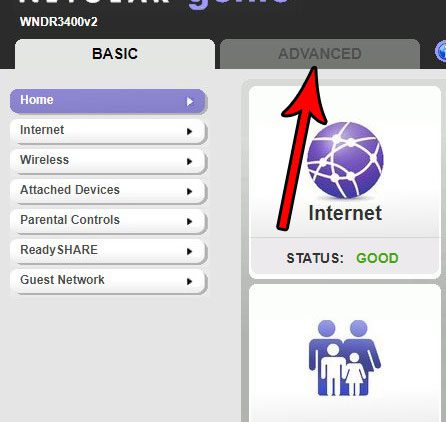
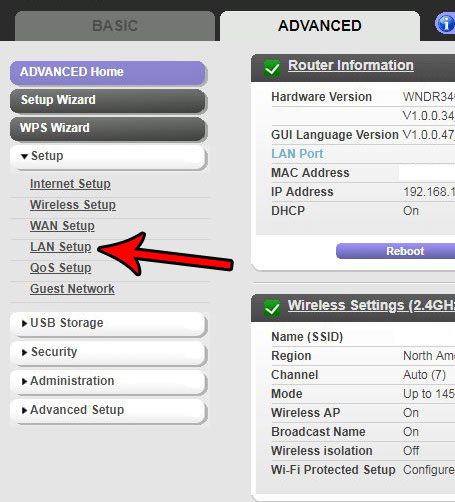
Step 3: Click the ADVANCED tab
The ADVANCED tab is at the top of the page, next to BASIC.
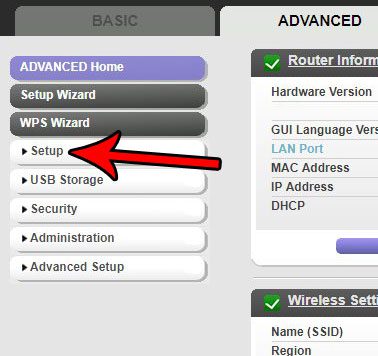
Step 4: Click Setup
Select Setup in the menu on the left side of the page. It expands to show more options.
Step 5: Choose LAN Setup
Click LAN Setup. LAN stands for local area network, meaning your home network. This page shows the router’s own IP address, the range of addresses the DHCP server hands out, and the Address Reservation table at the bottom.
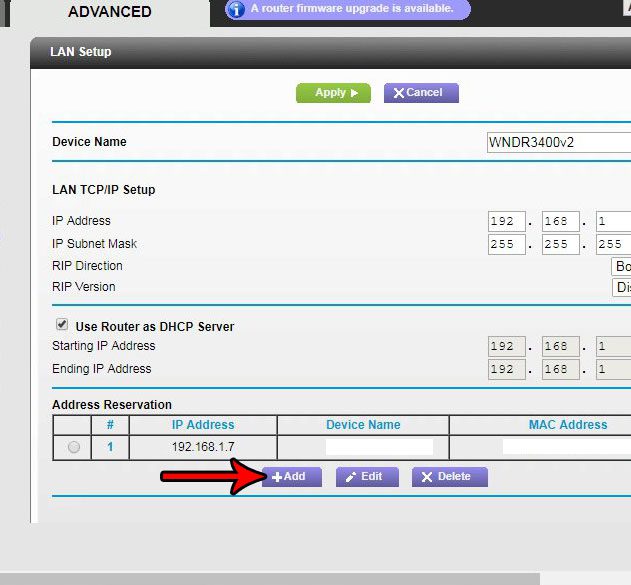
Step 6: Click Add under Address Reservation
Scroll to the Address Reservation section and click the Add button. Leave the other fields on the LAN Setup page alone. Changing the router’s own IP address here disconnects your browser, and you would have to sign in again at the new address.
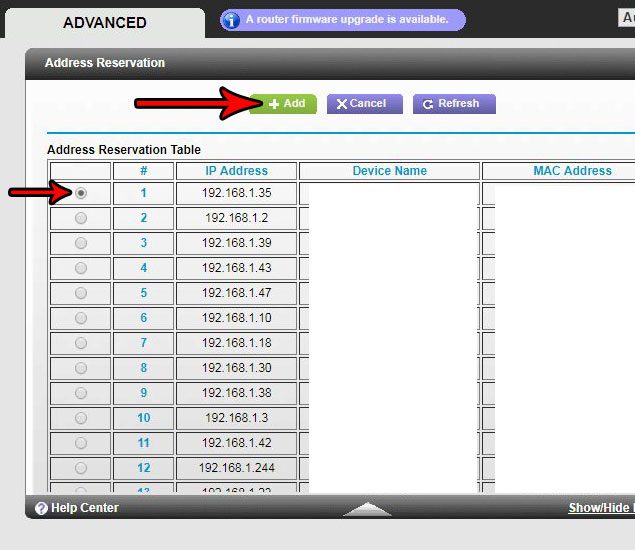
Step 7: Pick the device, set the address, and apply
If the page lists the devices currently on your network, click the circle to the left of the one you want. Its IP address, MAC address and device name fill in for you. If the device is not listed, type the values into the IP Address and MAC Address fields yourself.
To reserve a different address from the one shown, change the value in the IP Address field before you continue. Then click Add at the top of the page. On some models and firmware versions this button is labeled Apply. The new entry appears in the Address Reservation table on the LAN Setup page.
Netgear’s own walkthrough is in its support article How do I reserve an IP address on my NETGEAR router?
Make the Device Use Its Reserved Address
If you reserved the address the device already had, there is nothing more to do. If you chose a different address, the device keeps its old one until it next contacts the DHCP server. Netgear gives two ways to trigger that:
- Restart the device. This works for anything, including printers and phones. Turning Wi-Fi off and on again usually has the same effect.
- Release and renew the address. On a Windows PC, open Command Prompt, type
ipconfig /releaseand press Enter, then typeipconfig /renewand press Enter. Microsoft documents both options on its ipconfig command page.
How to Confirm the Reservation Worked
- On the router: go back to ADVANCED > Setup > LAN Setup and check that the device is in the Address Reservation table with the right IP and MAC address.
- In the device list: open Attached Devices from the BASIC Home page. The device should show the reserved IP address.
- On the device: look at its network settings. On a Windows PC,
ipconfigshows the IPv4 address, and our guide to finding your IP address on Windows 11 covers the Settings method. On a phone, see how to find the Wi-Fi IP address on an Android phone.
How to Change or Remove a Reservation
Open ADVANCED > Setup > LAN Setup again. In the Address Reservation table, click the circle next to the entry, then click Edit to change it or Delete to remove it. Click Apply if the router asks you to confirm.
Deleting a reservation does not disconnect the device. It simply goes back to getting whatever address the DHCP server chooses, which may or may not be the same one.
Troubleshooting
The login page will not open
Check that your device is connected to the N600 and not to mobile data, a guest network or a different router. Then try http://www.routerlogin.com or 192.168.1.1. If the router’s address was changed, a Windows PC shows it as the Default Gateway when you run ipconfig.
The user name or password is rejected
Someone changed the password from the default. If nobody remembers it, the manual’s last resort is a factory reset: hold the recessed Restore Factory Settings button on the router for about five seconds. Be careful with this. It returns the router to its factory configuration, so your Wi-Fi name, Wi-Fi password and any reservations have to be set up again.
The device is not in the list
The list only shows devices that are connected at that moment. Connect the device and reload the page, or enter the MAC address by hand. Netgear suggests copying it from the Attached Devices page.
The device still has its old address
Restart it, or release and renew its address as described above. Also check that the device is set to get an address automatically. A device with a static address typed into its own settings ignores the router’s reservation.
A phone keeps getting a different address
Many phones can show each Wi-Fi network a private or randomized MAC address instead of the hardware one. The reservation has to match the address the router actually sees, so copy it from the router’s device list instead of the phone’s About screen. Our article on where the MAC address is on an iPhone explains the two addresses.
The router will not accept the address
The address must be on the router’s subnet. With default settings that means it starts with 192.168.1. and ends in a number from 2 to 254. Do not use the router’s own address or one that is already reserved for another device.
Frequently Asked Questions
Is a reserved IP address the same as a static IP address?
Not quite. A reservation is set on the router, and the device still asks for its address automatically. A static IP address is typed into the device, along with the subnet mask, gateway and DNS servers. Both keep the address from changing. A reservation is usually easier to manage because everything is in one table on the router. For the device-side method on a PC, see how to change your IP address in Windows 11.
Does a reservation survive a router restart?
Yes. Reservations are part of the router’s saved settings, so turning the router off and on does not remove them. A factory reset does. You can save a copy of your settings first from ADVANCED > Administration > Backup Settings.
Does reserving an IP address change my public IP address?
No. A reservation only affects the local address a device uses inside your home network. The public address that websites see comes from your internet provider and is not controlled by this setting.
Which IP address should I pick?
The simplest choice is the address the device already has, since you know it is free. Any unused address on the router’s subnet works. Keep a short note of which device has which address so you do not reserve the same one twice.
Do I have to restart the router after adding a reservation?
No. Netgear’s instructions only call for restarting the device, or releasing and renewing its address, so it contacts the DHCP server again.
Next Step
Once the device has its reserved address, update anything that points to it, such as a mapped network drive, a printer port or a shared-folder shortcut. Those links will keep working after the router or the device restarts.

Matthew Burleigh is the founder, head writer, and editor of Solve Your Tech, which he launched in 2012. He has written technology tutorials since 2008 and worked in IT since 2003, including small-business support, IT management, and consulting. He holds Bachelor’s and Master’s degrees in Computer Science from Arizona State University.
Matthew writes practical guides for Windows, iPhone and iPad, Microsoft Office, Outlook, Google apps, and Android. Solve Your Tech’s guides are tested on current devices or checked against official product documentation, with clear steps, sources, and update dates.
Read more about Matthew and how Solve Your Tech writes and updates its guides, or report a correction.