Control Panel is still available in Windows 11, even though Microsoft has moved many system options into the Settings app. You can open it from Windows Search, the Run dialog, File Explorer, or a command-line window.
The easiest method is to search for Control Panel from the Start menu. If you use Control Panel frequently, you can also pin it or create a shortcut so you don’t have to search for it each time.
How to Open Control Panel in Windows 11
- Click the Start button or press the Windows key.
- Type Control Panel.
- Select Control Panel from the search results.
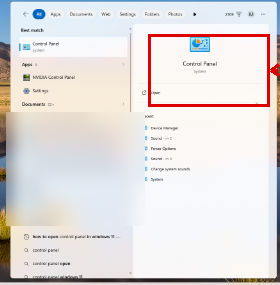
The Control Panel window will open, and you can select the category or setting that you need.
This is usually the simplest way to open Control Panel because you don’t need to remember a command or browse through several folders.
Open Control Panel With the Run Command
If you prefer to use the keyboard, the Run dialog provides a fast way to open the Control Panel.
- Press Windows + R.
- Type control in the Open field.
- Press Enter or click OK.
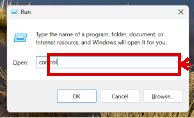
Control Panel should open immediately.
The control command is particularly useful if you already use Run for other Windows tools.
Open Control Panel From File Explorer
You can also launch Control Panel without leaving File Explorer.
- Open File Explorer.
- Click inside the address bar at the top of the window.
- Type Control Panel.
- Press Enter.
Windows should replace the current File Explorer location with Control Panel.
This method can be convenient when you’re already working with files and don’t want to return to the Start menu.
Open Control Panel From Command Prompt
The same command used in the Run dialog can open Control Panel from Command Prompt.
- Open Start.
- Type Command Prompt.
- Select Command Prompt from the search results.
- Type control.
- Press Enter.
You don’t normally need to run Command Prompt as an administrator just to open Control Panel.
Open Control Panel From PowerShell or Windows Terminal
If you prefer PowerShell or Windows Terminal, the control command works there as well.
- Open Windows Terminal or PowerShell.
- Type control.
- Press Enter.
This gives you another quick option if a command-line window is already open.
How to Pin Control Panel for Faster Access
If you use the Control Panel regularly, pinning it can save you from having to search for it every time.
- Open Start.
- Search for Control Panel.
- Right-click the Control Panel search result.
- Choose an available pinning option, such as Pin to Start or Pin to taskbar.
The available options can vary slightly depending on your Windows 11 version and configuration.
How to Create a Control Panel Desktop Shortcut
Windows 11 also provides a built-in Control Panel desktop icon that you can enable through the desktop icon settings.
- Open Settings.
- Select Personalization.
- Choose Themes.
- Select Desktop icon settings.
- Check the box next to Control Panel.
- Click Apply, then click OK.

A Control Panel icon should now appear on your desktop.
If you don’t see it, right-click an empty area of the desktop, select View, and make sure Show desktop icons is enabled.
Look near the upper-right corner of the Control Panel window for the View by menu. You can normally choose from:
- Category
- Large icons
- Small icons

Category view groups related settings together. For example, you may see categories such as System and Security, Network and Internet, Hardware and Sound, Programs, and User Accounts.
Large icons and Small icons display the individual Control Panel items instead. These views can be easier when you already know the name of the tool you want.
Search for a Setting Inside Control Panel
You don’t have to browse through every category manually.
Use the search box in the upper-right corner of Control Panel and type a word related to what you want to change.
For example, searching for terms such as power, sound, mouse, or programs can help you locate the appropriate Control Panel option.
Control Panel vs. Settings in Windows 11
Windows 11 includes both the traditional Control Panel and the newer Settings app.
Microsoft continues to move Windows configuration options from Control Panel to Settings. As a result, some instructions that previously used Control Panel now take you to Settings instead.
You can open Settings quickly by pressing Windows + I.
Control Panel is still useful because some traditional Windows tools and advanced options remain available there. Programs and Features and various legacy configuration tools are examples of areas where you may still encounter the Control Panel.
Why Can’t I Find a Setting in Control Panel?
If an option you remember using in Control Panel is no longer there, check the Windows 11 Settings app.
Press Windows + I to open Settings, then use the search box to find the feature or setting you need.
Microsoft has gradually moved many Windows options into Settings, so older tutorials may tell you to look in Control Panel, even though the current Windows 11 interface handles the setting elsewhere.
Is Control Panel in the Windows + X Menu?
No. On current versions of Windows 11, you should not expect to find a Control Panel option in the menu that appears when you right-click Start or press Windows + X.
That menu provides quick access to tools such as Settings, Device Manager, Disk Management, Terminal, File Explorer, and Task Manager, but Control Panel is not typically among its entries.
If an older guide tells you to press Windows + X and select Control Panel, use Windows Search or the Windows + R method instead.
What Should I Do if Control Panel Won’t Open?
If selecting Control Panel from Search doesn’t work, try pressing Windows + R, entering control, and pressing Enter.
You can also restart the computer and try again. If other Windows tools are failing at the same time, install available Windows updates and consider checking Windows for damaged system files.
If only a particular Control Panel item won’t open, the problem may involve that specific Windows component rather than Control Panel itself.
Frequently Asked Questions
Where is Control Panel in Windows 11?
The easiest way to find it is to open Start and type Control Panel. Select Control Panel from the search results.
What is the keyboard shortcut for Control Panel in Windows 11?
There isn’t a dedicated single keyboard shortcut that directly launches Control Panel. A quick keyboard method is to press Windows + R, type control, and press Enter.
Can I open Control Panel with a command?
Yes. Enter control in Run, Command Prompt, PowerShell, or Windows Terminal and press Enter.
Did Microsoft remove Control Panel from Windows 11?
No. Control Panel is still available in Windows 11. However, Microsoft has moved many configuration options to the Settings app and continues to encourage using Settings where appropriate.
Why does Control Panel sometimes open Settings?
Some Windows configuration pages have been migrated to the Settings app. Selecting certain options from Control Panel can therefore take you into Settings.
How do I show all Control Panel items?
Open Control Panel and change View by from Category to Large icons or Small icons. This displays individual Control Panel items instead of grouping them into categories.
Can I put Control Panel on my desktop?
Yes. Go to Settings > Personalization > Themes > Desktop icon settings, enable Control Panel, and apply the change.
Summary
The easiest way to open Control Panel in Windows 11 is to click Start, search for Control Panel, and select it from the results.
You can also press Windows + R, type control, and press Enter. Other options include using File Explorer, Command Prompt, PowerShell, or Windows Terminal.
If you use Control Panel frequently, pin it or enable its desktop icon. Once inside Control Panel, use Category, Large icons, Small icons, or the built-in search box to find the setting you need.
Keep in mind that Microsoft continues moving Windows options into the Settings app. If an older Control Panel option is missing, press Windows + I and search for it in Settings.

Matthew Burleigh has been writing tech tutorials since 2008. His writing has appeared on dozens of different websites and been read over 50 million times.
After receiving his Bachelor’s and Master’s degrees in Computer Science he spent several years working in IT management for small businesses. However, he now works full time writing content online and creating websites.
His main writing topics include iPhones, Microsoft Office, Google Apps, Android, and Photoshop, but he has also written about many other tech topics as well.