To make a GIF folder in Windows 11, open File Explorer, go to the place you want the folder (your Pictures folder is a good choice), click New > Folder in the toolbar, type GIFs, and press Enter. You can also press Ctrl + Shift + N inside any folder to create a new one in a single step.
These steps are for Windows 11. Windows 10 works almost the same way (see the FAQ for its one menu difference). Phones handle GIFs a little differently, so there are separate sections below for the iPhone (iOS 26) and Android (the Files by Google app). A GIF is a small animated image file that ends in .gif, so a GIF folder is an ordinary folder you set aside for those files.
Make a GIF Folder in Windows 11
- Press Windows key + E, or click the File Explorer icon (the yellow folder) on the taskbar. File Explorer opens on the Home page. Microsoft lists both ways to open File Explorer in Windows.
- Click Pictures in the left pane. The contents of your Pictures folder appear on the right. Pick a different location here if you prefer, such as Documents or Downloads.
- Click New at the left end of the toolbar along the top of the window. A short menu opens.
- Click Folder. A folder named “New folder” appears with its name highlighted.
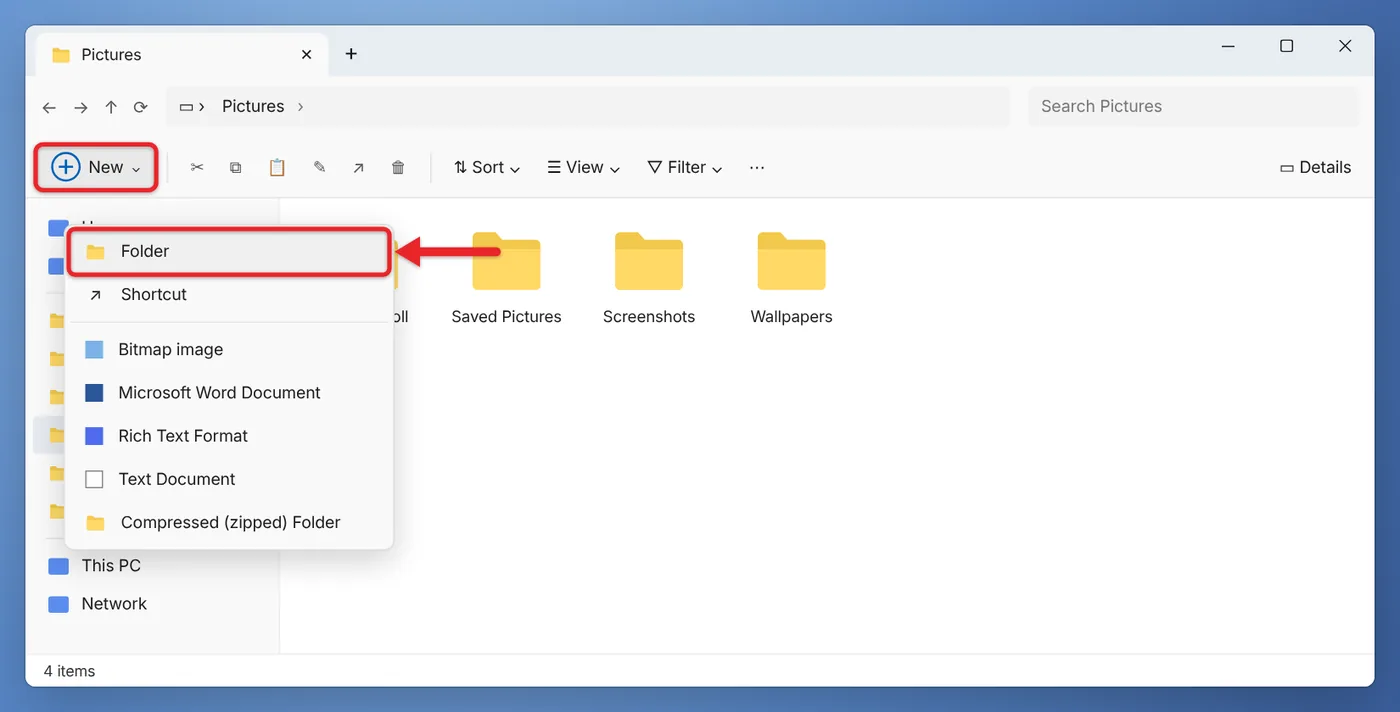
- Type a name such as GIFs and press Enter. The folder keeps the new name and is ready to use.
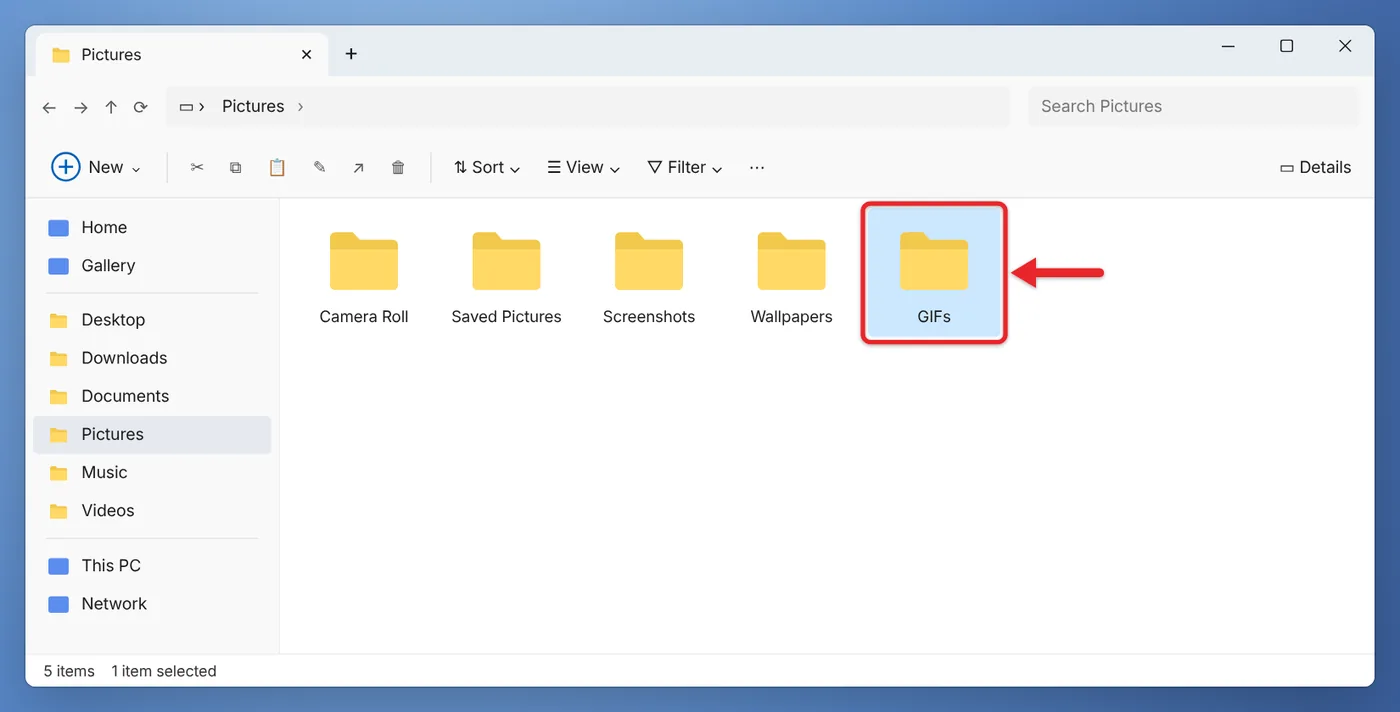
Double-click the folder to open it. When you save a GIF from a web browser, you can now pick this folder in the Save As window.
To drop a GIF into a message without saving it, open the emoji keyboard in Windows 11 and use its GIF tab.
Why the Pictures folder works well
Windows treats Pictures as the home for images. The Photos app, many image editors, and the Save As window in most browsers look there first, so a GIF folder inside Pictures is easy to reach from almost anywhere. If you sync Pictures with OneDrive, the GIF folder gets backed up along with the rest of your photos.
If you plan to keep a lot of GIFs, you can add subfolders inside it, such as Reactions, Memes, or Made by me. Use the same steps from inside the GIFs folder.
Other Ways to Create the Folder
All of these make the same kind of folder. Use whichever is closest to where you are.
- Keyboard shortcut: Open the location in File Explorer and press Ctrl + Shift + N. Type the name and press Enter.
- Right-click menu: Right-click an empty spot inside the folder, point to New, and click Folder.
- On the desktop: Right-click an empty part of the desktop, choose New > Folder, type the name, and press Enter. This puts the folder on your desktop, which is handy if you grab GIFs often.
- While saving a file: In most Save As windows there’s a New folder button near the top. Click it, name the folder, open it, then click Save.
To rename the folder later, click it once and press F2, or right-click it and choose the Rename icon.
On Windows 11 you can also give the folder its own picture with the folder steps in how to change app icons on Windows 11.
For more on the toolbar, panes, and views, read this walkthrough of using File Explorer in Windows 11.
Find the GIFs You Already Have and Move Them In
If you’ve saved GIFs before, they’re probably spread across Downloads, Pictures, and the desktop. File Explorer can find them all.
- In File Explorer, click This PC in the left pane so the search covers your whole computer. To search only your user folders, click your name or Home instead.
- Click the search box at the top right and type *.gif (an asterisk, then .gif). Press Enter. Results fill in as Windows finds them, which can take a minute on a large drive.
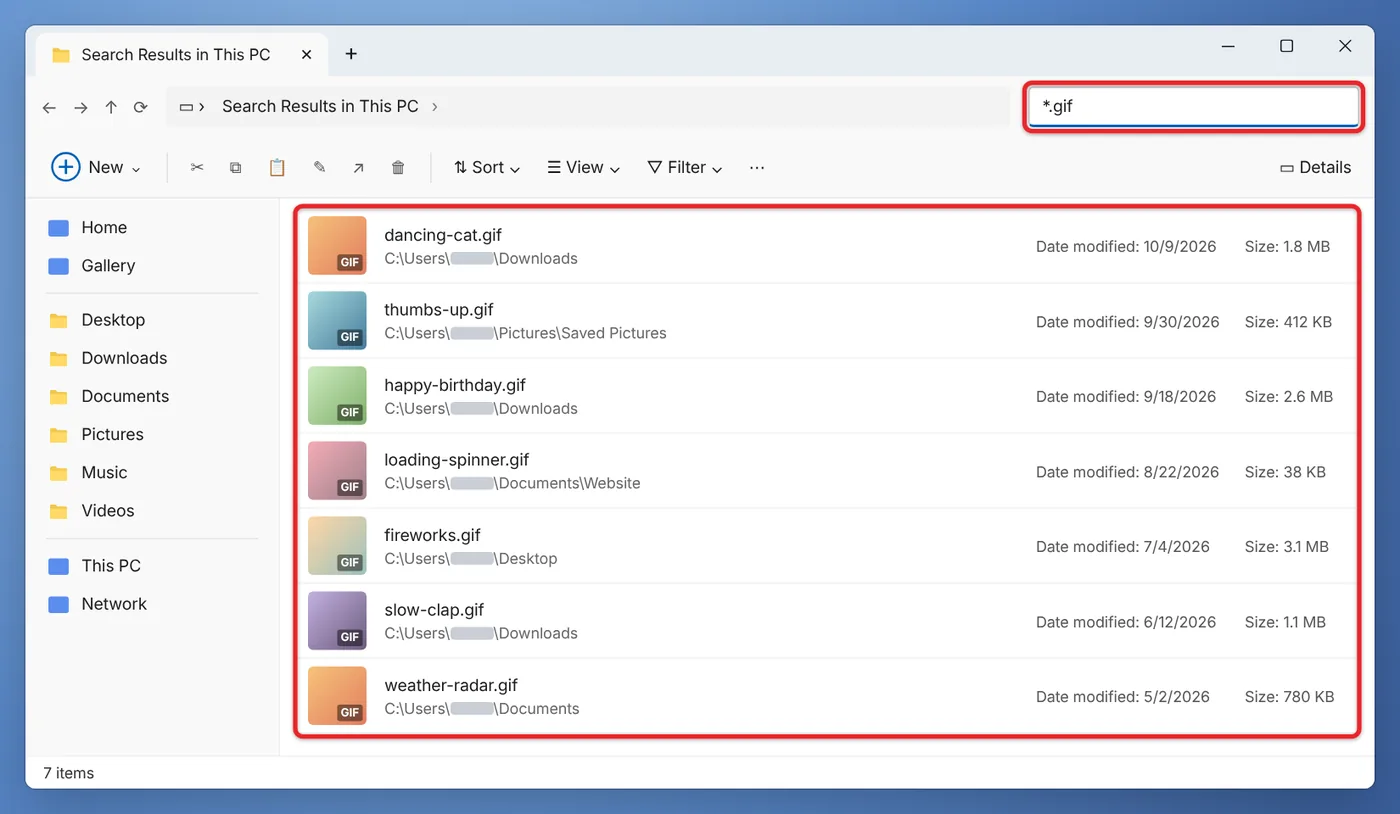
- Click the first GIF you want, then hold Ctrl and click each of the others. To select every result instead, press Ctrl + A.
- Right-click one of the selected files and choose the Cut icon to move them, or the Copy icon to leave the originals where they are.
- Open your GIFs folder, right-click an empty spot, and choose the Paste icon.
Search results can include GIFs that belong to programs, such as small icons inside app folders. Stick to results in your own folders (Downloads, Pictures, Desktop, Documents) and leave anything under Program Files or AppData alone.
If a drag to another drive leaves the originals behind, here is how to move files instead of copying in Windows 11.
Make a GIF Folder or Album on iPhone
On an iPhone, GIFs you save from Safari or Messages go into the Photos app, not into a folder. You have two options.
Use the Animated album in Photos
Photos already sorts GIFs for you. Open Photos, tap Collections, scroll down to Media Types, and tap Animated. Every saved GIF is there, and they play in place. You don’t need to create anything.
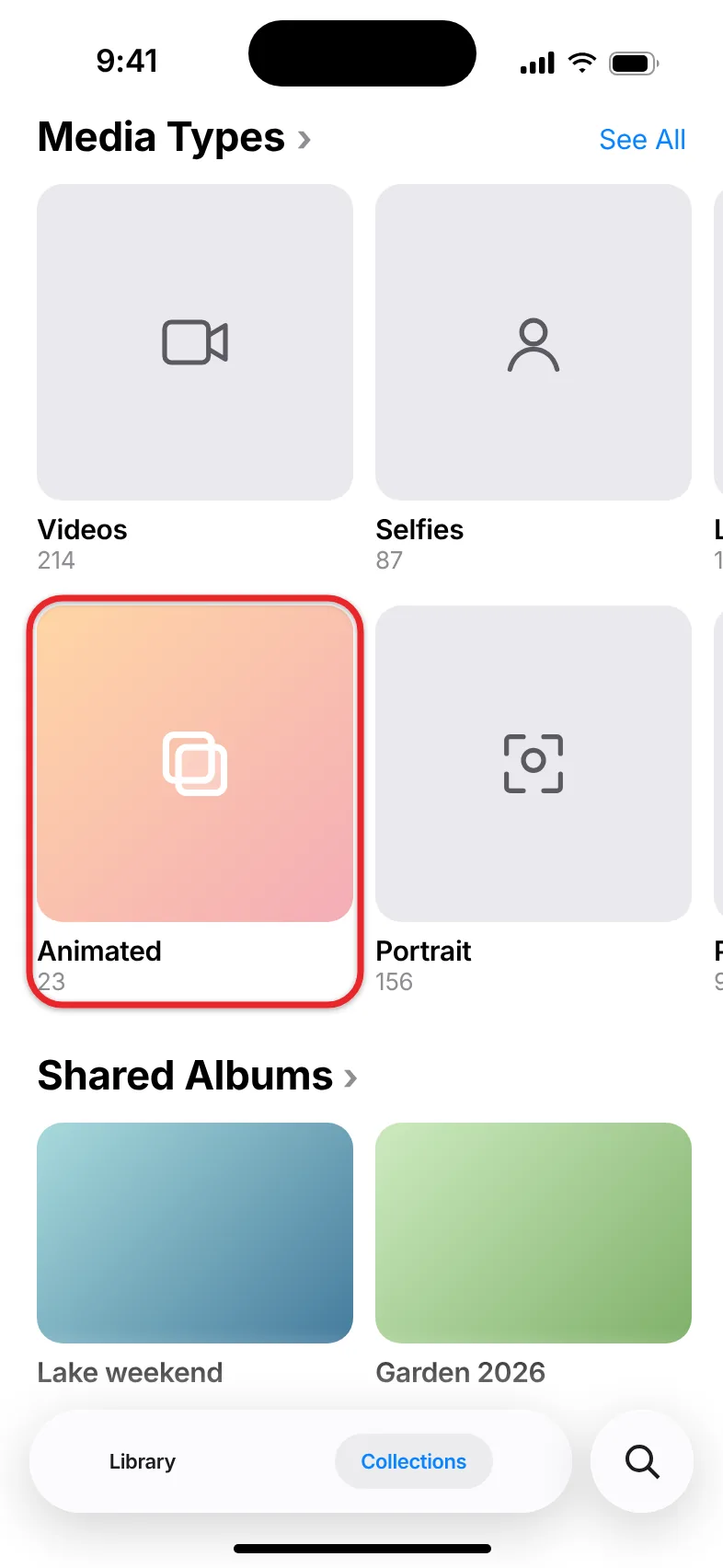
To save a GIF from Safari, touch and hold it and tap Save to Photos. You can also put GIFs in your texts with the steps for sending GIFs on iPhone.
Make your own GIF album
If you want a hand-picked set, such as your favorite reaction GIFs, make an album. Apple covers albums in Create and work with photo albums on iPhone.
- Open Photos and tap Collections.
- Scroll down and tap Albums.
- Make sure Personal is selected, then tap the plus sign at the top right.
- Tap New Album, type GIFs, and tap Add Photos.
- Tap each GIF you want, tap the check mark, then tap Create. The new album shows up in your Albums list.
Make a GIF folder in the Files app
If you’d rather keep GIFs as files, for example to attach them to emails or move them to a computer, use the Files app:
- Open Files and tap Browse.
- Tap iCloud Drive or On My iPhone.
- Tap the More button (three dots in a circle) at the top right, then tap New Folder.
- Type GIFs and tap Done.
To put a GIF from Photos into this folder, open the GIF, tap the Share button, choose Save to Files, pick the GIFs folder, and tap Save. This article on finding files on iPhone explains the Files app’s locations in more detail.
Make a GIF Folder on Android
On Android, GIFs you download from Chrome usually land in the Download folder. In Google’s Files app, you make the new folder as part of moving files. These steps match Google’s Files by Google help page:
- Open Files by Google and scroll down to Storage devices.
- Tap Internal storage, then open the Download folder (or wherever your GIFs are).
- Select the GIFs. In grid view, press and hold one GIF, then tap the circle on each of the others. In list view, tap the circle next to each one.
- Tap More (three dots) at the top right and tap Move to.
- Go to where you want the folder, such as Pictures, and tap Add new folder.
- Type GIFs in the pop-up, then tap Move to folder. The GIFs move into the new folder.
Choose Copy to instead of Move to in step 4 if you want to keep the originals in place. Samsung phones use the My Files app instead, where the menu names are a little different.
Troubleshooting
- There’s no New button in File Explorer. You might be on the Home or Gallery page, where you can’t create folders. Click Pictures, Documents, or another real folder in the left pane first, and the New button will work.
- Windows says you need permission. You picked a protected location, such as the C: drive root or Program Files. Use a folder in your own user profile, like Pictures or Documents.
- The folder came out as “New folder.” You clicked away before typing. Click the folder once, press F2, type the new name, and press Enter.
- A GIF won’t animate in the folder. File Explorer shows still thumbnails. Double-click the GIF to play it in the Photos app or open it in a web browser.
- The search finds no GIFs. Make sure you typed *.gif and searched from This PC. If you saved GIFs in a OneDrive folder that’s set to online-only, they still show up, but they need an internet connection to open.
- On iPhone, New Folder is grayed out or missing. You may be inside the Recents view or a shared folder you can’t edit. Tap Browse and choose iCloud Drive or On My iPhone.
Frequently Asked Questions
What should I name my GIF folder?
Any name works. GIFs is short and easy to spot in a list. If you sort GIFs by topic, add subfolders inside it rather than making several separate folders in different places.
Can I make the folder somewhere other than Pictures?
Yes. Go to any folder you can save files to, such as Documents, Downloads, or the desktop, and use the same New > Folder steps.
Will a GIF folder take up a lot of space?
An empty folder uses almost no space. The GIFs inside it take up whatever space they used before. Moving files into the folder doesn’t change their size.
Do these steps work in Windows 10?
Yes. In Windows 10, File Explorer has a ribbon instead of the toolbar, so click Home > New folder instead. The right-click menu and Ctrl + Shift + N work the same way.
Does the iPhone have a GIF folder already?
It has an automatic Animated album in Photos under Collections > Media Types. It collects every GIF you save, so you only need your own album or Files folder if you want to pick and choose.

Matthew Burleigh is the founder, head writer, and editor of Solve Your Tech, which he launched in 2012. He has written technology tutorials since 2008 and worked in IT since 2003, including small-business support, IT management, and consulting. He holds Bachelor’s and Master’s degrees in Computer Science from Arizona State University.
Matthew writes practical guides for Windows, iPhone and iPad, Microsoft Office, Outlook, Google apps, and Android. Solve Your Tech’s guides are checked step by step against the device or app maker’s own documentation and tested on his own devices whenever he has the hardware or software, with clear steps, sources, and update dates.
Read more about Matthew and how Solve Your Tech writes and updates its guides, or report a correction.