To get an app back on your Android home screen, swipe up from the bottom of the home screen to open your app list, then touch and hold the app and drag it onto the home screen. Removing an icon from the home screen doesn’t uninstall the app, so it’s almost always still waiting in the app list.
These steps match Google’s Pixel Launcher on Android 14 through Android 17 and the Samsung Galaxy home screen (One UI Home). Most other Android phones use the same swipe-up app list, but if you installed a third-party launcher such as Nova, its menus will differ. If the app isn’t in the app list at all, skip to the section on missing apps.
Add an App Back to the Home Screen
- Go to your home screen and swipe up from the bottom of the screen. The app list opens. Some phones call this the app drawer, All apps, or the Apps screen.
- Find the app. If the list is long, tap the search bar at the top and type the app’s name.
- Touch and hold the app icon, then start dragging it without lifting your finger. The app list closes and you see your home screen.
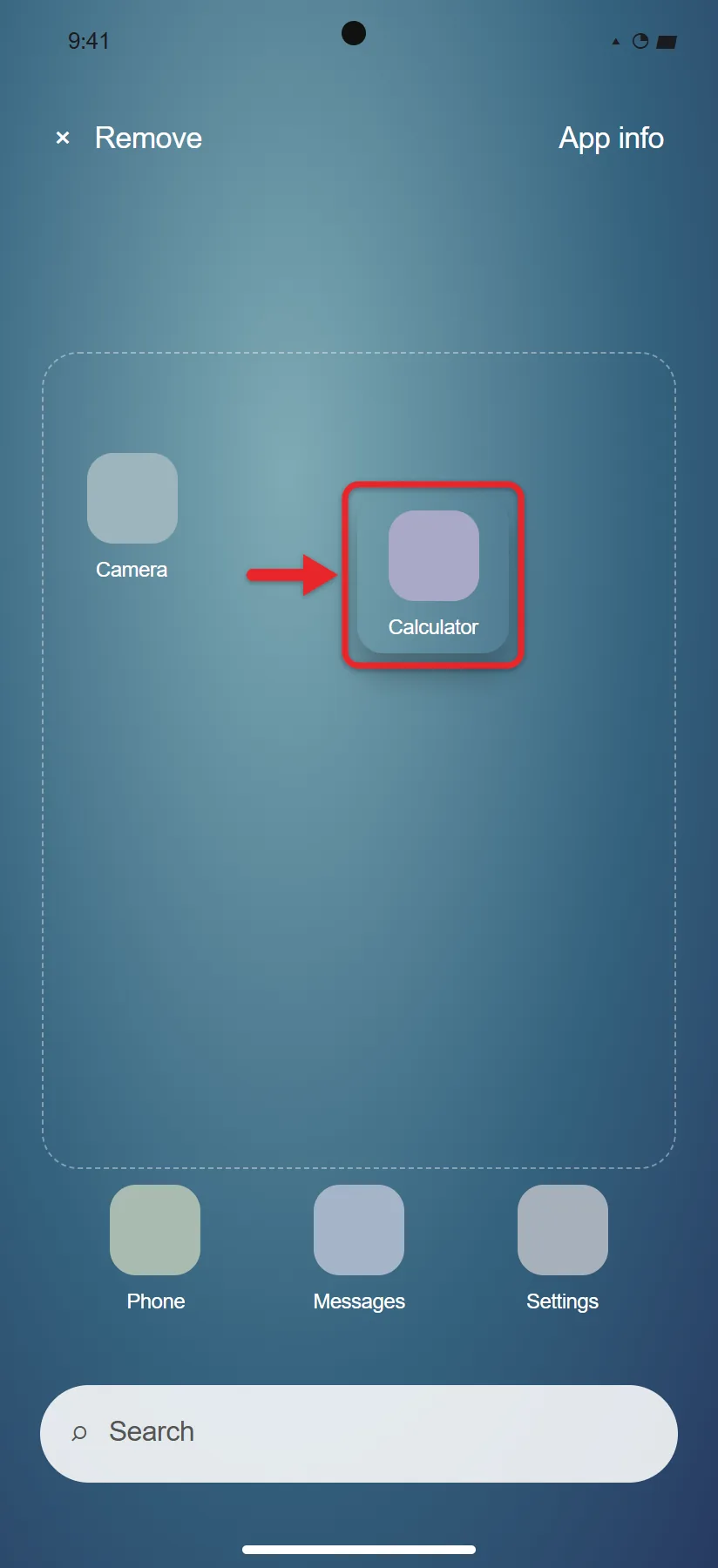
- Slide the icon to an empty spot. To put it on a different home screen page, drag it to the left or right edge and wait for the page to change. Dragging past your last page creates a new, blank page.
- Lift your finger. The icon stays where you dropped it and opens the same app as before, with all its data intact.
Google lists these steps in its help page on how to add apps, shortcuts, and widgets to your Home screens. Once the app is back, you can move apps on Android to arrange your icons.
When you touch and hold some apps, a short list of shortcuts appears, such as “New message” or “Navigate home.” You can drag one of those to the home screen too. A shortcut opens one part of the app, while the app icon opens the app itself, so drag the icon if you want the app back the way it was.
Widgets go on the home screen in a similar way. Here’s how to add the Google search bar to your home screen.
Add an App Back on a Samsung Galaxy
Samsung phones support dragging too, but there’s also a menu option that drops the icon on the next free spot for you.
- Swipe up from the bottom of the home screen to open the Apps screen.
- Touch and hold the app you want.
- Tap Add to Home in the menu that appears. The icon is added to your home screen, and the app stays on the Apps screen as well.
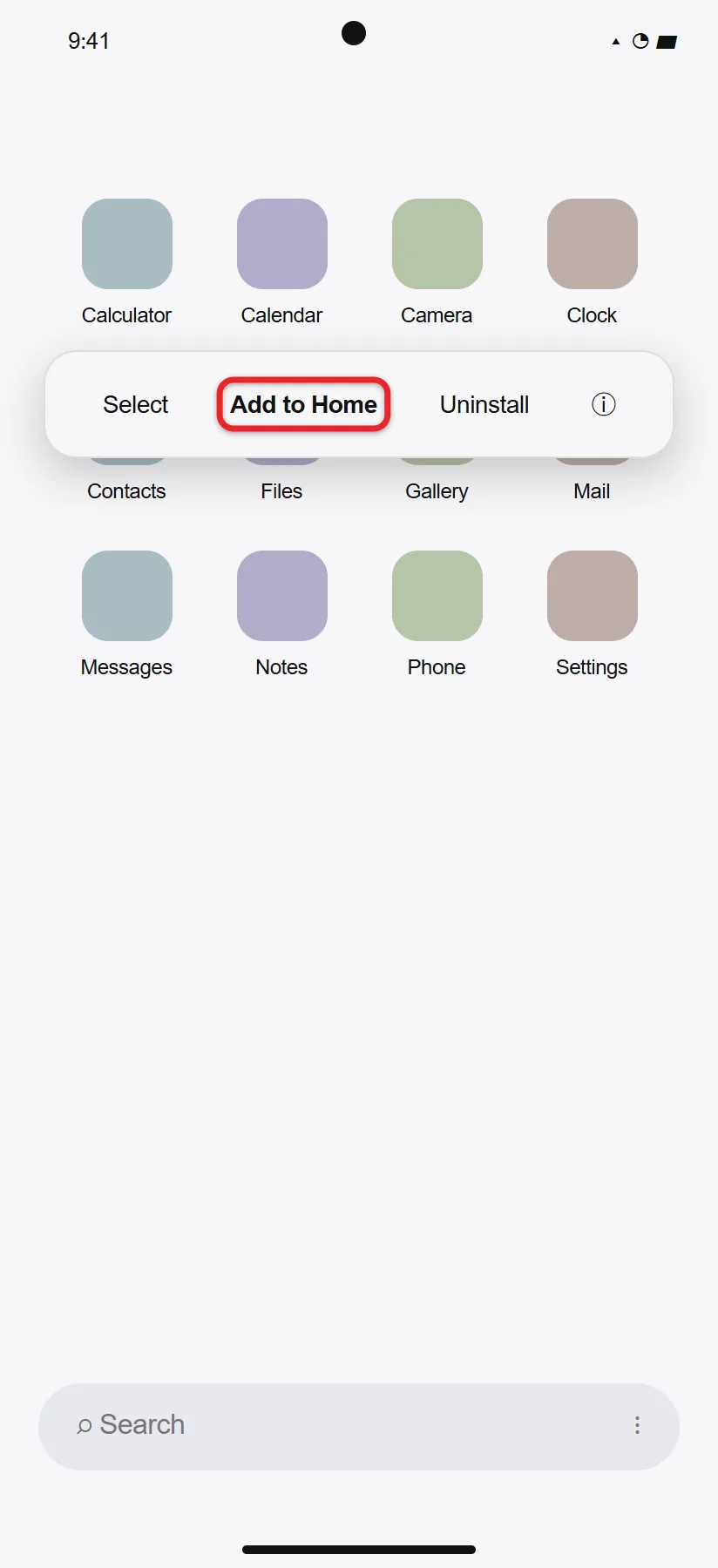
Samsung covers this in its guides to managing apps on Galaxy Home and Apps screens and organizing the Home screen. A whole folder from the Apps screen can be added the same way: touch and hold the folder and tap Add to Home.
If swiping up does nothing on a Galaxy phone, your home screen may be set to Home screen only, which puts every app on the home screen and has no Apps screen. Touch and hold an empty area of the home screen, tap Settings, then Home screen layout, and choose Home and Apps screens to bring the app list back. In the same Settings list, Show Apps screen button on Home screen adds a button you can tap instead of swiping.
If the App Isn’t in the App List
If you search the app list and the app doesn’t appear, one of these is the reason.
The App Is Hidden (Samsung)
Samsung lets you hide apps from both the home screen and the Apps screen. A hidden app is still installed; only its icons are gone. To unhide one:
- Touch and hold an empty area of the home screen and tap Settings.
- Tap Hide apps on Home and Apps screens.
- Under Hidden apps, tap the red minus icon next to the app.
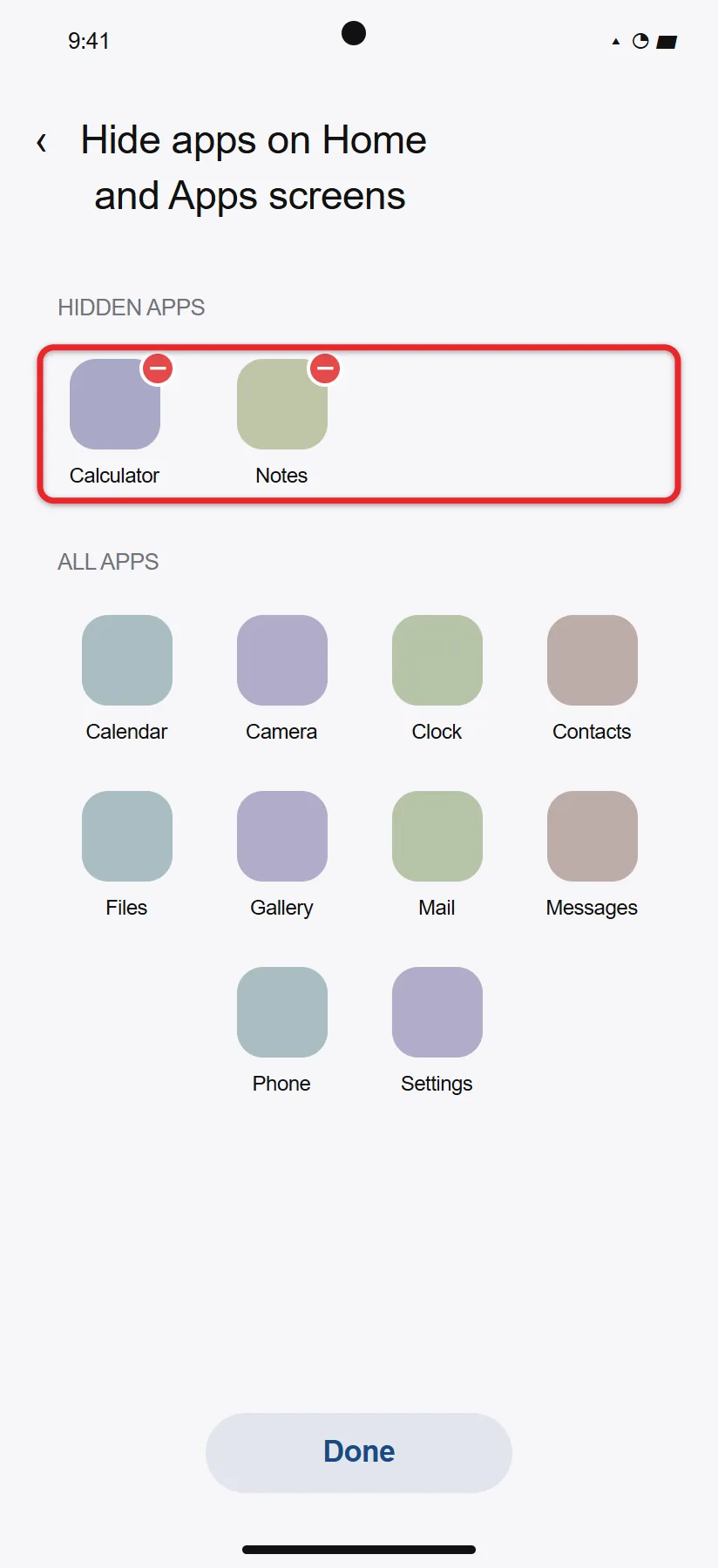
- Tap Done. The app returns to the Apps screen, and you can add it to the home screen with the steps above.
Other launchers with a hide feature usually keep it in the launcher’s own settings, which you reach by touching and holding an empty part of the home screen.
The App Is in Private Space
Android 15 and later include Private space, a separate, lockable area for apps you want to keep out of sight. While it’s locked, its apps don’t show in your app list. Scroll to the bottom of the app list, tap Private space, and unlock it with its lock or your screen lock. Google’s private space help page notes that you can’t add shortcuts or widgets for private apps to the home screen. If you want the app on your home screen, install a normal copy from the Play Store outside private space.
The App Is in a Work Profile
If your employer or school set up a work profile, its apps sit on a separate Work tab in the app list. Open that tab and turn the work profile on if it’s paused. Your organization may limit which work apps you can place on the home screen, so ask your IT team if one won’t move.
The App Is Disabled
Some apps that came with the phone can’t be uninstalled, only disabled, and a disabled app disappears from the app list.
- Open Settings and tap Apps. On a Pixel, tap See all apps as well.
- Find the app in the list and tap it. Disabled apps often appear near the bottom or are marked Disabled.
- Tap Enable. The app returns to your app list.
Can’t find the Settings app itself? There are a few ways to find the Settings app on your phone.
The App Was Uninstalled
- Open the Google Play Store (or the Galaxy Store if that’s where the app came from).
- Tap the search bar, type the app’s name, and open its listing. You can also tap your profile picture, then Manage apps & device, and check the Manage tab for apps you’ve had before.
- Tap Install. Once it finishes, the app appears in your app list and often on the home screen too.
If you installed the app from outside the Play Store, reinstall it from the same source. For an APK, follow the steps to install an APK on Android again. Reinstalling doesn’t always bring back data that was stored only on the phone, so sign in to the app to restore anything saved to your account.
The App Is Inside a Folder
Sometimes the icon is on the home screen, just tucked inside a folder. Tap each folder on your home screens to check, and swipe left inside a large folder, since folders can have more than one page. To pull an app out, open the folder, touch and hold the app, and drag it out onto the home screen.
If Apps Keep Disappearing or Won’t Move
- The home screen layout is locked. On a Samsung phone, touch and hold an empty area of the home screen, tap Settings, and turn off Lock Home screen layout. While it’s on, you can’t add, move, or remove icons.
- You switched launchers. A different home screen app has its own layout. To go back, open Settings > Apps > Default apps > Home app and choose your phone’s original launcher.
- You removed the icon by accident. Dragging an icon to Remove only takes it off the home screen. Remove and Uninstall are different, so add it back from the app list.
- The phone is in Easy mode. On a Samsung Galaxy with big icons and only a few apps showing, Easy mode may be on. Turn it off in Settings > Display > Easy mode, or see how Easy mode works on Samsung Galaxy phones.
- Game icons are missing on a Galaxy. Samsung’s Gaming Hub can keep games off the Home and Apps screens. Open Gaming Hub, look in its settings for the option that shows game apps, and choose to show them on the Home and Apps screens.
- Icons vanished after an update or a new theme. Restart the phone first. If icons are still missing, open Settings > Apps > See all apps, tap your launcher (for example Pixel Launcher or One UI Home), tap Force stop, then open Storage & cache and tap Clear cache. Clearing the cache doesn’t touch your layout. Avoid Clear storage unless nothing else works, because it resets your home screen layout, folders, and widgets, although it doesn’t uninstall any apps.
Make New Apps Appear on the Home Screen Automatically
If newly installed apps never show up on your home screen, the automatic icon setting is probably off.
- Pixel: Touch and hold an empty area of the home screen, tap Home settings, and turn on Add app icons to Home screen if your version shows it.
- Samsung Galaxy: Touch and hold an empty area of the home screen, tap Settings, and turn on Add new apps to Home screen.
This only affects apps you install from now on. Apps you already have still need to be dragged from the app list.
How to Check That It Worked
Tap the icon you added. If the app opens to your usual account and content, the icon is linked to the installed app. Lock and unlock the phone, then restart it once; if the icon is still in place, the layout saved correctly.
Frequently Asked Questions
Did removing the app from my home screen delete it?
No. Remove only takes the icon off the home screen. The app, its data, and its notifications stay on your phone. Uninstall is the option that deletes the app.
Why can’t I find the app in my app list?
It’s hidden, locked in private space, in a work profile, disabled, or uninstalled. Check your launcher’s hidden apps list and private space, then Settings > Apps, and finally the Play Store.
Can I put the same app on two home screens?
On most launchers you can drag the app from the app list a second time to add another icon for it. Both icons open the same app.
How do I add a website to my home screen like an app?
Open the site in Chrome, tap the three dots, and choose Add to Home screen. For the full steps, read about adding a Chrome shortcut to your home screen.
Will a factory reset bring my icons back?
It isn’t needed for this. A reset erases the phone, and every fix above works without losing data. Try a restart and the launcher steps first.

Matthew Burleigh is the founder, head writer, and editor of Solve Your Tech, which he launched in 2012. He has written technology tutorials since 2008 and worked in IT since 2003, including small-business support, IT management, and consulting. He holds Bachelor’s and Master’s degrees in Computer Science from Arizona State University.
Matthew writes practical guides for Windows, iPhone and iPad, Microsoft Office, Outlook, Google apps, and Android. Solve Your Tech’s guides are checked step by step against the device or app maker’s own documentation and tested on his own devices whenever he has the hardware or software, with clear steps, sources, and update dates.
Read more about Matthew and how Solve Your Tech writes and updates its guides, or report a correction.