The Disable links in mail from unknown senders checkbox belonged to the older AOL Mail layout, under Options > Mail Settings. AOL’s current help pages no longer describe it. In current AOL Mail, the closest documented protections are blocking external images, blocking everyone who isn’t in your contacts, and marking suspicious messages as spam.
This guide covers both cases: what to look for if your account still shows the older setting, and the settings AOL documents today for mail from people you don’t know.
What changed in AOL Mail
The original setting did one thing. When an email arrived from an address AOL didn’t recognize, the links in that message could not be clicked until you chose to enable them. AOL’s support team described the same control in 2018 as Hide images and disable links in mail from unknown senders, found under Mail Settings.

AOL has since moved everyone to a newer version of AOL Mail. Its overview of AOL Mail says you can’t switch back to the classic version. The current AOL Mail settings article lists reading, compose, filter, security and contact options, but it doesn’t list a link-disabling option. We could not confirm from AOL’s documentation that the checkbox still exists, so treat it as an older feature that may be missing from your account.
| What you want | Where AOL documents it now |
|---|---|
| Stop hidden content loading in mail from strangers | Settings > More Settings > Viewing email > Show images in messages |
| Receive mail only from people you know | Settings > More Settings > Security and privacy > Block all senders except contacts |
| Stop one sender | Open the email, then More > Block Senders |
| Send a sender’s future mail to the Spam folder | Select the email, then Mark as Spam |
Before you start
- These steps are for AOL Mail in a web browser on a computer, at https://mail.aol.com. If you have trouble getting in, see our guide to signing in to AOL Mail.
- You only need your normal AOL account. None of these settings cost anything.
- Menu names can differ slightly between accounts. If a label below doesn’t match what you see, look for the closest wording in the same menu.
If you still see the older Mail Settings page
Some readers may still have a mailbox that shows an Options button at the top right. If yours does, try these steps. If it doesn’t, skip to the next section.
- Sign in to AOL Mail in a browser.
- Click Options at the top right of the window, then choose Mail Settings.
- On the General tab, look for a checkbox named Disable links in mail from unknown senders. It may instead read Hide images and disable links in mail from unknown senders.
- Check the box, then click Save Settings at the bottom of the window.
- Click Back to Mail to return to your inbox.
The image below shows the checkbox as it appeared in the older layout.
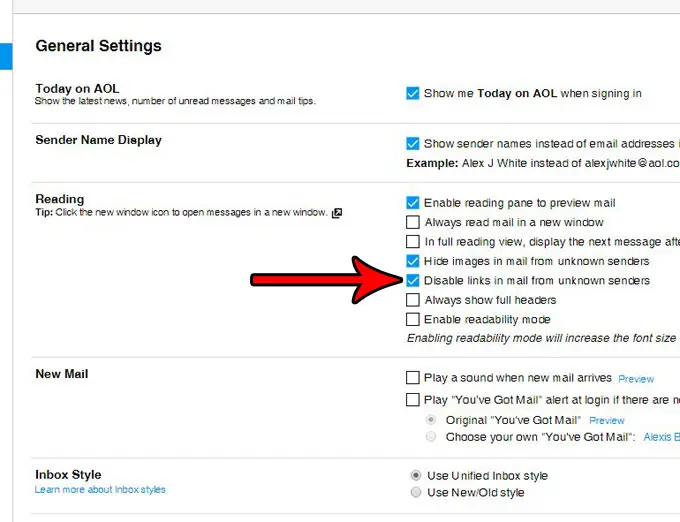
With that setting on, a message from an unknown sender showed an option to show images and enable links for that one email. To undo the change, go back to the same page, clear the checkbox, and save again.
If you don’t have an Options button, or the checkbox isn’t on the page, your account uses the current layout. Use the settings below instead.
Block external images in current AOL Mail
This is the nearest current match to the old setting. AOL’s article on how to enable or block images in AOL Mail says the default is to show all images except those in spam emails. It adds that turning images off can increase the privacy and security of your account by disabling potentially malicious images and content.
External images are pictures that load from another website when you open an email, rather than being attached to it. Blocking them does not make links unclickable. It stops a message from loading outside content until you say so.
- In your inbox, click the Settings icon, then click More Settings.
- Click the Viewing email tab.
- Scroll down until you see Show images in messages.
- Choose Ask before showing external images.
- Return to your inbox.
To confirm it worked, open a newsletter or other email that normally has pictures. The images should stay hidden until you choose to show them. To undo it, go back to the same tab and choose Always, except spam folder.
Block everyone except your contacts
This is the strongest option AOL documents. If mail from strangers never arrives, there are no links from unknown senders to click.
Warning: AOL says that with this setting on you will not receive messages from anyone who isn’t in your contacts. That includes receipts, password reset emails, appointment reminders, and newsletters. Add every sender you still want to hear from to your contacts before you turn it on.
- Click the Settings icon, then click More Settings.
- Click the Security and privacy tab.
- Turn on the Block all senders except contacts toggle.
- Click Ok to confirm.
These steps come from AOL’s article on how to block all senders except for contacts. To undo the change, return to the same tab and turn the toggle off. If expected email stops arriving later, this setting is the first thing to check.
Block or report a single sender
If the unwanted links come from one or two addresses, you don’t need an account-wide setting.
Block the sender
- Open the email, or select it in your mailbox.
- Click the More icon.
- Click Block Senders.
- If you want, select the option to also delete the emails you already received from that sender.
- Click Ok.
To unblock someone, click Settings, then More Settings, then Security and Privacy. Move your mouse over the address and click the Delete icon. AOL lists both sets of steps in its article on how to block and unblock email addresses.
Mark the message as spam
- Select the email in your inbox.
- Click Mark as Spam.
The message moves to the Spam folder. According to AOL’s guide to managing spam in AOL Mail, future emails from the same sender are then routed to the Spam folder automatically. If you mark something by mistake, open the Spam folder, select the email, and click Restore to Inbox or Not Spam.
AOL also warns never to interact with spam messages. Any link in a spam message could be dangerous, including the unsubscribe link.
How to check a link before you click it
No setting replaces a quick look at the message. AOL’s own safety advice covers these checks:
- Hover over the link. AOL says to hover over hyperlinks with your cursor to preview the destination address. A link can be displayed as an AOL link when it really goes to a malicious site.
- Read the sender’s address closely. Fake addresses are often missing a letter, misspelled, or use a lookalike character, such as a zero in place of the letter O.
- Look for AOL’s own markers. In AOL’s web mail, genuine email from AOL is marked as Official Mail or Certified Mail. AOL says these icons don’t appear in third-party mail apps.
- Be suspicious of requests for personal details. AOL says it never asks for passwords or credit card numbers by email.
- Check the header if you’re unsure. Spoofing is when a sender disguises a message so it appears to come from someone you trust. You can show full headers in AOL Mail to see where a message really came from.
AOL lists these points in its guide to identifying legitimate AOL websites, requests, and communications.

Troubleshooting
I can’t find Options or Mail Settings
Your mailbox uses the current layout. Click the Settings icon and choose More Settings. The related controls are on the Viewing email and Security and privacy tabs.
The Disable links checkbox isn’t on the settings page
AOL’s current help pages don’t mention it, so it has likely been removed from your version of AOL Mail. AOL says you can’t return to the classic version. Use the image setting and the blocking options above instead.
Emails I want have stopped arriving
Check whether Block all senders except contacts is turned on, then look in the Spam folder. Also review your blocked addresses on the Security and privacy tab and remove any you added by mistake.
Images are missing from every email
That is the expected result of choosing Ask before showing external images. Show the images in a message you trust, or switch the setting back to Always, except spam folder.
The settings don’t seem to apply in my phone’s mail app
The steps in this guide are for AOL Mail in a web browser. A separate mail program, such as Outlook or the Mail app on a phone, has its own display and security settings. AOL also says spam actions work best when you take them in its own apps or in webmail.
Frequently asked questions
Does AOL Mail still have a setting to disable links from unknown senders?
AOL’s current documentation doesn’t list one. The checkbox was part of the older AOL Mail settings page. The current documented alternatives are blocking external images, blocking all senders except your contacts, blocking individual senders, and marking messages as spam.
Does blocking images also disable links?
No. AOL describes the image setting as a way to stop potentially malicious images and content from loading. Links in the message can still be clicked, so check where a link goes before you use it.
Will I lose email if I block all senders except contacts?
You will stop receiving messages from anyone who isn’t in your contacts for as long as the setting is on. Add important senders to your contacts first, and turn the toggle off if you start missing mail you need.
What should I do if I already clicked a suspicious link?
AOL’s advice, if you think your account has been compromised, is to change your AOL account password and review your account information. If you entered payment details on the page, contact your bank or card provider.
Is it safe to use the unsubscribe link in a spam email?
AOL says not to. It warns that any link in a spam message could be dangerous, including the unsubscribe link. Mark the message as spam instead. For mailing lists AOL trusts, it may offer its own unsubscribe option when you do.
Next steps
Start with the image setting, since it has no effect on which emails you receive. Add the contacts-only block if strangers keep reaching your inbox. For more AOL Mail settings, see how to open AOL Mail with your inbox instead of Today on AOL, or learn how to use BCC in AOL Mail when you email people who don’t know each other.

Matthew Burleigh is the founder, head writer, and editor of Solve Your Tech, which he launched in 2012. He has written technology tutorials since 2008 and worked in IT since 2003, including small-business support, IT management, and consulting. He holds Bachelor’s and Master’s degrees in Computer Science from Arizona State University.
Matthew writes practical guides for Windows, iPhone and iPad, Microsoft Office, Outlook, Google apps, and Android. Solve Your Tech’s guides are tested on current devices or checked against official product documentation, with clear steps, sources, and update dates.
Read more about Matthew and how Solve Your Tech writes and updates its guides, or report a correction.