To burn multiple copies of the same disc for free, use ImgBurn on a Windows computer. Add your files or pick an image file, set the Copies box to the number you need, and start the burn. ImgBurn writes the first disc, asks for the next blank one, and keeps going until every copy is done.
This guide covers ImgBurn 2.5.8.0, the current version listed on the developer’s site. The steps come from ImgBurn’s own guides and from Microsoft’s Windows documentation, and anything those sources do not confirm is marked that way.
The Short Version
- Install ImgBurn from the official ImgBurn download page.
- Open ImgBurn and choose Write files/folders to disc. If you already have an image file such as an ISO, choose Write image file to disc instead.
- Add the files or folders, or browse to the image file.
- Insert a blank disc and select your burner.
- Set Copies to a number from 1 to 100.
- Click the large Build or Write button.
- When ImgBurn asks for the next disc, take out the finished one and insert a blank one.

What You Need Before You Start
- A Windows computer. The ImgBurn website lists support for Windows 95 through Windows 10, including 64-bit versions. Windows 11 is not on that list, so treat it as unconfirmed by the developer.
- A drive that can write discs. This is often called a burner or recorder. A drive that only reads discs cannot make copies. An external USB burner is fine if your computer has no built-in drive.
- Enough blank discs of the right type. Microsoft lists a CD at about 700 MB and a single-layer DVD at about 4.7 GB. Buy a few more than you need, because a failed burn on a write-once disc cannot be reused.
- The files or the image file. An image file is a single file that holds the full contents of a disc. ISO is the most common kind.
- Time. Each copy is burned one after another, so a large job takes a while and you need to be nearby to swap discs.
Before you copy anything: only duplicate discs you have the right to copy, such as your own files, photos, home videos, or software you are licensed to distribute. The ImgBurn website asks users not to make illegal copies of copyrighted discs. This guide does not cover copy-protected movies, music, or games.
Step 1: Download and Install ImgBurn
ImgBurn is a free disc-burning program for Windows. The developer’s site says the current version is 2.5.8.0, released in June 2013, so do not expect a newer release.
- Go to the ImgBurn download page linked above.
- Pick one of the mirror links. A mirror is a different server holding the same file. The list includes one labeled Provided by ImgBurn.
- Save the setup file, then double-click it to start the installer.
- Read every installer screen instead of clicking through. If a screen offers anything other than ImgBurn itself, decline what you do not want.
- Finish the installer and open ImgBurn from the Start menu.
The download page also publishes checksums (CRC32, MD5, and SHA-1) for the setup file. A checksum is a fingerprint of a file. If you know how to compare one, it confirms the file you downloaded matches the one the developer released.
Step 2: Choose the Right Mode
When ImgBurn opens for the first time it shows the Ez-Mode Picker, a menu of the most common jobs. Two of them matter here.
| Button | Mode it opens | Use it when |
|---|---|---|
| Write files/folders to disc | Build | You have loose files and folders to put on every disc |
| Write image file to disc | Write | You have an image file, or you want to duplicate an existing disc |
| Create image file from disc | Read | You need to turn an existing disc into an image file first |
If the picker is not showing, open the Mode menu at the top of the window and choose Build, Write, or Read there.

Step 3: Burn Multiple Copies of Files and Folders
Use this method when the content is a set of files on your computer.
- Click Write files/folders to disc. ImgBurn switches to Build mode.
- In the Source box, use the Browse for a file and Browse for a folder buttons to add everything that belongs on the disc.
- Make sure the output is set to Device, not Image File. Device means ImgBurn writes straight to the disc in your burner.
- Insert a blank disc. If you have more than one drive, select the burner in the Destination list.
- Click the calculator button in the Information area. ImgBurn works out the size of the project so you can see whether it fits on your disc type.
- Open the Device tab on the right side of the window.
- Find Copies and choose the number you need. ImgBurn’s guide says any number from 1 to 100 can be selected, and the default is 1.
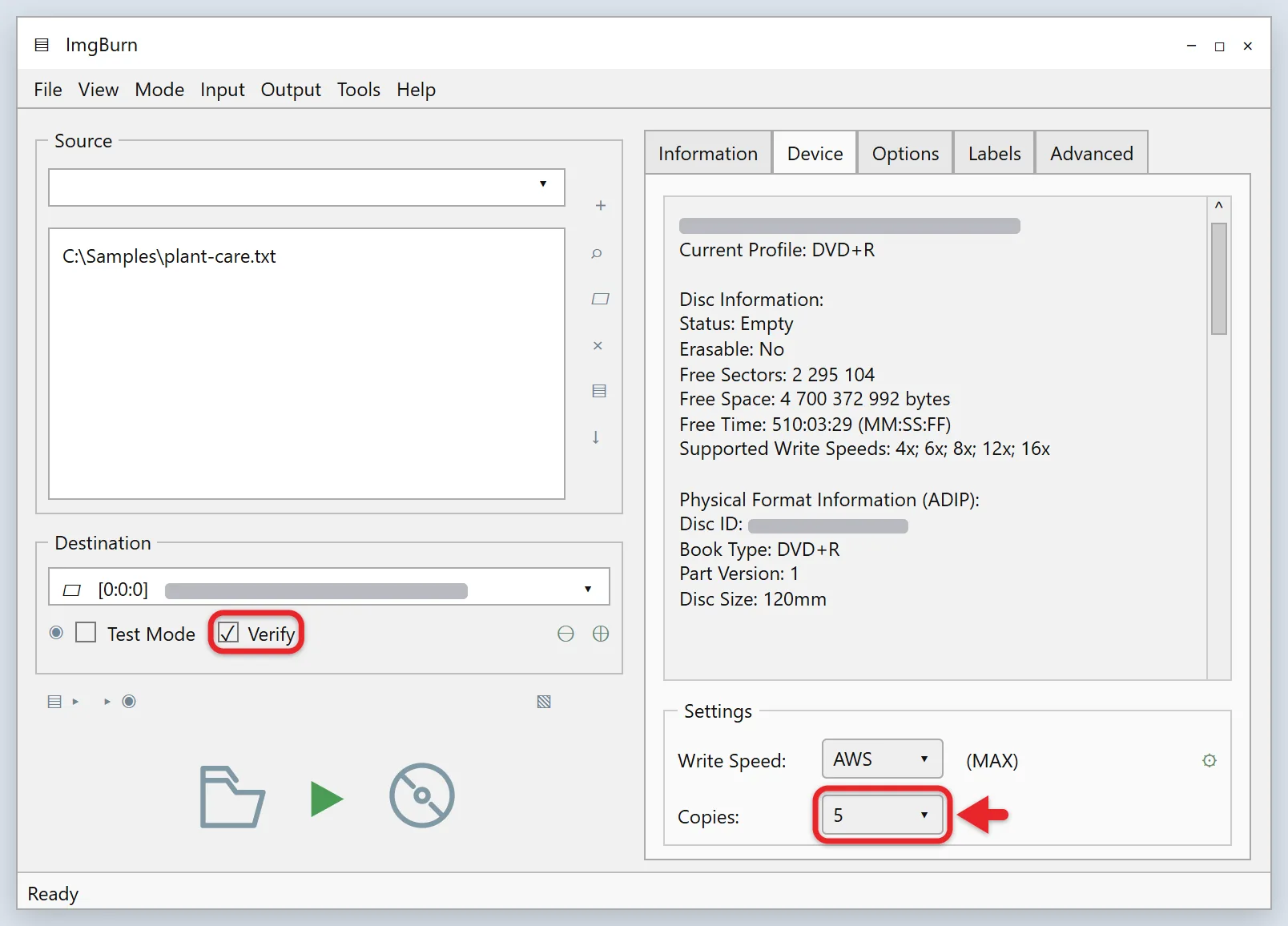
- Leave Verify checked if you want each disc checked after it is written. It is on by default.
- Click the large Build button. ImgBurn may ask you to confirm a volume label (the disc’s name) or other details before it starts.
ImgBurn then writes the first disc. If Verify is on, it reads the disc back and compares it with your source files before moving on.
Step 4: Swap Discs Between Copies
When a copy is finished, ImgBurn shows a message asking you to insert the next disc. Remove the finished disc, put in a blank one, and close the tray.
You do not have to click anything. According to ImgBurn’s guide, once the new disc is in, the program starts the next burn automatically after ten seconds. That delay is controlled by the Insert Next Disc – Auto ‘OK’ setting on the Write tab under Tools > Settings.
To make swapping faster, open Tools > Settings > Device and turn on the option to eject the tray after a write. ImgBurn then opens the tray for you when each disc is done. This option is off by default.
Label each disc as it comes out. With a stack of identical-looking discs it is easy to lose track of which ones are finished.
Alternative: Make Copies From an Image File
If the content is already an image file, Write mode is the simpler route. ImgBurn supports many image formats, including ISO, BIN, CUE, IMG, MDS, and NRG.
To check what is inside a BIN or CUE image before you burn copies, open a BIN file in Windows.
- Click Write image file to disc, or choose Mode > Write.
- Insert a blank disc that is large enough for the image.
- Click the Browse for a file button and select the image file.
- In the settings area, set Copies to the number you need (1 to 100).
- Click the large Write button.
- Swap discs each time ImgBurn asks.
Write mode is covered in more detail in how to burn an ISO file with ImgBurn.
Alternative: Duplicate a Disc You Already Have
ImgBurn has no single Copy mode. Its own guide explains that copying a disc is two jobs: read the disc to an image file, then write that image to blank discs.
- Click Create image file from disc, or choose Mode > Read.
- Insert the original disc.
- Click the Browse for a file button to choose where the image file is saved, or accept the name ImgBurn suggests.
- Click the large Read button and wait for it to finish.
- Remove the original disc and switch to Write mode.
- Select the image you just made. ImgBurn’s guide says to look for a CUE or MDS file first, and to use the ISO file if neither exists.
- Set Copies, click Write, and swap discs as prompted.
This approach also works with one drive, because the original disc is only needed for the Read step. For more on keeping copies of your own discs, read the DVD backup article.
Burning Several Different Discs in One Session
If you need copies of more than one image, use the Write Queue. Open View > Queue, click Add, and select your image files. For each image you can set how many copies to burn, which drive to use, and the write speed.
ImgBurn works through the list in order and asks for a new disc between burns. Images can be assigned to different burners in the queue, but ImgBurn’s functions guide states that it does not write to several drives at the same time.
How to Confirm the Copies Worked
- Watch the Verify pass. With Verify on, ImgBurn re-reads each disc and compares it with the source. A copy that fails is reported before the next one starts.
- Check the log. Choose View > Log to see what ImgBurn recorded for each burn.
- Verify a disc later. Choose Mode > Verify, insert a disc, and click the Verify button. Leave Verify Against Image File on to compare the disc with the image it was made from, or turn it off to confirm only that the disc is readable.
- Open one copy on another computer. This is the most practical check that the people receiving the discs will be able to use them.
Stopping or Undoing a Burn
Click Cancel during a burn and ImgBurn lets you abort the task or pause it. Aborting part-way through normally leaves that disc unusable if it is a write-once type.
A finished write-once disc (CD-R, DVD-R, DVD+R) cannot be changed or erased. A rewritable disc (CD-RW, DVD-RW, DVD+RW) can be wiped with the erase button next to the drive list, which offers Quick and Full options. ImgBurn’s guide notes that a -RW disc always needs at least a quick erase before it is written again.
Can You Do This With Windows Alone?
Partly. Windows Media Player can burn audio CDs, data CDs, and data DVDs. On Windows 11, open Windows Media Player Legacy from Start, because the newer Media Player app does not burn discs.
- In the Player, select the Burn tab.
- Choose the disc type from Burn options.
- Insert a blank disc.
- Drag items into the burn list.
- Select Start burn.
The full steps are in Microsoft’s Burn and rip CDs article.
That article does not describe a setting for the number of copies. To make several discs this way, you repeat the burn once per disc. That is fine for two or three copies, and tedious for twenty.
Troubleshooting
There is no Copies box
Copies only appears when ImgBurn is writing to a disc. In Build mode, switch the output from Image File to Device, then look on the Device tab. Read mode and Verify mode do not have it.
The Build or Write button is grayed out
ImgBurn needs a source and a writable disc. Check that you added files or selected an image, that a blank disc is in the drive, and that the selected drive is your burner. A disc that already holds data, or a blank that is too small, will also stop the burn.
ImgBurn does not show my drive
Make sure the drive appears in File Explorer first. If it does, choose Tools > Search for SCSI/ATAPI devices so ImgBurn looks again. Reconnect an external drive and try a different USB port if it is still missing.
The next burn does not start after I insert a disc
Wait for the drive to finish recognizing the disc. The ten-second countdown begins after that. If nothing happens, click OK on the prompt, and check that the new disc is blank and the right type.
Copies fail or will not verify
Try a lower write speed in the Write Speed list, use a different brand of blank discs, and close other programs while burning. ImgBurn also has a Test Mode that runs through a burn without turning on the laser, which shows whether your computer can feed data to the drive quickly enough. Its guide says Test Mode is not supported for +R and +RW discs.
ImgBurn will not run properly on Windows 11
The developer has not listed Windows 11 as supported, so there is no official fix to point to. Use the Windows method above, or burn the discs on a Windows 10 computer.
Frequently Asked Questions
Is ImgBurn really free?
Yes. The ImgBurn website describes the program as 100% free. The developer accepts donations, but they are optional.
How many copies can ImgBurn burn in one job?
ImgBurn’s guide says the Copies setting accepts any number from 1 to 100. For more than 100, run the job again when the first batch is finished.
Do I have to stay at the computer?
You need to be there to swap discs, because a standard drive holds one disc at a time. You do not need to click anything between copies, since ImgBurn continues on its own shortly after a new blank disc is inserted. ImgBurn’s guides also describe support for certain automatic disc loaders, which is specialist hardware most people do not own.
Can I burn to two drives at once to go faster?
ImgBurn’s functions guide says the queue does not write to several drives at the same time. Whether running more than one copy of the program gets around that is not covered in the guides used for this article, so it is not recommended here.
Does this work for CDs, DVDs, and Blu-ray discs?
The ImgBurn website describes it as a CD, DVD, HD DVD, and Blu-ray burning application. Your drive has to support writing the disc type you want, and your blank discs have to match.
Should I turn off Verify to save time?
Verify adds a read-back pass to every disc, so turning it off shortens a big job. The trade-off is that a bad copy will not be caught until someone tries to use it. A sensible middle ground is to leave it on for discs that matter and spot-check the rest in Verify mode.
Can I copy a store-bought movie or music disc this way?
This guide does not cover that. Commercial discs are usually protected by copyright and often by copy protection, and the ImgBurn website asks people not to make illegal copies of copyrighted discs. Stick to discs and files that you own the rights to.
Will the copies play in a DVD player?
Only if the content is in a format the player understands. A data disc full of video files is not the same as a DVD-Video disc. The ImgBurn website describes building a DVD-Video disc from a VIDEO_TS folder. It does not list converting ordinary video files into that format.
Next Step
Run a single copy first. Set Copies to 1, burn one disc with Verify on, and open it on another computer. Once that disc works, raise the number and burn the rest.

Matthew Burleigh is the founder, head writer, and editor of Solve Your Tech, which he launched in 2012. He has written technology tutorials since 2008 and worked in IT since 2003, including small-business support, IT management, and consulting. He holds Bachelor’s and Master’s degrees in Computer Science from Arizona State University.
Matthew writes practical guides for Windows, iPhone and iPad, Microsoft Office, Outlook, Google apps, and Android. Solve Your Tech’s guides are checked step by step against the device or app maker’s own documentation and tested on his own devices whenever he has the hardware or software, with clear steps, sources, and update dates.
Read more about Matthew and how Solve Your Tech writes and updates its guides, or report a correction.