To change what swiping does in the iPhone Mail app, open Settings, tap Apps, tap Mail, and tap Swipe Options below Message List. Choose an action for Swipe Left and for Swipe Right. The change applies the next time you swipe a message in your inbox.
Whether a full swipe sends a message to Archive or to Trash is a different setting, and it is chosen separately for each email account. Both are covered below, along with the other inbox settings on the same screen, how to get back a message you swiped by mistake, and what to check when a setting is missing.
Before you start
- Which app: these settings are for Apple’s built-in Mail app. Other email apps, such as Gmail or Outlook, keep their own swipe settings inside the app.
- Which iOS version: the steps follow Apple’s current iPhone User Guide. On iOS 18 and later, Mail settings are in Settings > Apps > Mail. On iOS 17 and earlier, Apple’s guide gives the path as Settings > Mail, with no Apps step.
- What you need: at least one email account added to Mail. You do not need to sign in again or change anything with your email provider.
- What is safe: changing a swipe action does not move or delete any existing email. It only changes which buttons appear when you swipe.
How swiping works in Mail
A swipe is a sideways drag across one message in the message list, which is the list of emails you see when you open a mailbox such as Inbox. Apple’s Organize email in mailboxes on iPhone guide describes three gestures:
- Slow drag to the left: drag a message slowly to the left until a menu of actions appears, then tap the one you want.
- Full swipe to the left: swipe all the way across to use the rightmost action at once, without tapping. This is the gesture that sends a message to Trash or Archive.
- Swipe to the right: reveals other actions, such as marking a message as read.
Swipe Options decides which extra action appears in each of those menus. It does not remove the Trash or Archive button from the left swipe.
How to change Mail swipe options
- Open the Settings app.
- Scroll down and tap Apps, then tap Mail. You can also pull down on the main Settings screen and search for Mail.
- Find the Message List section and tap Swipe Options.
- Tap Swipe Left and choose an action. Choices generally include None, Mark as Read, Flag, and Move Message.
- Go back one screen, tap Swipe Right, and choose an action. Swipe Right may also offer Archive.
- Open Mail and swipe a message slowly in each direction to check that the new buttons appear.
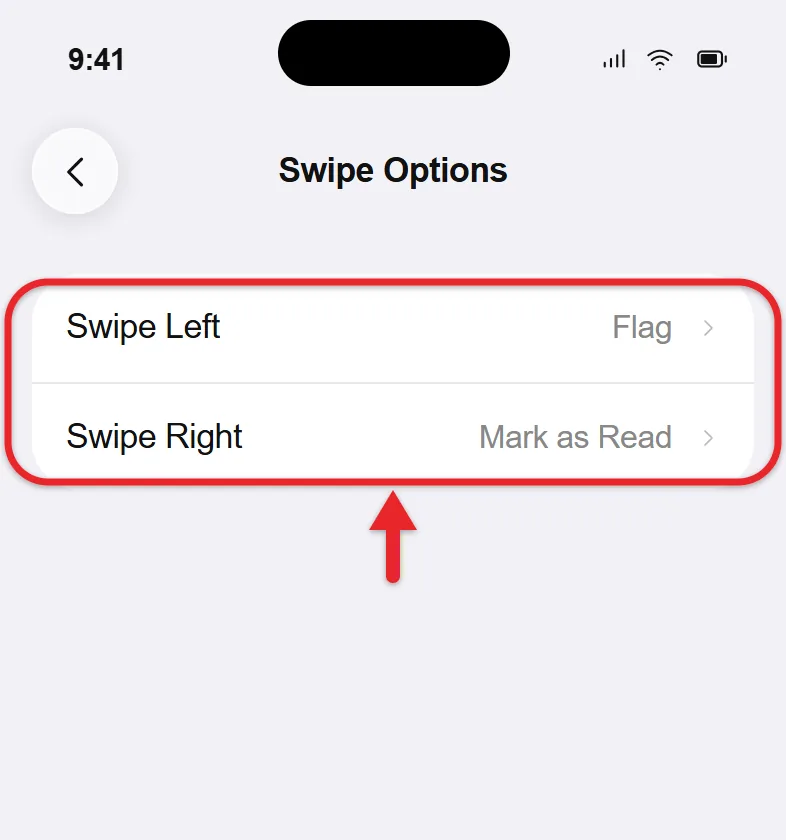
If the action you want can’t be selected, it is probably assigned to the other direction already. Change the opposite swipe first, then try again.
To undo the change, return to Swipe Options and pick the earlier action again. There is no reset button on that screen.
If you keep swiping away mail from the same address, you can block that email sender on your iPhone instead.
If you choose Move Message and the folder you want is not listed, here is how to show folders in iPhone Mail.
To clear a whole inbox instead of swiping one message at a time, you can mark all emails as read on iPad; the same steps work on iPhone.
How to make a swipe delete instead of archive
Some accounts show Archive where you expect Trash. Archiving removes a message from the inbox but keeps it in the account’s Archive mailbox, while Trash holds messages that are waiting to be deleted. Apple’s Delete emails on your iPhone or iPad article explains that this depends on the type of email account and on one setting for each account.
Before you change it: once an account is set to delete, a full swipe to the left sends the message to Trash, and email in Trash can be removed for good after a set time. If you rely on old messages staying available, leave the account on Archive.
- Go to Settings > Apps > Mail and tap Mail Accounts.
- Tap the account you want to change.
- Tap Account Settings, then tap Advanced. For an iCloud email account, Apple’s guide says to tap iCloud and then Mailbox Behaviors instead.
- Under Move Discarded Messages Into, choose Deleted Mailbox to delete, or Archive Mailbox to archive.
- Go back, and tap Done if the button appears.
To confirm, open that account’s inbox in Mail and drag a message slowly to the left. The rightmost button should now say Trash, or Archive if that is what you chose. Repeat the steps for every account you want to change, because each one keeps its own setting. To switch back, return to the same screen and select the other mailbox.

If you would rather keep Archive as the default and delete only now and then, Apple’s Delete and recover emails guide says you can touch and hold the Archive button on an open message and tap Trash Message. If an account still will not delete after the change, read about fixing iPhone Mail when it will not delete emails.
Other inbox settings on the same screen
Everything below is in Settings > Apps > Mail. The full list is in Apple’s Change your Mail settings on iPhone page.
| Setting | Section | What it changes |
|---|---|---|
| Preview | Message List | How much of each email shows in the message list |
| Show To/Cc Labels | Message List | Adds a small To or Cc label to messages |
| Swipe Options | Message List | The actions for Swipe Left and Swipe Right |
| Ask Before Deleting | Messages | Asks you to confirm before an email is deleted |
| Organize by Thread | Threading | Groups an email and its replies into one conversation |
| Undo Send Delay | Near the bottom | Gives you up to 30 seconds to unsend a message |
- Preview: a longer preview lets you read more of a message without opening it, but fewer messages fit on the screen.
- Show To/Cc Labels: helps you tell whether a message was sent to you directly or you were only copied on it. To turn them on, read how to show To/Cc labels in the iPhone inbox.
- Ask Before Deleting: worth turning on if you often swipe by accident, since it adds a confirmation step before a message is deleted.
- Organize by Thread: the Threading section also controls how conversations are displayed, including showing the most recent email first in a conversation.
- Undo Send Delay: this applies to messages you send, not to swipes. It sets how long the Undo Send option stays available.

How to recover a message you swiped by mistake
A swiped message is moved, not erased on the spot, so you can usually put it back.
- In Mail, tap the back button in the upper-left corner until you see Mailboxes.
- Tap Trash for the account, or Archive if the account archives messages. To see where each account keeps them, read about finding archived emails on iPhone.
- Open the message, tap the move button (the folder icon), and choose Inbox or another mailbox.
Do this soon. Deleted messages stay in Trash only for a limited time, and some email services set their own limit. iCloud, for example, does not keep deleted messages longer than 30 days.
The iPhone also has a Shake to Undo setting in Settings > Accessibility > Touch. When it is on, shake the iPhone right after a swipe and tap Undo to put the message back. If you missed that moment, use the mailbox steps above.
Troubleshooting
- Mail is not on the main Settings screen: on iOS 18 and later it is inside Apps, at the bottom of Settings. On iOS 17 and earlier, look for Mail in the main list.
- Mail is not in the Apps list either: the Mail app may have been removed from the iPhone. It can be downloaded again from the App Store.
- An action cannot be selected: it may already be assigned to the opposite swipe. Set the other direction to something else, then try again.
- Trash still shows Archive after changing Swipe Options: Swipe Options does not control this. Change Move Discarded Messages Into for that account.
- One account shows Trash and another shows Archive: that is expected, since the setting is per account. Change each account separately.
- There is no Advanced option: for iCloud email, the same choices are under iCloud > Mailbox Behaviors. For work or school accounts, some options may be managed by your organization.
Frequently asked questions
Can I turn off swiping in Mail completely?
Not completely. You can set Swipe Left and Swipe Right to None in Settings > Apps > Mail > Swipe Options, which removes the extra action from each side. A left swipe is still likely to show Trash or Archive, so turn on Ask Before Deleting if accidental deletion is the concern.
Do swipe options apply to every email account?
Yes. Swipe Options is a single setting for the whole Mail app, so it covers every account you have added. Only the Archive or Trash choice is set account by account, under Mail Accounts.
Why does my iPhone say Archive instead of Trash?
Depending on the type of email account, you might see Archive instead of Trash. To change it, go to Settings > Apps > Mail > Mail Accounts, tap the account, tap Account Settings > Advanced, and choose Deleted Mailbox under Move Discarded Messages Into.
Where did Swipe Options go after updating iOS?
It moved along with the rest of the Mail settings. Starting with iOS 18, go to Settings > Apps > Mail and look below Message List. Before iOS 18, the path was Settings > Mail > Swipe Options.
Does changing swipe options affect my email on other devices?
The swipe setting is changed in the iPhone’s own Settings app. What you do with a swipe, such as deleting, archiving, or flagging a message, is carried out in the email account itself, so it normally shows up wherever you check that account.
Next step
Set the two swipe actions first, then check each account for Archive or Trash. For the rest of the app, take this tour of the Mail app on iPhone. Related: how to remove “Sent from my iPhone”, how to get rid of the red number on the Mail app, and how to remove “Sent from my iPad”.

Matthew Burleigh is the founder, head writer, and editor of Solve Your Tech, which he launched in 2012. He has written technology tutorials since 2008 and worked in IT since 2003, including small-business support, IT management, and consulting. He holds Bachelor’s and Master’s degrees in Computer Science from Arizona State University.
Matthew writes practical guides for Windows, iPhone and iPad, Microsoft Office, Outlook, Google apps, and Android. Solve Your Tech’s guides are checked step by step against the device or app maker’s own documentation and tested on his own devices whenever he has the hardware or software, with clear steps, sources, and update dates.
Read more about Matthew and how Solve Your Tech writes and updates its guides, or report a correction.