Restrictions on an iPhone are Screen Time settings that block or limit apps, features, content, websites, and purchases. To set them up on your own iPhone, open Settings > Screen Time > Content & Privacy Restrictions and choose what to allow or block. To set them up on a child’s iPhone from your own, open Settings > Family, tap the child’s name, and use Content & Privacy Restrictions and Apps & Websites.
These steps are written for iOS 27 and iOS 26 and work the same way on an iPad with iPadOS 27 or 26. Apple redesigned the family controls in iOS 27, so the child steps below use the new layout, and the steps for your own iPhone note where iOS 26 labels differ. Older versions of iOS (11 and earlier) had a separate Restrictions menu under Settings > General. Apple moved those controls into Screen Time in iOS 12, so if you’re looking for “Restrictions” on a current iPhone, Screen Time is where they live now.
What You Can Restrict
Content & Privacy Restrictions groups its controls into a few areas:
- Content. Block explicit music, podcasts, and books, and set age ratings for movies, TV shows, and apps.
- Websites. Limit adult websites in Safari, allow only websites you approve, or block specific sites.
- Purchases and installs. Stop app installs, app deletion, and in-app purchases, or require a password for every purchase.
- Built-in apps and features. Turn off things like the Camera, AirDrop, or Siri features.
- Privacy and account changes. Stop changes to Location Services, passcode, account, and other settings.
On a child’s iPhone, the Game Center section also has a Connect with Friends setting that controls whether the child can add friends on Game Center.
Restrictions block things. If you want to limit how long apps can be used, that’s a separate set of Screen Time controls (Time Allowances and Screen Time Schedule in iOS 27, or App Limits and Downtime in iOS 26).
Streaming apps add their own limits too, and HBO Max has its own parental controls on iPhone.
Set Up Restrictions on a Child’s iPhone (iOS 27)
If your child has their own Apple Account in your Family Sharing group, you can manage everything from your iPhone. Apple’s parental controls guide says the new controls need every device in the family group on iOS 27 or the matching iPadOS, macOS, watchOS, or visionOS release. If one device can’t be updated, keep using the previous Screen Time layout or set restrictions directly on the child’s iPhone with the steps in the next section.
- On your iPhone, open Settings and tap Family.
- Tap your child’s name. Enter your Screen Time passcode if asked.
- Tap Content & Privacy Restrictions. Pick a content type, such as music, movies, or apps, and choose the age rating or level you want. For Siri, choose a category, then Allowed or Blocked.
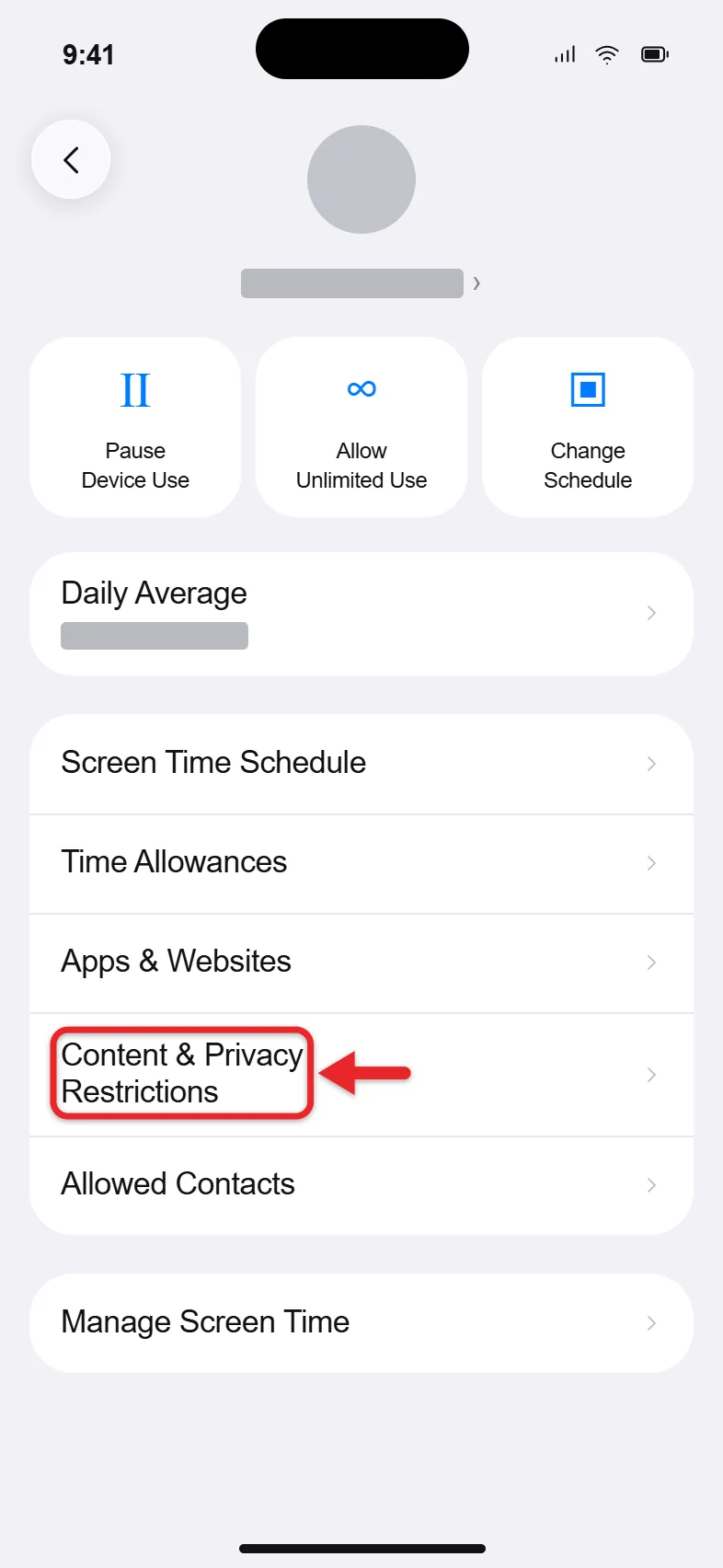
- Go back and tap Apps & Websites.
- To stop app downloads, tap App Store > Installing Apps and choose Blocked. To approve downloads one at a time instead, tap Restrictions > Ask to Buy and turn on Require Purchase Approval.
- To filter the web, tap Restrictions > Filtering under Websites and choose Limit Adult Websites, or choose Ask to Browse and then Approved Websites Only so the child can visit only sites you allow.
- To block one app or website, select it on the Apps & Websites screen, tap Block App or Block Website, then tap again to confirm. A blocked app is dimmed on the child’s iPhone but not deleted.
Apple notes that some protections are on by default for younger children, depending on age and region, and some can’t be turned off. In iOS 26 and later, a child can also send you a request for an exception to a limit or restriction.
Set Up Restrictions on Your Own iPhone
Use this method for an iPhone you hand to a child without a separate account, or to restrict your own phone.
- Open Settings and tap Screen Time. If Screen Time is off, turn it on first (in iOS 27, tap Manage Screen Time, then Turn On App & Website Activity).
- Tap Content & Privacy Restrictions.
- If a Content & Privacy Restrictions switch appears at the top, turn it on. In iOS 26 and earlier, the options below stay gray until you do.
- Open the section you want and change the setting:
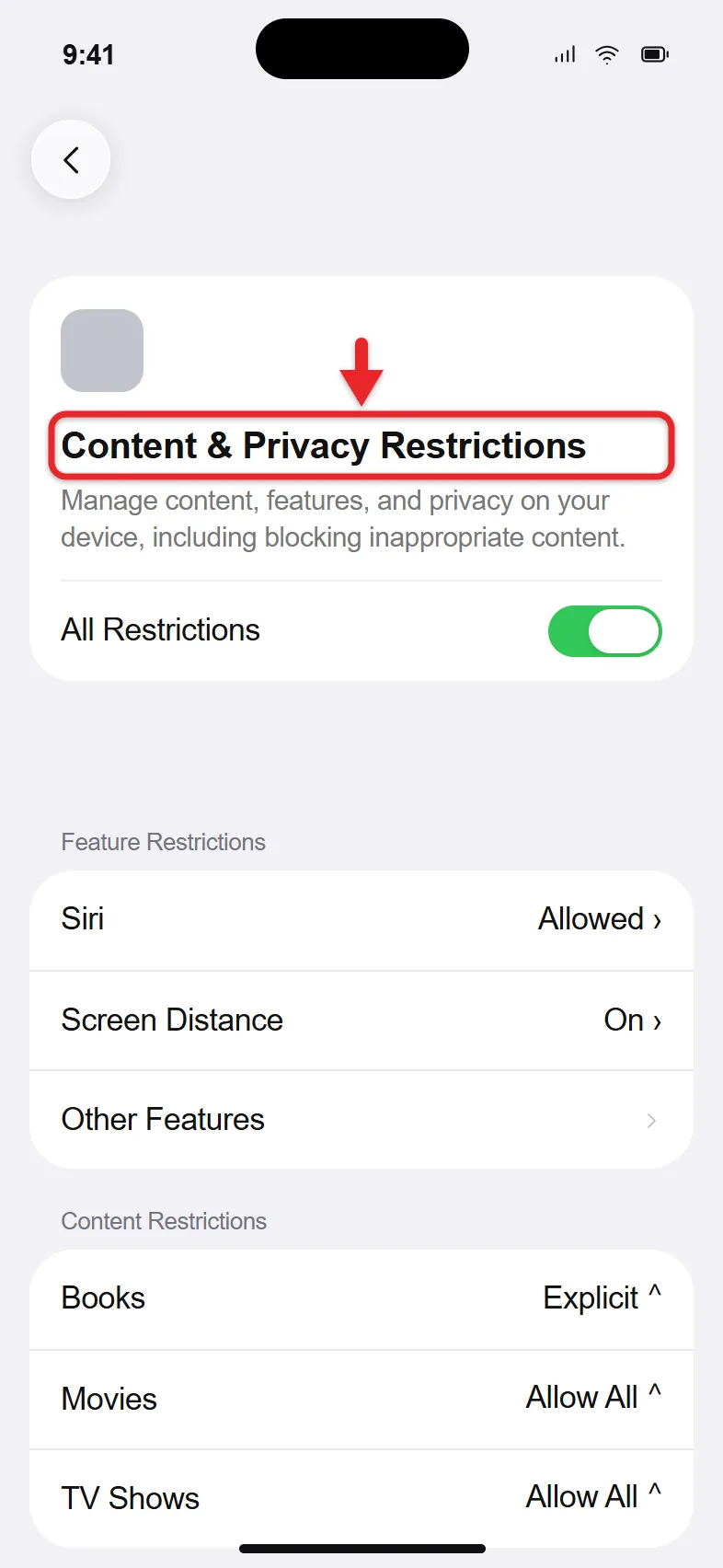
- App Store, Media, Web & Games (iOS 26) for age ratings, explicit content, and web content.
- Other Features (iOS 27), shown as Allowed Apps & Features in iOS 26, to turn off built-in apps such as Camera or AirDrop. Turning off Camera also affects FaceTime.
- Siri to block Siri or specific Siri features.
- For purchases, go back to Screen Time. In iOS 27, tap Apps & Websites > App Store. In iOS 26, tap Content & Privacy Restrictions > iTunes & App Store Purchases. Set Installing Apps, In-app Purchases, and the other options as you like.
Items you block disappear from the Home Screen or show as unavailable. Nothing is deleted, and turning the setting back on restores them.
Setting Accounts to Don’t Allow also locks the phone’s email accounts. If you need to undo it, read why email accounts are grayed out on iPhone.
Two common jobs have full walkthroughs: blocking the App Store on iPhone and blocking YouTube with Screen Time.
Lock Your Restrictions With a Screen Time Passcode
Without a Screen Time passcode, anyone holding the iPhone can open Settings and undo your restrictions. The Screen Time passcode is a four-digit code that’s separate from the code that unlocks the phone, so pick a different number.
- Open Settings > Screen Time.
- Tap Lock Screen Time Settings. In iOS 27 it’s inside Manage Screen Time.
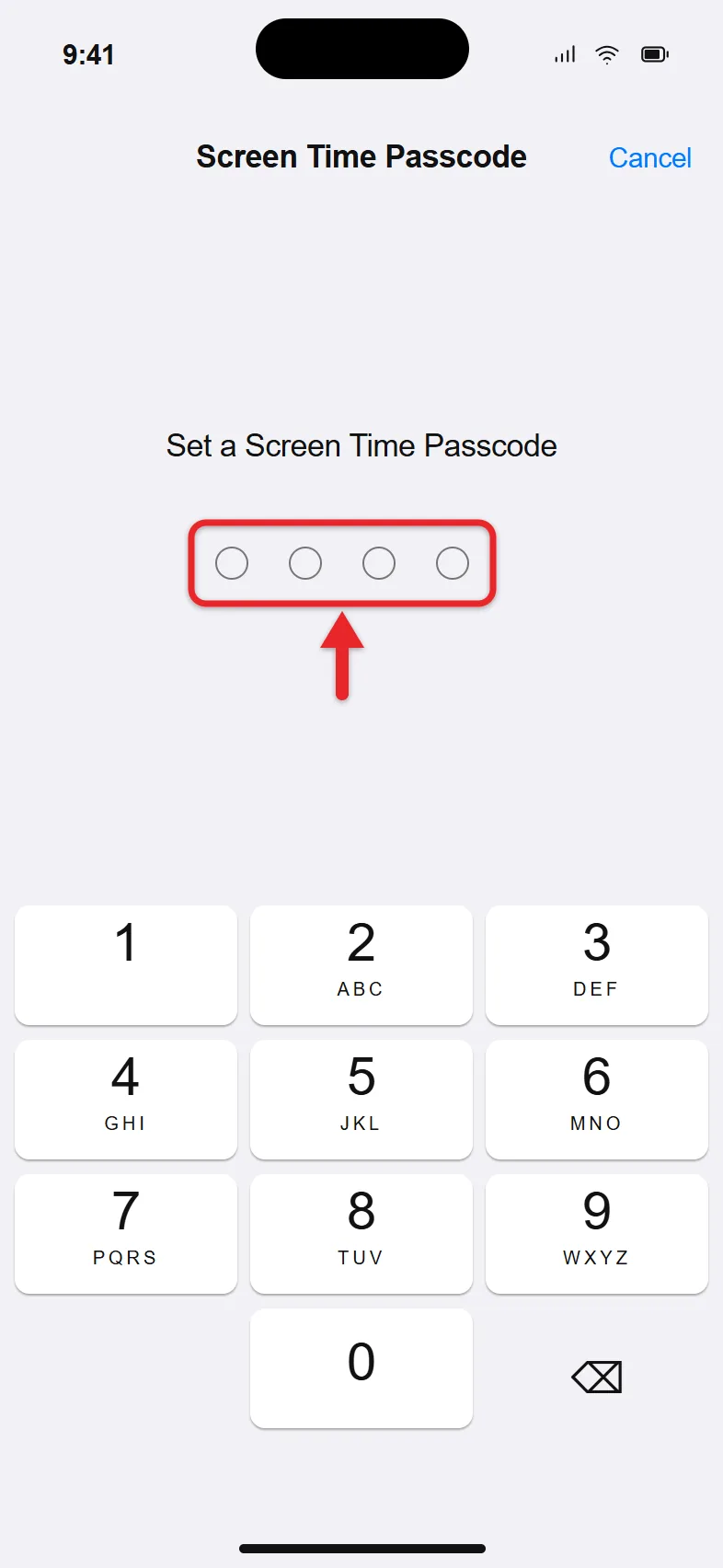
- Enter a four-digit passcode, then enter it again.
- When asked, enter your Apple Account email and password for Screen Time Passcode Recovery. This lets you reset the code if you forget it.
Apple’s Screen Time passcode guide covers changing or removing the code later.
Block a Website on Your Own iPhone
On iOS 26, open Settings > Screen Time > Content & Privacy Restrictions > App Store, Media, Web & Games > Web Content, choose Limit Adult Websites, then tap Add Website under Never Allow and type the address. Sites under Always Allow do the opposite, so check the heading before you add one. In iOS 18 and earlier, Web Content sits under Content Restrictions.
On iOS 27, website controls moved into Apps & Websites on the Screen Time screen, matching the family layout described above.
Test the block in the browser your child actually uses. A web filter covers Safari and other browsers that support Screen Time, but a blocked site may still load through a different address or an app.
If your concern is private tabs in Safari, turning off Private Browsing on iPhone explains what a website filter changes.
A web filter can also hide private tabs, which explains why you can’t create a private browsing tab in Safari.
Turn Restrictions Off
- Open Settings > Screen Time > Content & Privacy Restrictions (or Settings > Family > your child’s name for a child’s device).
- Enter the Screen Time passcode.
- Turn off the Content & Privacy Restrictions switch to pause every restriction in that section, or change individual items back to Allow or Allowed.
Turning off the main switch keeps your saved choices, so turning it back on restores them. It doesn’t change time limits or schedules, which you manage separately.
Troubleshooting
- The options are gray. Turn on Screen Time and the Content & Privacy Restrictions switch first. On a child’s iPhone in a family group, changes may have to come from the parent’s device.
- The menus don’t match. Check your version in Settings > General > About. If you see Apps & Websites on the Screen Time screen, you’re on the iOS 27 layout.
- The phone asks for a code you don’t know. That’s the Screen Time passcode, not the unlock code. Follow Apple’s forgotten Screen Time passcode steps to reset it with your Apple Account.
- A work or school iPhone has restrictions you can’t change. Those come from the organization’s device management, not Screen Time. Ask its IT administrator.
Frequently Asked Questions
Where did Restrictions go on the iPhone?
Since iOS 12, Restrictions are part of Screen Time. Go to Settings > Screen Time > Content & Privacy Restrictions.
Are Restrictions the same as Guided Access?
No. Restrictions block content and features across the whole phone. Guided Access locks the iPhone to a single app for a while. If that’s what you need, you can let someone use only one app on your iPhone.
Do restrictions on my iPhone apply to my other devices?
No. Restrictions you set on an iPhone apply to that iPhone. A child’s settings managed through Family Sharing apply to the child’s devices on the same Apple Account, and an Apple TV has its own purchase restrictions.
Can I see what my child does on their iPhone?
Screen Time reports show which apps and websites were used and for how long. To view them, check Screen Time on iPhone.

Matthew Burleigh is the founder, head writer, and editor of Solve Your Tech, which he launched in 2012. He has written technology tutorials since 2008 and worked in IT since 2003, including small-business support, IT management, and consulting. He holds Bachelor’s and Master’s degrees in Computer Science from Arizona State University.
Matthew writes practical guides for Windows, iPhone and iPad, Microsoft Office, Outlook, Google apps, and Android. Solve Your Tech’s guides are checked step by step against the device or app maker’s own documentation and tested on his own devices whenever he has the hardware or software, with clear steps, sources, and update dates.
Read more about Matthew and how Solve Your Tech writes and updates its guides, or report a correction.