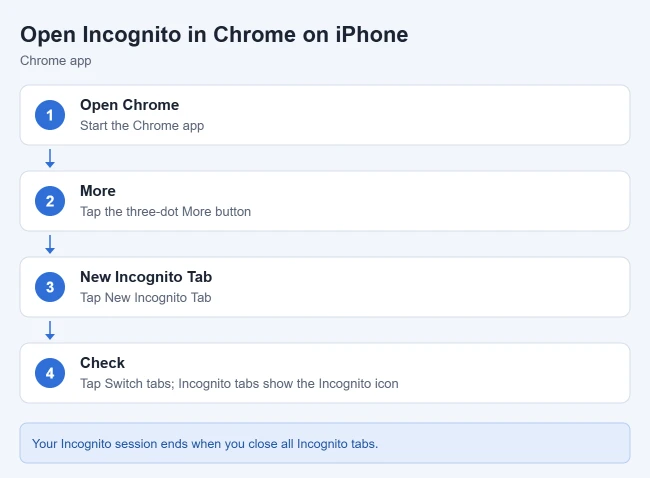
To open an Incognito tab in the Chrome iPhone app, open Chrome, tap the three-dot More button, and tap New Incognito Tab. To check that you’re in Incognito, tap the Switch tabs button: Incognito tabs show the Incognito icon. When you close all Incognito tabs, Chrome doesn’t keep the sites you visited or their site data.
These steps follow Google’s Browse in Incognito mode help for iPhone and iPad. The same steps work on iPad. If you use Microsoft Edge instead, see how to open a private browsing tab in Edge on an iPhone.
In this article:
- Open an Incognito tab
- Switch between Incognito and regular tabs
- Open links in Incognito
- Hide or lock Incognito tabs
- Close Incognito tabs
- What Incognito does and doesn’t do
- Frequently asked questions
How to Open an Incognito Tab in Chrome on iPhone
- Open the Chrome app.
- Tap the three-dot More button.
- Tap New Incognito Tab.
Opening another tab while you’re in Incognito keeps you in the same private session. Google says your Incognito session ends only when you close all Incognito tabs.
Result: a new Incognito tab opens, and Chrome starts a separate private browsing session.
How to Switch Between Incognito and Regular Tabs
- Tap the Switch tabs button.
- Swipe right or left to move between your Incognito tabs and regular Chrome tabs.
To see whether you have any Incognito tabs open, swipe right. Google notes an Incognito tab shows the Incognito icon at the top.
Result: you can jump between private and regular browsing without closing anything.
How to Open Links in Incognito From Other Apps
When you open a link from another app or a text message, Chrome can offer to open it in Incognito.
Open one link in Incognito
- Tap a link you want to open in Chrome.
- Tap Open in Chrome Incognito.
Get asked every time
- In Chrome, tap More > Settings > Privacy and security.
- Turn Ask to open links from other apps in Incognito on or off.
Result: links from Mail, Messages and other apps can open straight into a private tab.
How to Hide or Lock Incognito Tabs
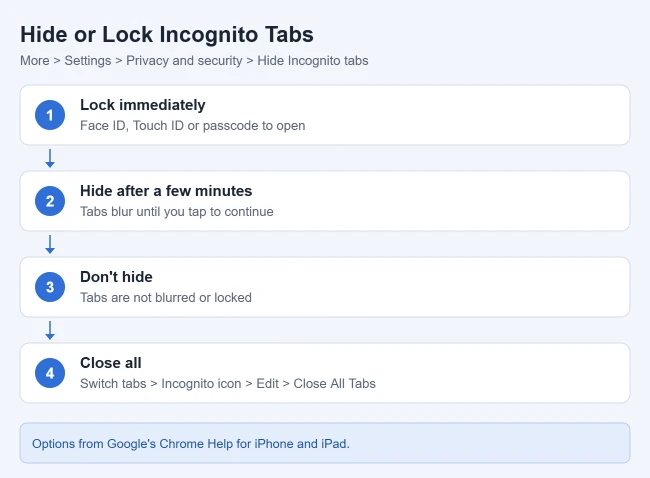
For extra privacy from other people who use your iPhone, Google says Chrome can hide or lock your Incognito tabs when you leave the app. By default, Incognito tabs are hidden when you leave Chrome for a while.
- In Chrome, tap More > Settings > Privacy and security.
- Tap Hide Incognito tabs.
- Choose an option:
- Lock immediately with device authentication: you need Face ID, Touch ID or your passcode to see the tabs, depending on your device settings.
- Hide after a few minutes: tabs blur until you tap to continue.
- Don’t hide: tabs aren’t blurred or locked.
Result: someone who picks up your phone can’t see your open Incognito tabs.
How to Close Incognito Tabs
- Tap Switch tabs.
- At the top, tap the Incognito icon.
- On the left, tap Edit > Close All Tabs.
You can also close Incognito tabs one at a time. The private session ends when the last one is closed.
Result: your Incognito session ends, and Chrome removes that session’s site data.
What Incognito Does and Doesn’t Do
According to Google, when you browse in Incognito:
- Chrome doesn’t automatically sign you in to your Google Account or other websites.
- After the session ends, Chrome doesn’t keep site data or a record of the sites you visited. During the session it temporarily keeps cookies and site data so websites work.
- Bookmarks and reading list items you save are kept, and files you download stay on your device until you delete them.
Incognito doesn’t make you invisible. Google says websites you visit, including Google sites, and whoever manages your network, like your school, employer or internet provider, may still see your activity.
Result: you know what stays private on your phone and what doesn’t.
Frequently Asked Questions
How do I know if I’m in Incognito?
Tap Switch tabs. Incognito tabs are grouped separately and show the Incognito icon.
Does Incognito hide my browsing from my internet provider?
No. Google says your network administrator and internet provider may still see your activity.
Do downloads disappear when I close Incognito?
No. Files you download stay on your device, and bookmarks you save stay in Chrome.
Can I lock Incognito tabs with Face ID?
Yes. In Settings > Privacy and security > Hide Incognito tabs, choose Lock immediately with device authentication.
Related: how to view or delete Chrome history and how to make Chrome the default browser on iPhone. Using Safari instead? See how to turn off Private Browsing on iPhone. Firefox user? Here’s how to use Website Dark Mode in Firefox on iPhone.

Matthew Burleigh is the founder, head writer, and editor of Solve Your Tech, which he launched in 2012. He has written technology tutorials since 2008 and worked in IT since 2003, including small-business support, IT management, and consulting. He holds Bachelor’s and Master’s degrees in Computer Science from Arizona State University.
Matthew writes practical guides for Windows, iPhone and iPad, Microsoft Office, Outlook, Google apps, and Android. Solve Your Tech’s guides are tested on current devices or checked against official product documentation, with clear steps, sources, and update dates.
Read more about Matthew and how Solve Your Tech writes and updates its guides, or report a correction.