To make your battery last longer in Windows 11, turn on Energy saver, lower your screen brightness, and set the screen to turn off sooner. For a quick start, go to Settings > System > Power & battery > Energy recommendations and click Apply all. Microsoft’s battery tips cover the same settings.
You don’t need to make every change below. Start with Energy saver, screen brightness, and Power mode, then check Battery usage if the laptop still drains faster than expected.
How to Extend Battery Life in Windows 11
- Click the Start button.
- Open Settings.
- Select System.
- Choose Power & battery.
- Turn on Energy saver when you need to conserve battery power.
- Set Power mode to Best power efficiency when longer battery life is more important than maximum performance.
- Open Energy recommendations and review the suggested changes for your computer.
Turn On Energy Saver
Energy saver is one of the easiest ways to extend battery life in Windows 11. It reduces power consumption by managing background processes and other system activity.
- Open Settings.
- Select System.
- Click Power & battery.
- Expand Energy saver.
- Choose when you want Energy saver to turn on automatically.
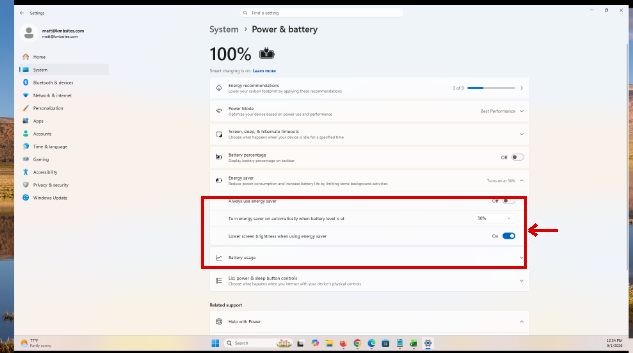
To turn it on right now, press Windows key + A to open Quick Settings and select Energy saver.
To make the saver start earlier during normal battery use, change the battery saver or energy saver threshold. The percentage controls automatic activation; a manual or always-on choice can keep the saver active independently of that trigger.
On Windows 11 version 24H2 and newer, Microsoft calls this feature Energy saver. Earlier versions of Windows 11 call it Battery saver, and it works the same way.
Use Best Power Efficiency Mode
- Go to Settings > System > Power & battery.
- Find Power mode.
- Select Best power efficiency.

If a demanding app feels slow in this mode, switch back to Balanced.
The same Power mode setting also changes how often the fan runs; here’s how to control your laptop fan in Windows 11.
Check the Windows 11 Energy Recommendations
Windows 11 can collect several power-saving settings in one place and recommend changes based on your computer.
- Open Settings.
- Choose System.
- Select Power & battery.
- Click Energy recommendations.
- Review the available recommendations and apply the ones that make sense for you.
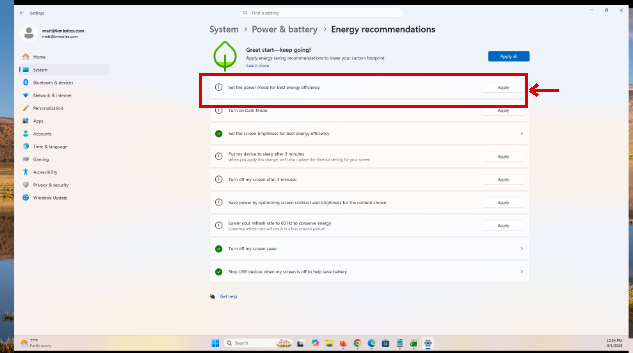
Depending on your hardware, Windows might suggest changes involving brightness, screen and sleep timeouts, screen savers, USB devices, or presence-sensing features. If a screen saver is on the list, you can change or turn off the screen saver in Windows 11.
Lower the Screen Brightness
The screen is one of the biggest battery drains, so lowering brightness is a quick win.
- Press Windows key + A to open Quick Settings.
- Drag the brightness slider (the sun icon) to the left.
- Stop at the lowest level that is still comfortable to read.
You can also go to Settings > System > Display to adjust brightness and other display options.
For every way to do it, including the keyboard keys and Quick Settings, here’s how to adjust brightness on Windows 11.
If the lowest slider setting still looks too bright, you can make the screen brightness even lower.
Make the Screen Turn Off Sooner
A laptop that leaves its display on while you aren’t using it wastes battery power.
- Open Settings > System > Power & battery.
- Expand Screen, sleep, & hibernate timeouts.
- Next to On battery power, turn off my screen after, open the menu.
- Choose a shorter time, such as 3 minutes.
In the same section, set a short time for Put my device to sleep after on battery power. Sleep saves far more power than turning off only the screen. Here’s more on sleep settings in Windows 11.
For long stretches away from a charger, you can also enable Hibernate in Windows 11, which uses less power than sleep. Here’s how sleep and hibernate compare.
For every way to set the display timer, including the lock screen timeout, here’s how to change screen timeout settings in Windows 11.
See Which Apps Are Using the Most Battery
If battery life suddenly becomes worse, an application may be responsible.
- Open Settings.
- Go to System > Power & battery.
- Open Battery usage.
- Review the applications using the most battery power.

An app you’ve used for hours will rank high, and that’s normal. Look for apps that use a lot of power compared to how much you actually use them.
To check everything that is running right now, not only battery use, see what apps are running in the background in Task Manager.
To limit an app, select the three dots next to it in Battery usage and choose Manage background productivity. Power optimized lets Windows decide when the app runs. Never saves more power, but the app may stop sending notifications.
Reduce the Display Refresh Rate When Appropriate
Some laptops have displays capable of running at high refresh rates such as 120 Hz or higher. Higher refresh rates can make movement look smoother, but they can also require more power.
- Open Settings > System > Display.
- Select Advanced display.
- Use Choose a refresh rate to select a lower available rate if you want to reduce display power use.
If your computer supports Dynamic Refresh Rate, Windows can automatically adjust the refresh rate based on what you’re doing. That can provide smoother motion when it is useful while reducing power use during less demanding activity, so it may be a better compromise than keeping the display at a low refresh rate all the time.
Disconnect Accessories You Aren’t Using
USB devices can draw power from your laptop. External drives, phones, USB lights, and other accessories can therefore shorten battery runtime while they are connected. You can also let Windows power down idle USB ports with USB selective suspend, which is under advanced power settings in Windows 11.
If you are trying to conserve power, disconnect accessories that you aren’t actively using.
Some Windows 11 computers also offer an Energy recommendation that stops certain USB devices when the screen is off.
Use Smart Charging if Your Laptop Supports It
Some laptops have a smart charging feature that stops charging below 100% to slow battery wear. If your laptop stops charging early, this is likely why.
Look for the setting under Settings > System > Power & battery or in your laptop maker’s app. Most let you allow a full charge before a trip.
For long-term battery health, avoid heat. Microsoft’s battery care guide recommends keeping the charge between 20% and 80% when you can, and storing a laptop at about 40 to 60%.
How to Check Your Windows 11 Battery Health
If changing settings doesn’t significantly improve your runtime, the battery itself may have lost some of its original capacity.
Windows can create a battery report that provides information about the installed battery and its capacity.
- Click Start.
- Type Command Prompt.
- Right-click Command Prompt and choose Run as administrator.
- Type powercfg /batteryreport and press Enter.
- Note the location where Windows saves the battery report.
- Open the HTML report in your web browser.

Compare the battery’s current full-charge capacity with its original design capacity. A substantial difference can help explain why an older laptop no longer lasts as long as it did when it was new.
To turn those two numbers into a percentage, check battery health in Windows 11.
Frequently Asked Questions
What is the easiest way to extend battery life in Windows 11?
Lowering screen brightness and turning on Energy saver are two of the easiest changes. You can also select Best power efficiency under Settings > System > Power & battery.
Why does my Windows 11 PC show “Battery saver” instead of “Energy saver”?
Microsoft uses Energy saver on Windows 11 version 24H2 and newer. Earlier versions of Windows 11 may use the name “Battery saver” instead.
Does Best power efficiency make Windows 11 slower?
It can reduce performance in some demanding situations because Windows prioritizes lower power consumption. For normal browsing, email, and document work, the difference may be small.
Should I charge my Windows 11 laptop to 100%?
Charging to 100% when you need maximum runtime is fine, but keeping a lithium-ion battery at full charge continuously can accelerate aging. Smart charging can help on laptops that support it.
Is it bad to let my laptop battery reach 0%?
Occasionally running low isn’t unusual, but frequent deep discharges can contribute to battery wear. Keeping the battery in a moderate charge range when practical is better for long-term health.
Why won’t my laptop charge to 100%?
Smart charging or a manufacturer battery-health feature may intentionally limit the maximum charge to protect the battery. Check your laptop manufacturer’s battery or charging utility before assuming the battery is defective.
How can I tell whether my battery needs to be replaced?
Generate a Windows battery report and compare the full-charge capacity with the design capacity. Very short runtime, unexpected shutdowns, or a significantly reduced full-charge capacity can indicate substantial battery wear. A swollen battery is a safety issue; stop using the device and follow the manufacturer’s service guidance.
Related guides: how to limit battery charge to 80% and how to show battery percentage in Windows 11.
Curious which apps are draining the battery and how long your screen is on each day? Here’s how to check screen time on Windows 11 using the Battery usage page.

Matthew Burleigh is the founder, head writer, and editor of Solve Your Tech, which he launched in 2012. He has written technology tutorials since 2008 and worked in IT since 2003, including small-business support, IT management, and consulting. He holds Bachelor’s and Master’s degrees in Computer Science from Arizona State University.
Matthew writes practical guides for Windows, iPhone and iPad, Microsoft Office, Outlook, Google apps, and Android. Solve Your Tech’s guides are checked step by step against the device or app maker’s own documentation and tested on his own devices whenever he has the hardware or software, with clear steps, sources, and update dates.
Read more about Matthew and how Solve Your Tech writes and updates its guides, or report a correction.