To combine PDFs in Adobe Acrobat, open All tools > Combine files (or Menu > Combine files on Windows and File > Combine files on a Mac), click Add files, pick your PDFs, drag the thumbnails into the order you want, click Combine, and save the new PDF. Your original files stay where they were, unchanged.
These steps are for the current Adobe Acrobat desktop app (Acrobat Standard or Acrobat Pro) on Windows 11 and macOS, and they follow Adobe’s Combine files into one PDF guide. The free Acrobat Reader app can open and view PDFs, but combining files in the desktop app requires a paid Acrobat plan. For a free option, see the Adobe online tool section below.
Before You Start
- Gather the files in one folder. It is faster to add them in one pass, and you are less likely to miss one.
- Decide on the order. Acrobat uses the order shown in the Combine window, not the order of the file names. If you name files
01-cover.pdf,02-form.pdf, and so on, they sort correctly when you add them together. - Close unrelated PDFs. Acrobat can pull documents that are already open into the Combine list. Closing unrelated files first keeps them out of your merged file.
- Unlock protected files. A PDF that needs a password to open, or that has security restrictions, has to be opened with the password or unlocked by its owner before it can be combined.
Acrobat can also combine Word, Excel, PowerPoint, image, and email files. It converts each one to PDF pages as it builds the combined file, so you don’t have to convert them first.
Going the other way, you can embed a PDF in Word to keep it inside a Word file.
If your pages are still on paper, learn how to scan on Windows 11 first, then combine the scans here.
Combine PDFs in Adobe Acrobat
- Open Adobe Acrobat. The Home view appears.
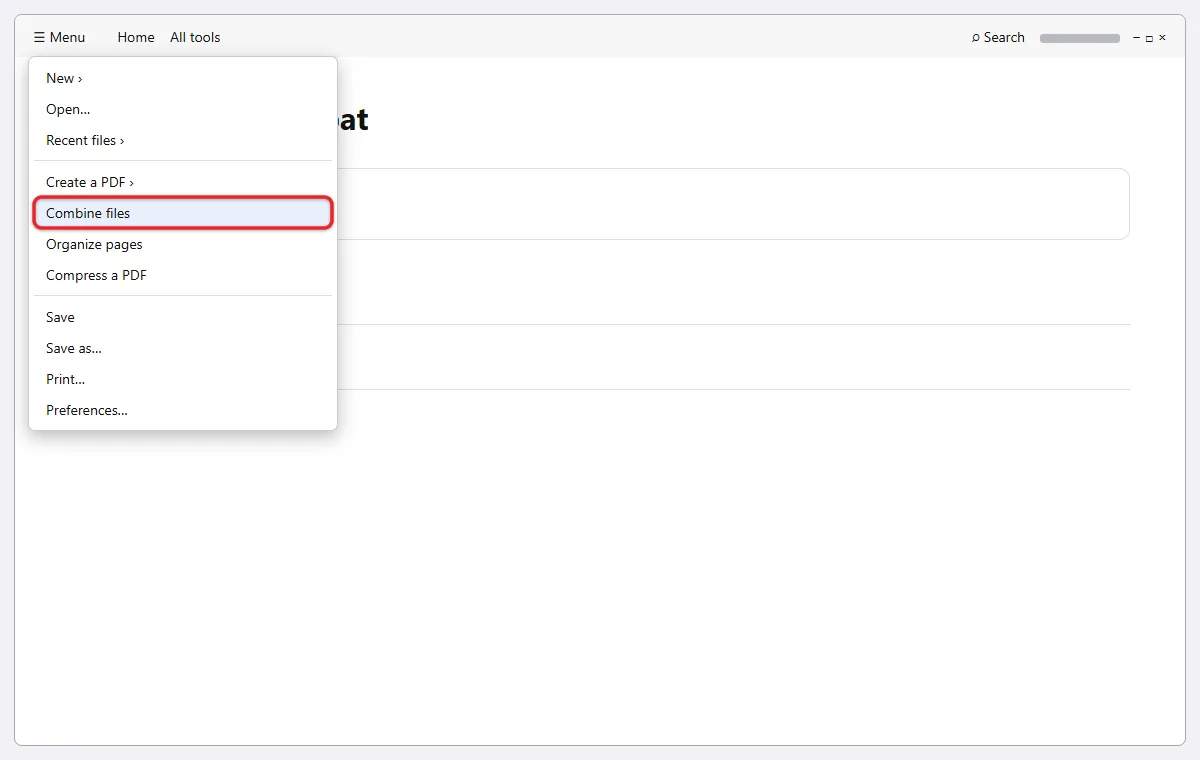
- Open the Combine tool. On Windows, click Menu (the three lines in the upper-left corner), then Combine files. On a Mac, click File, then Combine files. You can also select See all tools (or All tools if a PDF is open) and choose Combine files. The Combine files window opens.
- Click Add files, select your PDFs, and click Open. You can also drag files from File Explorer or Finder straight into the window. Each file appears as a thumbnail. The Add files menu has more sources too, such as Add open files, a whole folder, a scanner, a web page, or the clipboard.
- Drag the thumbnails into reading order. The file on the left (or at the top) becomes the first pages of the new PDF. A blue line shows where a thumbnail will land when you let go.
- To check what is inside a multi-page file, hover over its thumbnail and click the expand icon in its upper-right corner. Every page appears as its own thumbnail, and you can drag pages around or remove a page you don’t want included. Click the magnifying glass on a thumbnail to preview a page up close.
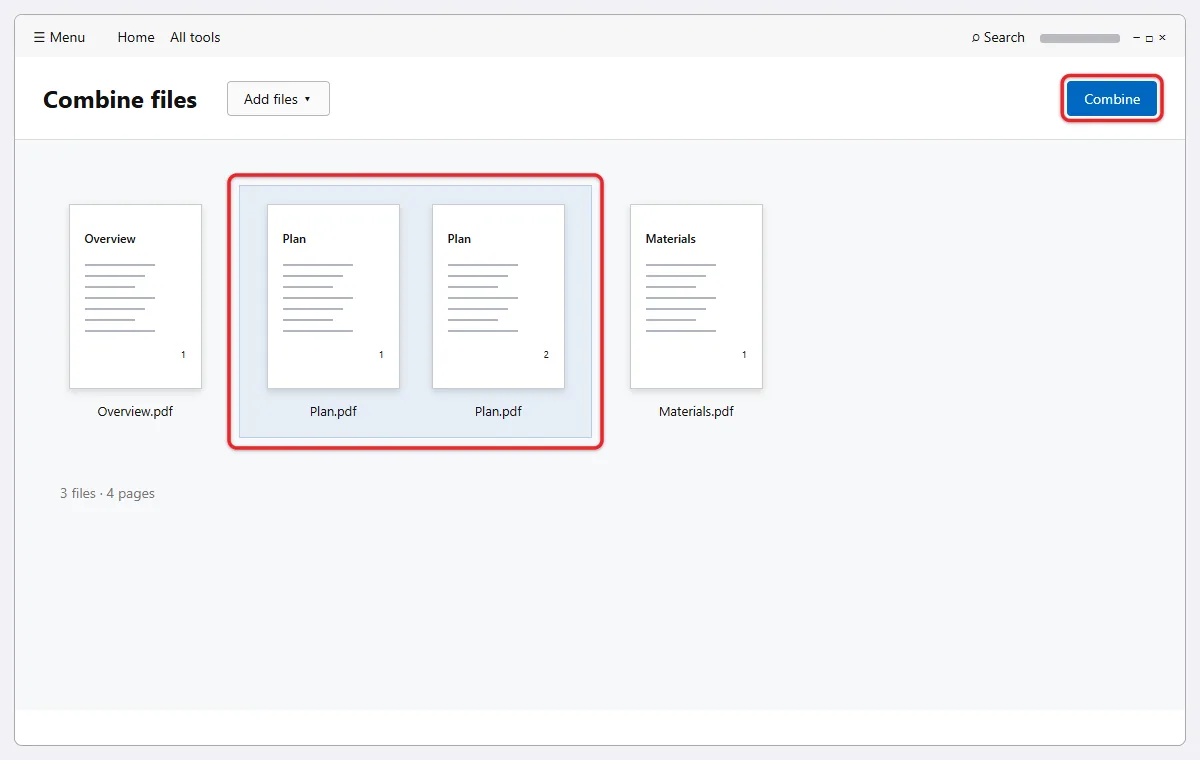
- To take a whole file or a page out of the list, select it and click the delete (trash) icon. Hold Shift to select a run of pages, or Ctrl (Windows) or Command (Mac) to pick several separate ones. This removes them from the merge only. It does not delete anything from your computer.
- Optional: click Options to change the conversion settings Acrobat uses for non-PDF files, such as file size, and click OK.
- Click Combine. Acrobat builds the new PDF and opens it as a new document with a temporary name, usually something like Binder1.pdf.
- Save the result. Press Ctrl + S (Windows) or Command + S (Mac), choose a folder, type a descriptive name such as
application-packet-oct-2026.pdf, and click Save. If you close the file without saving, the combined PDF is lost and you have to combine again.
Once it’s saved, scroll through the new PDF. Check the total page count and the pages where one file ends and the next begins. If something is out of order, it is easier to fix now than after you send it.
If every PDF opens too large or too small to review comfortably, change the default zoom level in Adobe Acrobat to Fit Page or Fit Width.
Checking a long combined file is easier with continuous scrolling, so you may want to enable scrolling by default in Acrobat.
Combine Files From File Explorer on Windows
If Acrobat is installed on a Windows PC, you can start from the folder instead of the app.
- Open the folder in File Explorer.
- Hold Ctrl and click each file you want to combine.
- Right-click one of the selected files. On Windows 11, click Show more options if you don’t see Acrobat’s commands right away.
- Choose Combine files in Acrobat. Acrobat opens with those files already in the Combine window.
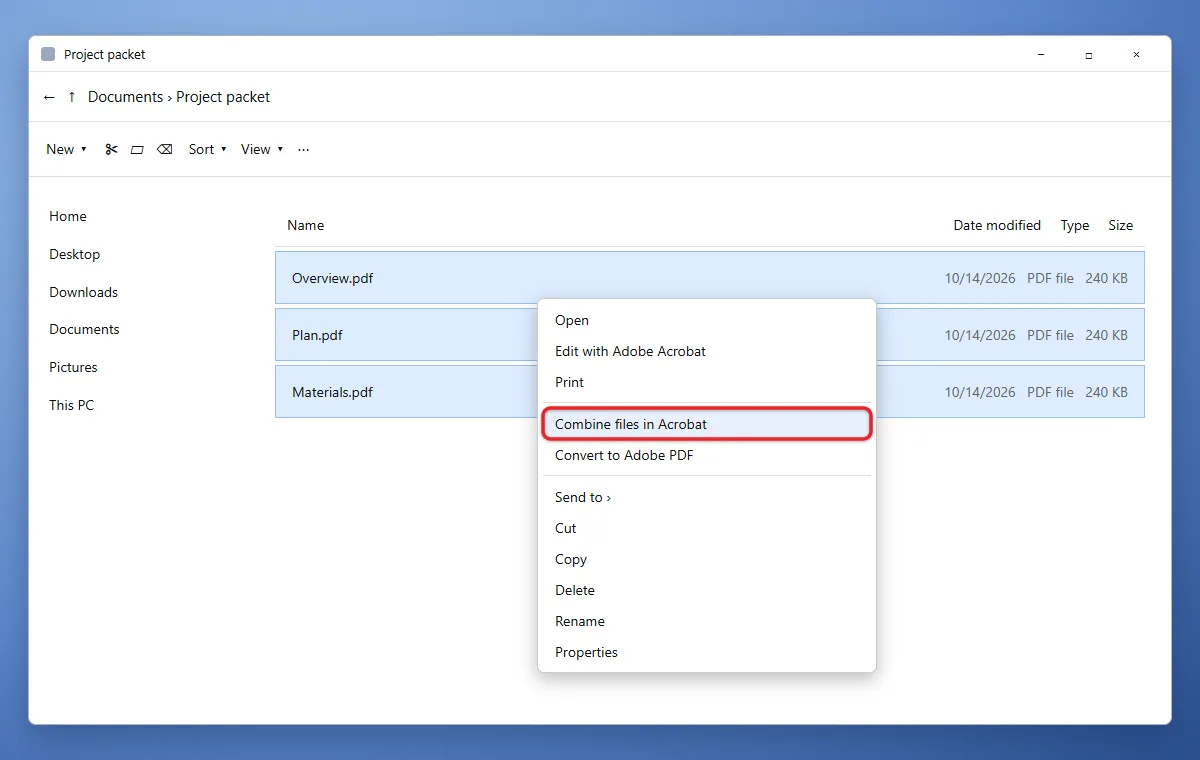
- Rearrange them if needed, click Combine, and save the result.
Use Adobe’s Free Online Merge Tool
If you don’t have a paid Acrobat plan, Adobe’s Merge PDF online tool combines PDFs in a web browser.
- Open the Merge PDF page in your browser.
- Click Select files, or drag your PDFs onto the page.
- Drag the files into order. The top file comes first.
- Click Merge files.
- Download the merged PDF. Signing in with a free Adobe account lets you save it online, rearrange single pages, or share a link.
Adobe lists these limits for the online tool: up to 100 files per merge, up to 500 pages per file, and up to 1,500 pages in the merged PDF. Merging PDFs is free with no watermark, but mixing in Word, Excel, PowerPoint, or image files needs an Acrobat Pro trial or plan. If a PDF has a password, you have to enter it before that file can be merged.
The online tool uploads your files to Adobe’s servers. Files are deleted unless you sign in and save them. Never upload tax forms, medical records, or other confidential PDFs to an unknown merge website, and avoid “free Acrobat Pro” downloads from anywhere other than Adobe, since they can carry malware.
Change the Order or Remove Pages After Combining
If you notice a problem after combining, you don’t have to start over.
- Open the combined PDF in Acrobat.
- Open All tools and choose Organize pages. Every page appears as a thumbnail.
- Drag pages to new positions, select a page and click the delete icon to remove it, or use the rotate buttons to fix a sideways page.
- Save the PDF.
Adobe’s Rotate, move, delete, and renumber PDF pages guide explains each of these tools.
If Combine Files Isn’t Available or Doesn’t Work
You only have Acrobat Reader. The free Reader app shows the Combine tool but asks you to upgrade or start a trial when you use it. You need Acrobat Standard or Pro, or you can use Adobe’s online Merge PDF tool for PDFs that aren’t confidential.
You don’t see Combine files in Menu or File. Older Acrobat layouts put it under Create or Tools. Select Create, choose Multiple files or Combine files, and continue from step 3. Updating Acrobat to the latest version also brings the menus in line with these steps.
One file won’t combine. Open that file on its own in Acrobat. If it asks for a password, has security restrictions, or shows an error, the file needs to be unlocked or repaired first. If it’s a Word or PowerPoint file that converts strangely, save it as a PDF from its own app, check it, and add that PDF instead.
The combined file is huge. Large scans add up fast. Try combining smaller groups first, or after saving, open All tools and use Compress a PDF to shrink it.
The pages came out in the wrong order. Acrobat follows the thumbnail order in the Combine window. Use Organize pages as described above, or start the combine again and drag the files into place before clicking Combine.
Frequently Asked Questions
Does combining PDFs change or delete the original files?
No. Acrobat creates a brand new PDF, and the source files stay in their folders exactly as they were. Keep them until you’ve checked the combined version.
Can I combine PDFs with the free Adobe Acrobat Reader?
Not in the Reader app. Reader can view, print, sign, and comment on PDFs, but merging files there needs a paid Acrobat plan or an active Acrobat Pro trial. Adobe’s online Merge PDF tool can combine PDFs for free in a browser.
How do I add one more PDF to a file I already combined?
Run Combine files again with the combined PDF and the new file, then put them in order and click Combine. You can also open the combined PDF, go to All tools > Organize pages, and use the insert option to add pages from another file.
Can I combine Word documents and PDFs together?
Yes. Add the Word, Excel, or PowerPoint files in the same Combine window as your PDFs. Acrobat converts them to PDF pages in the combined file. You can also convert a Word document on its own first and keep its links working in the PDF.
Can I combine PDFs on a Mac without Acrobat?
Yes. Apple’s Preview app can do it. Open a PDF, choose View > Thumbnails, and drag another PDF from Finder into the sidebar. Preview saves changes to the open file automatically, so make a copy with File > Duplicate first. Apple’s Combine PDFs in Preview page has the details.
How do I do the opposite and split a PDF?
Acrobat’s Split tool turns one PDF into several. For a separate file for every page, split the PDF into one file per page. Just a few pages? Save those individual pages from the PDF instead.

Matthew Burleigh is the founder, head writer, and editor of Solve Your Tech, which he launched in 2012. He has written technology tutorials since 2008 and worked in IT since 2003, including small-business support, IT management, and consulting. He holds Bachelor’s and Master’s degrees in Computer Science from Arizona State University.
Matthew writes practical guides for Windows, iPhone and iPad, Microsoft Office, Outlook, Google apps, and Android. Solve Your Tech’s guides are checked step by step against the device or app maker’s own documentation and tested on his own devices whenever he has the hardware or software, with clear steps, sources, and update dates.
Read more about Matthew and how Solve Your Tech writes and updates its guides, or report a correction.