To clear an app’s cache on iPad, open the app’s own settings and use its Clear cache or storage option if it has one. If it does not, delete and reinstall the app from Settings > General > iPad Storage, which removes its cached data along with any drafts or downloads saved only inside the app. Offload App frees space but keeps documents and data, so it does not clear the cache.
These steps cover iPadOS 27 and also match iPadOS 26 and iPadOS 18, where app settings such as Safari’s sit under Settings > Apps. In iPadOS 17 and earlier, Safari is listed directly in Settings; the iPad Storage steps are the same.
iPad has no single button that clears every app’s cache at once. Safari has its own browser-data controls, covered below. Choose a method based on the affected app and what you need to keep.
Cache, downloads and app data are different
A cache holds temporary files an app can rebuild, such as thumbnails and preloaded images. Offline movies, unfinished drawings and documents saved only inside an app are not cache. Delete those and you have to download or recreate them.
| Method | What to expect | Best use |
|---|---|---|
| An app’s own cache or download controls | The app decides what gets removed; read its confirmation before proceeding. | Clearing temporary data or specific offline downloads. |
| Offload App | Removes the app, keeps documents and data. | Freeing the app’s installation space while keeping your data. |
| Delete App, then reinstall | Removes the app and its related data; you may need to sign in and download content again. | A deliberate reset after protecting local work. |
| Safari’s history or website-data controls | Removes browser data for the scope you pick and may sign you out of websites. | A Safari website problem, not another app’s storage. |
Check the storage before changing anything
- Open Settings, then General, then iPad Storage. The storage bar loads first, then the app list, sorted with the largest apps at the top. On a nearly full iPad this can take a minute.
- Tap the affected app. App Size is the app itself. Documents & Data includes cache, downloads and saved files, so a large number is not all cache.
- Check the app’s options. Some apps list downloaded items on this screen that you can swipe left to delete. Apple’s recommendations at the top of iPad Storage, such as Offload Unused Apps, describe what they remove before you turn them on.
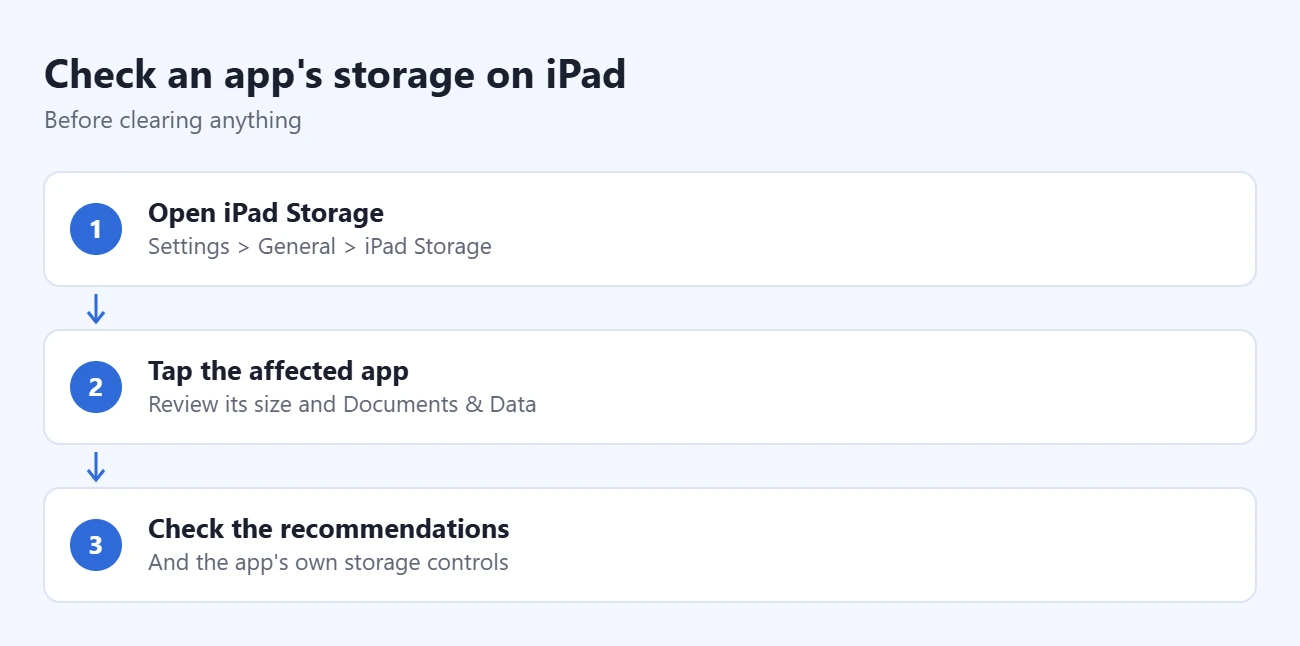
Apple’s storage documentation notes that cached and temporary data might not count in these figures, and the iPad removes cached files on its own when it needs space. To compare, note the app’s total on this same screen before and after a cleanup. For a wider cleanup of photos, videos and messages, follow the steps for clearing iPad storage.
Try the app’s own cleanup controls first
Many popular apps have a cache button in their own settings. Look under the app’s Settings, Storage or Data menu. Menu names shift between app updates, so these are the current paths for a few common apps:
- Chrome: Tap the More (three-dot) menu, then Delete Browsing Data. Set the time range, tap Browsing Data, select Cached Images and Files, tap Confirm, then tap Delete Browsing Data. Leave Cookies, Site Data unchecked if you want to stay signed in to websites. Google’s Chrome cache help lists these steps. To remove history too, follow the steps for deleting Chrome history on iPad.
- Spotify: Tap your profile picture, then Settings and privacy > Data-saving and offline. Under Storage, tap Clear next to Clear cache. Spotify’s storage help treats cache and downloads separately; downloaded songs are removed from their own download controls.
- TikTok: Look in Profile, then the menu, then Settings and privacy for a Free up space option with a Clear button next to Cache.
- Firefox, Edge and other browsers: Each keeps its own data controls in its own settings menu. Clearing Safari does not touch them.
If an app, such as Instagram, has no cache option, offloading does not help; deleting and reinstalling is the fallback.
For an app full of downloaded music, videos or maps, removing offline items you no longer need may help more than resetting the app. Prefer an explicit Remove Download option when you want to keep a library item. A Delete control can have a wider effect, including synced content; check that app’s help if the difference is unclear.
Skip “cleaner” apps from the App Store. iPadOS keeps each app’s data separate, so a cleaner can’t clear another app’s cache or System Data.
Offload an app to free installation space
- Open Settings > General > iPad Storage and tap the app. Check the name so you know which app you are changing.
- Tap Offload App and confirm. The app is removed while its documents and data stay. The icon stays on the Home Screen with a small cloud next to its name.
- When you need it again, tap Reinstall App, or tap its Home Screen icon. Wait for the download before opening it. Before offloading an old or discontinued app, check that it’s still available in the App Store.
Offloading frees the space used by the app itself. Because your data stays, it will not fix a problem caused by that data or by a stale cache.
Delete and reinstall an app when a reset is appropriate
Protect local work first. Confirm that important files are exported, backed up or synced using that app’s supported method. Know your account login and verification method. An app’s cloud account may not include unfinished drafts, downloads or local files.
For example, Instagram says uninstalling loses drafts saved on the device. The Instagram storage reset steps explain that risk for its iPhone app. Other apps have their own rules; check the developer’s instructions before removing one that holds important work.
- Verify that the app is still in the App Store. Search for it and confirm you can download the correct app before deleting your copy.
- Open Settings > General > iPad Storage and tap that app. Check its name again, then tap Delete App.
- Read and confirm the deletion prompt. This removes the app and its related data, not just temporary files.
- Reinstall from the App Store. Let the download finish, then open the app, sign in if asked and check the original problem. Restore content only through the app’s own recovery or sync process.
You can also delete from the Home Screen: touch and hold the icon, tap Remove App, then Delete App. Remove from Home Screen only hides the icon and leaves the app and its cache in place.
Clear Safari cache on iPad
For stale webpages or website sign-in problems, use Safari’s controls rather than deleting unrelated apps. Clearing cookies may sign you out of websites, so have your passwords ready.
- Open Settings, tap Apps, then tap Safari. In iPadOS 17 and earlier, tap Safari in the main Settings list.
- Tap Clear History and Website Data. A prompt asks for a time frame.
- Choose a time frame, such as the last hour or all history. If you use Safari profiles, choose the profile to clear.
- Tap Clear History. History, cookies and cached website data for that period are removed.
Apple’s Safari history, cache and cookies article documents these steps and notes that clearing does not change your AutoFill information. Apple’s iPad cache and cookies guide also covers clearing from the History view inside Safari. Clearing history removes it from other devices signed in to the same Apple Account with Safari syncing turned on.
To remove website data but keep the History list, open Settings > Apps > Safari > Advanced > Website Data, tap Remove All Website Data, then tap Remove Now. To clear one site only, swipe left on it in that list and tap Delete. You can also follow the steps for deleting cookies for a specific website on iPad, or compare the choices with these iPad Safari cookies and cache steps.
If something doesn’t work
The app is still slow or will not open. Apple’s app troubleshooting steps start with closing and reopening the app, restarting the iPad and checking for updates in the App Store. Deleting and reinstalling comes later because you might lose data stored in the app. If a fresh installation still fails, contact the developer with the exact error and what you tried.
Clear History and Website Data is gray. This happens when there is no data to clear or when Screen Time web content restrictions are on. Check Screen Time, or ask the person who manages the iPad.
Delete App is missing or does nothing. Screen Time restrictions, or a school or work management profile, can block deleting apps. Some built-in apps, such as Photos, do not offer offload or delete options in iPad Storage; remove unneeded items inside the app instead.
An app you didn’t remove shows a cloud icon. Offload Unused Apps may be on. It offloads apps you haven’t used in a while and keeps their data. You can turn it off with the Offload Unused Apps switch under Settings > Apps > App Store.
The storage is still full. Cache is often not the cause. Large videos, downloaded shows and Messages attachments usually take more space. A network problem, account issue or service outage also won’t be fixed by clearing local data; if several apps fail to load content, check the connection before deleting anything.
Frequently asked questions
Can I clear the cache for all apps at once?
No. iPadOS has no single control for every app. Use each app’s own option, or offload or delete apps one at a time.
Do I need to clear caches every few months?
No fixed schedule is necessary. The iPad clears some cached files on its own when it needs space. Clean up when a specific app misbehaves or storage runs low, rather than repeatedly deleting useful data.
Will a restart erase every cache?
No. A restart clears temporary memory, but it doesn’t remove app caches, downloads or System Data.
Does clearing Safari’s cache delete my saved passwords?
No. Clearing history and website data doesn’t change AutoFill information, and passwords saved in the Passwords app stay. You will likely need to sign in to websites again.
Why did the storage number go up again?
Apps rebuild stored data as you use them, and downloaded or synced content can return. Judge the fix by whether the app works better, not only by a smaller number.
If the problem is space rather than one app, start with the largest items in iPad Storage before resetting any app.

Matthew Burleigh is the founder, head writer, and editor of Solve Your Tech, which he launched in 2012. He has written technology tutorials since 2008 and worked in IT since 2003, including small-business support, IT management, and consulting. He holds Bachelor’s and Master’s degrees in Computer Science from Arizona State University.
Matthew writes practical guides for Windows, iPhone and iPad, Microsoft Office, Outlook, Google apps, and Android. Solve Your Tech’s guides are checked step by step against the device or app maker’s own documentation and tested on his own devices whenever he has the hardware or software, with clear steps, sources, and update dates.
Read more about Matthew and how Solve Your Tech writes and updates its guides, or report a correction.