To pin a website with Microsoft Edge on Windows, open the page, select Settings and more (…) > More tools, then choose Pin to Start or Pin to taskbar. If your version does not show the pin you need, install the website as an app and use edge://apps > Details to find its pinning controls.
A website pin gives you a shortcut outside the browser. You can open your email, a work dashboard, or a frequently used reference page from Start or the taskbar without first finding it among your tabs.
This guide covers desktop Microsoft Edge on Windows 11 and Windows 10. The Start menu layout and confirmation prompts can differ between Windows releases. Edge on an iPhone, Android phone, or Mac does not have the Windows Start menu or taskbar described here. Older instructions for the original Windows 10 Edge browser may also show different menus.
In this guide
- Choose a website pin or another shortcut.
- Pin directly to the taskbar or Start.
- Install the website as an app and manage its shortcuts.
- Check the destination and organize your pins.
- Fix missing options or an incorrect launch page.
- Remove a pin or uninstall an app.
- Find answers to common questions.
Choose the shortcut that fits your goal
The taskbar is the strip containing Start and application icons, usually along the bottom of your screen. The Start menu opens when you select Start or press the Windows key. Pinning keeps a shortcut in one of those places so you can return to it later.
| What you want | Best starting point |
|---|---|
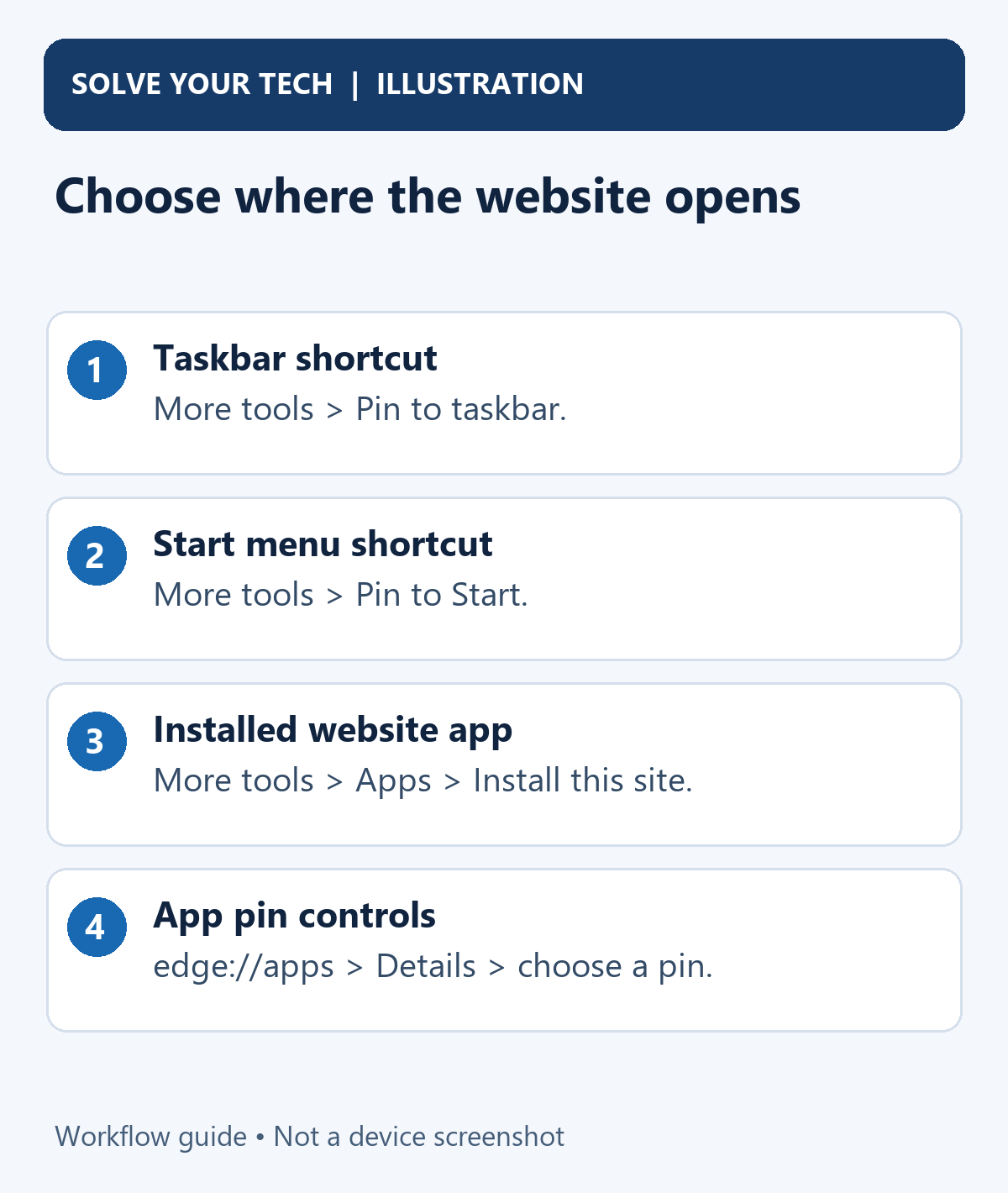
| A website icon available while you use other apps | Edge > More tools > Pin to taskbar |
| A website shortcut among your Start pins | Edge > More tools > Pin to Start |
| A website in a separate app window with app-management controls | Install the site as an app, then open its Details in edge://apps |
| A saved website inside the browser | Add a favorite to Edge's favorites bar |
| A page that opens when Edge starts | Change Edge's startup-page setting |
Pinning a website is different from pinning Edge itself. The ordinary Edge icon opens the browser; a website pin is intended to take you to that site. Also, a taskbar pin does not automatically become a Start pin. Add each location separately if you want both.
If you prefer to keep shortcuts beneath the address bar, see our guide to showing and using the Edge favorites bar. If your goal is opening a particular page whenever you launch the browser, use Edge's startup-page options instead.
Before you begin
Open Edge on the Windows account where you want to use the shortcut. If you have multiple Edge profiles, choose the one you normally use for that website before creating it. A work site may still require the correct account and sign-in when you launch it later.
Visit the page you want and let it finish loading. Check the address after any redirects. A site's home page, a sign-in page, and a particular document or dashboard can have different addresses. Choose a stable destination where possible; a temporary authentication link may stop working after its session expires.
You need access to the website to use its online features. A shortcut does not download the entire site or remove a subscription requirement. Installing a web app also does not guarantee offline access; that depends on the site's capabilities.
Microsoft documents the direct taskbar route in its website-pinning guide and the direct Start route in its Windows Start menu guide. Feature availability can vary with browser version, device, market, and organization-managed policies.
Pin a website directly to the taskbar
Use this method when you want a website icon on the Windows taskbar without first working through Edge's app-management page.
- Open the website in Microsoft Edge. Enter its address in the address bar and wait until the desired page appears. If the site asks you to sign in, finish that normally and check which page you are pinning.
- Select Settings and more (…). This is the three-dot menu near the upper-right corner of the Edge window. The browser's menu opens.
- Open More tools. Move to or select this item in the menu to reveal the additional commands.
- Select Pin to taskbar. If Edge or Windows presents a naming or confirmation prompt, review the website shown and approve the displayed pinning action. Use a recognizable name if a name field is offered.
- Look for the new website icon on the taskbar. Select it to check that it opens the intended site. Do not assume an already open browser window proves that the shortcut is correct.
Prompts are not identical in every release, so the final button may differ from an older screenshot. Follow the confirmation that actually appears rather than searching for a specific Add or Yes button that your screen does not show.
If Pin to taskbar is missing, continue with the installed-app method below. Microsoft identifies browser settings, device settings, and managed policies as possible reasons pinning is unavailable. An alternative method must still be allowed by your organization.
Use this method for a site you want to find alongside your other Start shortcuts.
- Open the desired website in Edge. Verify the page and address after it loads so you do not accidentally pin an unwanted redirect.
- Select Settings and more (…) > More tools. Edge displays the available tools for the current page.
- Select Pin to Start. Review and finish any confirmation shown by Edge or Windows. If you are offered a name, choose one that distinguishes this site from similar shortcuts.
- Open Start. Select the Start button on the taskbar or press the Windows key, then look among your pinned items. Expand the pinned section or check its other pages if your layout requires that.
- Select the website pin. Confirm that it opens the destination you wanted and that any required sign-in uses the expected account.
Windows 11 uses a pinned-app area, while older Windows 10 layouts can show tiles. The location within Start can change as Windows updates its design; the important result is a saved shortcut that you can launch from Start.
Some older Edge tutorials say that direct Start pinning disappeared and recommend several right-click menus as a workaround. Microsoft's current Windows documentation includes More tools > Pin to Start. Check your own menu first, then use the app method if that command is unavailable.
Install the website as an app and choose its pins
A web app is a website that you can launch in its own app window. Some sites are designed as progressive web apps, often called PWAs, and provide an installation prompt. Edge also documents installing a site through its browser menu.
This approach is useful when you want an app window, a desktop shortcut, or a single place to manage the site's Start and taskbar pins. It is an alternative to the direct website-pin methods, not a requirement for every taskbar shortcut.
- Open the website in Edge. Use the destination and Edge profile you intend to use afterward. Let the page load before starting installation.
- Select Settings and more (…) > More tools > Apps > Install this site as an app. Review the site's identity and complete the installation prompt. A supported PWA may instead offer its own installation prompt; use the displayed installation control for that site.
- Open Edge's Apps page. Type edge://apps in the address bar and press Enter. Installed sites appear as app cards on this page.
- Find the website's card and select Details. Match the app name to the site you installed. The detail page contains its management and shortcut controls.
- Choose Pin to Start, Pin to taskbar, or Create Desktop shortcut. Select the location you need and finish any confirmation. Repeat for another location if you want more than one shortcut.
- Launch the app from the new shortcut. Check that the separate app window opens the expected site. You can also select Open on its card in edge://apps to compare what the installed app launches.
Microsoft's install, manage, or uninstall apps in Edge instructions support this route. Older Edge versions may place Apps directly in the main menu or use different app-card controls. Use the controls present in your version rather than mixing an old right-click procedure with the current Details page.
The same Details page can offer Auto-start on device login. Leave that separate setting off unless you want the app to start when you sign in to Windows. Creating a pin and choosing automatic startup are different changes.
Verify the shortcut before relying on it
An icon in the right place is only the first check. Launching it tells you whether it supplies the access you actually wanted.
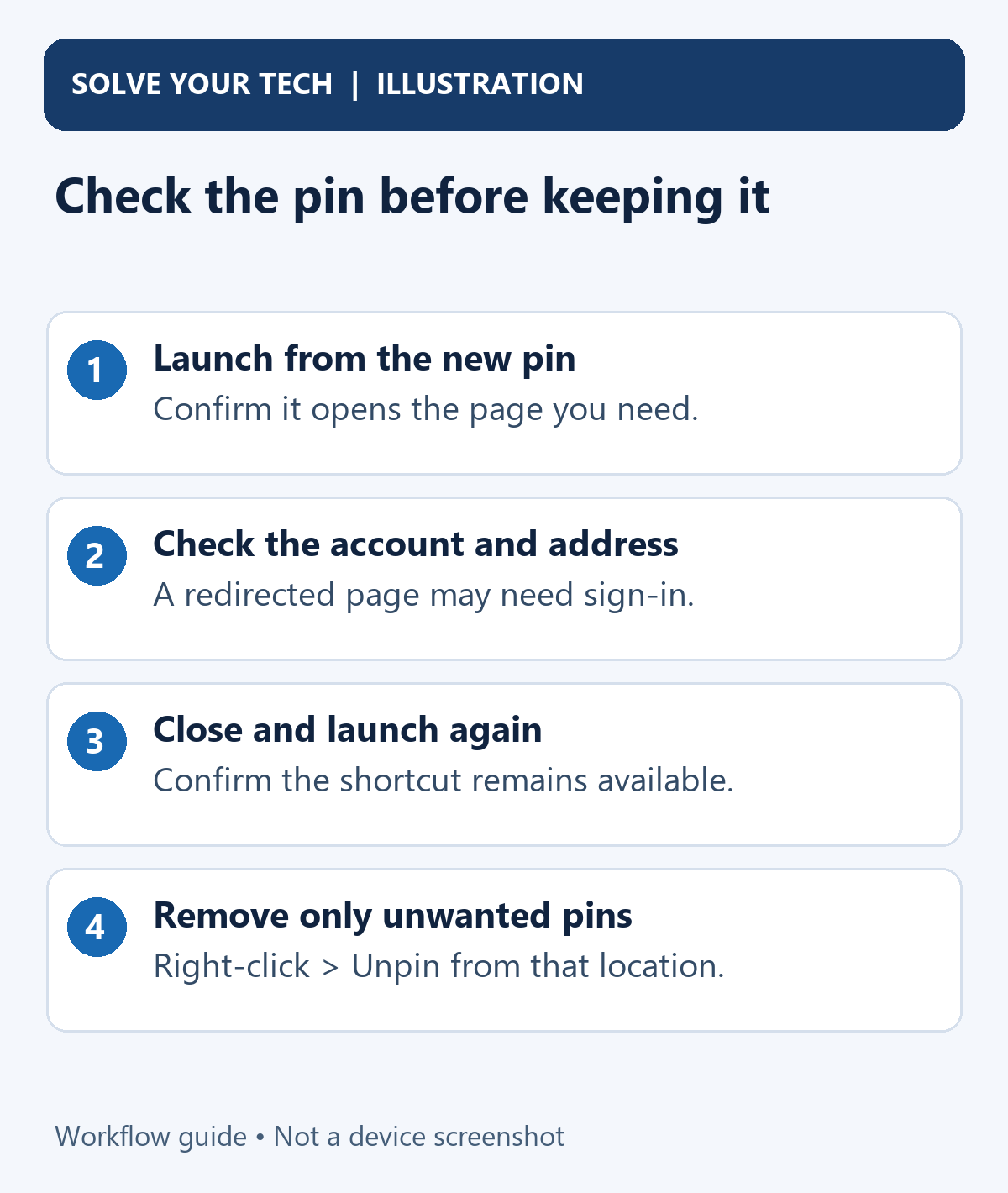
- Open the new pin from Start or the taskbar. Check the site name and visible page. If you wanted a particular report, confirm that the report appears rather than only the service's home page.
- Check the account and address where visible. A sign-in redirect or another browser profile can change what opens. An installed app may have a different window layout from a normal Edge tab.
- Close that site or app window and launch the pin again. Confirm that the shortcut remains available after the window closes and that its second launch still reaches the useful destination.
- Keep the working pin and remove unwanted duplicates. Use the unpin instructions below for a shortcut you no longer need.
For example, a work portal might redirect through a sign-in service before opening its dashboard. Pinning a temporary sign-in address could work once and fail later. Start from the portal's stable landing address when possible, then verify a fresh launch. This is a check to perform on your computer; it is not a promise that every service preserves an exact subpage or bypasses sign-in.
Organize your website pins
You can pin more than one website. Start with the few you use often so you can distinguish their icons and names easily.
To change the taskbar order, drag a pinned icon along the taskbar to the position you prefer. Microsoft also documents rearranging Start pins by dragging them within the pinned area. This changes their order without changing the website destination.
On Windows versions that support folders among Start pins, drag one pinned item over another to create a folder, then give the folder a useful name. Do not expect that folder layout in every older Start menu.
If several sites have similar icons, use distinct names whenever the creation dialog lets you choose them. A favorites-bar entry may be easier to manage when you need a large collection of editable website addresses rather than several Windows pins.
Troubleshooting
Pin to Start or Pin to taskbar is missing
Check More tools in Edge's three-dot menu, not the webpage's own menu. A website may have its own three-dot control that operates on documents or messages rather than browser shortcuts.
If the direct pin is unavailable, check whether you can install the site as an app and open edge://apps > Details. If it is already installed, use its existing card instead of repeatedly creating another copy.
For an installed app, Windows offers another documented route: open Start or taskbar Search, type the app's name, right-click its app result, and choose Pin to Start or Pin to taskbar if offered. A website result from Bing is not the same as the installed app result. For a running app, you can also right-click its taskbar icon and look for Pin to taskbar.
If Windows offers only Unpin from taskbar, that particular icon is already pinned. Check the site's identity before removing it or creating a duplicate.
The menus look different from these instructions
Check your browser version through Settings and more > Help and feedback > About Microsoft Edge, also available at edge://settings/help. Microsoft's Edge update instructions explain the status messages there.
If an update is offered, follow the displayed download control. Save work in open sites before selecting Restart when the update requires it. If Edge reports that it is up to date, return to the available pin or app-management method rather than repeatedly searching for an outdated menu label. For more on the Restart button, see how to restart Microsoft Edge.
A work or school computer blocks the option
A managed browser or Windows device may restrict the feature. Read any management message and ask your administrator whether website pins or app installation are permitted. Updating Edge does not override an organization policy.
Do not change registry entries, weaken device restrictions, or reset the browser simply to expose a pinning command. A favorite or an approved startup page may provide convenient access within the allowed settings.
The pin opens the wrong page or a sign-in screen
Open the destination normally in Edge and check whether the address changes. A service may send you to its home page, require a fresh login, or discard a temporary deep link. App installation does not guarantee that every page within the website becomes a separate app destination.
Try creating a shortcut from a stable page that you can reopen normally. Verify it with the launch-and-close check above before removing the old working shortcut. If you need a particular editable address inside the browser, a favorite may be more suitable.
The icon disappears when I close the window
A running app can show on the taskbar without being pinned. Reopen the app, right-click its taskbar icon, and choose Pin to taskbar if available. Alternatively, use its Details page in edge://apps. Close and reopen it afterward to check persistence.
If a pin is present but difficult to find, check the taskbar's available space and Start's pinned area before adding another copy. The layout can move an item away from where you first expected it.
Remove a pin or uninstall an installed website
To remove a taskbar shortcut, right-click its icon > Unpin from taskbar. To remove a Start shortcut, open Start, right-click the pin > Unpin from Start. Remove both separately if you created both.
Unpinning removes the shortcut from that location. It does not uninstall the website app. An app may still appear in edge://apps and can be pinned again from its Details page.
Before uninstalling, review the confirmation carefully. Edge's uninstall dialog can offer deletion of the app's history and data. That is a separate choice from removing its shortcuts, so do not select it casually if you want to keep the app's local information.
- Open edge://apps in Edge. Locate the installed website you want to remove.
- Select Details on that app's card. Confirm you have the correct site before continuing.
- Select Uninstall. Edge displays the uninstall confirmation and any optional data-deletion choice.
- Review the options, then confirm Uninstall. Choose whether to delete the app's history and data only after considering what you want to retain.
If your goal is simply a less crowded taskbar, unpinning is enough. Use uninstall when you want to remove the installed web app itself.
Frequently asked questions
Do I need an extension to pin a website?
No extension is required for the built-in Edge website-pin methods described above. Installing an extension is a different browser change. Our Edge extension guide explains that process if you need an extension for another feature.
Can I pin the same website to Start and the taskbar?
Yes, when the pinning controls are available. Use both direct pin commands or choose both locations from the installed app's Details page. Check each shortcut separately because removing one location does not remove the other.
Will the shortcut always open a normal browser tab?
Do not assume identical window behavior for every shortcut. A direct website pin and an installed web app serve related purposes, but Edge documents installed apps opening in separate app windows. Use the installed-app method if that app-style launch is your goal, then verify the result on your device.
Can I use this without changing my default browser?
These methods create the shortcut through Edge or its installed app. Changing your Windows default browser is not a step in either procedure. A generic desktop URL shortcut can behave differently, so check what your particular shortcut launches rather than applying one browser rule to every type of shortcut.
Does pinning save my login or make a site work offline?
Pinning supplies a launch shortcut. The website still controls its sign-in, subscription, and online features. A web app may support some offline use, but installation alone does not establish that it will. Check the service's own support information if offline access is essential.
Can I change the address behind a website pin?
The direct pinning guides do not establish a universal Edit URL control for every website pin. If a shortcut opens an unwanted destination, create and verify a new pin from the page you need, then unpin the old one. A browser favorite is a better starting point when you specifically need an address you can edit frequently.
Finish by launching one new pin, checking its destination, and removing any duplicate you do not need. That confirms both the shortcut's location and the page it actually opens.

Matthew Burleigh is the founder, head writer, and editor of Solve Your Tech, which he launched in 2012. He has written technology tutorials since 2008 and worked in IT since 2003, including small-business support, IT management, and consulting. He holds Bachelor’s and Master’s degrees in Computer Science from Arizona State University.
Matthew writes practical guides for Windows, iPhone and iPad, Microsoft Office, Outlook, Google apps, and Android. Solve Your Tech’s guides are tested on current devices or checked against official product documentation, with clear steps, sources, and update dates.
Read more about Matthew and how Solve Your Tech writes and updates its guides, or report a correction.