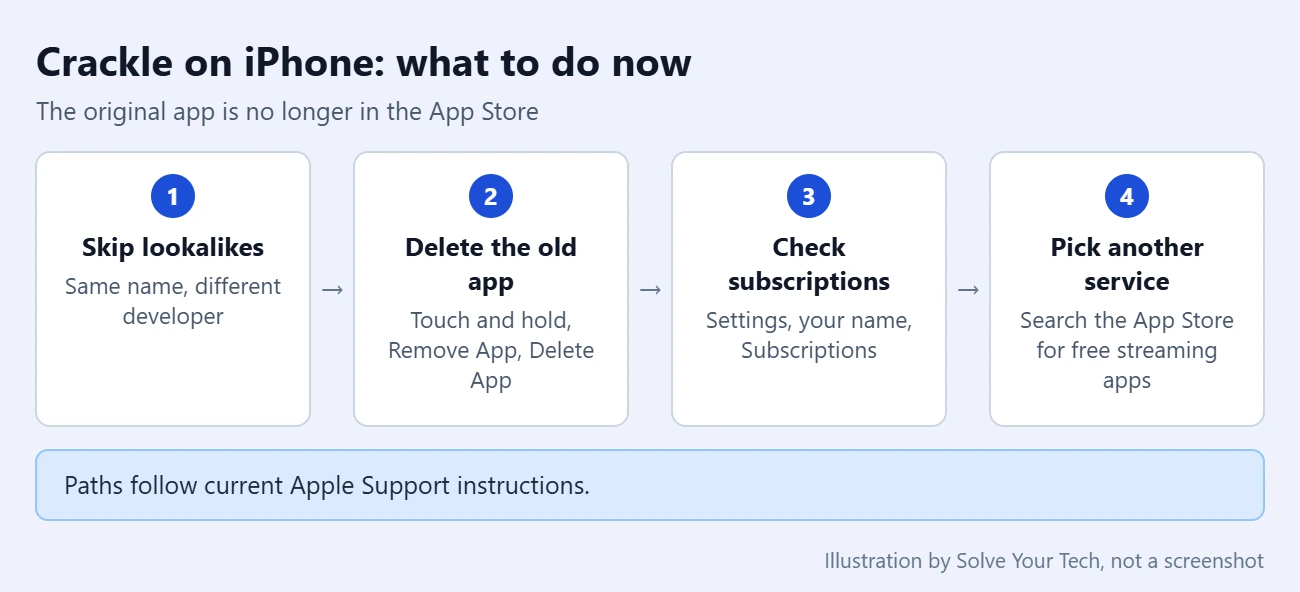
You can no longer watch Crackle on an iPhone. The original Crackle app isn’t in the US App Store, and apps that show up when you search for crackle come from other developers. Delete the old Crackle app if it’s still on your iPhone, and install a different free streaming app instead.
One free option is Sling Freestream. Getting Sling TV on an iPhone covers it.
This post contains affiliate links. As an Amazon Associate, solveyourtech.com earns from qualifying purchases, at no extra cost to you.
What Changed With Crackle on the iPhone
Crackle was a free streaming service paid for by ads. For years you could install its app from the App Store, open it, and start a movie or TV show without creating an account.
That process no longer works. Here is what we confirmed in October 2026:
- The App Store page is gone. The address of the original Crackle app now shows Apple’s message that the page can’t be found.
- An App Store search does not return it. A US search for crackle lists apps from unrelated developers, followed by other free streaming services.
- The website did not load. The Crackle site could not be opened in a browser, so watching in Safari is not a fallback.
News reports say Crackle’s parent company went through bankruptcy in 2024 and that the service went offline afterward. There is no working official Crackle page left to confirm the details or to say whether the service will return, so treat any claim about a comeback with caution until you see an app from a named, verifiable owner.
This article covers iPhones in the United States on current versions of iOS. Menu names come from Apple’s current support pages. Older iOS versions may word a few buttons differently.
Be Careful With Apps That Use the Crackle Name
Search the App Store for Crackle now and you will still see results with that word in the title. When this article was updated, the top results were published by individual developers and described themselves as movie guides or discovery tools, not as the Crackle streaming service. A matching name does not make an app the original.
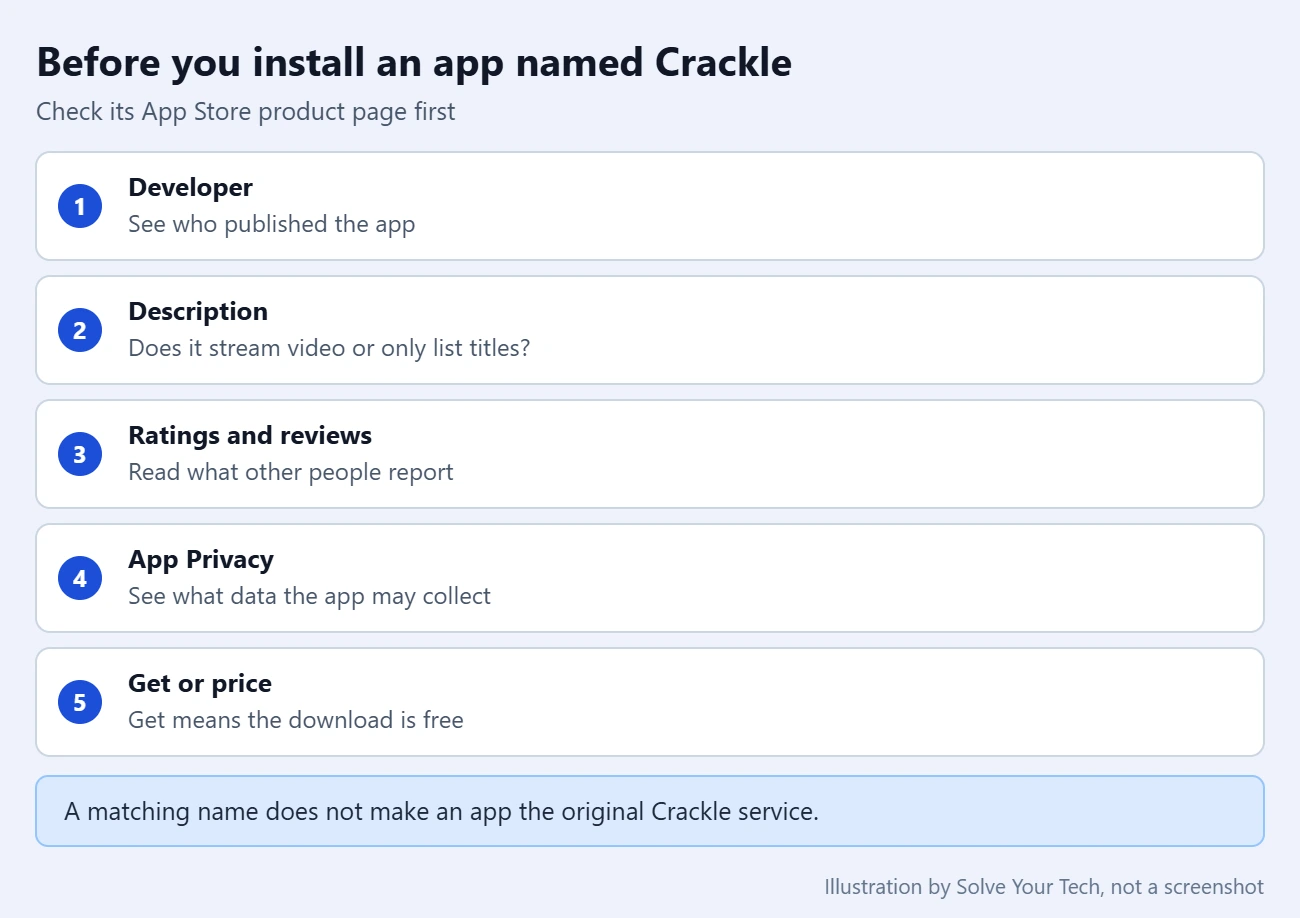
Before you install any of them, open the app’s product page (the page you see when you tap the app’s name or icon) and check a few things. Apple’s iPhone User Guide lists the details shown there, including the developer, ratings and reviews, age rating, and privacy information.
- Open the App Store and tap Search.
- Type the app name and tap the result to open its product page. Do not tap Get yet.
- Look at the Developer name. An individual’s name or a company you cannot identify is a reason to slow down.
- Read the description. See whether the app says it plays full movies and shows, or only offers trailers, lists, and recommendations.
- Scroll to Ratings & Reviews and read several recent reviews.
- Scroll to App Privacy. This section summarizes what data the app may collect and whether it may be used to track you.
- Check for in-app purchases or subscriptions. Crackle was free, so a lookalike that asks for payment is not giving you what Crackle did.
Never enter card details inside an app or on a website that claims to be Crackle. Apple’s Maintaining a safe App Store experience page explains its review process, privacy labels, and reporting tools. If an app you downloaded looks suspicious, you can report it at Apple’s Report a Problem site.
The same caution applies to sites that offer the old app as a downloadable file. Installing IPA files on an iPhone explains which routes Apple supports.
If the Old Crackle App Is Still on Your iPhone
An app that was installed before it left the App Store can stay on your iPhone. That does not mean it still works. The app needs Crackle’s servers to play anything, so expect a blank screen or an error if the service is offline.
Deleting the app is safe, but understand one thing first: you probably cannot get it back. Apple’s instructions say you can reinstall an app you downloaded before only if it is still available in the App Store.
- Find the Crackle icon on the Home Screen or in App Library.
- Touch and hold the icon until a menu appears.
- Tap Remove App.
- Tap Delete App, then tap Delete to confirm.
The icon disappears and the app’s data is removed from the iPhone. If you choose Remove from Home Screen by mistake, the app is only hidden and still sits in App Library. Deleting apps on an iPhone covers the other ways to do this.
Check Whether You Can Download It Again
If you want to see for yourself whether the old app is still offered to your account, look in your download history. These steps follow Apple’s Redownload apps from Apple page.
- Open the App Store.
- Tap the account button or your photo at the top of the screen.
- Tap Apps & Purchase History, then tap Your Apps.
- Tap the option for apps that are not on this iPhone.
- Look for Crackle. If it is listed with a download button, you can tap it. If it is missing, the app is no longer available to download.
Even a successful download would not bring back the movies and shows while the service itself is offline.
How to Get a Different Free Streaming App
If you liked Crackle because it was free with ads, other services work the same way. The App Store search for crackle also returned Tubi, Pluto TV, and Plex, which describe themselves in their listings as free ways to watch movies and TV. Catalogs differ and change, so do not expect the same titles Crackle had.
The install steps are the same for any of them and match Apple’s Download apps on your iPhone or iPad instructions. You need an internet connection and an Apple Account signed in to the App Store.
- Open the App Store.
- Tap Search and type the name of the service you want.
- Tap the app in the results and run through the product page checks above.
- Tap Get. A Get button instead of a price means the app is free to download.
- Confirm the download. Depending on your settings, you double-click the side button, use Face ID or Touch ID, or enter your Apple Account password.
- Wait for the download to finish, then tap Open.
You will know it worked when the button on the product page changes to Open and the new icon appears on your Home Screen or in the Recently Added group of App Library. Some services let you start watching right away and others ask you to create a free account first.
To undo this, delete the app with the same touch-and-hold steps shown earlier.
Shows you already bought from Apple are in a different place: the Apple TV app on iPhone.
If the App Is Missing or Shows Open
The App Store Icon Is Missing
Swipe down from the middle of the Home Screen and search for App Store. If it does not appear, Content & Privacy Restrictions may be blocking app installs. In the Screen Time settings, open the iTunes & App Store Purchases options and set Installing Apps to Allow. On a child’s iPhone, a parent may need to make that change or approve the download.
You See Open or a Cloud Icon Instead of Get
Open means the app is already installed. A cloud icon with an arrow means you downloaded the app before with this Apple Account and can download it again at no charge.
The Download Will Not Start
Check that the iPhone is online and has free storage, then try again. If the App Store asks for a payment method even for a free app, your Apple Account may need its billing details reviewed in Settings.
You Were Charged by an App That Looked Like Crackle
Cancel the subscription first so it does not renew. Open Settings, tap your name, tap Subscriptions, tap the subscription, and tap Cancel Subscription. If there is no cancel button, it is already canceled. Then request a refund through Apple, which describes the steps in Request a refund for apps or content that you bought from Apple. Apple doesn’t approve every refund. Canceling subscriptions and checking purchase history on an iPhone has a longer walkthrough.
Delete the old Crackle app if you still have it, then pick one free streaming app and check its product page before you tap Get. If you mostly want short videos and clips, you can also read how to watch YouTube videos on the iPhone.
Crackle Questions
Is there still an official Crackle app for iPhone?
Not in the US App Store. The original app’s page cannot be found, and the apps that appear in a search for Crackle are published by other developers.
Can I watch Crackle in Safari instead?
No. The Crackle website did not load when this article was updated, so there is nothing to play in Safari or any other browser.
Was Crackle free?
Yes. Crackle was free and supported by ads, and it did not require an account to start watching. Any app or site using the Crackle name that asks for a card number is not offering the same thing.
Will deleting the old Crackle app free up space?
Yes. Deleting an app removes the app and its data from the iPhone. The amount of storage shown as available can take a moment to update.
Can I send a free streaming app to my TV?
Often, yes, but it depends on the app and your TV or streaming device. Many video apps show an AirPlay or Cast button during playback. For the setup, read how to cast an iPhone to a Chromecast.

Matthew Burleigh is the founder, head writer, and editor of Solve Your Tech, which he launched in 2012. He has written technology tutorials since 2008 and worked in IT since 2003, including small-business support, IT management, and consulting. He holds Bachelor’s and Master’s degrees in Computer Science from Arizona State University.
Matthew writes practical guides for Windows, iPhone and iPad, Microsoft Office, Outlook, Google apps, and Android. Solve Your Tech’s guides are checked step by step against the device or app maker’s own documentation and tested on his own devices whenever he has the hardware or software, with clear steps, sources, and update dates.
Read more about Matthew and how Solve Your Tech writes and updates its guides, or report a correction.