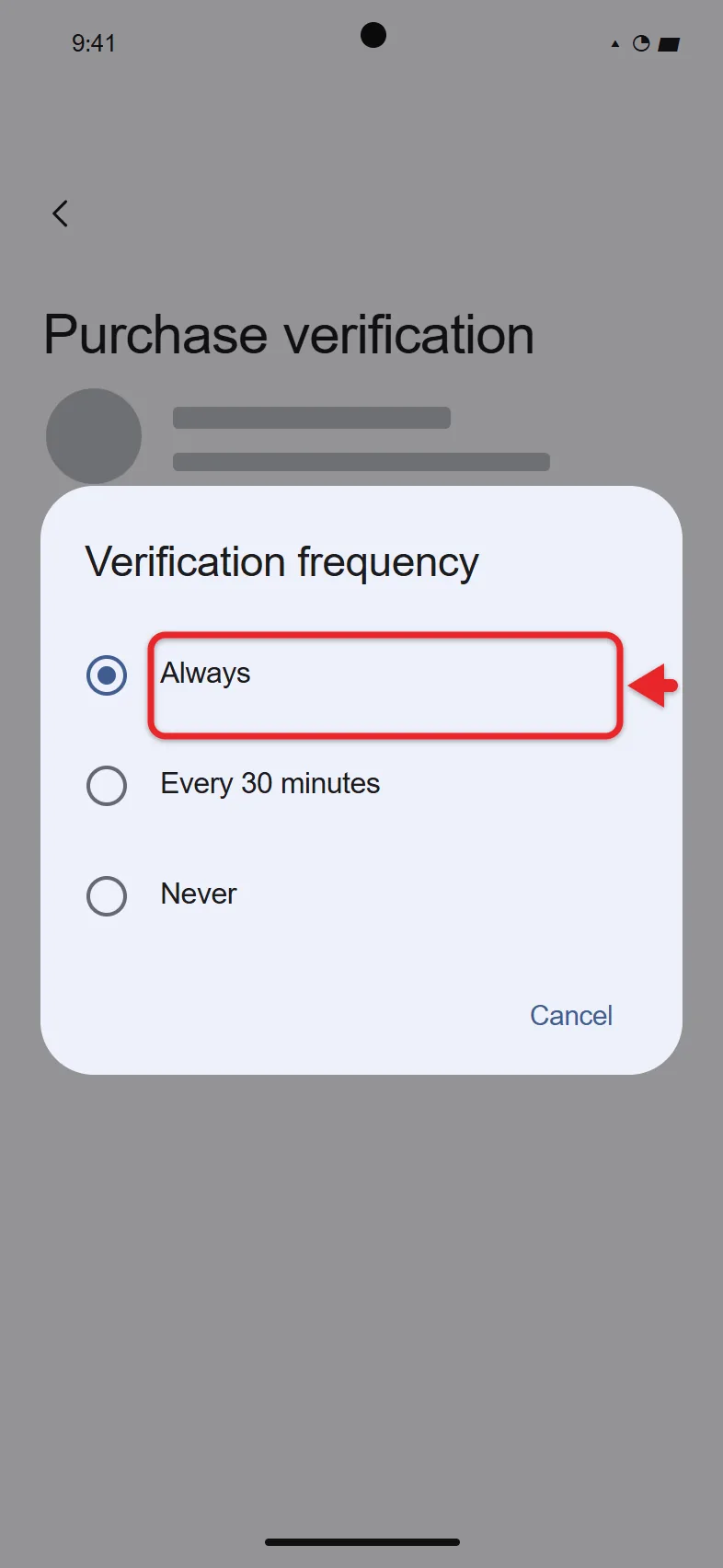
To require authentication for Google Play purchases, open the Google Play Store app, tap your profile picture at the top right, tap Payments & subscriptions, tap Purchase verification, tap Verification frequency, and choose Always. After you confirm the change, every purchase made through Google Play on that device, including purchases inside apps and games, asks for your Google Account password, fingerprint, or face first.
These steps are for the current Google Play Store app on Android phones and tablets, including Android 17 devices such as the Pixel 11. Because the setting lives in the Play Store app rather than in Android itself, the same menus appear on older Android versions that still get Play Store updates. Very old Play Store builds, like the ones on early Android 6.0 Marshmallow phones, used a different menu, which is covered below.
Google calls this feature purchase verification. Older versions of the Play Store called it purchase authentication, so you may see either name. The steps follow Google’s help page, Purchase verification for Google Play.
Before You Start
- Have your Google Account password ready. Google may ask for it before it saves a change to this setting. On a phone or tablet you may be able to confirm with your fingerprint or face instead.
- The setting is per device. Google says verification settings only apply on the device where you choose them. A second phone, a tablet, a Chromebook, a Windows PC with Google Play Games, and the Google Play website each have their own setting.
- It covers Google Play’s billing system only. That means paid apps, in-app purchases, and subscriptions bought through Google Play. It does not cover an app that takes payment some other way, such as an app you installed from an APK file that bills you directly.
Turn On Purchase Verification on an Android Phone or Tablet
- Open the Google Play Store app.
- Tap your profile picture at the top right. A menu opens with your account name at the top.
- Tap Payments & subscriptions.
- Tap Purchase verification.
- Tap Verification frequency (called Verification requirement in some regions).
- Choose Always, or All payment methods if your screen says Verification requirement.
- Confirm the change when the Play Store asks you to verify that it is you. The screen returns to Purchase verification with your new choice listed.
If Purchase verification isn’t under Payments & subscriptions, update the Play Store app. Older versions kept the option under Settings > Authentication > Require authentication for purchases. If that is what you see, pick the choice that covers all purchases on the device.
Pick How Often Google Play Asks
Most people see three frequency choices. Here is what each one does:
- Always: verification is required for every purchase through Google Play’s billing system, including within apps. This is the default setting.
- Every 30 minutes: each time you verify a purchase, more purchases can go through for the next 30 minutes without asking again. This choice is for mobile devices only.
- Never: verification isn’t required for purchases through Google Play’s billing system.
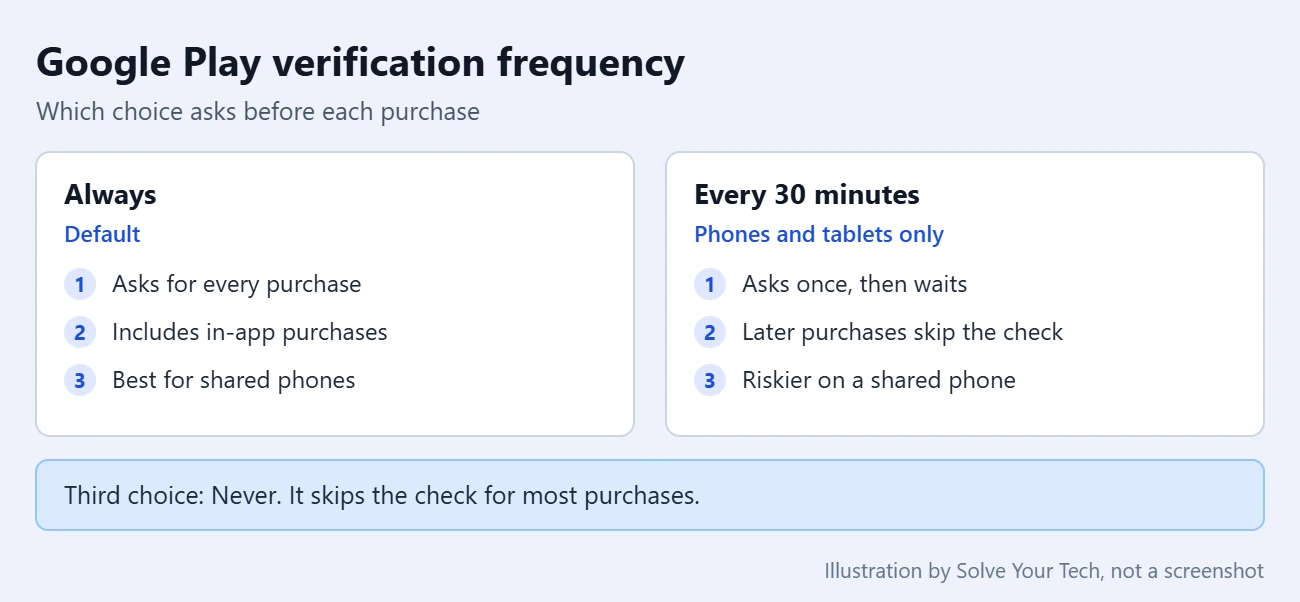
Warning: think twice before you choose Never. When purchase verification is turned off, you assume responsibility for all charges, including unintended or unauthorized purchases. The Every 30 minutes choice also leaves a gap: if you approve one purchase and then hand the phone to someone else, anything they buy in the next half hour will not ask again.
In some regions the choices are based on your payment method instead. There, All payment methods is the strictest option, Only those without a separate verification process skips the Play check when your payment method already has its own check, and None turns the Play check off. Google also notes that Korea has slightly different purchase verification settings.
Choose How You Verify
The frequency setting decides when you are asked. The verification method decides what you are asked for.
- Google Account password: always available as a method. It applies to one Google Account on the device, so if several accounts share a phone, each one has its own setting.
- Biometric verification: your fingerprint or face, on select devices. To switch it on, go to Payments & subscriptions, then Purchase verification, and turn on Biometric verification. You may need your Google password to do it.
- Screen lock: your phone’s PIN, pattern, or password. Eligible users are offered this during checkout, and it can’t currently be selected in the Play Store settings. If you turn on biometrics and choose them, you may lose the screen lock option. If you need to change the lock itself, follow the steps to reset the screen lock password on a Google Pixel.
- Google prompts: a notification you tap on another trusted device where you are signed in. Google offers this for eligible purchases in Google Play Games on PC, with a try another way option if you would rather type your password.
Warning for shared phones: any fingerprint or face stored on the device can approve purchases for every Google Account on that device. The same is true for anyone who knows the screen lock PIN, pattern, or password. If a child or another adult has a fingerprint saved on your phone, keep Biometric verification off and use your Google Account password.
Other Devices and the Google Play Website
Chromebook
In the Google Play Store app on the Chromebook, click Menu, then Settings, then Verification preferences. Choose a setting and follow the on-screen instructions. You need your Google password.
play.google.com in a Browser
Go to play.google.com, click your profile picture at the top right, and click Settings. Under Verification preferences, select Purchases and app installs through play.google.com, then click Update. That is the default and the stricter of the two choices. The other choice, Only app installs through play.google.com, stops asking for digital content and in-app purchases on the website, but Google still asks when you install an app on a phone remotely or install a paid game for Google Play Games on PC. This website setting does not change the setting in the Play Store app on your phone.
Google Play Games on a Windows PC
Google Play Games keeps its own verification setting on each PC. To start over with it, open Google Play Games, click your gamer name at the top, click Settings, and click Reset next to Reset Purchase Authentication Settings on this PC. The next purchase asks you to set it up again. If you haven’t installed the app yet, install Google Play Games on Windows 11 first.
Android TV and Google TV
You need your Google password to change verification settings on Android TV, but Google’s help page does not currently spell out the menu steps. Look for a purchase verification or authentication option in the Play Store settings on the TV.
Check That It Worked, or Change It Back
Go back to Payments & subscriptions, then Purchase verification. The Verification frequency line should now show Always. The next time you start a purchase, Google Play should ask you to verify before it charges you. You do not need to buy anything to test it. Closing the verification prompt cancels the purchase, and nothing is charged.
To undo the change, follow the same steps and pick a different option. Google will ask you to confirm that change as well.
Add Approvals for a Child’s Account
Purchase verification protects your own account. If your child has their own Google Account in your family group, Google’s purchase approvals send their purchase requests to a parent instead. The family manager can set this for any family member, and a parent can set it for a child whose account is managed with Family Link.
To set it in the Play Store app:
- Tap your profile picture, then Settings.
- Tap Family, then Manage family members.
- Tap the family member’s name.
- Tap Purchase approvals.
- Choose All content, All purchases that use the family payment method, Only in-app purchases, or No approval required.
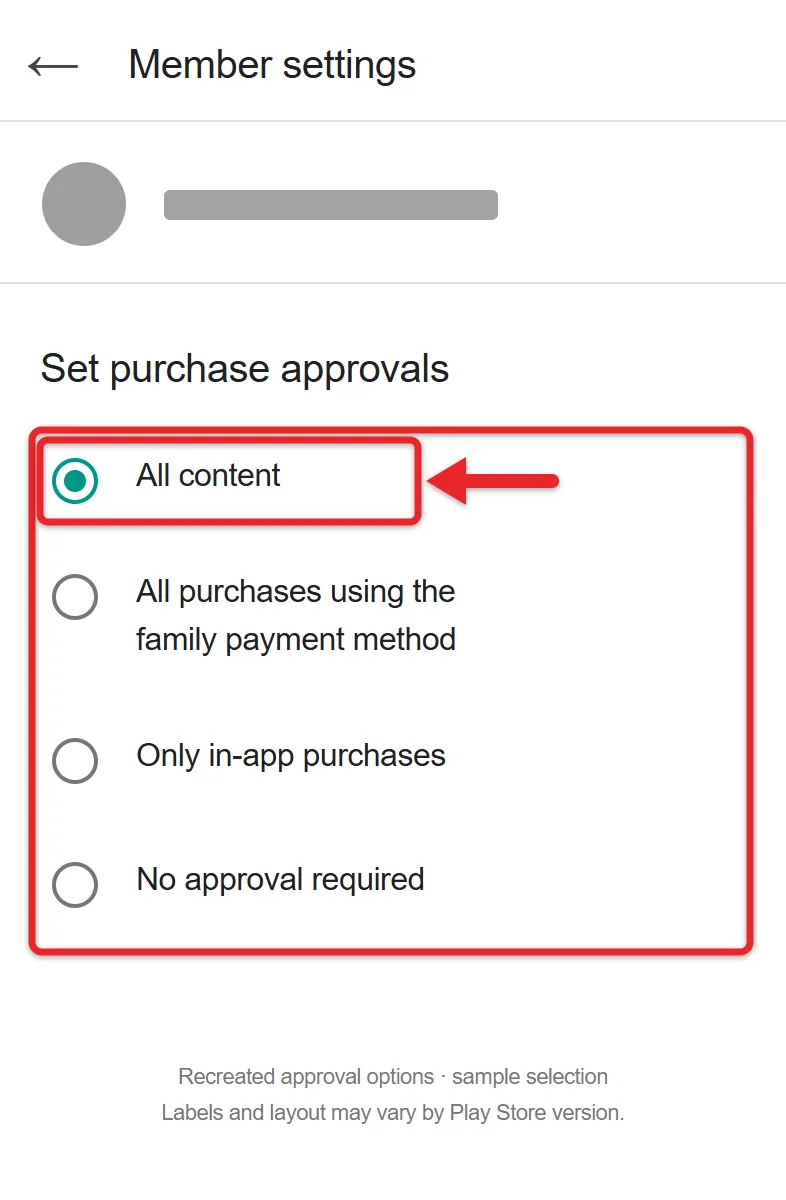
To set it in the Family Link app, select your child, tap Controls, then Google Play, and under Purchases & download approvals tap Require approval for. Choose All content, Paid content only, In-app purchases only, or Never.
Approvals cover paid apps, in-app purchases, and prepaid subscriptions, but not Play Books, Google TV, or subscriptions that aren’t prepaid. Purchase verification on the phone still matters for those.
Troubleshooting
- You can’t find the setting. Check both Payments & subscriptions and Settings in the profile menu, since the location has moved between Play Store versions.
- You don’t remember your Google password. The change can’t be saved without it. Google’s instructions for changing or resetting your password cover what to do.
- You’re asked to verify twice. Some payment methods have their own separate check. With All payment methods selected, you may verify once with Google Play and once with the payment method.
- A purchase went through without asking. Check that the setting is Always on that specific device and account, and that Every 30 minutes isn’t selected. Google also notes that Play may not verify purchases for certain payment methods, such as paying at a convenience store or by bank transfer.
- A family member approved a purchase with a fingerprint. Their fingerprint or face is enrolled on your device. Turn off Biometric verification or remove their fingerprint from the phone’s settings.
- You see a charge you didn’t make. Follow Google’s steps to report charges you don’t recognize.
Frequently Asked Questions
Why Am I Asked to Verify Even With Never Selected?
Verification is always required for purchases in an app or game designed for ages 12 and under, and it may also happen when there is potentially unusual activity on the account. Those checks apply no matter which frequency you picked.
Can I Turn Purchase Verification Off Completely?
Yes, on most accounts. Choose Never (or None where the choices are based on payment method). Google’s exceptions for kids’ apps and unusual activity still apply, and you become responsible for any charges, so this isn’t recommended on a shared phone.
Does Purchase Verification Stop My Child From Buying Things?
It stops purchases only if your child can’t pass the check. A child who knows your password, or whose fingerprint is saved on the phone, can still approve a purchase. For a child with their own account, use the purchase approvals described above.
Does the Setting Follow Me to a New Phone?
No. The setting only applies on the device where you select it, so check it on every phone and tablet you sign in to, including a new one.
Does It Cover In-App Purchases and Subscriptions?
Yes, when they are paid for through Google Play’s billing system. With Always selected, purchases within apps need verification too. For one game-specific example, here’s how to block in-app purchases in Pokémon GO.
Is There a Similar Setting on an iPhone?
Yes, but it lives in the iPhone’s own settings, not in Google Play. Here’s how to require a passcode for purchases on an iPhone.
Next Steps
Once purchases are protected, you may also want to control what the Play Store does on its own. For example, you can stop apps from updating automatically on Android.

Matthew Burleigh is the founder, head writer, and editor of Solve Your Tech, which he launched in 2012. He has written technology tutorials since 2008 and worked in IT since 2003, including small-business support, IT management, and consulting. He holds Bachelor’s and Master’s degrees in Computer Science from Arizona State University.
Matthew writes practical guides for Windows, iPhone and iPad, Microsoft Office, Outlook, Google apps, and Android. Solve Your Tech’s guides are checked step by step against the device or app maker’s own documentation and tested on his own devices whenever he has the hardware or software, with clear steps, sources, and update dates.
Read more about Matthew and how Solve Your Tech writes and updates its guides, or report a correction.