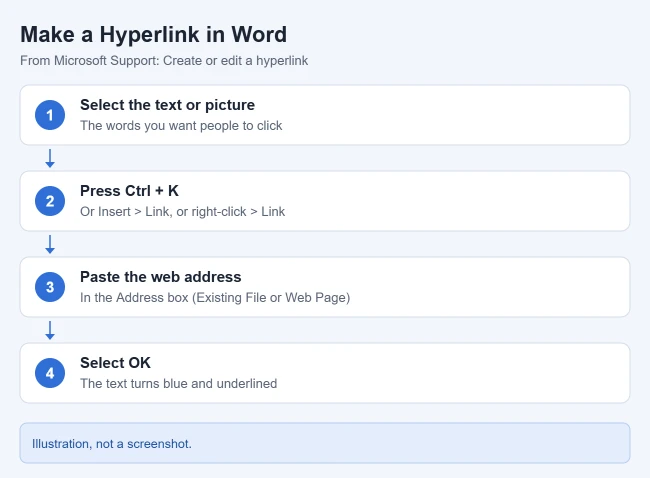
To make a hyperlink in Word, select the text or picture you want to link, press Ctrl + K (or go to Insert > Link), paste the web address in the Address box, and select OK. Word also turns a web address into a link automatically when you type it and press Space or Enter.
These steps are for Word for Microsoft 365 and Word 2024, 2021, 2019 and 2016 on Windows, with separate sections for Word for Mac and Word for the web. They follow Microsoft’s Create or edit a hyperlink guide.
What a Hyperlink Does in Word
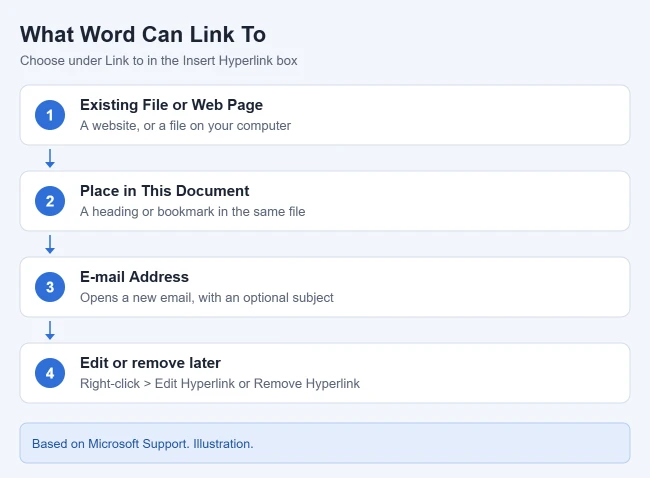
A hyperlink is text or a picture that takes the reader somewhere when they click it. In Word, a link can open a web page, open a file, start a new email, or jump to another spot in the same document. The words people see (the display text) and the place the link goes (the address) are stored separately, so a link can read “our price list” while it points to a long web address.
How to Link to a Website
- Copy the web address from your browser’s address bar. Copying it, rather than typing it, avoids typos that break the link.
- In Word, select the words or image you want to turn into a link. The text or picture is highlighted.
- Press Ctrl + K, or go to the Insert tab and select Link. You can also right-click the selection and choose Link. The Insert Hyperlink box opens.
- Make sure Existing File or Web Page is selected under Link to. The Address box appears.
- Paste the web address in the Address box. The words you selected show in Text to display.
- Select OK. The text turns blue and underlined.
To test the link, hold Ctrl and click it. Your web browser opens the page.
Change the Text or Add a ScreenTip
- Text to display: type different wording in this box if you want the link to read differently from the address.
- ScreenTip: select ScreenTip in the top-right corner of the Insert Hyperlink box and type the short note people see when they rest the pointer on the link.
- Don’t know the address? Select Browse the Web, find the page, then copy its address back into the box.
Descriptive link text, such as “2026 holiday schedule,” tells readers where a link goes before they click it. It also helps people who use screen readers, which can read out a list of the links in a document. Avoid “click here.”
The Fastest Way: Type the Address
Type a full web address, such as www.contoso.com, and press Enter or the Spacebar. Word converts it to a working link on its own. Typing an email address, such as name@example.com, makes a link that starts a new email. Word needs the “www.” or “https://” part to recognize a web address, so “contoso.com” alone may stay plain text.
What Else You Can Link To
Link to a File on Your Computer
- Select the text or picture, then go to Insert > Link > Insert Link. The Insert Hyperlink box opens.
- Under Link to, select Existing File or Web Page. Your folders appear.
- Find the file in the Look in list or the Current Folder list, select it, then select OK. Clicking the link opens that file.
A file link only works for people who can reach the same file location. A link to a file on your desktop won’t open on someone else’s computer. For a document you plan to share, link to a copy in OneDrive or SharePoint, or to a shared network drive everyone can open.
Link to an Email Address
- Select the text and press Ctrl + K. The Insert Hyperlink box opens.
- Select E-mail Address on the left. The email fields appear.
- Type the address in E-mail address, or pick one from Recently used e-mail addresses.
- Type an optional Subject, then select OK. Clicking the link starts a new email to that address.
Microsoft cautions that some web browsers and email programs might not recognize the subject line, so don’t rely on it for anything important.
Link to Another Spot in the Same Document
- Mark the spot you want to jump to. Apply a heading style (Home > Heading 1, Heading 2, and so on) to a title, or click at the spot and choose Insert > Bookmark, type a name, and select Add.
- Select the text for the link and press Ctrl + K. The Insert Hyperlink box opens.
- Select Place in This Document. A list of your headings and bookmarks appears.
- Pick the heading or bookmark and select OK. Hold Ctrl and click the link to jump to that spot.
Bookmark names must begin with a letter and can’t contain spaces, so use an underscore instead, as in Price_List. Microsoft covers bookmarks in Add hyperlinks to a location within the same document.
Headings you add this way also show up in the Navigation pane in Word, so you can check them at a glance. If you want a clickable list of every heading at once, insert a table of contents in Word instead of making each link by hand.
Link to a Spot in Another Document
To open a different Word file at a specific heading or bookmark, select Existing File or Web Page, pick the file in Look in, then select Bookmark and choose the heading or bookmark. Microsoft adds that you can also link to slides in PowerPoint and cells or sheets in Excel the same way.
Working in a spreadsheet in your browser instead? You can add a hyperlink in Google Sheets with the same Ctrl + K shortcut.
How to Make a Hyperlink in Word for Mac
Microsoft’s Office for Mac hyperlink guide lists these steps:
- Select the text or picture you want to link.
- Go to the Insert tab and select Link. The Insert Hyperlink box opens.
- Choose Web Page or File and type or paste the address, choose Email Address and enter an address and subject, or choose This Document and pick a heading or bookmark.
- Select OK.
To follow a link on a Mac, hold Command and click it. To stop automatic links, go to Word > Preferences > AutoCorrect > AutoFormat as You Type and clear Internet and network paths with hyperlinks.
How to Make a Hyperlink in Word for the Web
- Select the text you want to link.
- Go to Insert > Link > Insert Link. The Link box opens.
- Paste the address in the address box. For an email link, type mailto: followed by the address, such as mailto:name@example.com.
- To link to a spot in the document instead, select Headings and Bookmarks and pick one.
- Select Insert.
To change a link later, right-click it and choose Edit Link. Microsoft’s Links in Word for the web page has more detail. If you also write in Google Docs, you can add, edit, or remove a hyperlink there too.
How to Edit or Remove a Link
- Edit the address or text: right-click the link and choose Edit Hyperlink. You can change the address, the display text or the ScreenTip.
- Change how it looks: right-click the link and select Font, or use the mini toolbar to change its color or style.
- Remove one link but keep the text: right-click it and choose Remove Hyperlink.
- Remove the link and the text: select it and press Delete.
- Remove all links: press Ctrl + A to select everything, then Ctrl + Shift + F9. This also converts other fields, such as a table of contents or automatic dates, to plain text, so save a copy first.
Microsoft’s Remove or turn off hyperlinks article covers these steps.
Stop Word From Creating Links Automatically
- Go to File > Options > Proofing.
- Select AutoCorrect Options, then open the AutoFormat As You Type tab.
- Clear the Internet and network paths with hyperlinks check box, then select OK twice.
Addresses you type from now on stay plain text. Links already in the document don’t change. To undo a single automatic link right after Word creates it, press Ctrl + Z. Excel uses the same setting, so you can also turn off automatic hyperlinks in Excel.
Troubleshooting Word Hyperlinks
- Clicking the link only moves the cursor. Word requires Ctrl + click by default so you don’t open pages by accident while editing. To open links with a plain click, go to File > Options > Advanced and clear Use CTRL + Click to follow hyperlink.
- A typed address didn’t turn into a link. Make sure it starts with www. or https://, then press Space. If it still stays plain, select it and use Ctrl + K, or check the AutoFormat As You Type setting above.
- The link opens an error page. The address has a typo, an extra space, or the page moved. Right-click the link, choose Edit Hyperlink, and paste a fresh copy of the address.
- A file link works for you but not for others. The file is on your own computer. Move it to a shared location and link to it there.
Frequently Asked Questions
Why does clicking my link not open it?
Word usually needs you to hold Ctrl (Command on a Mac) while you click. You can turn that off in File > Options > Advanced by clearing Use CTRL + Click to follow hyperlink.
Can I make a picture into a link?
Yes. Select the picture instead of text, press Ctrl + K, and add the address. Clicking the picture with Ctrl held opens the link.
Do hyperlinks still work when I print or save as a PDF?
A printed page can’t be clicked, so print the full address if readers need it on paper. A PDF keeps the links if you make it with Word’s Save As or Export command. The steps for converting Word to PDF with embedded links show how.
What is the keyboard shortcut for a hyperlink in Word?
Ctrl + K in Word for Windows. In Word for Mac and Word for the web, Insert > Link opens the same kind of box.
How do I link to a heading in my document?
Format the title with a heading style, select the link text, press Ctrl + K, choose Place in This Document, and pick the heading.
Related: How to Insert a Signature in Word.

Matthew Burleigh is the founder, head writer, and editor of Solve Your Tech, which he launched in 2012. He has written technology tutorials since 2008 and worked in IT since 2003, including small-business support, IT management, and consulting. He holds Bachelor’s and Master’s degrees in Computer Science from Arizona State University.
Matthew writes practical guides for Windows, iPhone and iPad, Microsoft Office, Outlook, Google apps, and Android. Solve Your Tech’s guides are checked step by step against the device or app maker’s own documentation and tested on his own devices whenever he has the hardware or software, with clear steps, sources, and update dates.
Read more about Matthew and how Solve Your Tech writes and updates its guides, or report a correction.