To go full screen on Windows 11, click the window you want and press F11. It works in Edge, Chrome, Firefox, and File Explorer; press F11 again to exit. On many laptops, hold Fn while pressing F11. For other apps, use their own full-screen controls. Windows Terminal supports Alt + Enter; some games support it too. Installing an app from Microsoft Store does not guarantee a particular full-screen shortcut. If you’d rather keep a window smaller and in the middle, see how to center a window in Windows 11.
There’s no single full-screen command that works in every app, because each program decides whether it supports full screen. The quick table below matches the key to the app, and the sections after it cover buttons, the taskbar, and what to do when nothing works.
Full-Screen Shortcuts by App
| What you’re using | Press this | To exit |
|---|---|---|
| Edge, Chrome, Firefox | F11 (or Fn + F11) | F11 again |
| File Explorer | F11 | F11 again |
| Other apps, including Store apps | Use the app’s View menu or full-screen button, if supported | Use its exit control |
| Windows Terminal and some games | Alt + Enter (Terminal also accepts F11) | Alt + Enter |
| YouTube and many video players | F, or double-click the video | Esc or F |
| PowerPoint slideshow | F5 (from the start) or Shift + F5 (current slide) | Esc |
| Any window (maximize, not true full screen) | Windows + Up arrow | Windows + Down arrow |
Method 1: Press F11
- Click inside the window you want to fill the screen, so it’s the active one.
- Press F11. Expected result: the tabs, address bar, title bar, and taskbar disappear, and the page fills the display.
- To leave full screen, press F11 again. In a browser, you can also move the pointer to the top of the screen and select the X or exit button that appears. If the Firefox menus are still hidden after that, see how to display the menu bar in Firefox.
Microsoft’s keyboard shortcut list includes F11 for File Explorer. Do not assume F11 works in Word, Excel, Control Panel, or every command-line window; use the application-specific controls below.
F11 changes the volume or brightness instead
On many laptops, the top-row keys control media functions by default. Hold Fn and press F11, or turn on Fn Lock (often Fn + Esc) so the F keys work as F keys. See how to change Fn key settings in Windows 11.
Method 2: Use the App’s Full-Screen Button
- Microsoft Edge: select the three-dot menu, then the full-screen icon (two diagonal arrows) next to Zoom.
- Google Chrome: select the three-dot menu, then the full-screen square next to Zoom. For Mac shortcuts and more, see how to make Google Chrome full screen.
- Videos: select the full-screen icon in the player’s lower-right corner, or double-click the video. Streaming sites such as Netflix work the same way, and so does VLC when you play a DVD on Windows 11.
- Games: open the game’s Display or Graphics settings and set Display mode to Fullscreen.
- Word: Focus mode (View > Focus) hides the ribbon and taskbar for distraction-free writing.
Method 3: Check Full-Screen Support in Other Apps
An app’s download source does not determine whether it supports full screen. Look for a full-screen button or an option in its View menu, and check that app’s help for its shortcut. In a photo viewer, full-screen viewing or a slideshow may apply to the photo rather than the entire editing interface. If no such mode is offered, maximize the window instead.
Method 4: Alt + Enter for Games and Terminal
Windows Terminal uses Alt + Enter or F11 to toggle full screen by default, as documented in Microsoft’s Terminal actions reference. This also applies to a Command Prompt tab inside Terminal; a standalone legacy Command Prompt window may behave differently. Some games accept Alt + Enter, while others require their Display or Graphics menu. In File Explorer, Alt + Enter opens the selected item’s Properties, so use F11 there.
Full Screen in Specific Apps
Microsoft Office
- PowerPoint: F5 starts the slideshow from the beginning, Shift + F5 from the current slide, and Esc ends it.
- Excel: Ctrl + Shift + F1 hides the ribbon and status bar to show more cells; press it again to bring them back.
- Word: View > Focus hides everything but the page. View > Read Mode shows the document in a full-window reading layout.
Google Docs and Sheets
Choose View > Full screen to hide the menus, then press F11 to hide the browser too. Press Esc to bring the menus back.
Remote Desktop and virtual machines
- Remote Desktop Connection: Ctrl + Alt + Break switches the remote session between full screen and a window.
- VirtualBox: choose View > Full-screen Mode in the VM window. The Host key (right Ctrl by default) + F toggles it.
Multiple monitors
Full screen fills the monitor the window is on. Drag the window to the other display first, or press Windows + Shift + Left or Right arrow to move it, then press F11.
Maximize a Window When Full Screen Isn’t Available
Maximizing fills the desktop but keeps the title bar and taskbar. It works in every normal app:
- Press Windows + Up arrow to maximize and Windows + Down arrow to restore, both from Microsoft’s shortcut list.
- Press Windows + Shift + Up arrow to stretch a window to the top and bottom of the screen without changing its width.
- Double-click the window’s title bar, or select the square Maximize button in the top-right corner.
- Hover over the app on the taskbar, right-click its thumbnail, and choose Maximize.
To put two windows side by side instead, see how to split screen on Windows 11.
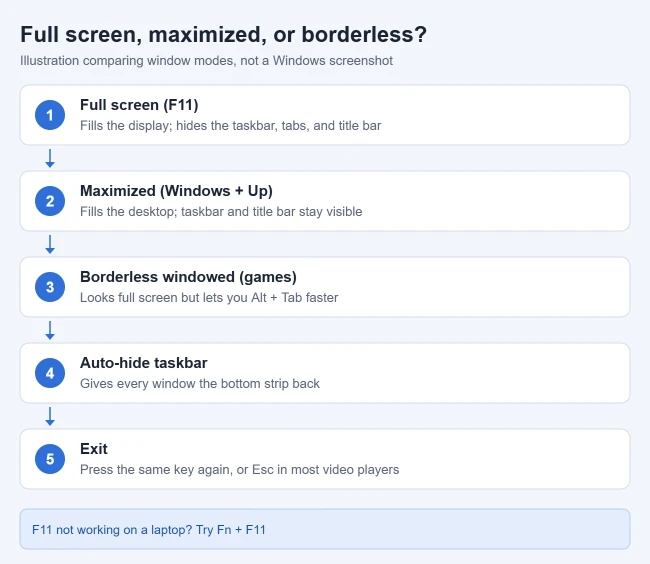
Hide the Taskbar for More Room
- Right-click an empty part of the taskbar and select Taskbar settings.
- Expand Taskbar behaviors.
- Check Automatically hide the taskbar. Expected result: the taskbar slides away and every maximized window gains the bottom strip.
Move the pointer to the bottom edge of the screen to bring the taskbar back. Uncheck the box to keep it visible again.
How to Exit Full Screen in Windows 10 or 11
The exit control depends on the app, rather than which of these Windows versions you use. Start with the control for the window or video that is currently full screen:
- Edge or Chrome: click the browser to focus it, then press F11 again. If F11 operates a media key on your laptop, try Fn + F11. Microsoft’s Edge shortcut reference lists F11 as its full-screen toggle. Chrome’s shortcut reference also allows pressing and holding Esc to leave full screen; do not assume one tap of Esc exits every browser.
- A full-screen YouTube video: press Esc, double-click the video, or select its bottom-right Exit full screen control. Google documents the mouse controls and Esc shortcut. If the browser itself is also full screen, use F11 afterward. To watch in a dedicated window instead of a browser tab, see how to install YouTube as an app on Windows 11.
- A game or another app: use its own full-screen toggle or change its display mode to Windowed. Alt + Enter works in some games, but support varies.
- A maximized window: if its title bar is visible, select Restore Down (the overlapping squares), or double-click the title bar. This resizes the window; it is separate from a browser’s full-screen mode.
If you only need to reach another window, Alt + Tab switches apps and Windows + D shows the desktop. Neither necessarily turns off the original app’s full-screen setting. Alt + F4 closes the active window instead of simply resizing it, so save your work before closing. These shortcuts appear in Microsoft’s Windows shortcut reference.
For an app that has stopped responding, Ctrl + Shift + Esc opens Task Manager. Ending its task can lose unsaved work or game progress; use the app’s normal exit control when it still responds.
Troubleshooting
The app won’t go full screen at all
Use the shortcut listed for that particular app, then look in its View or Display menu. There is no general Windows command that forces an unsupported app into true full screen. For a game, try its Fullscreen or Borderless windowed display mode. Otherwise, maximize the window and auto-hide the taskbar for more room. Here is how to auto-hide the Windows 11 taskbar.
The taskbar stays on top of a full-screen video
A notification or a stuck taskbar can cause this. Open Task Manager, find Windows Explorer, and select Restart task. The taskbar reloads and usually hides properly afterward.
The picture doesn’t fill the screen, or has black bars
That’s usually a display setting, not full screen. Open Settings > System > Display and choose the Display resolution marked (Recommended). Black bars on videos can also come from the video’s shape not matching your screen.
Frequently Asked Questions
What’s the full-screen shortcut on Windows 11?
Use F11 in browsers and File Explorer. Windows Terminal supports F11 and Alt + Enter by default; some games also support Alt + Enter. Other apps choose their own controls. Press the applicable toggle again to exit.
What’s the difference between full screen and maximized?
Full screen hides everything except the content, including the taskbar. Maximized fills the desktop but keeps the title bar and taskbar, so it’s easier to switch apps.
How do I go full screen without F11?
Use the app’s own full-screen button or menu. Alt + Enter works in Windows Terminal and some games. If the app does not offer full screen, maximize with Windows + Up arrow and auto-hide the taskbar.

Matthew Burleigh has been writing tech tutorials since 2008. His writing has appeared on dozens of different websites and been read hundreds of millions of times.
After receiving his Bachelor’s and Master’s degrees in Computer Science he spent several years working in IT management for small businesses. However, he now works full time writing content online and creating websites.
His main writing topics include iPhones, Microsoft Office, Google Apps, Android, and Photoshop, but he has also written about many other tech topics as well.