To remove photos from an iPad while keeping them in iCloud and on your other devices, turn off Sync this iPad first. Verify your saved copies before removing anything.
If your goal is simply more free space, try Optimize Storage instead. This guide covers the current iPadOS 27 controls and the earlier storage-menu variation. It applies to your personal Photos library; computer-synced photos and shared libraries need extra care.
Before Removing Anything: Check Your Saved Copies
With iCloud Photos enabled, deleting from Photos also deletes from the synced library on your other devices. Apple’s iCloud Photos guide also explains that this library is not duplicated in the usual iCloud device backup. A recent iPad backup alone is not proof that you have a separate photo copy.
Check the pictures you actually want to keep, especially recent imports and videos. On another device using the same Apple Account, open several of them at full size. You can also check iCloud.com/photos. A matching photo count is useful, but it is not a substitute for checking important items and making independent backup copies.
Before changing the sync setting, check the upload status. In current Photos, open Collections and tap the profile button in the upper corner; older versions show status at the bottom of Library > All Photos. If uploads are unfinished or iCloud is full, stop and resolve that first. New pictures might exist only on this iPad. Apple’s sync-status troubleshooting guide explains the messages.
For a separate copy, download the originals to a computer or external drive. On an updated iPad connected to Wi-Fi, select items in Photos, tap Share, then Export Unmodified Originals. In Files, choose the external drive under Locations and Save. The default destination can be iCloud Drive, so check it carefully. See Apple’s download instructions and our iPad-to-flash-drive guide for drive and adapter requirements.
Open several exported files and play the videos before continuing. Do not count a thumbnail, a copy still stored on the iPad, or an unfinished export as your independent backup.
Turn Off Photo Syncing on This iPad Only
Do not choose Turn Off and Delete Photos in iCloud account storage. That ends the service for your account and schedules cloud deletion after 30 days. Use the device switch below. Apple distinguishes these actions in its guide to turning off iCloud Photos.
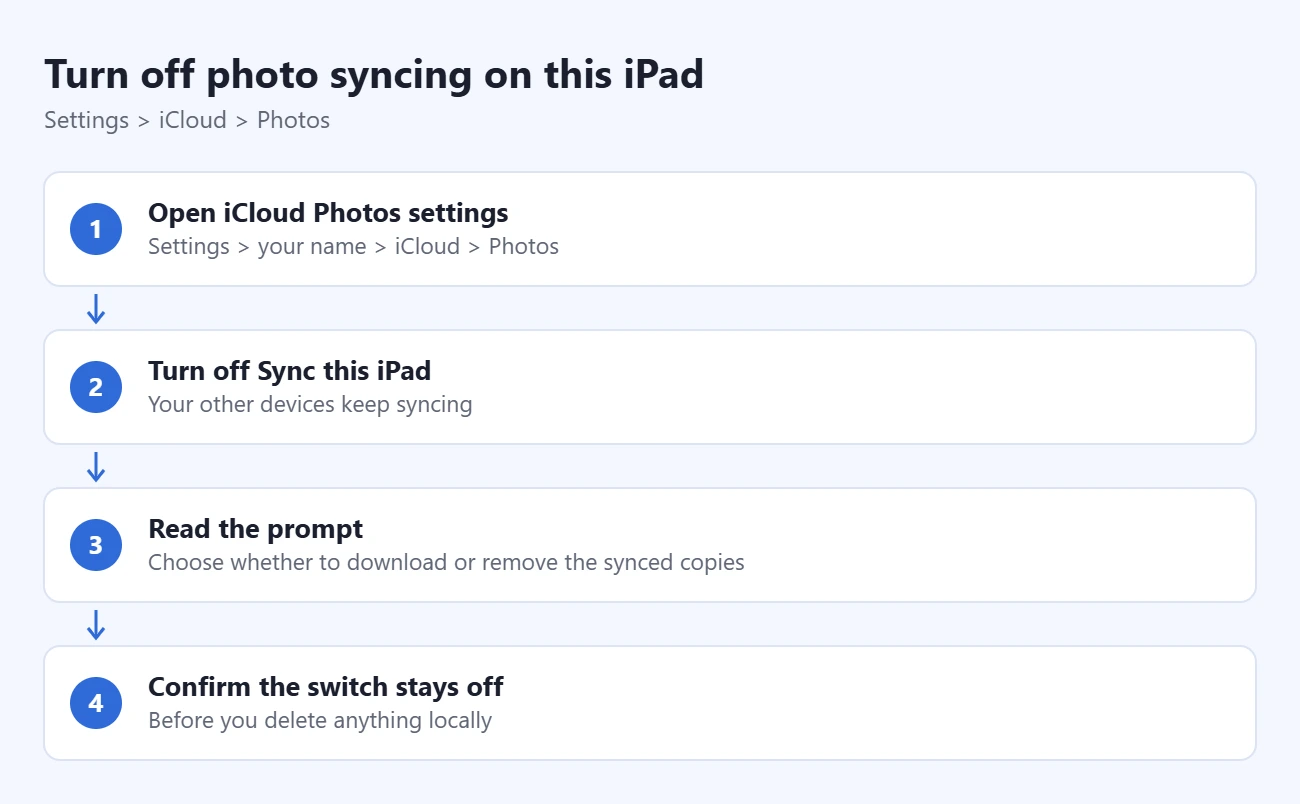
- Open Settings > your name > iCloud > Photos. Current versions list Photos under Saved to iCloud.
- Turn off Sync this iPad. This disconnects this iPad’s photo changes; your other enabled devices can continue syncing with each other.
- Read the download or removal prompt. Download Photos & Videos keeps a local copy and needs enough space. To clear the synced copies from this device, choose the device-removal option shown on your iPad, after verifying your originals elsewhere. Optimized copies are not full-resolution originals.
- Return to this settings page. Confirm the switch remains off before making local library changes. If a warning mentions deleting from all devices, cancel and recheck your route.
You do not need to sign out of your Apple Account or disable Mail, Contacts, or other iCloud services for this task.
Delete Any Remaining Local Photos
If the device-removal option already cleared the pictures you wanted removed, there is no need to repeat the deletion in Photos. Review what remains; locally imported pictures deserve the same backup check as recent camera photos.
- Open Photos and review the remaining items. Start with a small selection whose saved copies you have already checked. Our guide to finding iPad photos by date can help you narrow the review to one month or year.
- Tap Select and choose those photos or videos. Inspect the check marks so you do not include something you intended to keep locally.
- Tap Trash and read the confirmation. Proceed only after confirming iPad syncing is off and the selected items are safely saved elsewhere. Then check the remaining library and your saved copies before expanding the selection.
Normal Photos deletion moves items to Recently Deleted for up to 30 days; it does not immediately erase them permanently. Do not empty that album as a routine cleanup step. Apple’s deletion and recovery guide explains the recovery window.
If You Just Need More Space: Optimize Storage
Optimization lets you keep browsing your synced library while reducing the space occupied by local originals. It does not hide selected pictures from this iPad or create a separate backup.
In iPadOS 27, open Settings > your name > iCloud > Photos > iPad Storage and choose the optimization option instead of Download and Keep Originals. Earlier versions place the optimization choice directly on the Photos settings screen. Keep Sync this iPad enabled for this approach. See Apple’s iPad photo-storage guide.
The device keeps smaller versions while the originals remain in iCloud. Space savings depend on the library and the device’s storage needs; do not expect all photos to disappear or an immediate fixed number of gigabytes to be freed. Check Settings > General > iPad Storage to compare actual usage.
Troubleshooting and Recovery
The Trash button is gray
Photos synced from a computer cannot always be deleted directly on the iPad. Remove the relevant photo-sync selection using the computer that supplied them, following Apple’s deletion guide. Do not erase the whole iPad to solve a disabled Trash button.
Photos disappeared from my other devices
Stop deleting. On a device still using that iCloud library, check Photos > Collections > Utilities > Recently Deleted. Unlock the album if asked, select the items, and use More > Recover. Older versions may place Recently Deleted under Albums. Recovery is available within the retention window unless items were permanently removed.
My library is shared with other people
An iCloud Shared Photo Library is different from an ordinary album. Participants can remove items for everyone, and recovery permissions depend on who contributed them. Do not apply a personal-library cleanup blindly to shared content. Review the shared-library rules in Apple’s deletion guide first.
Frequently Asked Questions
Will turning syncing back on bring photos back?
Enabling Sync this iPad reconnects it to your iCloud library, so cloud photos become available on it again. Keep syncing off if you want the iPad disconnected. Our iPhone and iPad photo-sync guide explains how reconnection works.
Is Airplane Mode or pausing uploads enough?
No. Treat those as temporary interruptions, not an isolated local library. Wait for required uploads before changing the device switch; do not delete while offline and assume the action will never reach iCloud.
Can I remove just one cloud photo from this iPad while syncing stays on?
Deleting an item is a library change, not a command to remove only its local download. Use optimization for space savings, or disconnect the iPad after checking your originals. Decide whether you want a synced library or a separate local collection before deleting.
Start with your saved-copy check. If you cannot verify an important photo elsewhere, keep it on the iPad until you have an independent copy you can open.

Matthew Burleigh is the founder, head writer, and editor of Solve Your Tech, which he launched in 2012. He has written technology tutorials since 2008 and worked in IT since 2003, including small-business support, IT management, and consulting. He holds Bachelor’s and Master’s degrees in Computer Science from Arizona State University.
Matthew writes practical guides for Windows, iPhone and iPad, Microsoft Office, Outlook, Google apps, and Android. Solve Your Tech’s guides are tested on current devices or checked against official product documentation, with clear steps, sources, and update dates.
Read more about Matthew and how Solve Your Tech writes and updates its guides, or report a correction.