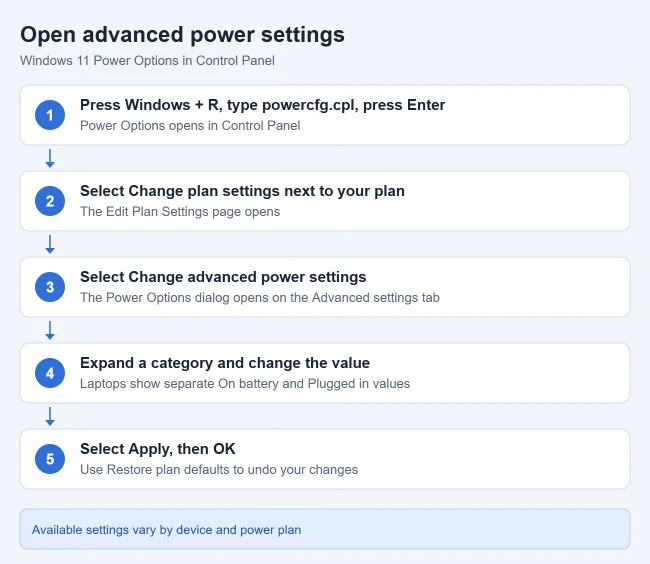
To change advanced power settings in Windows 11, press Windows + R, type powercfg.cpl, and press Enter. Select Change plan settings next to your power plan, then Change advanced power settings, adjust the values you want, and select OK. This is where you control options such as hard disk sleep, USB selective suspend, the lid and power button actions, wake timers, and processor power.
The steps work on Windows 11 Home and Pro. Changes apply to every user on the PC who uses that same plan. The settings you see depend on your hardware, so a desktop, a laptop, and a tablet can each show a different list.
How to Open and Change Advanced Power Settings
Step 1: Open Power Options
Press Windows + R, type powercfg.cpl, and press Enter. You can also search Start for Choose a power plan.
Expected result: the Control Panel Power Options page opens and shows your selected power plan.
Step 2: Edit your power plan
Select Change plan settings next to the plan that’s selected. Normally you want the active plan, because changes to other plans do nothing until you switch to them.
Expected result: the Edit Plan Settings page opens with display and sleep timers.
Step 3: Open the advanced settings
Select Change advanced power settings.
Expected result: a small Power Options dialog opens on the Advanced settings tab with a list of expandable categories.
Step 4: Change a setting
Select the plus sign next to a category, expand the setting, and choose a new value or type a number of minutes. On a laptop, each setting has separate On battery and Plugged in values. Desktops without a battery or UPS show just one value.
Step 5: Save your changes
Select Apply, then OK.
Expected result: the dialog closes and the new values take effect right away. To undo everything, reopen the dialog and select Restore plan defaults.
Advanced Power Settings Worth Knowing
The list varies by device, but these are the settings people change most often:
| Setting | What it does |
|---|---|
| Hard disk > Turn off hard disk after | Spins down idle drives. Set it to 0 (Never) if external drives go to sleep and cause pauses. |
| Sleep > Sleep after / Hibernate after | How long the PC waits before sleeping or hibernating. |
| Sleep > Allow wake timers | Lets scheduled tasks and updates wake the PC. Disable it if your PC wakes up on its own. |
| USB settings > USB selective suspend | Powers down idle USB ports. Disable it if USB devices disconnect randomly. |
| Power buttons and lid | What happens when you close the lid or press the power or sleep button. |
| PCI Express > Link State Power Management | Saves power on PCIe devices such as graphics cards and network adapters. |
| Processor power management | Minimum and maximum processor state and cooling policy. Leave these alone unless you know you need them. |
| Battery | Low and critical battery levels and what the laptop does when it reaches them. |
Power plans don’t control how full your battery charges. For that, see how to limit battery charge to 80% in Windows 11.
Settings You Can Change in the Settings App Instead
Many everyday power options have moved to Settings > System > Power & battery. Microsoft’s power settings guide lists Power Mode, Energy saver, and the screen, sleep, and hibernate timeouts there. Current Windows 11 builds also include Lid, power & sleep button controls on the same page.
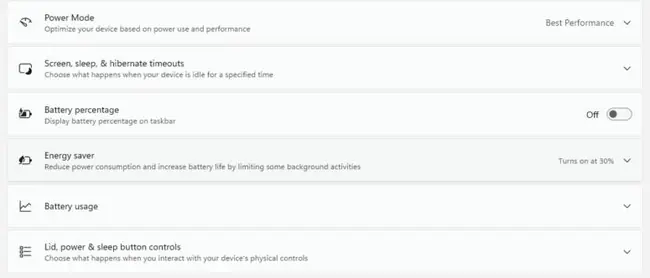
Use Settings for quick changes, and use the advanced dialog for anything the Settings page doesn’t offer, such as USB selective suspend, wake timers, or hard disk timeouts. For the basics, see how to adjust power and sleep settings or how to add Hibernate to the power menu. Fast Startup is set separately; see how to disable Fast Startup in Windows 11.
Power Plans vs. Power Mode
Windows 11 can include these plans: Balanced (the default and best for most people), Power saver, High performance, and Ultimate Performance, which is only available by default on Windows 11 Pro for Workstations and not on battery-powered systems. PC makers can add their own custom plans.
Many newer laptops that use Modern Standby show only the Balanced plan. On those PCs, use Power Mode in Settings (Best power efficiency, Balanced, or Best performance) to trade battery life for speed. Advanced settings still work; you just edit Balanced. Power Mode also affects how often a laptop’s fan runs; see how to control your laptop fan in Windows 11.
Change Power Settings With powercfg
The powercfg command lets you view and change the same settings from Terminal. A few useful examples:
powercfg /list
powercfg /change standby-timeout-ac 30
powercfg /change monitor-timeout-dc 5
The first command lists your plans and marks the active one with an asterisk. The second sets sleep to 30 minutes when plugged in, and the third turns off the screen after 5 minutes on battery. Microsoft’s powercfg reference covers every option.
Troubleshooting
- A setting you expected is missing: Windows hides some settings by default, and others only appear on certain hardware. Advanced users can unhide specific ones with
powercfg -attributesin an admin Terminal, as described in the powercfg reference. Only do this if you know the exact setting you need. - Only Balanced is listed: this is normal on Modern Standby PCs. Guides that suggest registry edits to disable Modern Standby aren’t supported by Microsoft and change how sleep works, so use Power Mode instead.
- Changes don’t seem to stick: make sure you edited the active plan. PC maker utilities such as battery or performance apps can also override Windows power settings.
- The PC still sleeps or shuts off unexpectedly: see how to stop your computer from turning off by itself.
Frequently Asked Questions
How do I undo my changes?
Open the advanced settings dialog and select Restore plan defaults and confirm. This resets only the selected plan.
Is there still an “Additional power settings” link in Settings?
Some older guides mention one on the Power & battery page, but current Windows 11 builds don’t show it. Use powercfg.cpl or search for Choose a power plan.
Do advanced power settings affect other users?
Yes. Power plans are shared, so everyone who uses the same plan on the PC gets your changes.
Will High performance make my PC faster?
It can keep the processor and screen at higher power, which may help some tasks, but it uses more energy and shortens battery life. On most PCs, Balanced with Power Mode set to Best performance is enough.
Can I create my own power plan?
Yes. In Power Options, select Create a power plan, pick a starting plan, name it, and then adjust its advanced settings.

Matthew Burleigh is the founder, head writer, and editor of Solve Your Tech, which he launched in 2012. He has written technology tutorials since 2008 and worked in IT since 2003, including small-business support, IT management, and consulting. He holds Bachelor’s and Master’s degrees in Computer Science from Arizona State University.
Matthew writes practical guides for Windows, iPhone and iPad, Microsoft Office, Outlook, Google apps, and Android. Solve Your Tech’s guides are tested on current devices or checked against official product documentation, with clear steps, sources, and update dates.
Read more about Matthew and how Solve Your Tech writes and updates its guides, or report a correction.