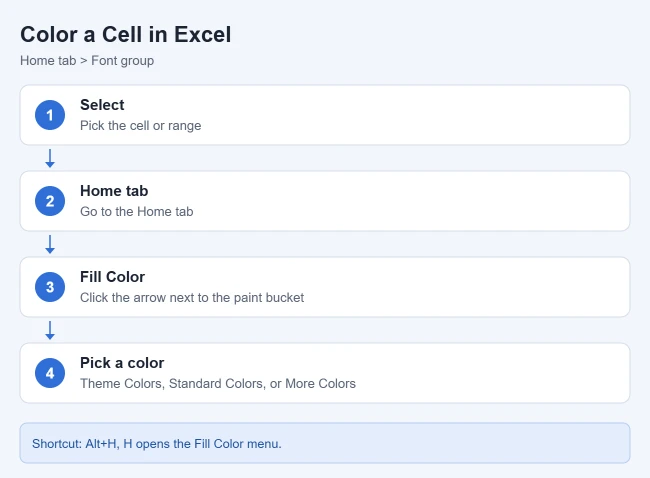
To color a cell in Excel, select it, go to the Home tab, click the arrow next to Fill Color (the paint bucket), and pick a color. You can also press Alt+H, H to open the same menu. To remove the color, open that menu again and choose No Fill.
This guide follows Microsoft’s support articles on adding or changing the background color of cells, applying or removing cell shading, cell styles, and conditional formatting. It covers solid fills, custom colors, patterns and gradients, coloring a whole sheet, removing color, printing colored cells, and two ways to color cells automatically or in one step.
How to Fill a Cell With Color in Excel
- Select the cell or range of cells you want to color.
- Go to the Home tab.
- Click the arrow next to Fill Color in the Font group, or press Alt+H, H.
- Pick a color under Theme Colors or Standard Colors.
Result: The selected cells fill with that color. Microsoft notes that you can then just click the Fill Color button itself to apply the most recently selected color to other cells.
Need a total for one of these fill colors? Our guide to counting colored cells in Excel explains Filter by Color with SUBTOTAL and when to count the condition behind a formatting rule.
How to Use a Custom Color
- Select the cells.
- Click the arrow next to Fill Color.
- Choose More Colors.
- Pick the color you want in the Colors dialog box, then click OK.
Result: The custom color is applied. Microsoft says Excel keeps up to 10 of your most recently selected custom colors under Recent Colors in the Fill Color menu, so you can reuse them quickly.
How to Color the Whole Sheet
Click the Select All button in the top-left corner of the sheet, where the row and column headings meet, then pick a fill color. Microsoft points out that this hides the gridlines. To keep the sheet easy to read, select the whole sheet, click the arrow next to Borders on the Home tab, and choose All Borders.
How to Fill Cells With a Pattern or Gradient
- Select the cells.
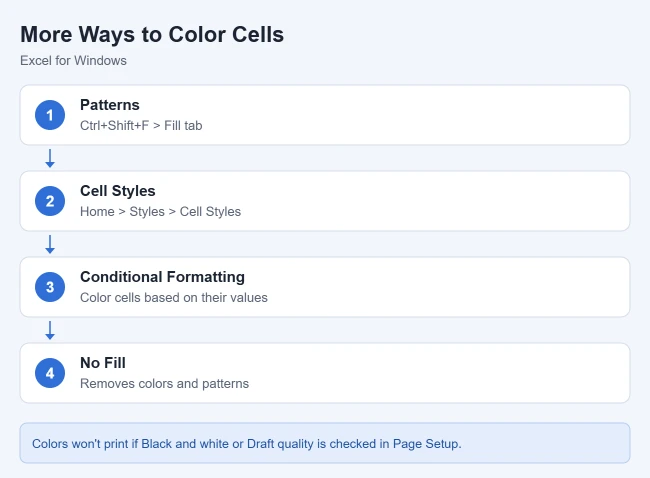
- Press Ctrl+Shift+F, or click the dialog box launcher in the corner of the Font group, to open Format Cells.
- On the Fill tab, choose a Background Color.
- For a two-color pattern, pick a Pattern Color and a Pattern Style. For a gradient, click Fill Effects instead.
- Click OK.
Result: The cells show the pattern or gradient. Microsoft notes that the Sample box in the dialog previews your choice before you apply it.
How to Remove Cell Color
- Select the colored cells.
- Click the arrow next to Fill Color.
- Choose No Fill.
Result: Microsoft says No Fill removes background colors, patterns, and fill effects from the selected cells.
Reusing a colored worksheet? Here’s how to clear the cell data while keeping its formatting.
How to Color Cells With a Cell Style
A cell style applies a saved set of formatting, including cell shading, in one step. Per Microsoft, select the cells, then on the Home tab, in the Styles group, click the Cell Styles dropdown arrow and choose a style. To take a style back off, open the same gallery and choose Normal under Good, Bad and Neutral. Microsoft notes that cell styles follow the workbook’s theme, so they change if you switch themes.
How to Color Cells Automatically Based on Their Values
- Select the cells.
- On the Home tab, click the arrow next to Conditional Formatting.
- Choose Highlight Cells Rules and pick a rule, such as Between, Equal To, or Text that Contains.
- Enter the value you want to use, then select a format.
Result: Cells that meet the rule are colored, and the color updates when the values change. Microsoft also describes a shortcut: select your data and click the Quick Analysis button that appears at the lower-right corner, or press Ctrl+Q, then choose an option on the Formatting tab.
For a custom condition or a whole row colored from one cell, see our guide to using IF formulas to color cells in Excel. It explains formula rules, dollar signs in cell references, and combining conditions.
Why Colored Cells Don’t Print in Color
Microsoft explains that cell colors won’t print if Black and white or Draft quality is turned on. Go to Page Layout, click the Page Setup dialog box launcher, and on the Sheet tab, clear both check boxes. If you don’t see colors in the print preview, check that a color printer is selected. You may also want to print gridlines in Excel for easier reading.
Frequently Asked Questions
Can I change the default fill color in Excel?
No. Microsoft says you can’t change the default fill color for a worksheet; all cells start with no fill. As a workaround, color a blank sheet the way you want and save it as an Excel Template with File > Save As.
Why can’t I see the colors I applied?
Microsoft notes that you may be working in high contrast mode, which can hide colors on screen.
More Excel Guides
- How to print gridlines in Excel
- How to calculate percentage in Excel
- How to clear data but keep formatting in Excel

Matthew Burleigh has been writing tech tutorials since 2008. His writing has appeared on dozens of different websites and been read hundreds of millions of times.
After receiving his Bachelor’s and Master’s degrees in Computer Science he spent several years working in IT management for small businesses. However, he now works full time writing content online and creating websites.
His main writing topics include iPhones, Microsoft Office, Google Apps, Android, and Photoshop, but he has also written about many other tech topics as well.