To put photos from your computer into the Photos app on your iPad, connect the iPad with a cable and sync a folder through Apple Devices > Photos on Windows or Finder > Photos on a Mac, or upload the pictures to iCloud Photos. If the iPad already uses iCloud Photos, use the iCloud method, because the cable sync controls don’t appear while it’s on.
These steps cover iPadOS 27, the current version in October 2026, and match recent earlier versions. They apply to Windows 11 and Windows 10 with the Apple Devices app or iTunes, Macs running macOS Catalina or later (Finder), and any computer with a web browser (iCloud.com).
Pick the Right Method
| Your situation | Best method | What happens to the photos |
|---|---|---|
| Windows PC, iCloud Photos off on the iPad | Apple Devices (or iTunes) | The PC manages them; later syncs update them |
| Mac, iCloud Photos off on the iPad | Finder | The Mac manages them; later syncs update them |
| A few photos from a Mac | AirDrop | Copies land in Photos; nothing syncs later |
| You want the same library on every device | iCloud Photos | Uploaded once, then available on all your devices |
| Photos on a USB drive or SD card | Photos app Import or the Files app | Copies land on the iPad |
If you only need documents or image files in the Files app rather than the Photos library, this article on transferring files from a PC to an iPad covers that. Copying a file into Files doesn’t add it to Photos on its own.
Going the other way? Here’s how to transfer photos from iPad to a flash drive without a computer.
Before You Start
- Check your space. Large libraries fill an iPad quickly, so check how much storage is left on your iPad before a big transfer.
- Keep the originals. Leave the pictures on your computer until you’ve checked them on the iPad.
- Read sync prompts carefully. If a prompt offers to erase or replace content, check which type of content it affects. Apple’s Finder syncing guide explains that Erase and Sync replaces that content on the iPad with what’s on the computer.
- Know whether iCloud Photos is on. On the iPad, go to Settings > your name > iCloud > Photos and look at Sync this iPad. If it’s on, skip to the iCloud section.
Transfer Photos From Windows With Apple Devices
Use this method when iCloud Photos is off on the iPad. The steps follow Apple’s Windows photo-syncing guide.
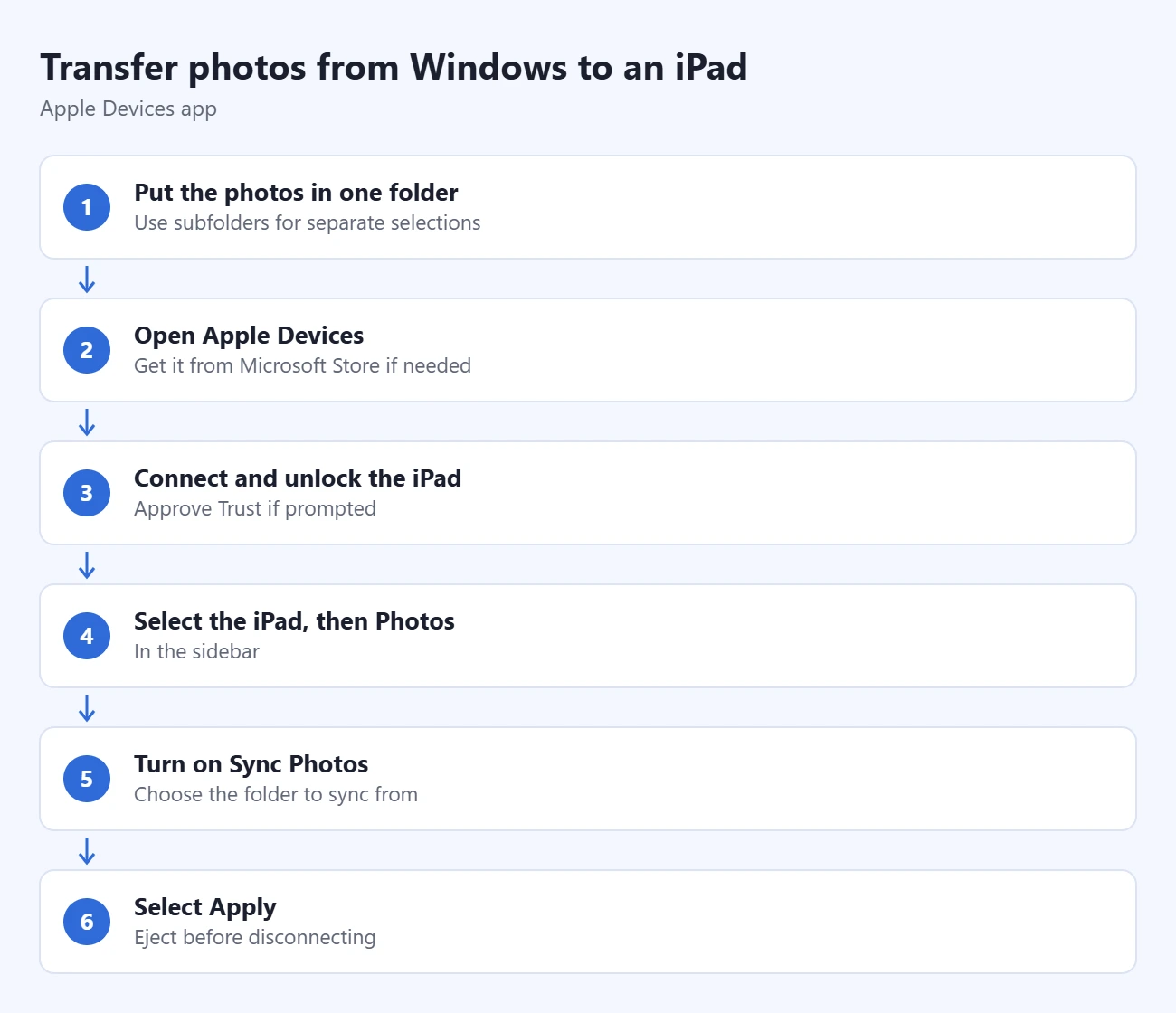
- Put the photos in one folder on the PC. You can use subfolders if you want to sync only some of them.
- Open the Apple Devices app. If you don’t have it, install it from the Microsoft Store using Apple’s installation instructions.
- Connect the iPad with a USB or USB-C data cable, unlock it, and tap Trust if it asks. The iPad appears in the sidebar.
- Select the iPad in the sidebar, then select Photos. If no sync options appear, iCloud Photos is on.
- Check Sync Photos to your device from and pick your folder from the pop-up menu.
- Choose All folders or Selected folders. For selected folders, check the ones you want. Check Include videos if you want videos too.
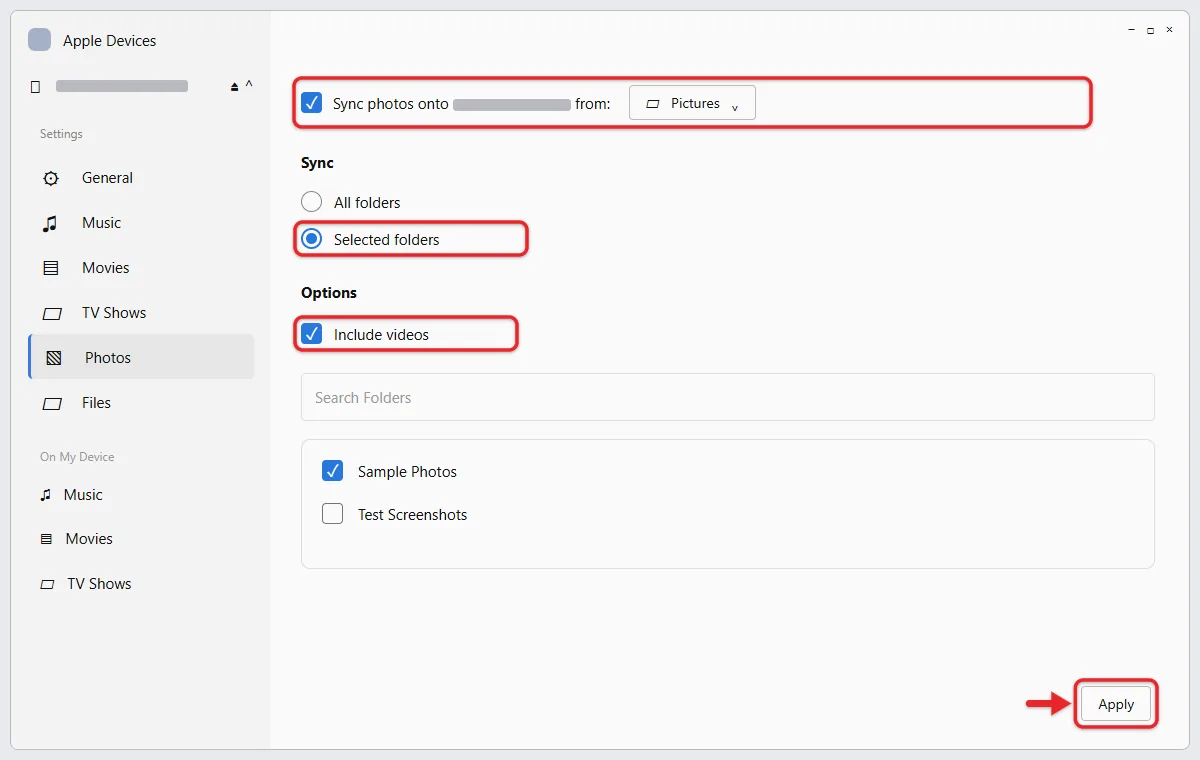
- Select Apply and wait for the sync to finish.
- Open Photos on the iPad and look for the pictures. If you can’t spot them, browse your iPad photos by date to jump to the month they were taken.
- Select the Eject button in the sidebar before you unplug the iPad.
Keep that source folder. Apple notes that deleting a synced picture from the PC removes it from the iPad at the next sync. To remove a folder from the iPad but keep it on the PC, uncheck it in the Photos sync settings and sync again. After the first cable sync, you can set up Wi-Fi sync for your iPad so later syncs work without plugging in.
If You Still Use iTunes
On a PC that still manages the iPad with iTunes, connect the iPad, open iTunes, click the device button near the top left, and choose Photos. Turn on Sync Photos, pick the source folder, choose all or selected folders, and click Apply. Apple’s iTunes photo guide notes that a missing Sync Photos option usually means iCloud Photos is on. Macs older than Catalina use iTunes the same way.
Transfer Photos From a Mac With Finder
This follows Apple’s Finder photo-syncing instructions for an iPad with iCloud Photos off.
- Connect and unlock the iPad, then open a Finder window.
- Click the iPad in the sidebar, and click Trust if asked.
- Click the Photos tab.
- Select Sync photos to your device from, then choose Photos or a folder on the Mac.
- Choose all photos and albums or only selected albums. You can also limit it to favorites and decide whether to include videos.
- Click Apply. If syncing doesn’t start, click Sync.
Syncing from the Photos app uses the Mac’s System Photo Library only. Live Photos synced this way lose their motion effect; iCloud Photos keeps it. To remove everything later, deselect Sync Photos, click Remove photos, and click Apply.
Send a Few Photos From a Mac With AirDrop
For a handful of pictures, AirDrop skips syncing entirely. Apple’s Mac AirDrop guide says both devices need Wi-Fi and Bluetooth on and must be within about 30 feet.
- On the iPad, open Control Center, touch and hold the connectivity controls, tap AirDrop, and choose Contacts Only or Everyone for 10 Minutes.
- On the Mac, select the photos in Finder or the Photos app.
- Click the Share button and choose AirDrop, or drag the files onto the iPad in Finder’s AirDrop window.
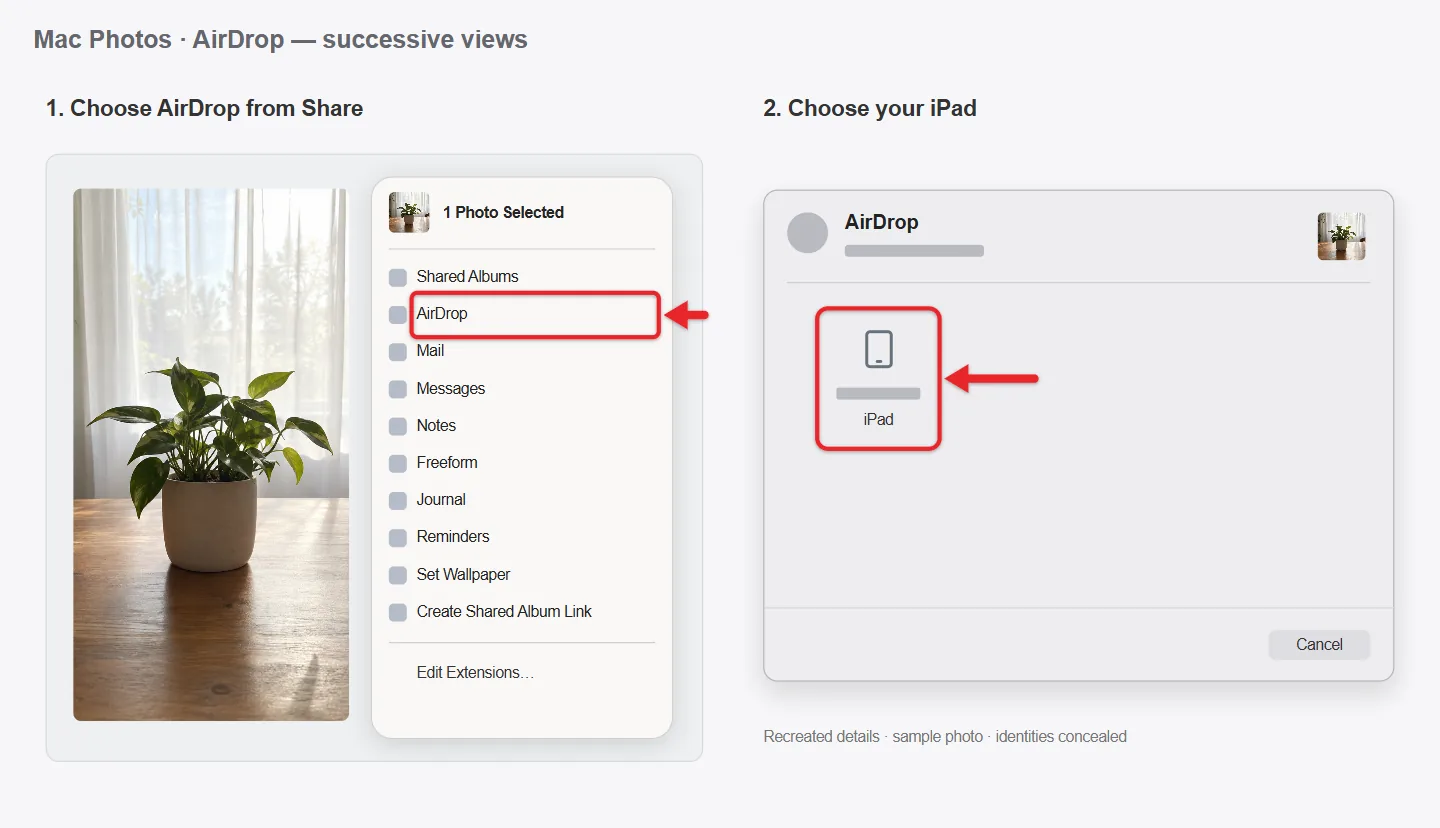
- Click the iPad’s name. If the iPad shows an AirDrop code, enter it on the Mac.
- On the iPad, open Photos to find the pictures.
Apple’s AirDrop article notes that Everyone for 10 Minutes switches back to Contacts Only afterward.
Upload Through iCloud Photos From Any Computer
This works without a cable. You need the same Apple Account on the iPad and computer, an internet connection, and enough iCloud storage. Turning on iCloud Photos also uploads the iPad’s existing photos and downloads your existing iCloud photos to the iPad.
- On the iPad, go to Settings > your name > iCloud > Photos and turn on Sync this iPad, as Apple’s iCloud Photos setup guide shows.
- On the computer, go to icloud.com/photos and sign in.
- Select Library, click the upload button, then Choose Files. Pick the pictures and click Upload.
- Open Photos on the iPad and give the library time to sync.
These steps follow Apple’s iCloud.com upload instructions, and the supported upload formats include JPG, HEIF, PNG, GIF, and WEBP. On Windows you can also install iCloud for Windows, turn on iCloud Photos, and drag pictures onto iCloud Photos in File Explorer, as Apple’s Windows upload guide describes.
Don’t delete cloud pictures to free space on one device. With iCloud Photos, deleting a picture on one device deletes it everywhere, as Apple’s photo deletion guide explains. Keep a separate backup.
If you do need to clear pictures from the tablet alone, here is how to delete photos from an iPad but not other devices.
Copy Photos From a USB Drive or SD Card
If the photos are already on a flash drive or memory card, the iPad can read them directly. A USB-C iPad takes a USB-C drive or a card reader; a Lightning iPad needs Apple’s Lightning to USB Camera Adapter.
- Connect the drive or card reader to the iPad.
- Open Photos and tap Import.
- Tap Import All, or tap the pictures you want and then Import Selected, following Apple’s import instructions.
- Choose whether to keep or delete the items on the drive. Keep them until you’ve checked the iPad.
If Import doesn’t appear, open Files, find the drive under Locations, select the pictures, tap Share, and choose the save-image option. This article on accessing a USB drive on iPad covers drive formats and copying files.
- No Photos sync controls: iCloud Photos is on. Use the iCloud method rather than turning it off.
- Cloud pictures haven’t arrived: confirm the Apple Account matches and the upload finished. In Photos, tap your account picture or initials at the top of the screen to see the sync status.
- Syncing paused: low battery, Low Power Mode, heat, or full iCloud storage can pause it. Connect to power and Wi-Fi and wait, possibly overnight. Apple’s syncing troubleshooting guide advises against toggling iCloud Photos off and on.
- The Trash button is gray: photos synced from a computer can’t be deleted on the iPad. Uncheck that album or folder in the computer’s sync settings and sync again. The originals stay on the computer.
- The iPad doesn’t appear on the computer: unlock it, tap Trust, try another cable or port, and restart both devices.
Frequently Asked Questions
Can I transfer photos to an iPad without iTunes?
Yes. On Windows, the Apple Devices app handles syncing, and iCloud Photos, iCloud.com, and a USB drive need no sync app at all. Macs use Finder.
Will syncing from a computer erase the photos already on my iPad?
No. Photos you took on the iPad or saved there stay put. A sync only changes the albums that came from the computer. If you later sync with a different computer, the iPad may offer to replace those synced albums, so read the prompt first.
Do photos synced from my computer upload to iCloud?
No. Photos added from a computer aren’t uploaded to iCloud Photos. Use the iCloud method if you want them on every device.
Can I use both iCloud Photos and computer syncing?
No. While iCloud Photos is on, the iPad hides the computer sync controls.
To keep your iPhone photos on the iPad too, here’s how to sync photos between iPhone and iPad with iCloud.

Matthew Burleigh is the founder, head writer, and editor of Solve Your Tech, which he launched in 2012. He has written technology tutorials since 2008 and worked in IT since 2003, including small-business support, IT management, and consulting. He holds Bachelor’s and Master’s degrees in Computer Science from Arizona State University.
Matthew writes practical guides for Windows, iPhone and iPad, Microsoft Office, Outlook, Google apps, and Android. Solve Your Tech’s guides are checked step by step against the device or app maker’s own documentation and tested on his own devices whenever he has the hardware or software, with clear steps, sources, and update dates.
Read more about Matthew and how Solve Your Tech writes and updates its guides, or report a correction.