To transfer files from a Windows PC to an iPad with a cable, connect the iPad, open the Apple Devices app, select your iPad, click Files, choose an app, and click Add File. To move files without a cable, upload them to iCloud Drive on the PC and open them in the Files app on the iPad.
These steps apply to iPadOS 27, the current version, and iPadOS 26, with Windows 11. Apple Devices also runs on Windows 10, but Microsoft ended Windows 10 support on October 14, 2025. Windows doesn’t show an iPad as a normal drive in File Explorer, so you copy files into an app, sync them through the cloud, or carry them on a USB drive. Pick the method that fits:
- Apple Devices (USB cable or Wi-Fi): best for a few documents, PDFs or videos you want in one app, with no internet needed.
- iCloud Drive: best when you want files to show up in the Files app and stay in sync.
- USB flash drive: best for large batches when you don’t want to use a cable to the PC or the cloud.
If you want pictures in the Photos app, follow the steps for transferring photos from a computer to an iPad instead. Photos sync works differently from file transfers.
Before You Start
- Install Apple Devices from the Microsoft Store. If you still use iTunes, see the iTunes section below.
- Use a USB cable that carries data, not a charge-only cable. The one that came with the iPad works.
- Update the iPad to the latest version of iPadOS if you can.
- Make sure the iPad has an app that can open the file type, such as Files, Pages, Numbers, Books or VLC.
- Keep a copy of important files on the PC until you confirm they arrived.
Transfer Files With the Apple Devices App
- Connect the iPad to the PC with the USB cable.
- Unlock the iPad. If you see Trust This Computer?, tap Trust and enter your passcode.
- Open Apple Devices on the PC and click your iPad in the sidebar.
- Click Files. You’ll see a list of iPad apps that accept files.
- Click the app you want the files to go to.
- Click Add File, select one or more files on your PC, and click Add. You can also drag files from File Explorer onto the app name.
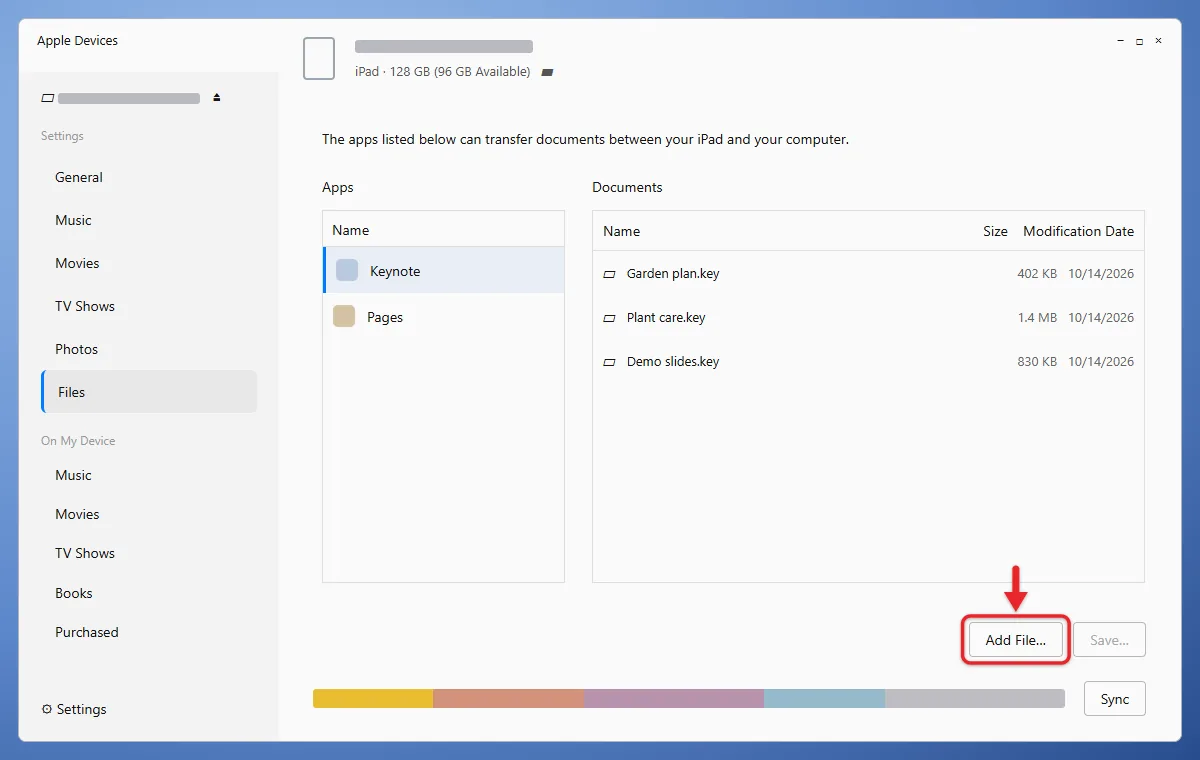
- Wait for the copy to finish, then click the Eject button next to your iPad before you unplug it.
- On the iPad, open the app you picked. The files appear in its document list. For apps that show up in the Files app, look under On My iPad and the app’s folder.
Apple’s File Sharing instructions list the requirements, and its Apple Devices transfer guide notes that files you add this way copy right away, without a separate sync. Apple also says a shared file opens only in the app you copied it to.
If no Files section appears, none of the apps on your iPad support file sharing. Install an app that does, such as Pages, a PDF reader or a media player like VLC, then reconnect.
To remove a file later, select the app under Files in Apple Devices, select the file, press Delete, and confirm. Deleting the app on the iPad also deletes the files you added to it, so copy anything important back to the PC first.
Use Apple Devices over Wi-Fi
After one cable connection, you can skip the cable. Select your iPad in Apple Devices, click General, check Show this iPad when on Wi-Fi, and click Apply. From then on, the iPad appears in the sidebar whenever both devices are on the same Wi-Fi network, as Apple’s Wi-Fi sync steps describe. Large files copy faster over the cable.
If you still use iTunes
On older Windows setups that use iTunes, click the device button near the top left of the iTunes window, click File Sharing, select an app, click Add File, choose your files, and click Add. Apple’s iTunes file transfer steps cover this route.
Transfer Files Wirelessly With iCloud Drive
iCloud Drive puts files in the Files app, where any app can open them. Both devices need internet access and the same Apple Account, and the files count against your iCloud storage.
- On the PC, go to iCloud.com in a web browser and sign in with the Apple Account you use on the iPad.
- Open Drive.
- Click the File Upload button in the Drive toolbar, select your files, and click Upload. You can also drag files into the browser window. Wait for each upload to finish.
- On the iPad, open Settings, tap your name, tap iCloud, tap Drive (or iCloud Drive), and make sure Sync this iPad is on.
- Open the Files app, tap Browse (or open the sidebar), and tap iCloud Drive. Your uploaded files are there.
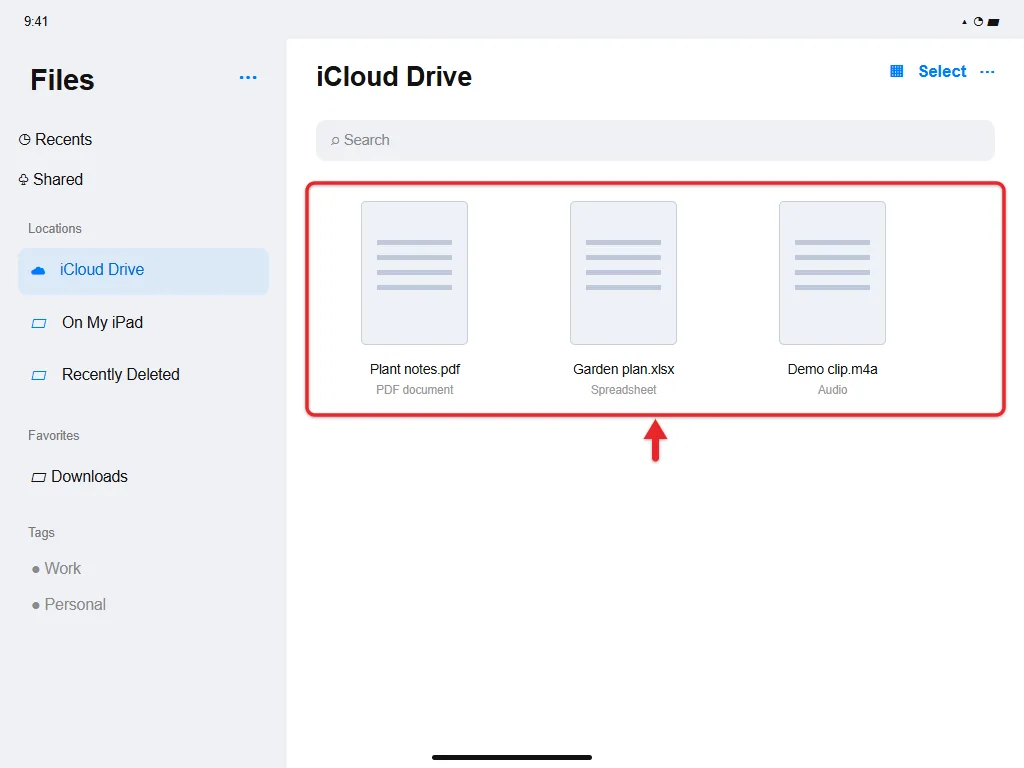
Apple explains uploading files on iCloud.com and setting up iCloud Drive. If the File Upload button is missing, you may be in the Recently Deleted or Shared view; go back to Drive.
If you move files often, install iCloud for Windows from the Microsoft Store and turn on iCloud Drive in it. The current version needs Windows 11 or later. iCloud Drive then shows up in File Explorer, so you can drag files into it like any other folder.
Goodnotes notebooks work differently: to edit the same notebooks on both devices, sync Goodnotes between your iPad and Windows instead of copying files.
To use a file without an internet connection later, touch and hold it in Files and choose Download Now or Keep Downloaded, depending on what your iPad offers. OneDrive, Google Drive and Dropbox work the same way: upload on the PC, then open the file in that service’s iPad app or in the Files app.
Transfer Files With a USB Flash Drive
- Copy the files from your PC to the flash drive, then right-click the drive in File Explorer and choose Eject.
- Plug the drive into the iPad. A USB-C drive plugs straight into a USB-C iPad; older Lightning iPads need an adapter, and some drives need extra power.
- Open Files, tap Browse, and tap the drive under Locations.
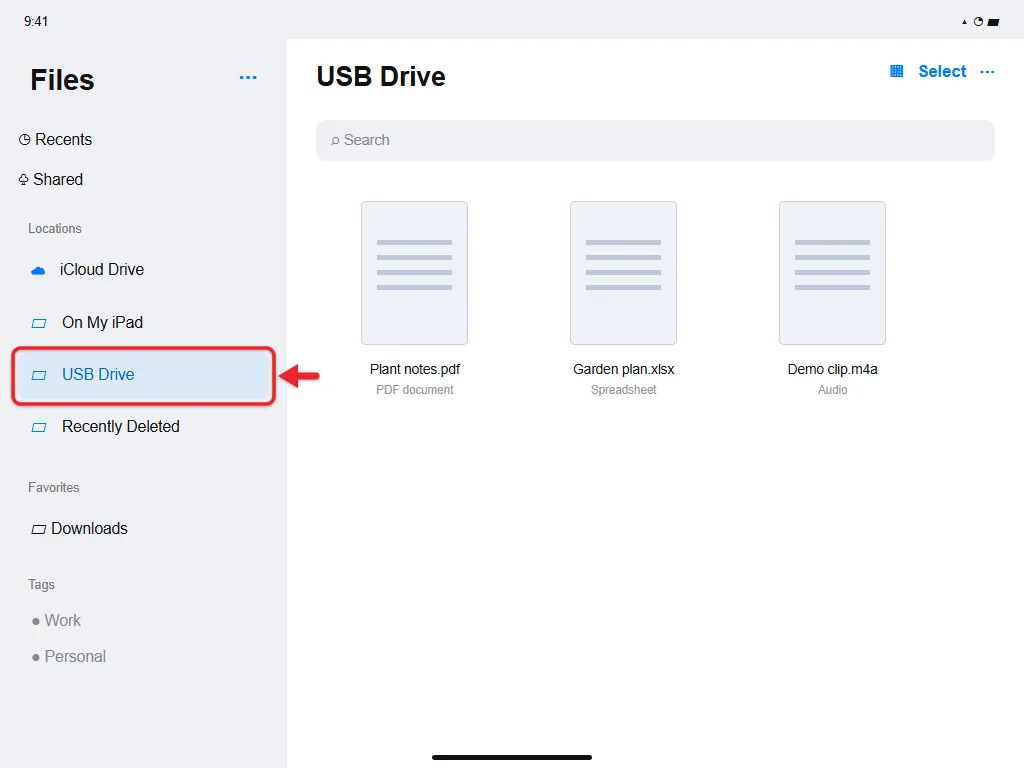
- Open a file to view it, or touch and hold it, tap Copy, then paste it into a folder under On My iPad or iCloud Drive so it stays on the iPad after you remove the drive.
Apple’s external storage guide covers using USB drives with the Files app. Supported formats are APFS, macOS Extended, exFAT, FAT32 and FAT. Use exFAT, which both Windows and iPad can read and write and which handles files larger than 4GB. NTFS, the usual format for Windows internal drives, isn’t on Apple’s list, so an NTFS drive may not work on the iPad.
For more on this method, here’s how to access a USB drive on iPad.
To reformat an NTFS flash drive on a Windows 11 PC, follow the steps to format a USB drive as FAT32, or choose exFAT in the same Format window.
Formatting erases the drive. Don’t reformat a drive that holds your only copy of the files; copy them somewhere safe first.
Troubleshooting
The iPad doesn’t appear in Apple Devices. Unlock the iPad, tap Trust if asked, and try another USB port and a different cable. Update Apple Devices from the Microsoft Store and restart both devices. Apple’s device recognition checks list further steps.
I can’t find the file on the iPad. With Apple Devices, look inside the app you chose, not in Downloads. With iCloud Drive, make sure the upload finished on the PC and that both devices use the same Apple Account. If you downloaded a file in Safari, here’s how to find downloads on iPad.
The file won’t open. The app you copied it to may not support that format. Copying a file doesn’t convert it, and Windows programs (.exe files) can’t run on an iPad.
The flash drive doesn’t show up. Check that it’s formatted as exFAT or FAT32 and try a powered USB hub or adapter.
Skip third-party “iPad file transfer” programs from unknown sites. Apple Devices, iCloud and a USB drive do the job for free without handing your device data to another company.
Frequently Asked Questions
Can I transfer files from a PC to an iPad without iTunes?
Yes. On Windows 11 and Windows 10, the Apple Devices app replaces iTunes for file transfers. You can also skip both and use iCloud Drive, another cloud service or a USB drive.
Can I transfer files from a PC to an iPad without a cable?
Yes. Upload the files to iCloud Drive, OneDrive, Google Drive or Dropbox on the PC, then open them on the iPad. Apple Devices also works over Wi-Fi after you turn on Wi-Fi sync once with a cable. Emailing a file to yourself works for small files.
Why can’t I see my iPad in File Explorer?
Windows shows an iPad only as a camera, for importing photos and videos from it. To send other files to the iPad, use Apple Devices, the cloud or a USB drive.
Is there a size limit?
Apple Devices and USB drives are limited mainly by free space on the iPad, plus the 4GB per-file limit of FAT32 drives. iCloud Drive is limited by the free space in your iCloud storage plan.

Matthew Burleigh is the founder, head writer, and editor of Solve Your Tech, which he launched in 2012. He has written technology tutorials since 2008 and worked in IT since 2003, including small-business support, IT management, and consulting. He holds Bachelor’s and Master’s degrees in Computer Science from Arizona State University.
Matthew writes practical guides for Windows, iPhone and iPad, Microsoft Office, Outlook, Google apps, and Android. Solve Your Tech’s guides are checked step by step against the device or app maker’s own documentation and tested on his own devices whenever he has the hardware or software, with clear steps, sources, and update dates.
Read more about Matthew and how Solve Your Tech writes and updates its guides, or report a correction.