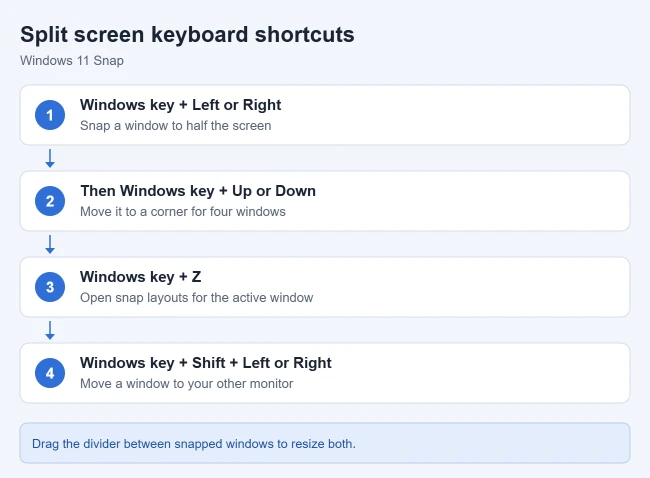
To split your screen in Windows 11, press Windows key + Left arrow to snap the active window to the left half, then pick another window from the thumbnails to fill the right half. You can also drag a window to the left or right edge of the screen, or hover over a window’s maximize button and choose a snap layout.
Windows calls this feature Snap. It can arrange two, three, or four windows at once, depending on your screen size. To place a single window in the middle instead, center it in Windows 11.
Method 1: Use the Keyboard
- Click the first window you want to use.
- Press Windows key + Left arrow (or Right arrow). The window fills that half of the screen.
- Windows shows thumbnails of your other open windows on the empty side. Click the one you want there.
Method 2: Drag a Window to the Edge
- Click and hold the window’s title bar.
- Drag it to the left or right edge of the screen until an outline appears, then let go. Drag it into a corner instead to fill a quarter of the screen.

- Pick a window from the thumbnails on the other side.
Method 3: Use Snap Layouts
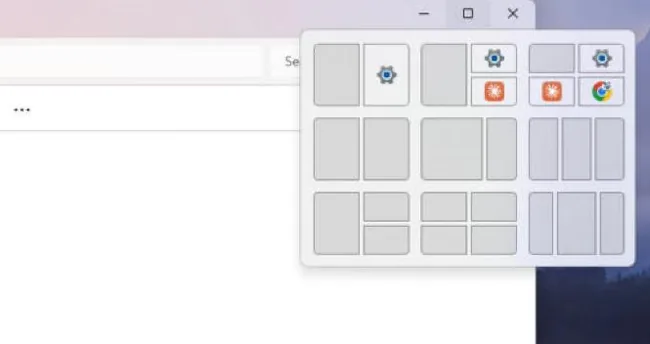
- Hover the mouse over the window’s maximize button (the square next to the X), or press Windows key + Z.
- Choose a zone in one of the layouts. Windows offers two-, three-, and four-window layouts, depending on your screen size.
- Fill the remaining zones by clicking the windows you want.
To resize a split, drag the divider between the windows. Both windows adjust together, so no space is wasted.
There’s no keyboard shortcut for dragging the divider. With the keyboard, press Windows key + Z and pick a layout with uneven zones, or hold the Windows key and press the arrow keys to move a snapped window between halves and corners.
Method 4: Drag a Window to the Top of the Screen
- Drag a window by its title bar toward the top center of the screen.
- A snap bar drops down with the same layouts.

- Release the window over the zone you want, then fill the other zones.
Windows remembers the arrangement as a snap group. Hover over one of those apps on the taskbar to bring the whole group back at once. Microsoft describes all of these in its Snap guide.
Need a second copy of the same app to snap? Here is how to open multiple windows in Windows 11.
Split the Screen Into Three or Four Windows
- Snap the first window to one side with Windows key + Left arrow.
- While holding the Windows key, press Up arrow or Down arrow to move it into the top or bottom corner.

- Repeat with the other windows, or use the three- or four-zone snap layout from the maximize button.
Split Windows Across Two Monitors
Each monitor has its own snap zones. To move a window to the other monitor, press Windows key + Shift + Left arrow or Right arrow, then snap it there with Windows key + Left or Right arrow. You can also drag a window to the edge of the second screen.
A window that lands beyond the edge of every screen can be moved back into view.
Stop Split Screen or Turn Off Snap
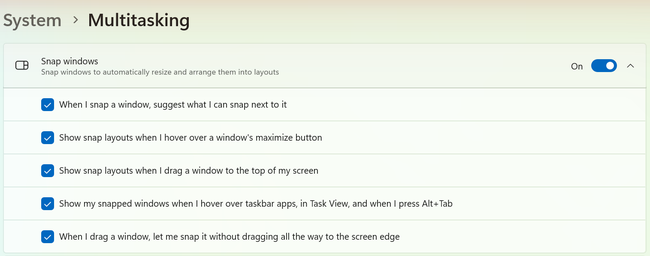
To stop the current arrangement, click the desired window’s Maximize button, or drag its title bar away from the snapped edge to restore a floating window. This changes that window’s arrangement while leaving other apps open. To stop future automatic snapping, open Settings > System > Multitasking and switch Snap windows Off. Switch it On again to restore the feature.
You can instead leave Snap on and change its individual checkboxes, such as the maximize-button layout suggestions. Microsoft’s Snap settings guide explains these controls. Turning Snap off does not close your apps or remove a second monitor; display duplication and extension are separate settings.
If Split Screen Isn’t Working
- Open Settings > System > Multitasking.
- Turn on Snap windows.
- Expand it and check the options you want, such as showing snap layouts when you hover over the maximize button or drag a window to the top of the screen.
If only one app won’t snap, it may have a fixed window size; some games, installers, and dialog boxes can’t be resized. On small screens, Windows shows fewer layouts. For working with more windows than fit side by side, try switching between virtual desktops.
Split the Screen in Windows 10
Windows 10 reached end of support in October 2025, but it uses the same keyboard shortcuts. Click the first app and press Windows + Left arrow, then choose the second app from Snap Assist, or drag title bars to opposite edges. For four windows, press Windows + Left or Right arrow and then Windows + Up or Down arrow to move each window into a corner. Windows 10 doesn’t have the Snap Layouts menu on the maximize button. If snapping doesn’t work, open Settings > System > Multitasking and turn on Snap windows.
Frequently Asked Questions
How do I split the screen into four windows?
Snap a window to a corner with Windows key + Left arrow and then Windows key + Up arrow, or choose the four-zone snap layout from the maximize button.
How do I undo a split screen?
Maximize a window by double-clicking its title bar or selecting its Maximize button, or drag the window away from the edge.
Can I make the split uneven, like 70/30?
Yes. After snapping two windows, drag the divider between them. Some snap layouts also start with uneven zones.

Matthew Burleigh is the founder, head writer, and editor of Solve Your Tech, which he launched in 2012. He has written technology tutorials since 2008 and worked in IT since 2003, including small-business support, IT management, and consulting. He holds Bachelor’s and Master’s degrees in Computer Science from Arizona State University.
Matthew writes practical guides for Windows, iPhone and iPad, Microsoft Office, Outlook, Google apps, and Android. Solve Your Tech’s guides are checked step by step against the device or app maker’s own documentation and tested on his own devices whenever he has the hardware or software, with clear steps, sources, and update dates.
Read more about Matthew and how Solve Your Tech writes and updates its guides, or report a correction.