To put an iPad in DFU mode, connect it to a Mac or PC, then use a timed button sequence: on an iPad with a Home button, hold Home and the top button for about 8 seconds, then release the top button and keep holding Home.
On an iPad without a Home button, press and release the volume button nearest the top button, then the farthest one, hold the top button until the screen goes black, then hold the top button and the farther volume button together for 5 seconds before releasing only the top button. The iPad’s screen stays black while your computer reports that it found an iPad that needs to be restored.
These steps cover iPads running iPadOS 27 and older iPads on iPadOS 26 or earlier. The DFU sequence doesn’t depend on the iPadOS version. You choose it by whether your iPad has a round Home button on the front, not by model name.
What DFU Mode Is and When to Use It
DFU stands for Device Firmware Update. It’s a deeper state than the regular recovery mode. In recovery mode, the iPad shows a picture of a computer and a cable, and your computer can offer to Update iPadOS without erasing anything. In DFU mode, the iPad screen stays completely black and the only option is a full Restore, which reinstalls iPadOS and its firmware from scratch. Apple names DFU mode in its guide to reviving an iPhone or iPad with Apple Configurator, but its consumer help pages only give recovery mode steps.
Use DFU mode only when recovery mode doesn’t work, such as when the iPad keeps getting stuck on the Apple logo or a recovery mode restore keeps failing. For a frozen screen, start with a force restart, and for most startup problems, try Apple’s recovery mode steps first. If the iPad still starts and only needs a newer version of iPadOS, install it from Settings instead, as shown in how to find and install a software update on iPad.
Which Steps Fit Your iPad
| Your iPad | Examples | Steps to use |
|---|---|---|
| Round Home button below the screen | iPad (9th generation and earlier), iPad Air (3rd generation and earlier), iPad mini (5th generation and earlier), iPad Pro models from 2017 and earlier | Home button steps |
| No Home button | iPad (10th generation and later, including iPad (A16)), iPad Air (4th generation and later), iPad mini (6th generation and later), iPad Pro (2018 and later) | No Home button steps |
Some iPads without a Home button, like the iPad Air and iPad mini, still have Touch ID, but it’s built into the top button, so they use the no-Home-button steps. If the iPad still turns on, you can see its model name in Settings > General > About. Apple’s Identify your iPad model page matches model numbers to names.
Before You Start
A DFU restore erases everything on the iPad. Photos, apps, and settings that aren’t in an iCloud or computer backup will be lost. Entering DFU mode by itself doesn’t erase anything; the data is only wiped when you click Restore. If the iPad still turns on, back it up first.
To make a fresh copy before you start, turn on iCloud Backup on iPad.
You’ll need:
- A Mac or Windows PC with internet access. The computer downloads a fresh copy of iPadOS during the restore.
- The right app. On a Mac running macOS Catalina or later, use Finder. On a Windows PC, use the Apple Devices app from the Microsoft Store (iTunes also works if you still have it). On a Mac running macOS Mojave or earlier, use iTunes. Update the Mac or the app first.
- A USB data cable that fits your iPad (USB-C or Lightning). Some charge-only cables won’t work, so use the one that came with the iPad if you can.
- Your Apple Account password. After the restore, Activation Lock asks for the Apple Account that was signed in on the iPad.
Two more things to know. A restore installs the newest version of iPadOS that Apple offers for that iPad, so you can’t use DFU mode to keep an older version. And if the iPad has liquid damage or the restore keeps failing, the problem is likely hardware, and repeated attempts won’t fix it.
Put an iPad With a Home Button in DFU Mode
- Connect the iPad to your computer with the USB cable and open Finder or the Apple Devices app.
- Press and hold the Home button and the top button at the same time. The screen goes black.
- Keep holding both buttons for about 8 seconds, then release the top button only. Keep holding Home.
- Keep holding Home for about 10 more seconds, or until your computer shows a message that it has detected an iPad in recovery mode.
- Release Home. The iPad’s screen should stay black.
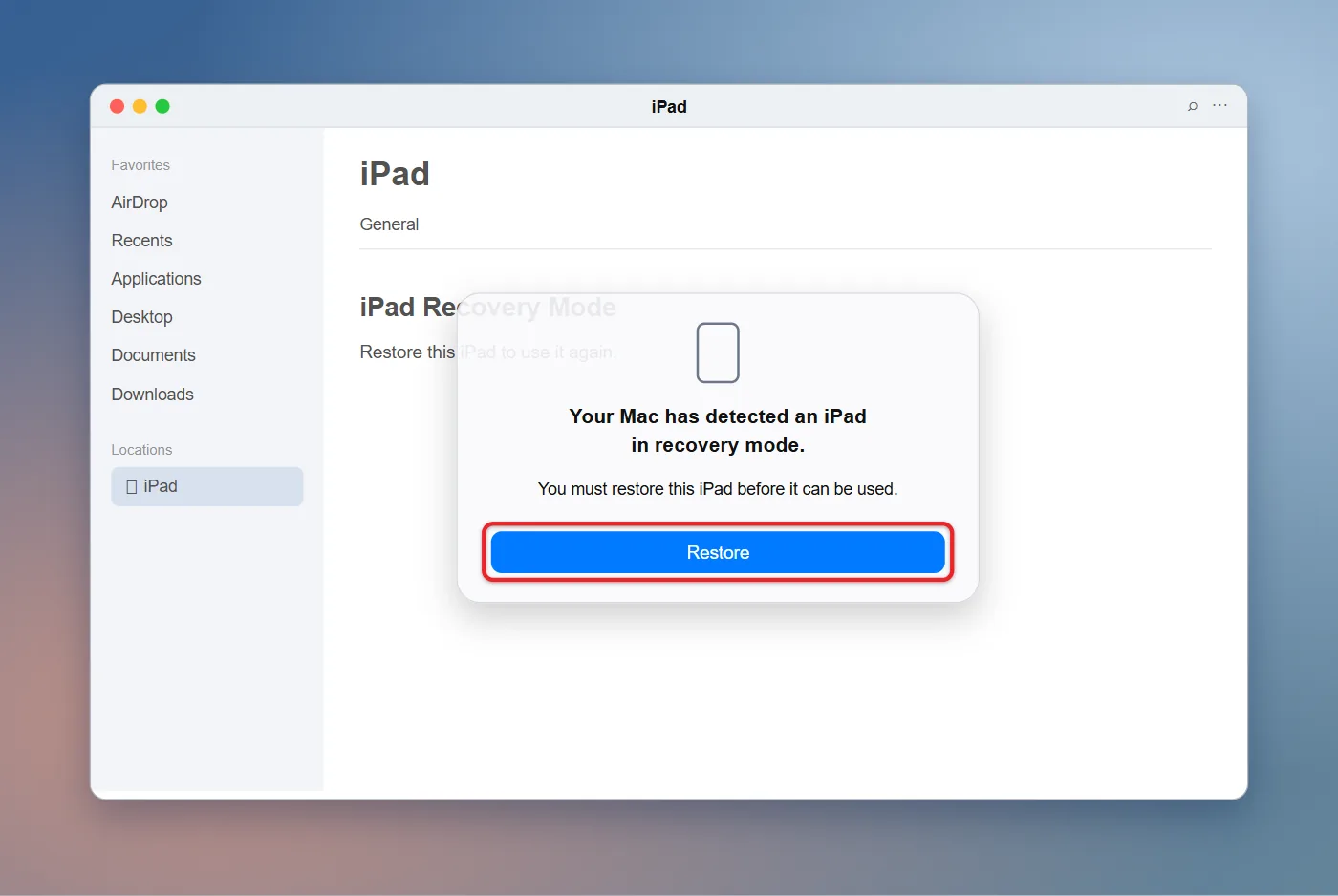
If the Apple logo appears, you held the top button too long. If the computer-and-cable image appears, the iPad went into recovery mode instead. In either case, start again from step 2. A missed attempt does no harm; the iPad just starts up normally.
Put an iPad Without a Home Button in DFU Mode
- Connect the iPad to your computer with the USB cable and open Finder or the Apple Devices app.
- Quickly press and release the volume button closest to the top button.
- Quickly press and release the volume button farthest from the top button.
- Press and hold the top button until the screen turns black.
- As soon as it’s black, keep holding the top button and also press and hold the farther volume button. Hold both for about 5 seconds.
- Release the top button but keep holding the farther volume button for about 10 more seconds, or until your computer reports that it found an iPad.
- Release the volume button. The iPad’s screen should stay black.
Use the physical position of the buttons, not the “up” and “down” labels. On some iPads both volume buttons sit on the top edge, and on models with dynamic volume buttons the volume direction changes as you rotate the iPad, as Apple explains in its iPad buttons guide. The button you want in steps 3 and 5 is always the one farther from the top button.
These timings follow iFixit’s published DFU mode guide for iOS devices. Apple doesn’t publish iPad DFU steps itself, so if your first attempt fails, adjust the hold times by a second or two. It often takes more than one try.
How to Tell You’re in DFU Mode
- DFU mode: The iPad screen is completely black, and Finder or Apple Devices says it found an iPad in recovery mode that must be restored. Only a Restore button is offered. The message says recovery mode; that’s normal.
- Recovery mode: The iPad shows a computer and a cable on screen, and your computer offers both Update and Restore. If you land here, you can try Update first, since it keeps your data.
- Not in either mode: The Apple logo or the Lock Screen appears, so the attempt didn’t work.
- Black screen, but the computer shows nothing: The iPad may be off rather than in DFU. Check the cable and connection, then try again.
Restore the iPad From DFU Mode
- In Finder, click the iPad in the sidebar. In Apple Devices, it appears in the sidebar too.
- Click Restore in the message that appears, then click Restore and Update (or Restore) to confirm.
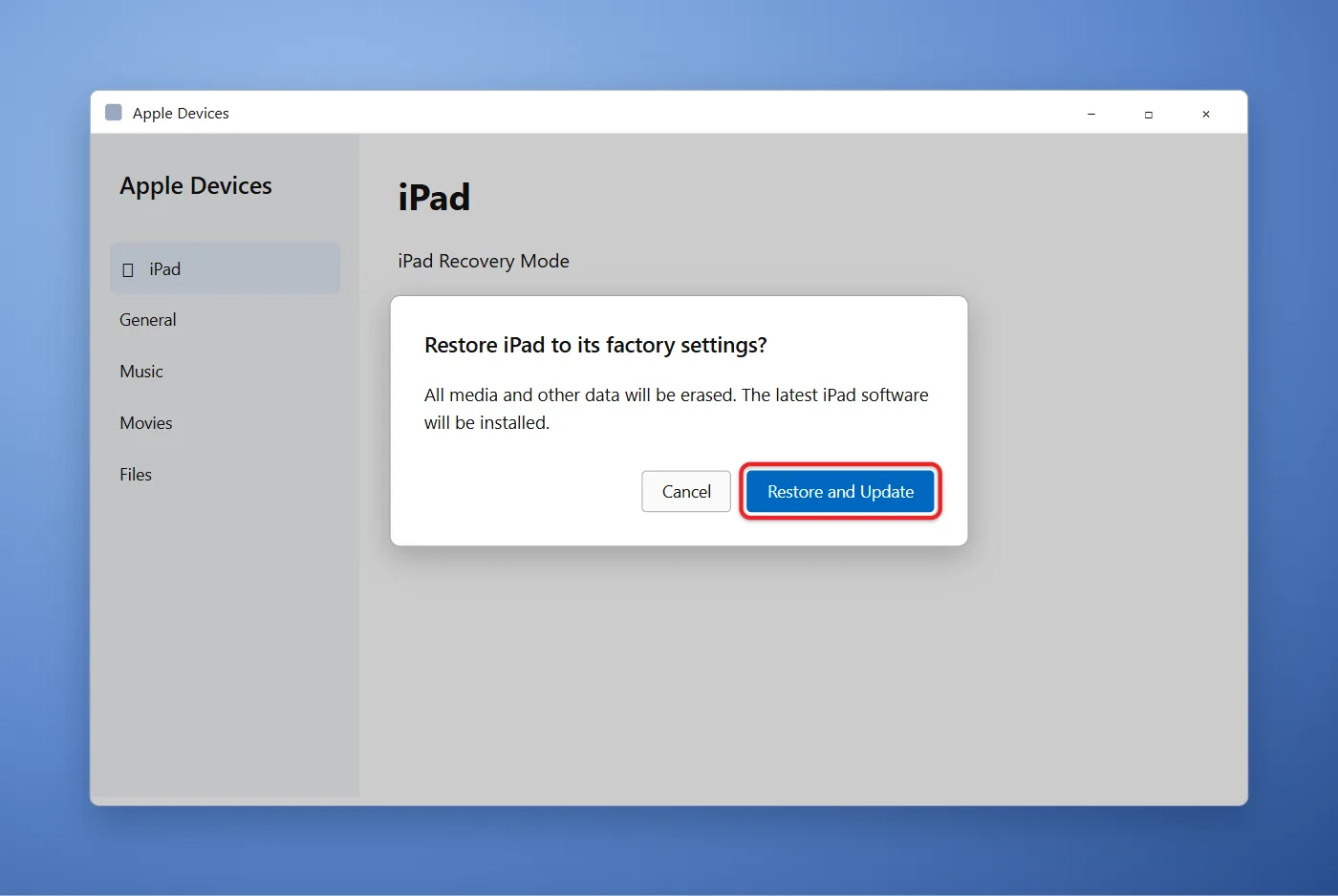
- Wait while the computer downloads iPadOS and installs it. Keep the cable connected. The iPad shows an Apple logo and a progress bar near the end.
- When the iPad restarts to the Hello screen, set it up and restore your backup if you have one.
If the download takes longer than 15 minutes, the iPad may leave DFU mode on its own. Let the download finish, then enter DFU mode again and click Restore.
During setup, the iPad checks with Apple for Activation Lock. If it asks for an Apple Account, enter the one that was signed in before the restore. For a used iPad, only the previous owner can remove it from their account. The setup screens to bring your data back are the same ones described in how to restore an iPhone from a backup.
How to Exit DFU Mode Without Restoring
If you change your mind, force restart the iPad using Apple’s force restart steps:
- iPad with a Home button: Press and hold Home and the top button until the Apple logo appears.
- iPad without a Home button: Press and release the volume button nearest the top button, press and release the farther one, then press and hold the top button until the Apple logo appears.
If DFU Mode Isn’t Working
- The computer doesn’t see the iPad. Try a different USB port and cable, plug straight into the computer rather than a hub, and make sure macOS or the Apple Devices app is up to date. Restart the computer and try again.
- The restore fails with an error. Write down the error number, restart the computer, and try again with a different cable. Repeated errors can point to a hardware problem.
- A button is broken. You can’t enter DFU mode without working buttons. Contact Apple Support or an Apple Authorized Service Provider.
- The iPad is managed by a school or business. Ask your IT team. They may use Apple Configurator on a Mac to revive or restore it.
If you only need to erase the iPad and it still turns on, you don’t need DFU mode. Erasing from Settings is covered in turning off, restarting, or resetting an iPad, and a locked iPad needs the steps for resetting an iPad without its passcode.
Frequently Asked Questions
Does DFU mode erase my iPad?
Entering DFU mode doesn’t erase anything. Clicking Restore while the iPad is in DFU mode does, because it reinstalls iPadOS from scratch.
Is DFU mode the same as recovery mode?
No. Recovery mode shows a computer-and-cable image and can update iPadOS without erasing data. DFU mode keeps the screen black and only allows a full restore. Try recovery mode first.
Can I put an iPad in DFU mode without a computer?
No. DFU mode exists so a computer can load new software onto the iPad, so it has to be connected to a Mac or PC.
Will DFU mode remove Activation Lock?
No. After the restore, the iPad still asks for the Apple Account and password that were used on it before.
Can I choose which iPadOS version gets installed?
Not with Apple’s normal restore. Finder and Apple Devices install the latest iPadOS version Apple currently offers for that iPad.

Matthew Burleigh is the founder, head writer, and editor of Solve Your Tech, which he launched in 2012. He has written technology tutorials since 2008 and worked in IT since 2003, including small-business support, IT management, and consulting. He holds Bachelor’s and Master’s degrees in Computer Science from Arizona State University.
Matthew writes practical guides for Windows, iPhone and iPad, Microsoft Office, Outlook, Google apps, and Android. Solve Your Tech’s guides are checked step by step against the device or app maker’s own documentation and tested on his own devices whenever he has the hardware or software, with clear steps, sources, and update dates.
Read more about Matthew and how Solve Your Tech writes and updates its guides, or report a correction.