Google does not offer the full Android Play Store as a Windows 11 app. For games, install Google’s official Google Play Games for PC app; for other Android apps, run the Play Store inside a third-party Android emulator such as BlueStacks 5. You can also browse Play in your browser and send an app to your Android phone or tablet.
These steps cover Windows 11 Home and Pro. Google Play Games and BlueStacks 5 also install on Windows 10, but Windows 10 reached end of support on October 14, 2025, so use Windows 11 where you can.
Install Google Play Games for PC (Official)
Google Play Games is Google’s own Windows app for Android games. It is not the full Play Store: it shows Google’s PC game catalog, not general apps such as banking, messaging or photo apps. Google’s Play Games page says PC play is offered in more than 140 regions.
Check Google’s minimum requirements first:
| Requirement | Minimum |
|---|---|
| Windows | Windows 10 version 2004 or later, or Windows 11 |
| Storage | An SSD with 10 GB free |
| Memory | 8 GB of RAM |
| Graphics | Intel UHD Graphics 630 or comparable |
| Processor | 4 physical CPU cores |
| Account | A Windows administrator account |
| Virtualization | Hardware virtualization turned on in UEFI/BIOS |
If virtualization is off, enable hardware virtualization in Windows 11 first. These steps follow Google’s installation instructions:
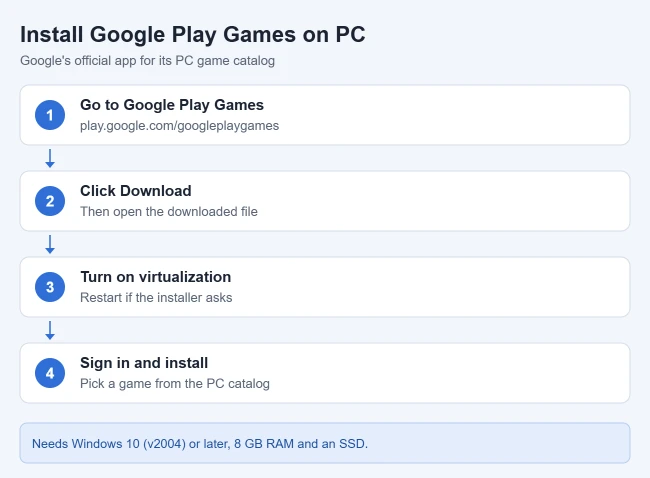
- Open Google Play Games for PC in your browser and select the download or Get started on PC option. The installer file downloads to your PC.
- Open the downloaded file and follow the on-screen prompts. If your PC misses a requirement, the installer names it and stops.
- If you’re asked to turn on Windows Hypervisor Platform, accept and restart the computer. If it’s already on, you won’t see this prompt.
- Open Google Play Games and sign in with your Google account. Use the same account as on your phone if you want supported games to carry your progress across devices.
- Find a game and select its install option. The game downloads and appears in your library.
Games you install launch from Google Play Games, which runs as a normal Windows app. A game on your phone may not be offered on PC, and only the Windows user who first installed Google Play Games can open it and play.
Open the Google Play Store Inside BlueStacks 5
BlueStacks is a third-party Android emulator: a Windows program that creates an Android environment. The real Play Store runs inside that environment, so you can install most Android apps. They are not Windows apps, and some apps refuse to run in an emulator even if they install.
Check the vendor’s system requirements first. Current BlueStacks 5 releases need Windows 10 or later, an Intel or AMD processor, at least 4 GB of RAM, 5 GB of free storage, administrator access and current graphics drivers. BlueStacks recommends 8 GB of RAM, an SSD and virtualization turned on. Those requirements don’t promise support for ARM-based Windows PCs.
A PC in S mode can’t run the BlueStacks installer until you exit S mode in Windows 11.
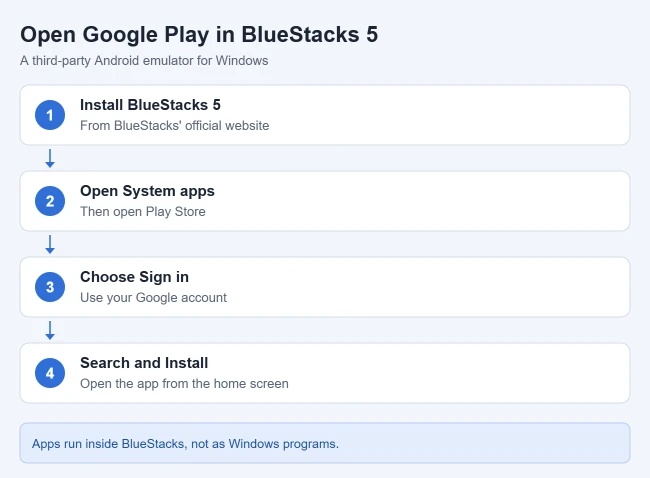
- Go to BlueStacks’ official website and download BlueStacks 5, the installed Android player. Avoid copies from download mirror sites.
- Open the downloaded installer. Review its terms and options, and if you agree, select Agree and Install. When setup finishes, BlueStacks 5 opens.
- On its home screen, open System apps > Play Store.
- Select Sign in and complete the Google account prompts inside the Play Store. Review the account setup choices before you continue.
- Search for the app you want, open its listing and select Install. If the button is missing, the app isn’t offered for that Android environment.
- When installation finishes, open the app from the BlueStacks home screen.
The app opens inside the BlueStacks window. Start BlueStacks again whenever you want to use it.
These steps follow the vendor’s guides to installing BlueStacks 5, signing in to Google Play and installing an app through the Play Store. If a service rejects the emulator, use its Android device, website or Windows app instead of hunting for a different APK file.
Use the Play Website to Install on an Android Device
If you want to browse the store on a bigger screen, send apps to your Android device from the Play website:
- Go to play.google.com in your PC browser and sign in with the account on your Android device.
- Find an app and click Install.
- Check the note under the button that says which of your devices can use it.
- Pick the device from the dropdown and click Install again.
The app installs on the phone or tablet, not on Windows. Google explains this remote installation method.
An iPhone works differently. The steps for using Google Play content on iPhone cover it.
Use Apps From a Supported Android Phone With Phone Link
If the app is already on your phone, Phone Link can show it on the PC on supported devices. It mirrors the app running on your phone; it doesn’t install a copy in Windows. The details are in Microsoft’s guide to using Android apps on your PC.
Microsoft’s Apps requirements list Android 10 or later with Link to Windows preinstalled, a PC with DirectX 11 graphics, and both devices on the same Wi-Fi network. Ordinary Phone Link pairing doesn’t mean your phone supports Apps.
- Search Start for Phone Link, open it and choose Android.
- Open Link to Windows on the phone and sign in with the same Microsoft account. Follow Microsoft’s pairing instructions to scan the QR code shown on the PC, and review each permission before you allow it.
- In Phone Link on the PC, select Apps, finish the setup prompts, then select a phone app to open it.
The app appears in a PC window while it keeps running on the phone. Some apps don’t work well with a mouse or keyboard, and running several apps at once needs Android 11 and a device Microsoft marks as eligible.
Why Windows Subsystem for Android Instructions No Longer Work
Older guides install the Play Store through Windows Subsystem for Android. Starting March 5, 2025, Windows Subsystem for Android and the Amazon Appstore aren’t available in the Microsoft Store. Skip any guide or “installer” that promises to add Google Play to it. For services with a Windows version, check the Microsoft Store or the service’s website.
Which Option Should You Use?
| If you want to… | Use |
|---|---|
| Play Android games with Google’s support | Google Play Games for PC |
| Run most other Android apps on your PC | BlueStacks 5 (third-party emulator) |
| Send an app to your Android phone or tablet | play.google.com in your browser |
| Use an app already on a supported Android phone | Phone Link Apps |
| Install an APK file from the developer | An emulator such as BlueStacks, which can install an APK on Windows 11 |
If It Doesn’t Work
- Google Play Games installer stops: fix the requirement the installer names, restart and run it again. Google also suggests uninstalling and reinstalling the app.
- Virtualization error: turn on CPU virtualization in UEFI/BIOS, then confirm it in Task Manager > Performance > CPU.
- Another emulator stopped working: other emulators may not run while Windows Hypervisor Platform is on. Update the emulator, or turn the feature off when you’re not using Google Play Games.
- A Play Store app won’t open in BlueStacks: update BlueStacks and the app. Some apps block emulators on purpose, and streaming apps may refuse to play video.
To remove either app, open Settings > Apps > Installed apps, select the three dots next to it and choose Uninstall.
Frequently Asked Questions
Can I install the Google Play Store directly on Windows 11?
Not as a standalone Windows app. Google offers Google Play Games for games, and the full Play Store runs only inside an Android environment such as an emulator.
Is Windows Subsystem for Android still available?
No. Windows Subsystem for Android and the Amazon Appstore stopped being available in the Microsoft Store on March 5, 2025, so guides that rely on it no longer work.
Do I need virtualization turned on?
For Google Play Games, yes. Google may ask you to turn on Windows Hypervisor Platform, and many games need CPU virtualization enabled in your BIOS. BlueStacks recommends it for better performance.
Will my game progress sync with my phone?
In supported games, yes. Sign in to Google Play Games with the same Google account you use on your phone.
Is it safe to download the Play Store from other websites?
No. Install Google Play Games from Google and BlueStacks from its developer. Play Store “installers” and APK mirror sites can bundle malware.
Related Guides

Matthew Burleigh is the founder, head writer, and editor of Solve Your Tech, which he launched in 2012. He has written technology tutorials since 2008 and worked in IT since 2003, including small-business support, IT management, and consulting. He holds Bachelor’s and Master’s degrees in Computer Science from Arizona State University.
Matthew writes practical guides for Windows, iPhone and iPad, Microsoft Office, Outlook, Google apps, and Android. Solve Your Tech’s guides are checked step by step against the device or app maker’s own documentation and tested on his own devices whenever he has the hardware or software, with clear steps, sources, and update dates.
Read more about Matthew and how Solve Your Tech writes and updates its guides, or report a correction.