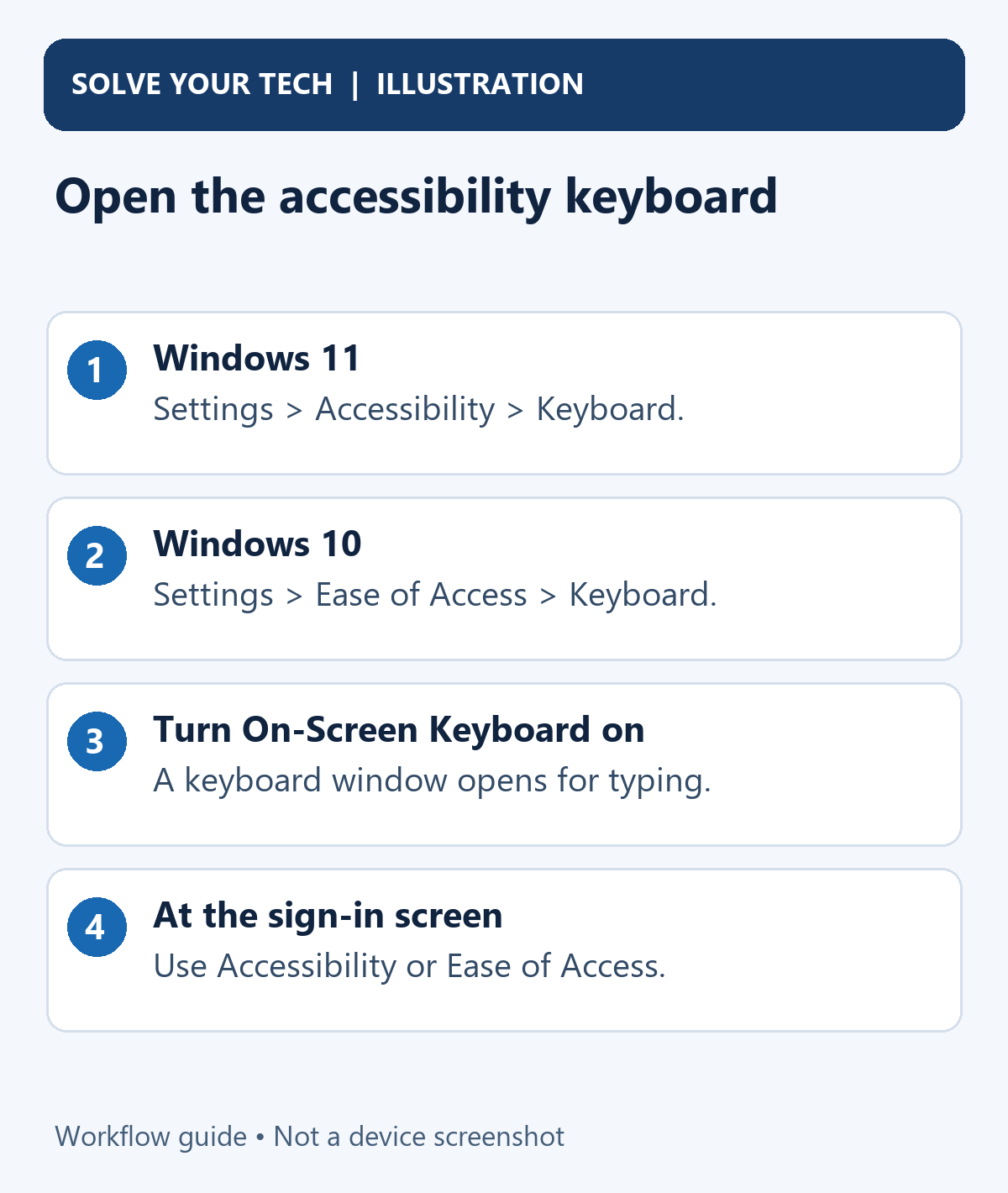
Press Windows key + Ctrl + O to open the Windows On-Screen Keyboard. If your physical keyboard is not working, use the mouse: in Windows 11, open Start → Settings → Accessibility → Keyboard and turn on On-screen keyboard. Windows 10 uses Settings → Ease of Access → Keyboard → Use the On-Screen Keyboard.
The On-Screen Keyboard, often shortened to OSK, is a built-in accessibility tool. It displays keys you can select with a mouse, another pointing device, or touch. You do not need a touchscreen, a download, or a replacement keyboard to start using it.
This guide covers Windows 11 and Windows 10 separately, including access before you sign in. The touch keyboard that appears on tablets is a different Windows tool; its controls are explained later so you can choose the correct one. On a Windows 10 touch device, you can also turn on Tablet mode in Windows 10 for a more touch-friendly layout.
In this guide
- Open OSK with a shortcut or Windows Settings
- Open it at the sign-in screen
- Try Search, Run, or older menu routes
- Enter text and choose an input mode
- Restore missing letter keys or add a number pad
- Compare OSK with the touch keyboard
- Close the keyboard and troubleshoot problems
Choose a method that your available controls can use
| Situation | Best place to start |
|---|---|
| Your physical keyboard still works | Windows key + Ctrl + O |
| You can move and click the mouse, but cannot type | The version-specific Settings method |
| You need to enter a sign-in password or PIN | Accessibility or Ease of Access on the sign-in screen |
| You can type, but cannot find the Settings switch | Search for On-Screen Keyboard, or run osk |
| You want a tablet keyboard for touch input | The separate touch keyboard settings |
If only some physical keys work, avoid choosing a method that requires the broken keys. A keyboard shortcut cannot help when you cannot press its combination, so use the mouse route instead.
Open the On-Screen Keyboard with a shortcut
- Hold the Windows key and Ctrl. Use the key with the Windows logo together with either Ctrl key.
- Press O once, then release the keys. This is the letter O, not the number zero. The On-Screen Keyboard window should appear.
- Select a text field and try an on-screen key. Place the text cursor where you want to type, then select a letter on the displayed keyboard. It should appear in that field.
The same combination can toggle OSK off again. Press it once and inspect the result rather than repeatedly pressing it while the window opens. Microsoft's Windows accessibility shortcuts list this combination for both Windows versions.
Turn on the On-Screen Keyboard in Windows 11
- Click Start, then Settings. This opens Windows Settings. If your physical keyboard works, Windows key + I is another way to open it.
- Select Accessibility. Find it in the Settings navigation, then select Keyboard on the right.
- Turn on On-screen keyboard. The switch opens a keyboard window that you can use to move around the screen and enter text.
- Return to the app where you want to type. Select its text field, then click or tap keys in the OSK window.
The keyboard remains open until you close it. You can close Settings once OSK is available; leaving the Settings page open is not required for typing.
Turn on the On-Screen Keyboard in Windows 10
- Click Start and open Settings. Use the mouse if the physical keyboard is unavailable.
- Open Ease of Access. Select Keyboard from that category's navigation.
- Turn on Use the On-Screen Keyboard. The keyboard appears as a separate window on your desktop.
- Click a text field in your app and select an on-screen key. Confirm that the character goes into the field you intended.
Microsoft's OSK instructions use Accessibility for Windows 11 and Ease of Access for Windows 10. These are different version labels for the relevant Settings category.
Microsoft ended standard free Windows 10 support on October 14, 2025. The keyboard instructions still describe that version's controls; enabling OSK does not change the operating system's support status.
Open the keyboard before signing in
You can access OSK without reaching the desktop. This is useful when you have a working mouse or touchscreen but cannot type your account password or PIN on the physical keyboard.
- Go to the Windows sign-in screen. Select your account if Windows shows several accounts, then select the password or PIN field you intend to use.
- Select the accessibility control at the lower right. Windows 11 calls it Accessibility; Windows 10 calls it Ease of Access.
- Select or turn on On-Screen Keyboard. The displayed keyboard becomes available for entering your sign-in information.
- Enter the information using the displayed keys and sign in normally. The keyboard is an input method; it does not bypass your account's sign-in requirements.
Check the keyboard again after you reach the desktop. If the sign-in instance has closed, open OSK with the desktop method. Also check its layout: Windows can remember a navigation-only layout from the sign-in screen, as explained below.
The initial setup screens on a brand-new PC or a gaming handheld are not necessarily identical to the normal account sign-in screen. Device-specific controller shortcuts should not be assumed to work on every Windows computer.
Other ways to open OSK
Search for the keyboard
- Open Windows Search. Select its taskbar search control or press Windows key + S if those keys work.
- Type On-Screen Keyboard or osk. Find the Windows On-Screen Keyboard app in the results.
- Select Open or press Enter. The keyboard window opens. Select a text field before using its keys.
Search is convenient when you can type but cannot find a Settings category. If you cannot type at all, use the mouse-based Settings method instead.
Use the Run dialog
- Press Windows key + R. Windows opens the Run dialog.
- Type osk. This is the name used to launch the built-in On-Screen Keyboard.
- Select OK or press Enter. The keyboard opens on the desktop.
Microsoft's keyboard setup Q&A describes Search and Run as alternative ways to launch the traditional keyboard. Running osk is different from downloading a keyboard program or running a repair command.
Older app lists and Control Panel
If you use the older Start menu app list, look for Windows Ease of Access → On-Screen Keyboard in Windows 10. Windows 11 layouts that expose the corresponding app folder may label it Accessibility. App-list organization can change, so Search or Settings is easier when that folder is absent.
Another traditional route is Control Panel → Ease of Access Center → Start On-Screen Keyboard. This path is described in the version-specific desktop tutorials, including the Windows 11 OSK guide. If Control Panel uses icons view, find Ease of Access Center directly. You can close that window after the keyboard starts.
Enter text and check that it goes to the right place
For a simple first check, use an ordinary editable text field and enter a harmless word such as test. Click the field so that its insertion cursor is visible, then select the four letters on OSK.
If the letters appear somewhere else, select the intended field again. If nothing appears, check whether the field is editable and whether you are in the full General layout. A navigation-only keyboard cannot supply ordinary letter keys.
This check also helps separate an OSK problem from an app problem. Try a second ordinary text field before assuming that the entire keyboard has failed.
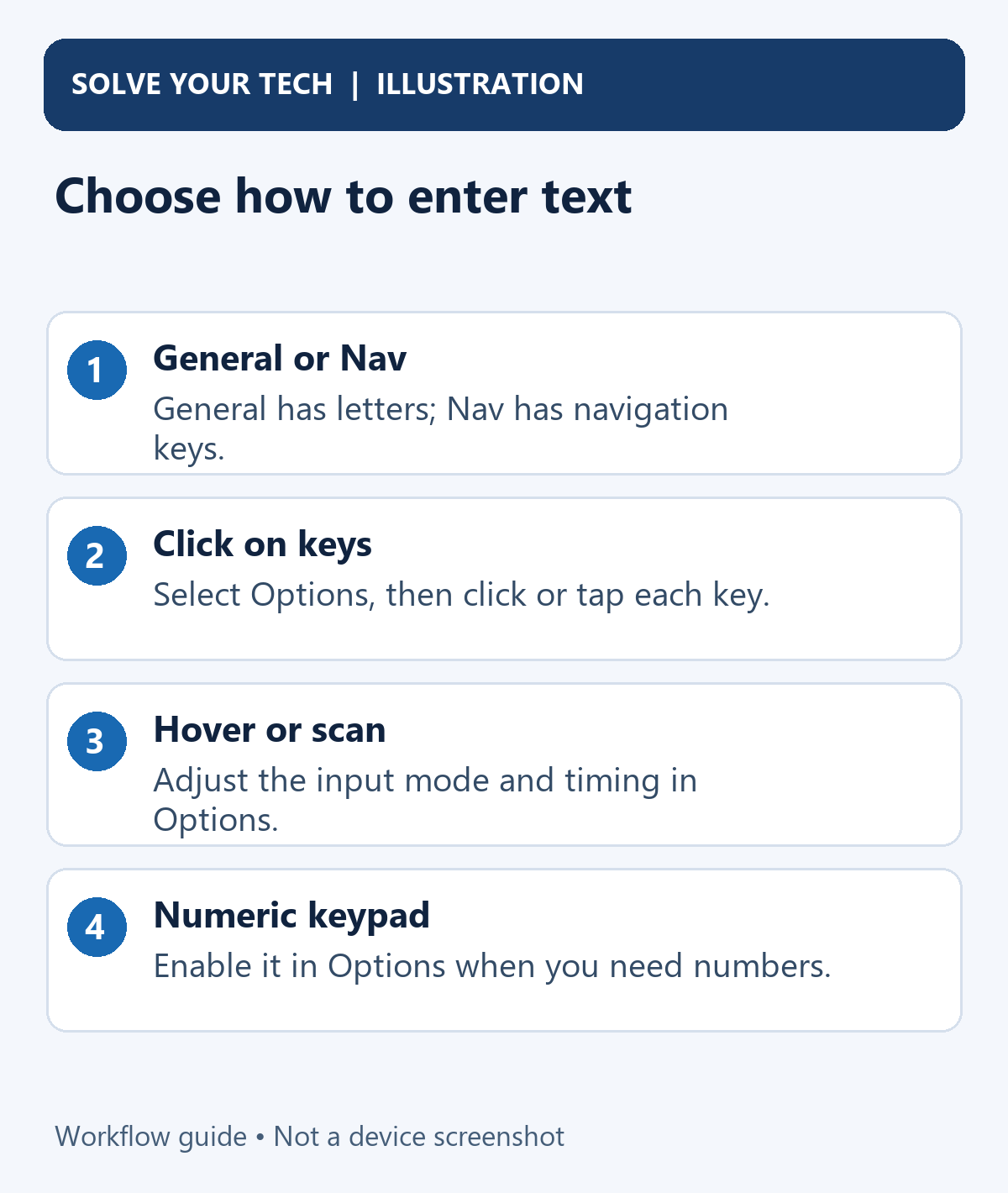
OSK has two layouts:
- General contains the standard keyboard keys for normal typing.
- Nav is a simplified layout containing navigation keys, including Tab, Enter, Space, and the arrow keys.
Select Nav on the full keyboard to switch to the navigation layout. Select General to return to the full layout with letters.
Microsoft notes that OSK remembers the last layout used. Closing and reopening it does not reset that choice. If it opens without letter keys after sign-in, select General instead of repeatedly restarting the keyboard.
Change the way keys are selected
Open OSK's Options key to choose an input method and related preferences. If you are using the simplified Nav layout and cannot find the control you need, return to General first.
Click or tap individual keys
Choose Click on keys when you want to enter each character by clicking with the mouse or tapping a touchscreen. Start with this mode if you expect a normal click to type one character.
Hover over keys
Choose Hover over keys when you prefer pointing to a key without clicking it. OSK enters the character after the pointer stays on the key for the specified time.
Adjust Hover duration where shown. A longer delay can reduce accidental entries while you move across the keyboard; a shorter delay may feel faster once you can point accurately. Try a harmless text field after changing the timing.
Scan through keys
Choose Scan through keys when you use a switch, a selected physical key, or another supported input device to choose highlighted keys. OSK moves through areas of the keyboard, and your selection input chooses the highlighted area or key.
Microsoft's current documentation includes scan selection using a mouse click, a chosen keyboard key, or a joystick, gamepad, or other gaming device. Adjust Scanning speed where available so the highlights move at a pace you can follow. Available controls depend on the input mode and Windows version.
Add a number pad, sounds, or word predictions
In Options, enable Turn on numeric keypad when you need a separate number pad. Check the expanded keyboard and its Num Lock state if the pad is showing navigation behavior rather than entering numbers.
Use click sound supplies an audible cue when a key is pressed. It does not change which field receives the character. Microsoft describes the other movement or highlighted-key options somewhat differently between its Windows 10 and Windows 11 instructions, so use the description shown for your version.
Use Text Prediction suggests words while you type. Microsoft's OSK help lists prediction support for English, French, Italian, German, and Spanish, and notes that the relevant language files must be installed. It does not promise predictions for every language or every kind of text field.
If Insert space after predicted words is available, use it when you want OSK to add a space after a selected suggestion. Turn that preference off again if you would rather decide when each space is inserted.
Enable a Physical or On-Screen Number Pad
For a physical keypad, press Num Lock and test its number keys in a normal text field. If the keys act as arrows or navigation controls, check that Num Lock is enabled. Some laptops use a manufacturer-specific Fn combination for an integrated keypad; check the device manual instead of assuming Fn + Num Lock works on every model. A Windows setting cannot add physical keys to a keyboard that lacks them.
For the on-screen alternative, open OSK, choose Options, check Turn on numeric keypad and select OK. Then select the displayed NumLock key if needed so the pad shows digits. Click your destination text field and enter a few numbers to verify the result. Microsoft’s OSK guide documents the numeric-keypad option.
If the physical keypad moves the pointer, check Settings > Accessibility > Mouse > Mouse keys. This feature deliberately uses the keypad for pointer control. Turn it off only if you do not use it; Microsoft’s Mouse keys guide explains its behavior.
How to Turn Off On-Screen Keyboard Sounds
For the accessibility keyboard, press Windows + Ctrl + O, select Options, clear Use click sound, and select OK. Try an on-screen key in a text field to confirm that the click is gone. Microsoft documents this option in its On-Screen Keyboard guide.
The tablet-style touch keyboard has separate controls. Open its settings from the keyboard’s gear menu, or search Windows Settings for Play key sounds as I type, and turn that sound option off if your version offers it. Older Windows versions use Devices > Typing; do not expect that older category name in Windows 11.
If a physical keyboard still beeps, identify the source: an app, a keyboard utility, and the Toggle Keys accessibility sound use different settings. Muting OSK does not silence every keyboard-related sound.
OSK and the touch keyboard are separate tools
Both show keys on the screen, but they have different settings. OSK is the accessibility keyboard opened by the routes above. The touch keyboard is designed for touch input and has its own taskbar icon and tablet-related behavior.
In current Windows 11 instructions, right-click the taskbar, select Taskbar settings, and look under Personalization → Taskbar → System tray icons → Touch keyboard. Choosing Always keeps its icon available; select that icon to open the touch keyboard. When no keyboard is attached makes the icon conditional. Keeping the icon visible is not the same as guaranteeing that every app opens the keyboard automatically when you select a field.
In Windows 10, right-click the taskbar and select Show touch keyboard button to display its icon. Its separate automatic-appearance preference is under Settings → Devices → Typing → Touch keyboard, with a label referring to showing the touch keyboard when not in tablet mode and no keyboard is attached.
Microsoft's touch keyboard guide documents the current version-specific controls. Older Windows 11 guides may show Taskbar corner icons or older Typing controls. Follow the labels on your installed version, and remember that a connected Bluetooth keyboard can count as an attached keyboard too.
Touch keyboard features such as handwriting, emoji panels, and themes belong to that tool. They are not prerequisites for opening OSK. If your goal is to type with a mouse on a desktop, start with OSK. If you only want emoji, see how to open the emoji keyboard in Windows 11.
Close the On-Screen Keyboard or restore it later
Select the keyboard window's Close (X) button when you are finished. You can also use Windows key + Ctrl + O or return to your version's Keyboard settings and turn the OSK switch off.
If you minimized the keyboard instead of closing it, return to its taskbar entry. Microsoft also describes restoring it by pointing to that entry in hovering mode or using the scan key in scanning mode. Its OSK help lists Task View as another recovery route after minimizing and changing tablet mode.
To use it later, open it again with any suitable method above. Check General or Nav and your selection mode if it behaves differently from the last time you used it.
Troubleshooting
The shortcut does nothing
Check that you used Windows + Ctrl + the letter O. Try Settings with the mouse to see whether OSK itself opens. If Settings works, the issue is with the shortcut or the physical keys, rather than proof that OSK is missing.
I see arrows and navigation keys but no letters
Select General. Closing and reopening OSK leaves its remembered layout intact, so repeatedly launching it will not fix a Nav selection.
Keys type automatically or react too slowly
Open Options and check whether Hover over keys or Scan through keys is selected. Choose Click on keys for deliberate clicks, or adjust the timing for the input mode you intended to use.
The keyboard opens unexpectedly
First identify whether it is OSK or the touch keyboard. Close OSK and check its switch in Accessibility or Ease of Access. A touch keyboard that appears when selecting a field uses the separate controls above.
If you deliberately created a startup shortcut for OSK, review that choice when it reopens at sign-in. Closing its current window and removing a deliberate startup instruction are different actions. Unexpected startup behavior does not justify disabling unrelated Windows input services.
OSK opens, but my physical keyboard still fails
OSK gives you another way to enter text; it does not repair the physical keyboard. Our Windows 11 keyboard troubleshooting guide covers connections, key behavior, and driver issues as a separate task.
The displayed keys are hard to see
You can use Windows Magnifier for a closer view, or review Windows contrast themes and high contrast when colors are difficult to distinguish. Change one preference at a time and check whether the combination remains easy to use.
The control is blocked on a work computer
Check with your organization's support team if a policy or access restriction prevents using the documented setting. Explain which Windows version you have and whether the switch is absent, disabled, or opens a keyboard that will not type. Those details are more useful than repeatedly trying different launch commands.
Frequently asked questions
Can I use OSK without a touchscreen?
Yes. Microsoft's accessibility keyboard supports a mouse or other pointing device. Touch is an additional input option, not a requirement.
Do I need to install OSK?
No. It is included with Windows. Open it from Settings, Search, or a documented shortcut instead of downloading a third-party keyboard just to carry out this task.
Can I use it while a physical keyboard is connected?
Yes. OSK can provide an alternative input method while the physical keyboard is present. The touch keyboard's conditional icon settings are separate.
Why does a tablet keyboard not appear when I click a text field?
Automatic touch keyboard behavior depends on the Windows version, device, attached keyboard, and app. Opening OSK explicitly gives you an alternative to waiting for that automatic behavior, provided you can reach its controls with a working pointing device or other input method.
Open the keyboard using a method your available controls can reach, select General for ordinary typing, and try a harmless word in the intended text field. Once that works, adjust only the input options that make typing easier for you.

Matthew Burleigh is the founder, head writer, and editor of Solve Your Tech, which he launched in 2012. He has written technology tutorials since 2008 and worked in IT since 2003, including small-business support, IT management, and consulting. He holds Bachelor’s and Master’s degrees in Computer Science from Arizona State University.
Matthew writes practical guides for Windows, iPhone and iPad, Microsoft Office, Outlook, Google apps, and Android. Solve Your Tech’s guides are tested on current devices or checked against official product documentation, with clear steps, sources, and update dates.
Read more about Matthew and how Solve Your Tech writes and updates its guides, or report a correction.