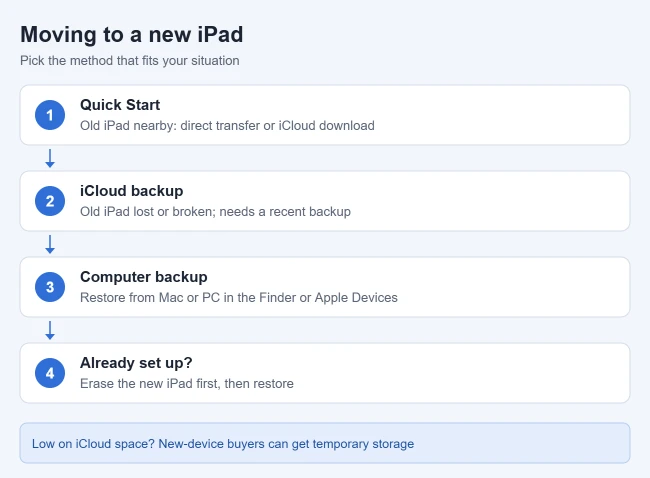
To move everything to a new iPad, turn it on next to your old iPad. When the Quick Start prompt appears on the old iPad, tap Continue, hold it over the animation on the new iPad, and follow the steps. Choose to transfer directly from the old iPad or download from iCloud.
This guide covers Quick Start, restoring from an iCloud backup when the old iPad isn’t available, restoring from a computer backup, what to do if you’ve already set up the new iPad, and how to prepare the old one to sell or give away.
Before you start
- Update the old iPad in Settings > General > Software Update. Apple says Quick Start needs iPadOS 13 or later on the old iPad.
- Turn on Wi-Fi and Bluetooth on the old iPad.
- Keep both iPads plugged in, and have your Apple Account password ready.
- Pick a time when you won’t need the old iPad. A direct transfer can take from several minutes to two hours, depending on your Wi-Fi.
Option 1: Use Quick Start
- Unlock the old iPad and go to the Home Screen.
- Turn on the new iPad and place it next to the old one. Result: a Quick Start prompt appears on the old iPad.
- Check that it shows your Apple Account and tap Continue.
- Hold the old iPad over the animation on the new iPad so the camera can see it. If the camera can’t, tap Authenticate Manually.
- Enter your old iPad’s passcode on the new iPad, then connect to Wi-Fi.
- Set up Face ID or Touch ID.
- Choose how to transfer. Download from iCloud lets you use the new iPad while apps and data download in the background. Transfer from iPad copies directly, and both iPads are busy until it finishes.
- Keep the iPads together and plugged in until the transfer finishes. Result: the new iPad shows your apps, settings, and data.
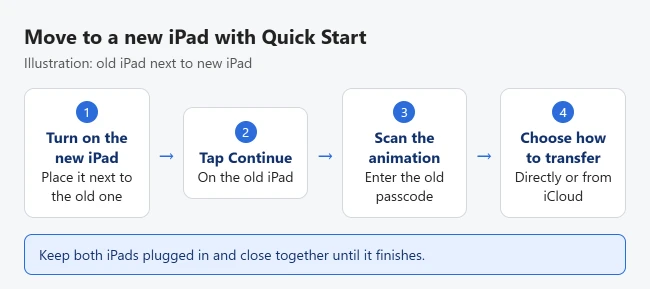
These steps follow Apple’s Quick Start guide. If the prompt disappears from the old iPad, Apple says to restart both devices. Apple also notes that Quick Start isn’t available if the new iPad is enrolled in Apple School Manager or Apple Business.
Option 2: Restore from an iCloud backup
Use this if the old iPad is lost, broken, or already traded in. You need a recent iCloud backup of it.
- Turn on the new iPad and follow the steps until you see the Wi-Fi screen, then join a network.
- On the Apps & Data screen, tap Restore from iCloud Backup.
- Sign in with your Apple Account.
- Choose a backup, checking the date and size to make sure it’s the right one. Result: the restore begins.
- If asked, sign in to any other Apple Accounts you used to buy apps or media.
- Stay on Wi-Fi and plugged in until the restore finishes, then complete setup.
Apple explains these steps in Use iCloud to transfer data to your new iPad. After setup, keep the iPad on Wi-Fi and power so photos, music, and apps can finish downloading.
Not enough iCloud space? Apple offers temporary iCloud storage when you buy a new iPad. On the old iPad, go to Settings > General > Transfer or Reset iPad and tap Get Started under Prepare for New iPad. Apple gives you 21 days to restore that backup. See Apple’s temporary iCloud storage page.
Option 3: Restore from a computer backup
- Back up the old iPad to your Mac or PC in the Finder, Apple Devices app, or iTunes.
- Turn on the new iPad and follow the steps until the Apps & Data screen, then tap Restore from Mac or PC.
- Connect the new iPad to the same computer, select it in the Finder, Apple Devices, or iTunes, and trust the device if asked.
- Select Restore Backup, pick the right backup by date and size, and enter the password if it’s encrypted. Result: the restore runs, then the iPad finishes setup.
Apple notes that Health and Activity data transfer only from an encrypted computer backup. See Apple’s computer backup instructions.
Already set up the new iPad?
Quick Start and backup restores run only during setup. Apple says you need to erase the new iPad first: go to Settings > General > Transfer or Reset iPad > Erase All Content and Settings. This removes everything on the new iPad, so move anything you added first.
If you only need a few things, you don’t have to erase it. Use AirDrop for photos and files, or sign in to the same Apple Account and turn on iCloud for Photos, Notes, and other apps.
What transfers
- Apps: they download again from the App Store, with their data from the backup or transfer.
- Settings, photos, messages, and accounts: included in Quick Start and backups.
- Health and Activity data: if you restore from a computer backup, Apple says it must be encrypted for these to transfer.
- Purchases from other Apple Accounts: sign in to each account when asked.
Troubleshooting
- Quick Start doesn’t appear: make sure Bluetooth is on and the old iPad is updated, unlocked, and on its Home Screen. Restart both iPads if the prompt disappears.
- Transfer is slow: move closer to your router, keep both iPads plugged in, and avoid using them until it finishes.
- Asked to update iPadOS: Apple says you may need to update the new iPad before a newer backup can be restored. Follow the prompts.
- Backup isn’t listed: check that you’re signed in with the Apple Account that made the backup.
Frequently asked questions
What should I do with the old iPad?
Once you’ve checked the new one, erase the old iPad in Settings > General > Transfer or Reset iPad > Erase All Content and Settings before you sell or give it away. If you used temporary iCloud storage, restore it first.
Does this work for iPhones too?
Yes. The same process works for iPhones. See how to transfer data from iPhone to iPhone and Apple’s transfer options page.
Can I keep my old iPad and new iPad in sync?
Yes, if you keep using both. Sign in to both with the same Apple Account and turn on iCloud for your apps. See how to sync an iPad and iPhone; the steps are the same for two iPads. Before backing up the old iPad, you can make the iCloud backup smaller by turning off apps you don’t need.
Setting up the new iPad somewhere new? See how to join a Wi-Fi network on iPad, including hidden networks and sharing a password from a nearby iPhone.

Matthew Burleigh has been writing tech tutorials since 2008. His writing has appeared on dozens of different websites and been read hundreds of millions of times.
After receiving his Bachelor’s and Master’s degrees in Computer Science he spent several years working in IT management for small businesses. However, he now works full time writing content online and creating websites.
His main writing topics include iPhones, Microsoft Office, Google Apps, Android, and Photoshop, but he has also written about many other tech topics as well.