Some of the features that I use most often in Microsoft Excel Online are the sorting features. The ability to reorganize your data can be a lifesaver, either when you are editing or evaluating data in your own spreadsheet or when you are preparing a report for someone else.
If you have used Excel for a while, then it’s likely that you have used the sorting features to sort data alphabetically or numerically.
But you can also use the sort feature to sort by date in Excel Online. Our tutorial below will show you how to select and sort a range of cells containing dates in the online version of Excel.
How to Sort a Column of Dates in Excel Online
The steps in this article were performed in Google Chrome but will also work for other desktop Web browsers, like Firefox or Edge, as well.
This guide will assume that you currently have a column of dates in a spreadsheet in your Excel Online account and that you want to be able to sort those dates by either putting the most recent date or the oldest date at the top of the column.
We will be accomplishing this sorting by selecting all of our data and turning it into a table.
Step 1: Go to Excel Online at https://office.live.com/start/Excel.aspx and sign into your Microsoft Account.
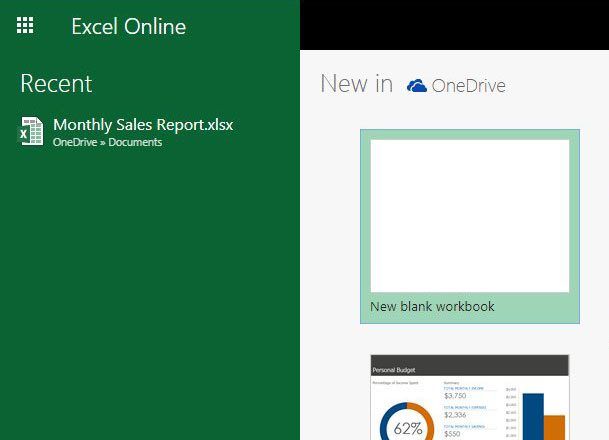
Step 2: Open the Excel file containing the column of dates that you wish to sort.
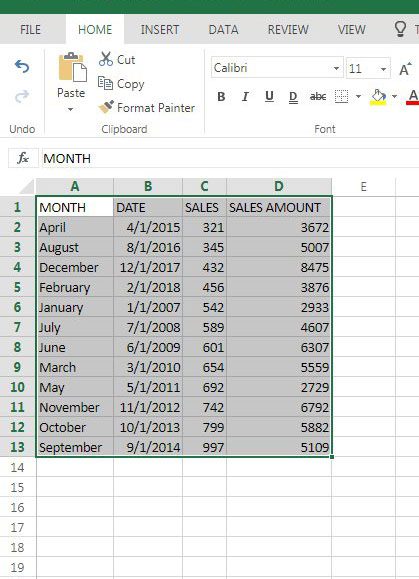
Step 3: Select all of your data. Note that if you don’t already have headers for your data, then you should add them to make this process a little easier. By headers I mean the first row above the data that identifies the type of data in your cells.
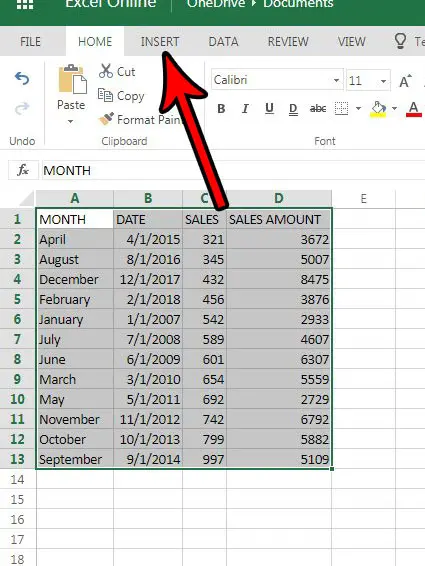
Step 4: Click the Insert tab at the top of the window.
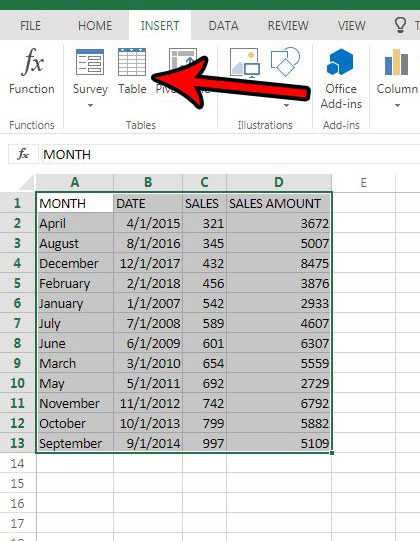
Step 5: Click the Table button in the Tables section of the ribbon.
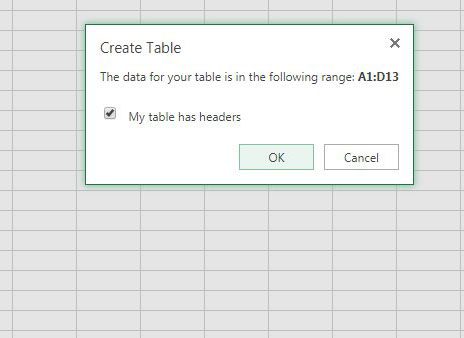
Step 6: Click the OK button on the Create Table pop-up window.
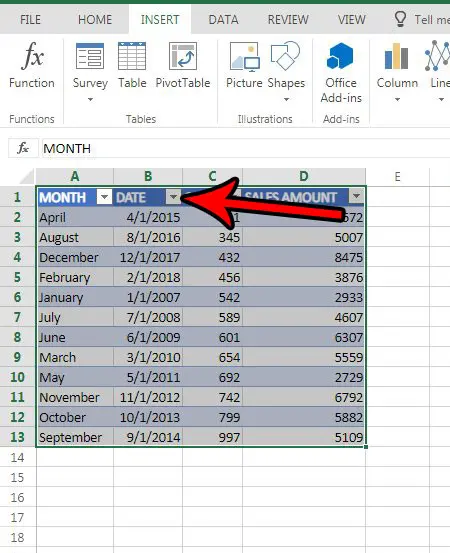
Step 7: Click the arrow button to the right of the Date column.
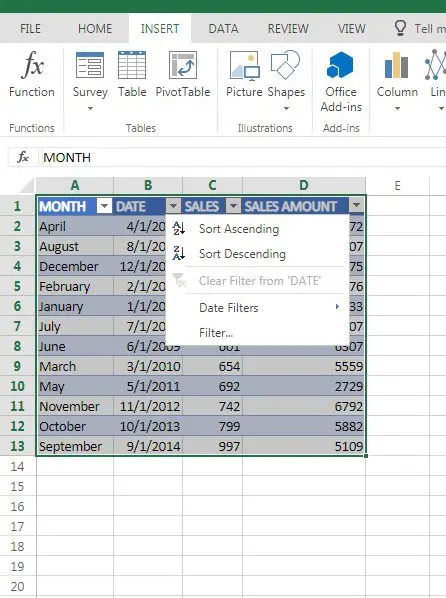
Step 8: Select the Sort Ascending or Sort Descending option. If you choose Sort Ascending then the oldest date will be at the top of the column. If you choose Sort Descending then the most recent date will be at the top of the column.
Note that this will only work if the dates in the cells are formatted in a way that Excel can interpret the data as dates. If you find that the sorting isn’t working correctly, then you may need to change the formatting of your data and try again.
Now that you know how to sort by date in Excel Online, you can use this option to quickly organize the data in your cells based on the dates that you have entered.
This article will show you how to change date formatting in the desktop version of Excel, which is very similar to how you would change the date format in the online version of Excel.

Matthew Burleigh has been writing tech tutorials since 2008. His writing has appeared on dozens of different websites and been read over 50 million times.
After receiving his Bachelor’s and Master’s degrees in Computer Science he spent several years working in IT management for small businesses. However, he now works full time writing content online and creating websites.
His main writing topics include iPhones, Microsoft Office, Google Apps, Android, and Photoshop, but he has also written about many other tech topics as well.