To add a signature line in Word, click where it should go, select Insert > Signature Line > Microsoft Office Signature Line, fill in the signer’s details, and select OK. To add your actual handwritten signature, scan it, save it as a picture, and insert it with Insert > Pictures. A true digital signature, which proves the document hasn’t changed, also needs a signing certificate.
These steps follow Microsoft’s Insert a signature in a Word document and Add or remove a digital signature in Microsoft 365 files articles. There are three kinds of “signature” in Word, and the right one depends on whether you just need a place to sign, a picture of your signature, or legally verifiable proof of who signed.
How to insert a signature line in Word
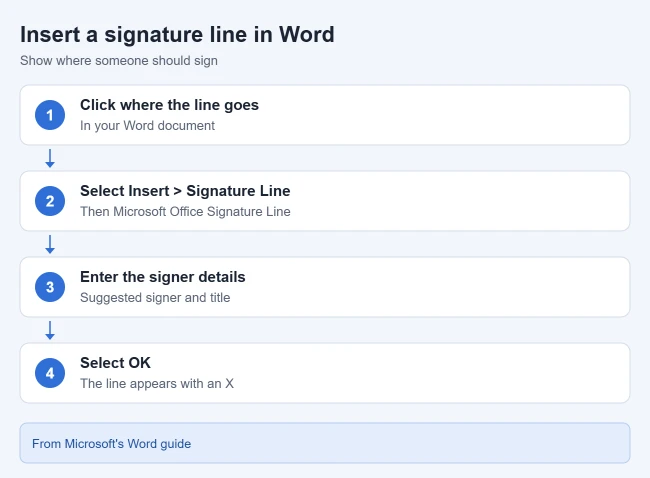
- Click where you want the line.
- Select Insert > Signature Line.
- Select Microsoft Office Signature Line.
- In the Signature Setup box, type a name in Suggested signer and, if you like, a title in Suggested signer’s title.
- Select OK.
Result: a signature line with an X appears in your document, ready to print and sign by hand or to sign digitally. If you only want a plain rule to sign on, see how to add a solid line in Word.
How to add your handwritten signature
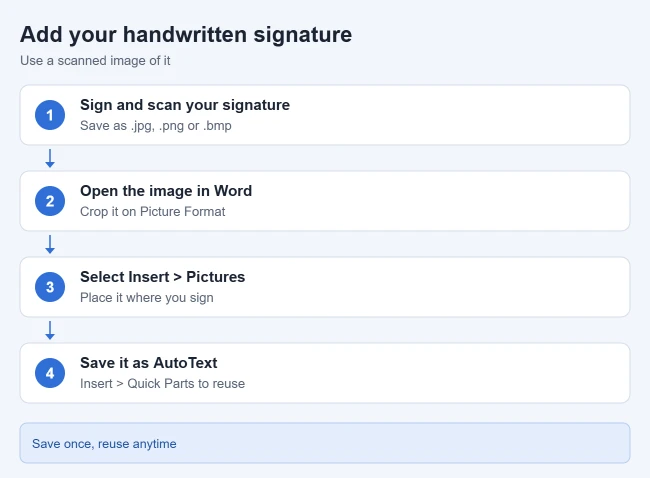
Microsoft says you need a scanner for this; a clear phone photo saved as an image file also works for many people.
- Write your signature on a piece of paper.
- Scan the page and save it as a .bmp, .jpg or .png file.
- Open the image in Word, select it, and on the Picture Format tab select Crop to trim it.
- Right-click the image and choose Save as Picture to keep a clean copy.
- To add it to a document, select Insert > Pictures and choose the file.
Result: your signature appears as a picture you can move and resize. If it lands in the wrong spot, you can delete the picture in Word and insert it again. You can also sign with a pen or finger using Word’s drawing tools; see how to draw on Word.
Save your signature block for reuse
Microsoft suggests saving your signature picture with typed details, like your job title and phone number, as AutoText:
- Type the text you want under the inserted picture.
- Select the picture and the typed text.
- Select Insert > Quick Parts > Save Selection to Quick Part Gallery.
- Name the block, choose AutoText in the Gallery box, and select OK.
- To use it later, select Insert > Quick Parts > AutoText and pick the block.
Result: your full signature block drops into any document in a few clicks.
How to add a digital signature
Microsoft describes a digital signature as an electronic, encrypted stamp of authentication that confirms where a document came from and that it hasn’t been changed. You need a signing certificate from a certification authority, which Microsoft says is typically valid for one year.
- Sign a signature line: right-click the line and select Sign. Type your name next to the X, use inking to write it, or select an image of your signature, then select Sign.
- Add an invisible signature: go to File > Info > Protect Document > Add a Digital Signature, choose a commitment type, enter a purpose, and select Sign.
Result: Microsoft says a digitally signed document becomes read-only to prevent changes, and a Signatures button appears at the bottom of the document. To remove a signature, right-click the signature line and select Remove Signature. To clean up old certificates, see how to remove certificates from Windows 11.
Which signature should you use?
| You need | Use |
|---|---|
| A place for someone to sign on paper | Signature line |
| Your signature on letters or forms you send | Handwritten signature image |
| Proof of who signed and that nothing changed | Digital signature with a certificate |
Frequently asked questions
Is a picture of my signature legally binding?
That depends on where you are and what the document is for. If authenticity matters, a certificate-based digital signature gives verifiable proof that a picture can’t. Check with the person or organization asking for the signature.
Can other people fill in the document after I sign?
Not with a digital signature, which makes the file read-only. For forms people complete before signing, see how to make a Word document fillable.
Does this work on a Mac?
Microsoft’s signature article has a separate macOS tab; check it for the Mac menu names before you start.

Matthew Burleigh is the founder, head writer, and editor of Solve Your Tech, which he launched in 2012. He has written technology tutorials since 2008 and worked in IT since 2003, including small-business support, IT management, and consulting. He holds Bachelor’s and Master’s degrees in Computer Science from Arizona State University.
Matthew writes practical guides for Windows, iPhone and iPad, Microsoft Office, Outlook, Google apps, and Android. Solve Your Tech’s guides are tested on current devices or checked against official product documentation, with clear steps, sources, and update dates.
Read more about Matthew and how Solve Your Tech writes and updates its guides, or report a correction.