To change the Live Captions position in Windows 11, select the Settings gear inside the captions window, open Position, and choose the top, bottom, or floating/overlaid option. Select the floating option before trying to drag the window freely.
Choose a docked position or movable overlay
- Press Windows + Ctrl + L to open Live Captions. If this is your first use, complete the language and speech-recognition setup. Live Captions is available in Windows 11 version 22H2 and later.
- Select the Settings gear in the Live Captions window—not the general Windows Settings app.
- Open Position. Choose the top option to dock captions above your workspace, the bottom option to dock them below it, or the floating/overlaid option for a movable window.
- If you selected the floating option, drag the captions window’s top bar to an unobstructed part of the desktop. Resize its border if you need a different amount of caption space.
Labels vary between Windows versions and documentation: you may see Top or Above screen, Bottom or Below screen, and Floating on screen or Overlaid on screen. The important distinction is docked versus floating.
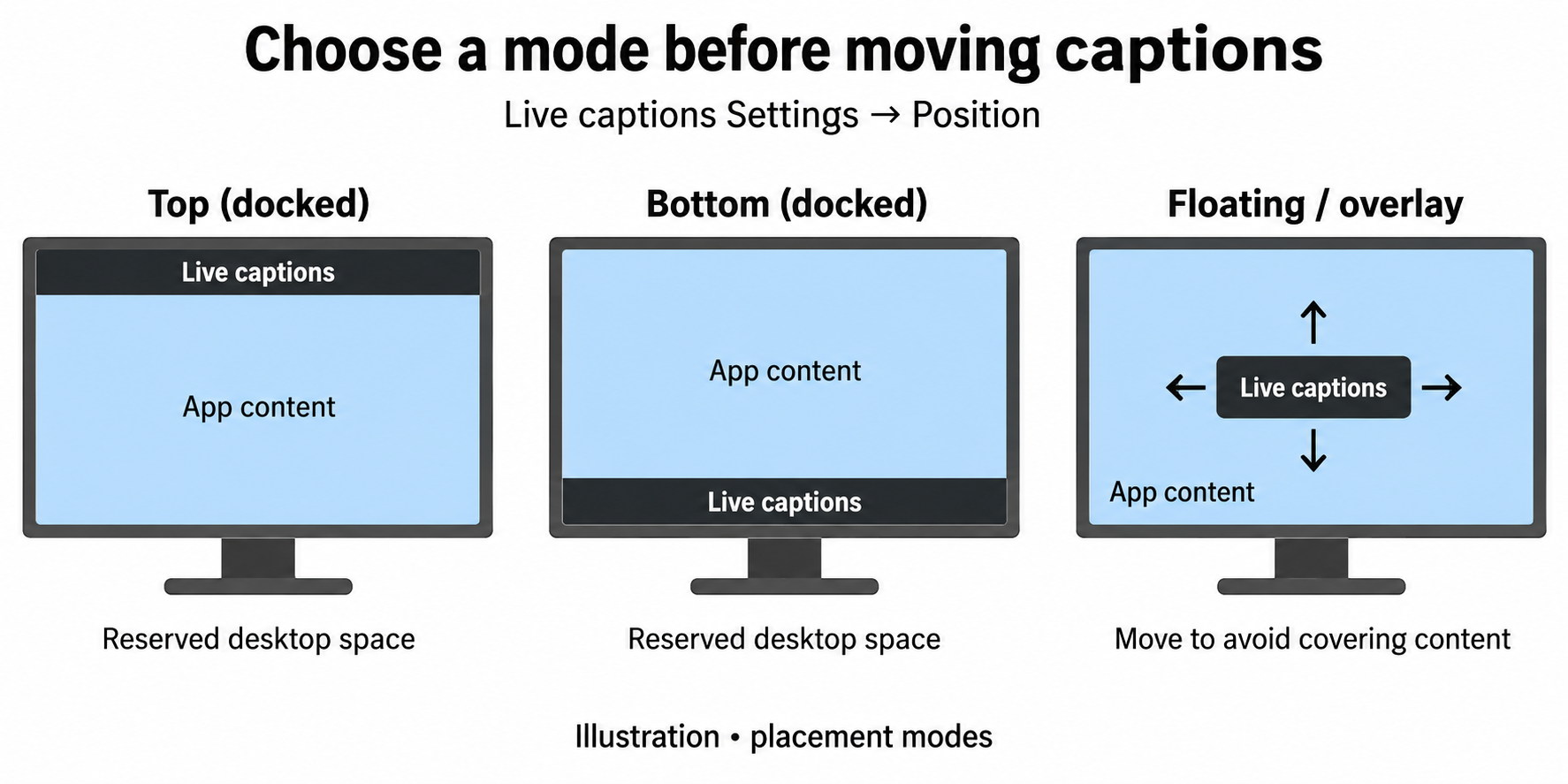
Which placement avoids covering your work?
Docking at the top or bottom reserves desktop space for captions. A floating overlay instead sits over the desktop, so place it away from the controls or text you need to use.
For example, a floating box above a video timeline may hide the seek controls even when the caption text is readable. Try a docked position for that layout, or move the overlay to a blank area. Judge the placement with your actual app open, not just against an empty desktop.
If the window will not move
- It is fixed along an edge: reopen Settings > Position and select the floating/overlaid option. A docked bar is not a freely draggable overlay.
- You want it back at an edge: choose the top or bottom position explicitly. Closing and reopening captions is not a reliable reset procedure.
- The window is open but has no words: play content containing speech to check caption output. Position controls and the caption text are separate; silence does not mean you must move the box to make it work.
- You need more readable text: Windows Settings > Accessibility > Captions contains caption-style options. Changing the style is different from choosing a position.
This guide concerns Windows Live Captions. A browser’s own Live Caption box or a video player’s built-in subtitles has separate controls. You do not need Snap Layouts or registry edits to choose the three Windows caption placements.
For the supported placement options and setup requirements, see Microsoft’s Live Captions documentation.

Matthew Burleigh has been writing tech tutorials since 2008. His writing has appeared on dozens of different websites and been read over 50 million times.
After receiving his Bachelor’s and Master’s degrees in Computer Science he spent several years working in IT management for small businesses. However, he now works full time writing content online and creating websites.
His main writing topics include iPhones, Microsoft Office, Google Apps, Android, and Photoshop, but he has also written about many other tech topics as well.